

Before integration, ensure you have the following:
- A MoEngage account
- A ConvertWay (CW) account
- A WhatsApp Business API (WABA) number
Sender Configuration
To configure a Sender from ConvertWay on the MoEngage Dashboard, follow the steps below:- Go to Settings > WhatsApp > Sender Configuration.
- Click the +Add connector from the left pane under the Sender configuration tab.
You can choose ConvertWay from the left pane if you have already added ConvertWay to your connector list.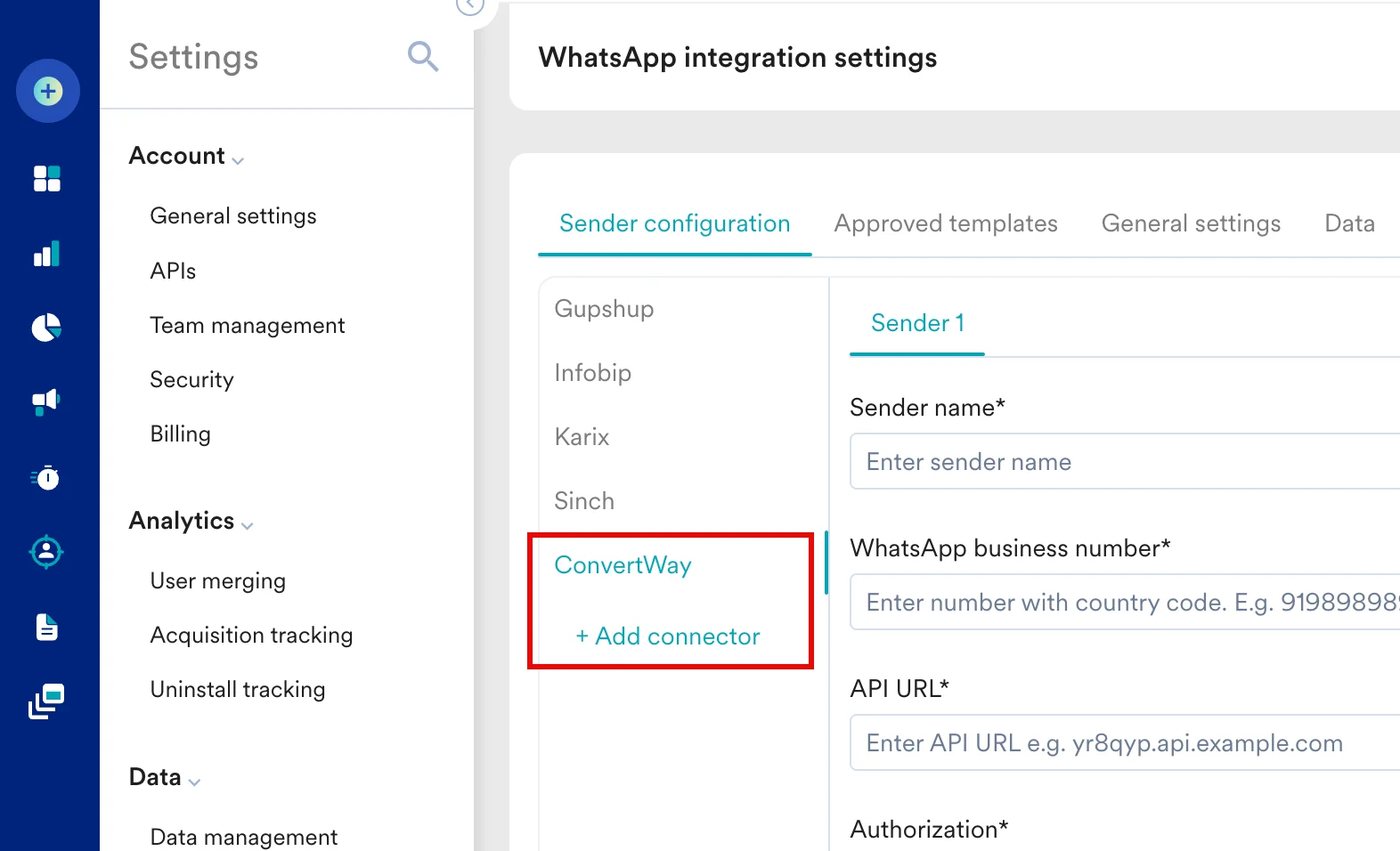
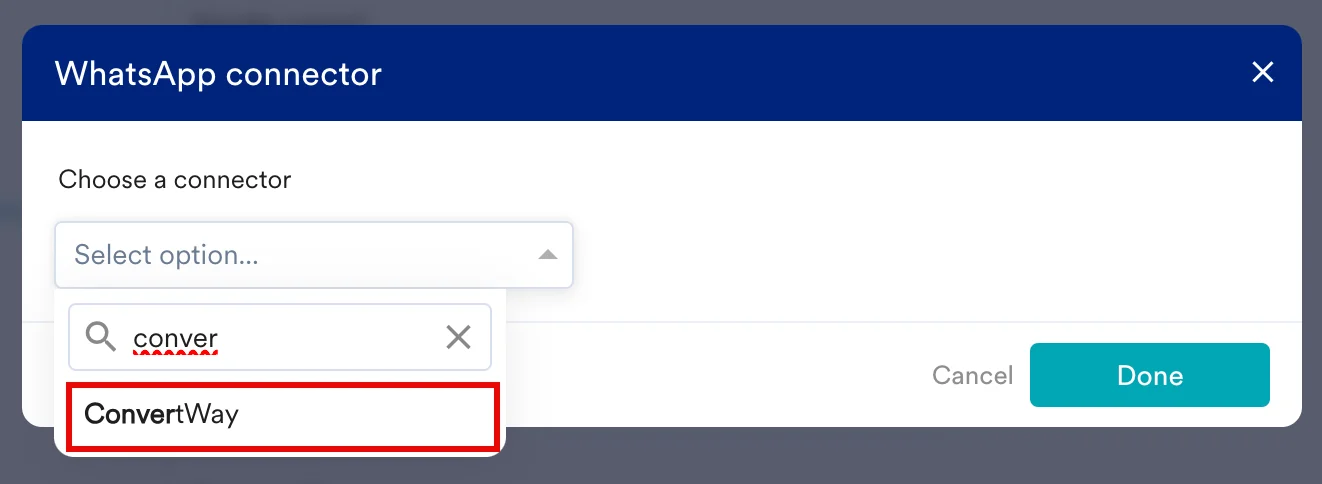
- Select ConvertWay from the Choose a connector dropdown and then click Done.
- Add the following details:
| Field Name | Description |
|---|---|
| Sender Name |
|
| WhatsApp business number |
|
| API URL | Collect the API URL from your vendor and enter it into the API URL field. Sample URL: https://app.theconvertway.com/api/v1/send_messages/moengage/sendwhatsapp |
| Authorization | Basic CW_LICENSE_KEY You can find the CW_LICENSE_KEY under Settings > Profile in your ConvertWay account. |
- Click Save.
- Notify ConvertWay to enable/validate the API token.
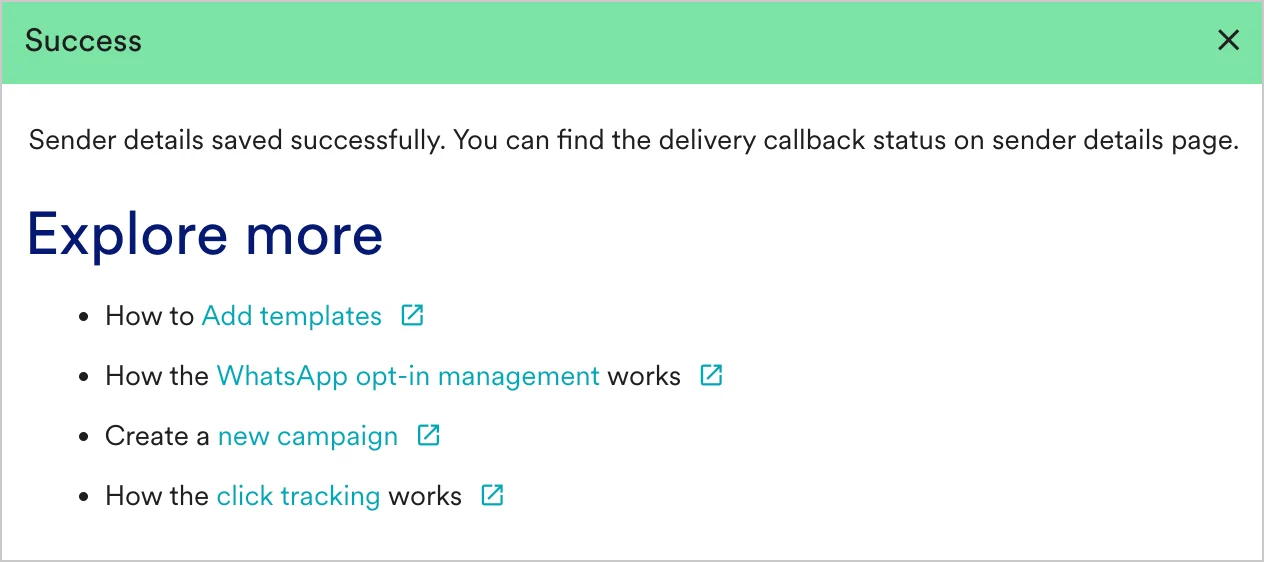
- Upon successful integration, you get the following message.
Delivery Tracking
To track the delivery of your WhatsApp Messages inside MoEngage, you need to copy the MoEngage Delivery Tracking URL and share it with Convertway to get it updated. You should be able to see the following URL: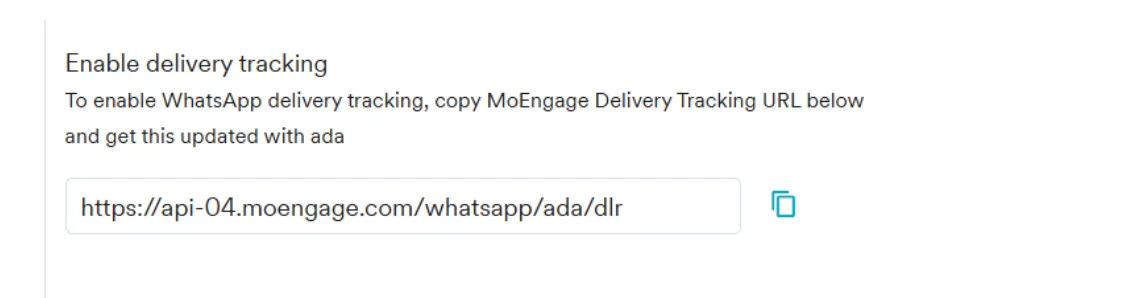
The URL in the image above is a sample URL. Copy the exact URL from your MoEngage dashboard and update it on the ConvertWay dashboard.