

Getting Started
The Drag and Drop editor is divided into two main areas: the main message editing section on the left, and the properties panel on the right. In general, you will be dragging and dropping content elements onto the stage and then editing their properties.If custom fonts are enabled for your workspace, this editor’s functionality changes accordingly. For more information, refer to Custom Fonts.
- Dark mode previewThis option allows you to preview your content in the dark mode. The generated preview is an approximation and can vary with devices and the ISP.
- Switch to HTML editorThis option allows you to switch to the HTML editor and create content using it. Once switched, you cannot revert to the drag-and-drop editor. For more information, refer to Edit/Paste HTML template.
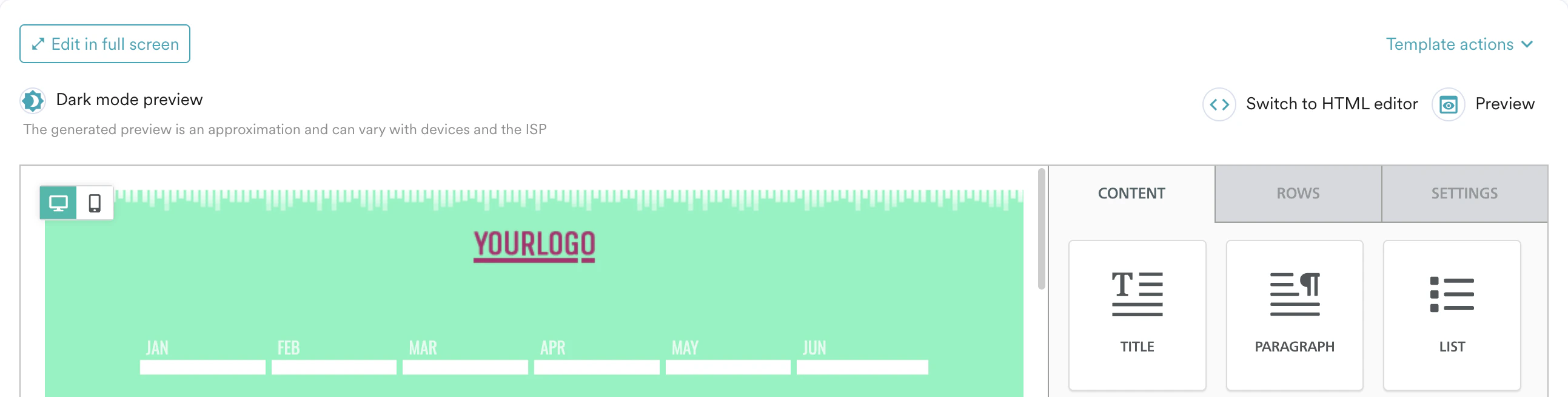
- Preview
This option allows you to preview the created content. You can preview the Subject line, Preview text, Sender Name, From email address, and Reply-to email address.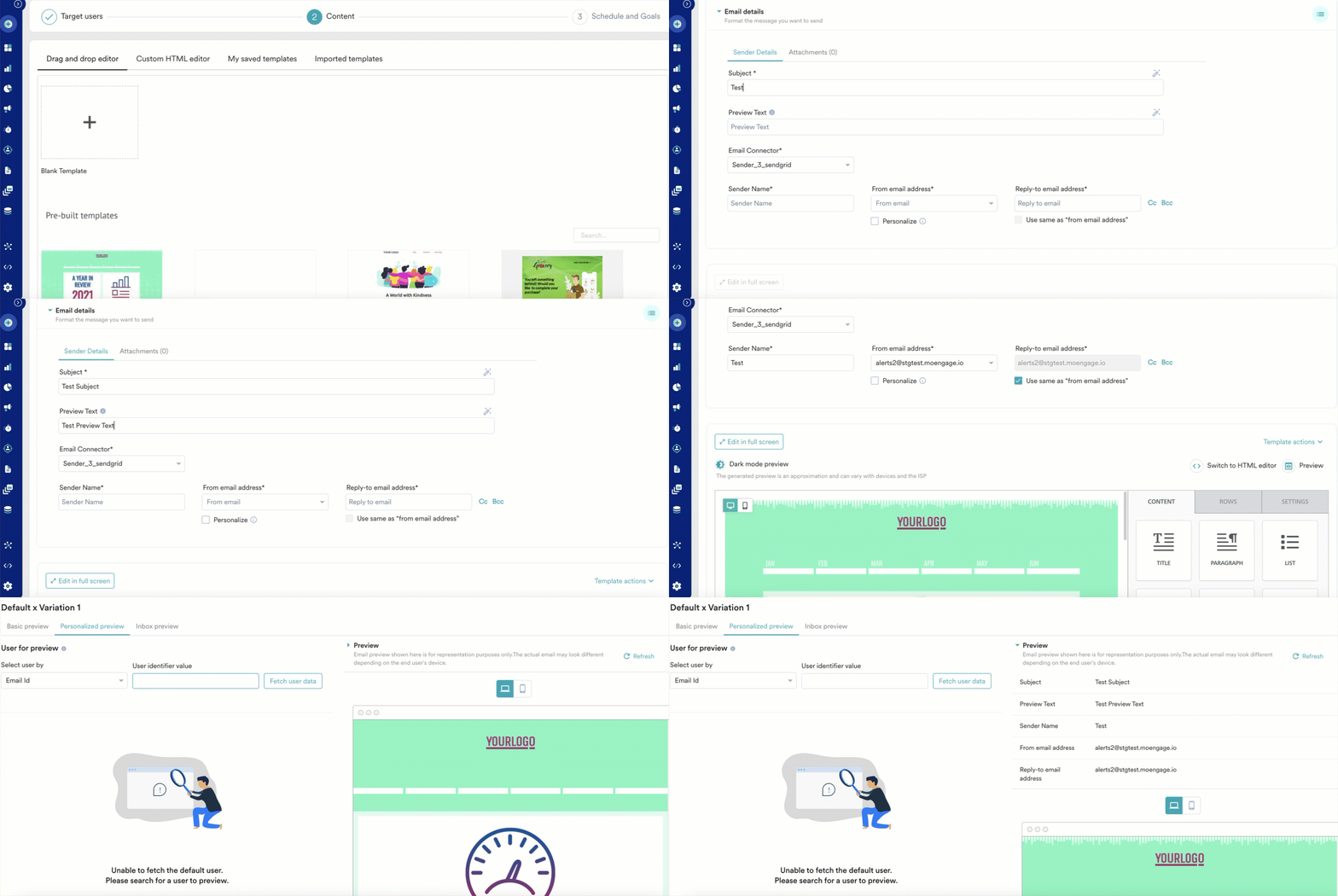
Properties Panel
The properties panel is divided into the following sections:CONTENT
The CONTENT tab allows you to choose a new content element and add it to your message. Drag and drop a content element (a button, an image, a text tile, a transparent or solid divider, social media sharing) in the message area on the left.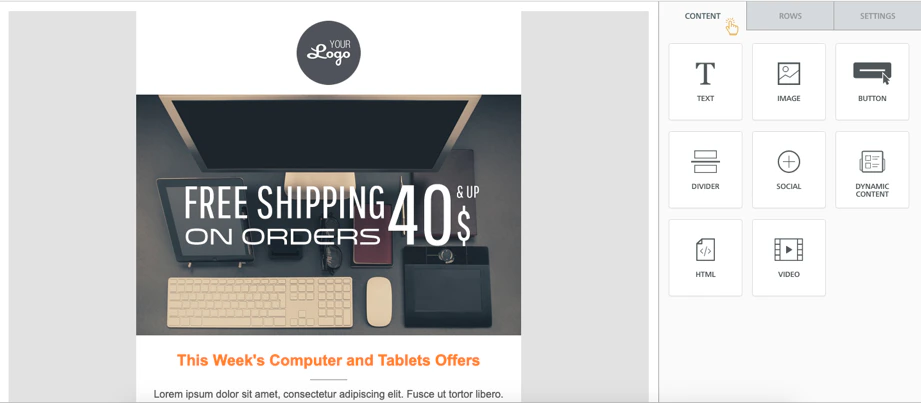
TEXT
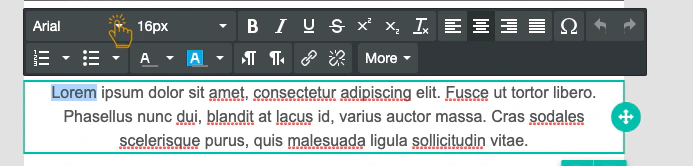
If you set the font family to Global Font, it will inherit the font family selected under the SETTINGS tab. This allows you to change the font family for multiple elements at once by changing that property in the SETTINGS tab.
Add Links
Links can be added by selecting the text and clicking on the Insert/edit option:
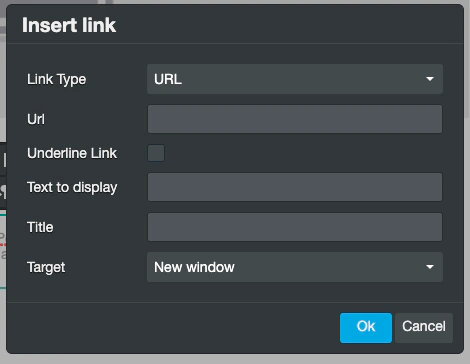
Add Personalized Links
Personalized links can be added using the More >> Links. This will open a pop-up window where the user can access and select from a list of personalized attributes.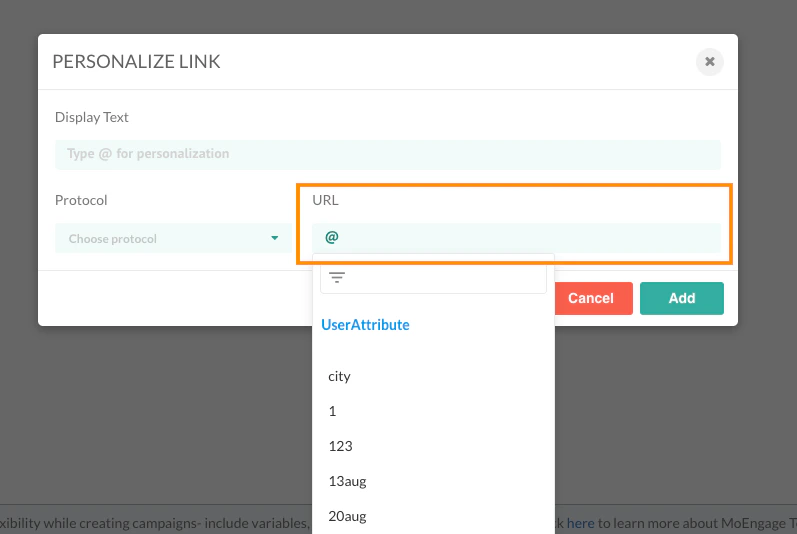
IMAGE
How to Insert an Image?
Images can be inserted using the File manager. The editor includes a built-in file manager. The file manager is the component that you will use to browse, search, and select the images and documents that you wish to use in your email message. With the handy file manager you can:- Browse, search, and sort existing files
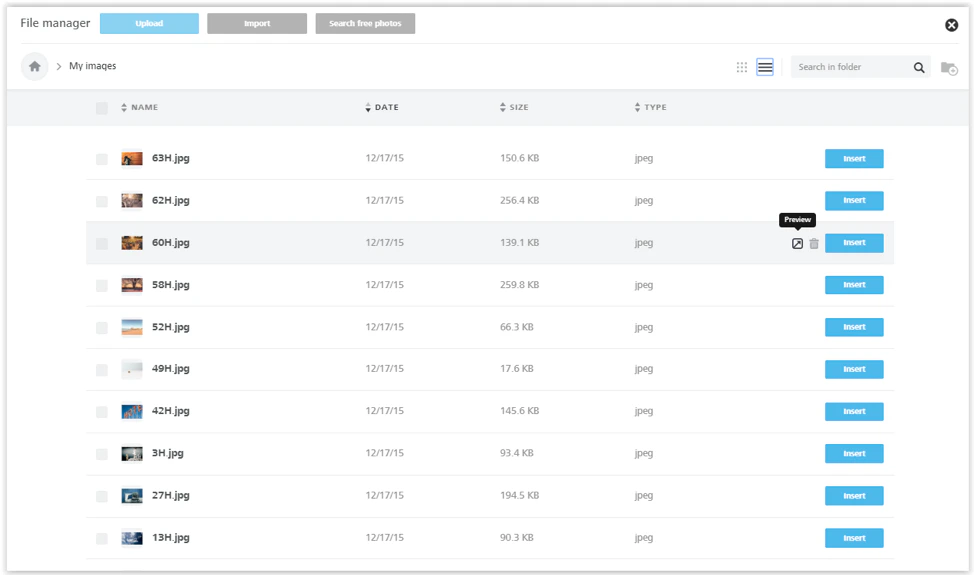
- Switch between list and grid view
- Import new files
- Create new folders
- Preview and insert images into your message
How Does It Look?
The file manager opens over the editor, covering the entire working area. This allows you to browse your files without worrying about your screen size or resolution. The top section has actions and navigation helpers, with most of the space used to list your files and the information you need to work with them. By default, folders and images are shown in the Grid view. If you switch to List view, it will be used next time you open the File Manager. Here is an example of images within a folder, in the Grid view: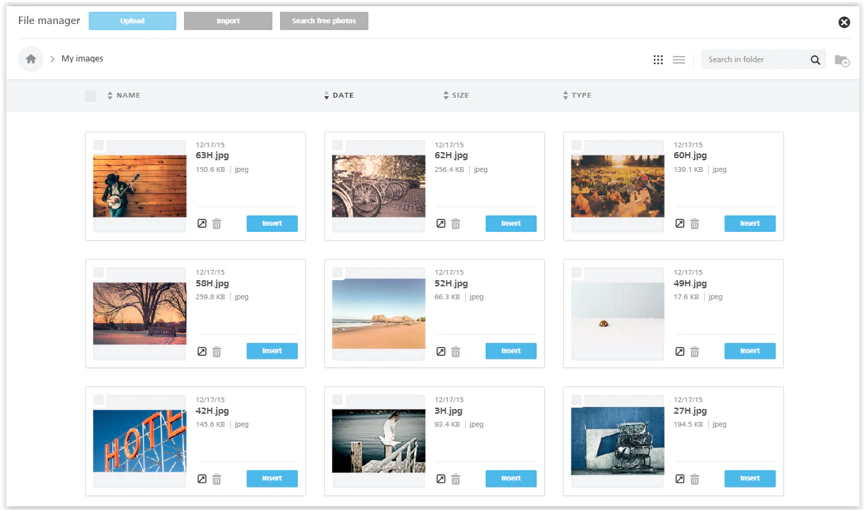
How to Access It?
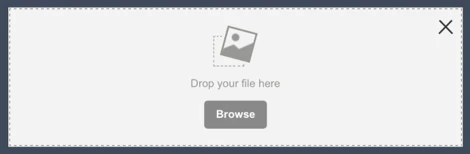
The file manager will load in several scenarios.- When you click Browse in an image placeholder, which is displayed when you drag and drop an image content tile into a message.
- When you click Change image in the image properties panel:

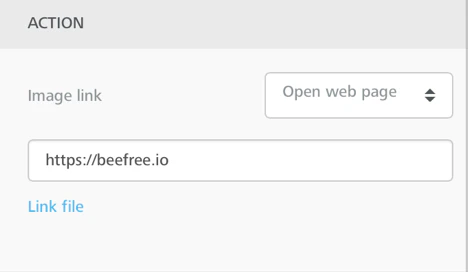
- When you click Link file when working with images and buttons:
How to Upload Files?
The quickest way to upload a file into the file manager is to drag it from your computer to the file manager window, dropping it anywhere on the page.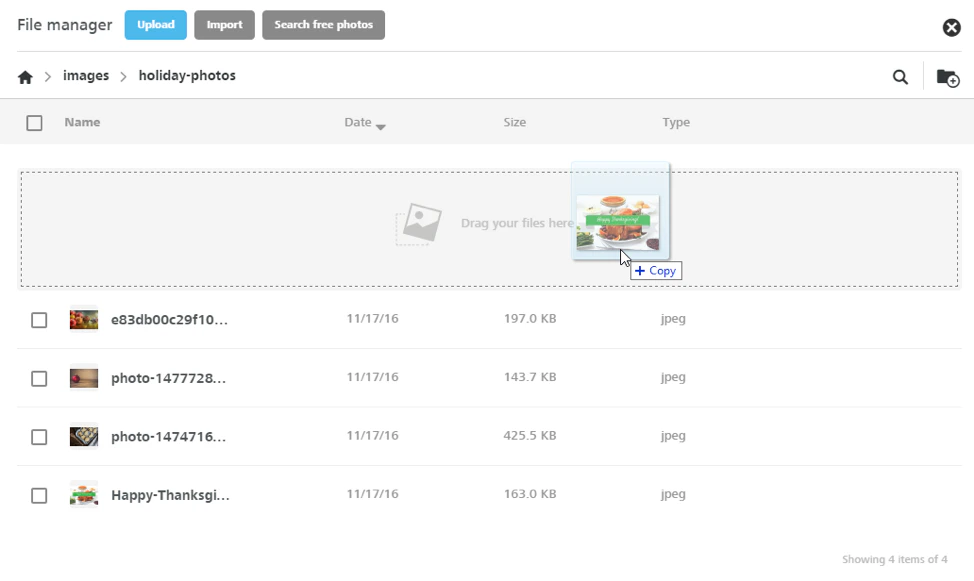
- Browse and upload from your computer using the Upload.
- Import from an external application using the Import button (see more below), if this feature has been enabled.
- Search and import free stock photos using the Search free photos button, if this feature has been enabled.
How to Import Files from Other Applications
The Import feature allows you to connect external applications such as DropBox, Google Drive, Instagram, and more, and import your files.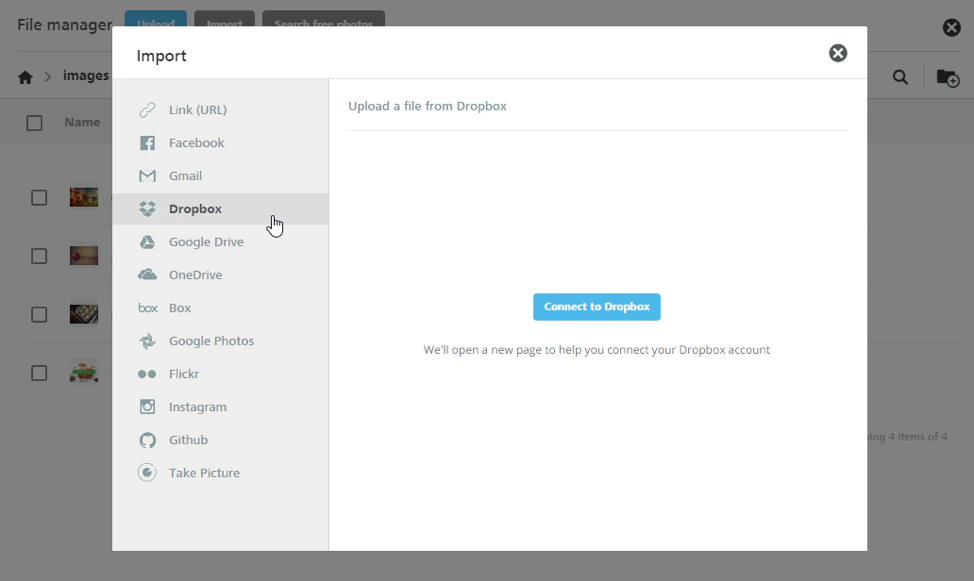
How to Browse or Search Files
To locate your desired image or document, browse your folders and order their content by name, date, size or type by clicking the sort labels on top of the list. An arrow icon next to this labels means that this is the current filter, and its orientation shows the order, ascending or descending. Too many files in the selected folder? Click the lens icon to run a search. Results are filtered on the fly. Mind that this search is performed only in the current folder, and not in your entire repository.How to Use Files?
When you move your cursor over a file or folder, that row will be highlighted and the available action icons will be shown on the right side:- Preview for files
- Delete for both files and folders

How to Organise Folders?
You can create the folder structure you prefer to organise your files. To add new folders, use the Add folder icon. For your folder names you can use letters (upper and lower case), numbers, spaces, periods (.), hyphens (-), or underscores (_). To navigate to the parent folder, use the top breadcrumb. Clicking the home icon takes you to your root folder.How Does the Image Editor Work?
Edit Images
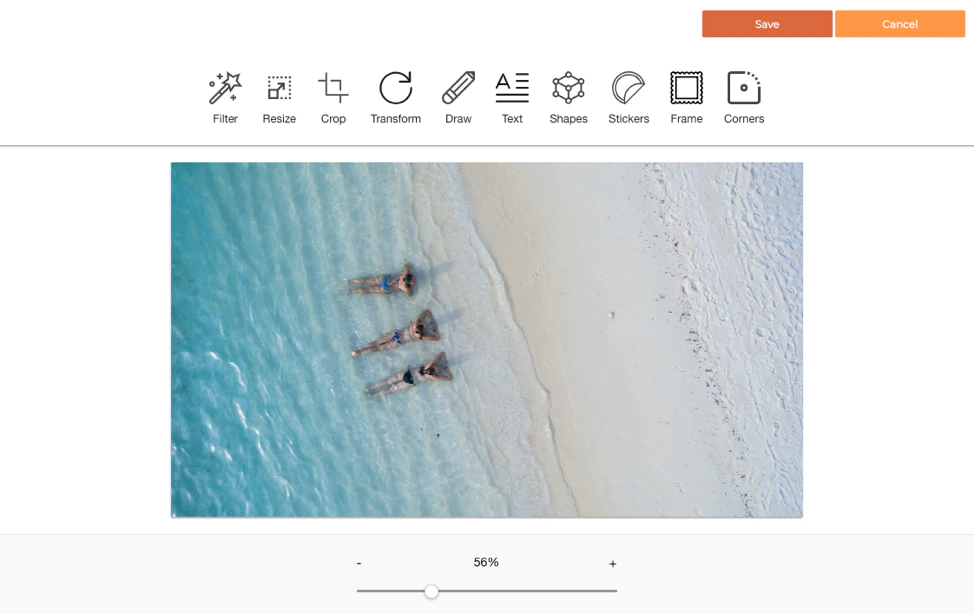
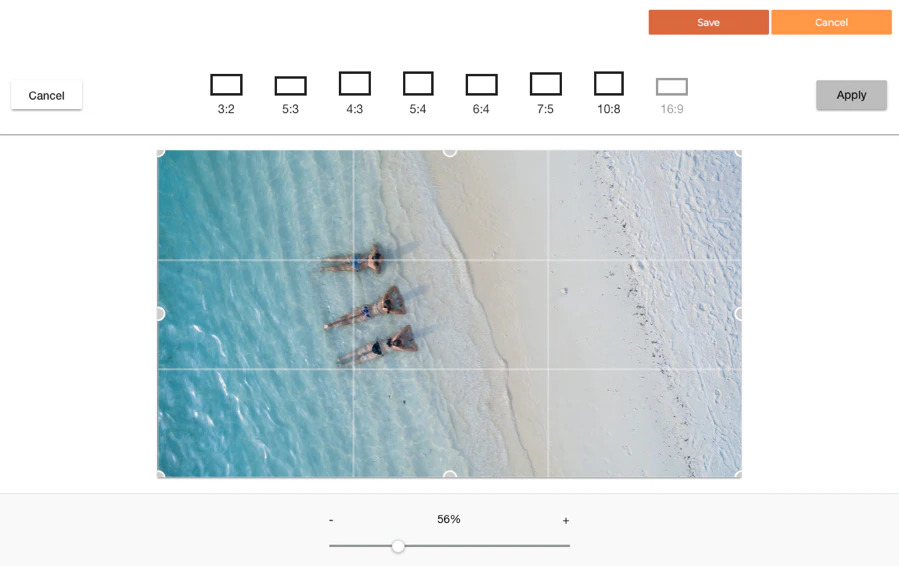
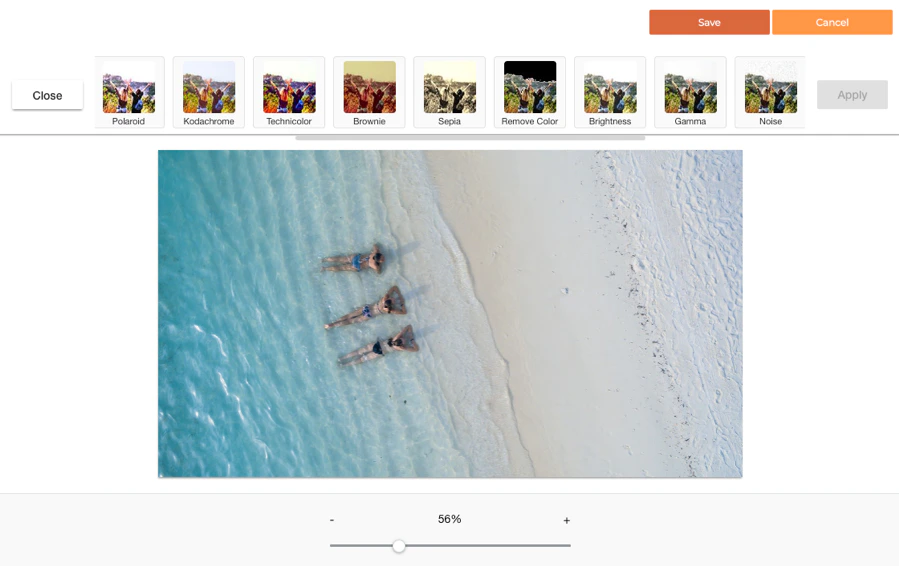
The email editor includes an image editor that allows you to crop, rotate, resize, apply filters/frames, add stickers to any image, without leaving the editor.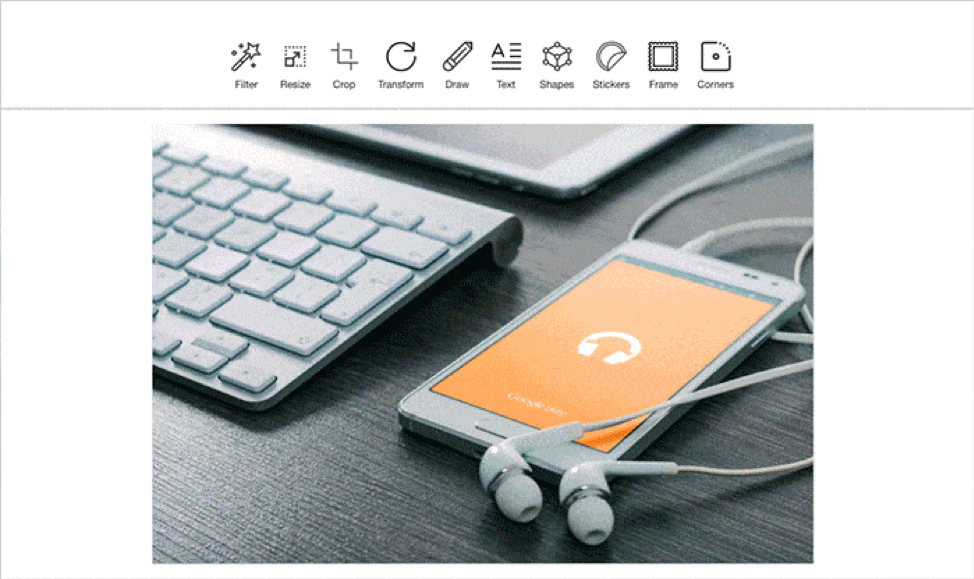
Accessing the Image Editor
When you select an image in the editor, the Apply effects & more button is displayed. Click it to have access to a tool that allows you to edit the image in a variety of ways.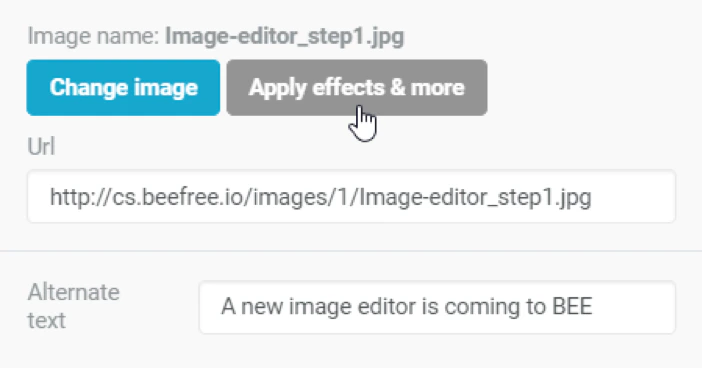
CONTENT BLOCK
- Drag & drop the content block tile into your email content.
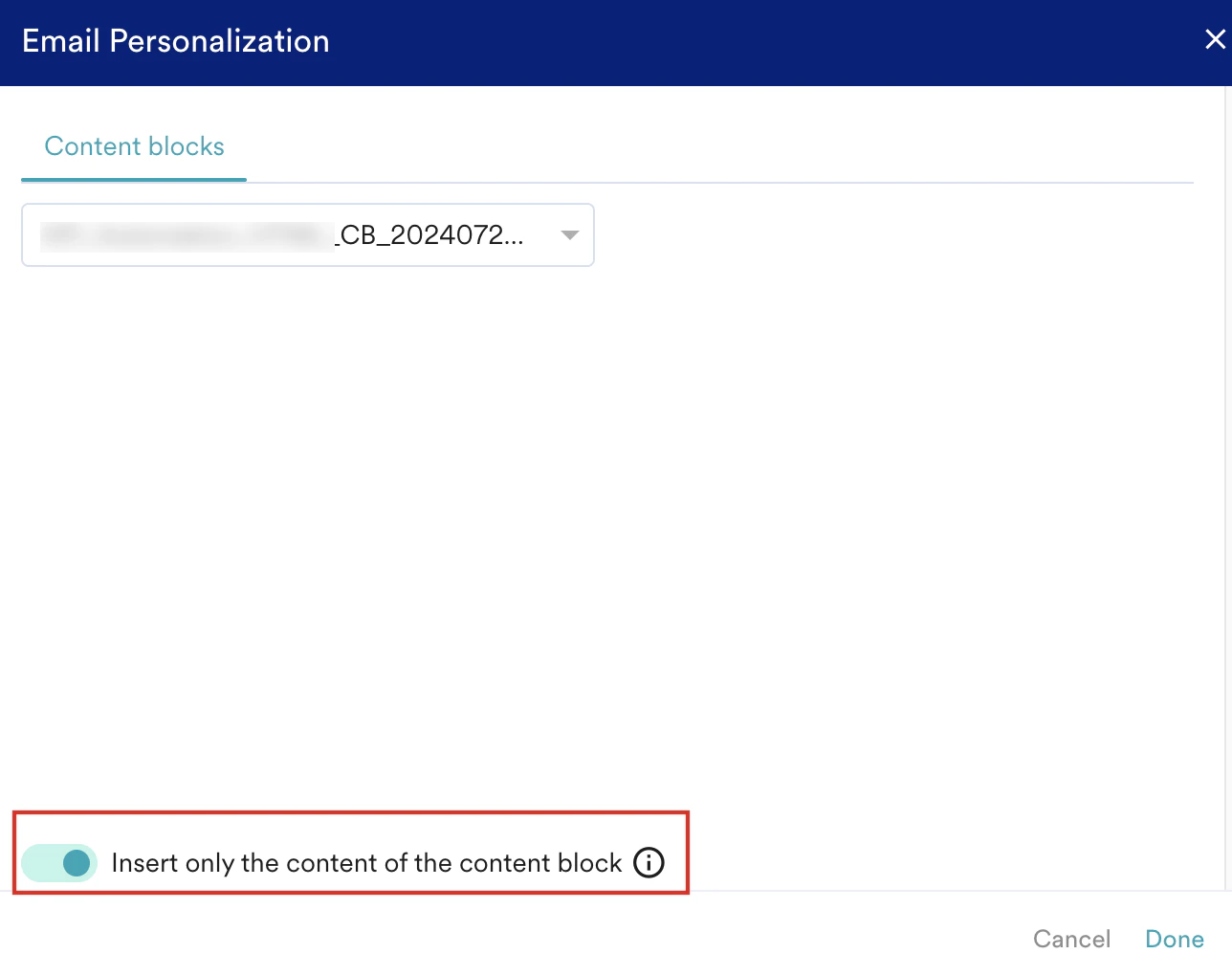
- Click Add/Edit Content Block.
- On the Email Personalization pop-up, search for the content block you want to add. When you add content blocks to an email campaign using the drag-and-drop method, MoEngage automatically updates the email content whenever you edit the source content block via the Content Block feature. However, if you want to add a content block without linking it to future edits, turn on the Insert only the content of the content block toggle. This action prevents automatic updates to the email content when you modify the original content block.
DYNAMIC CONTENT
- Select the dynamic content tile and click Add Option.
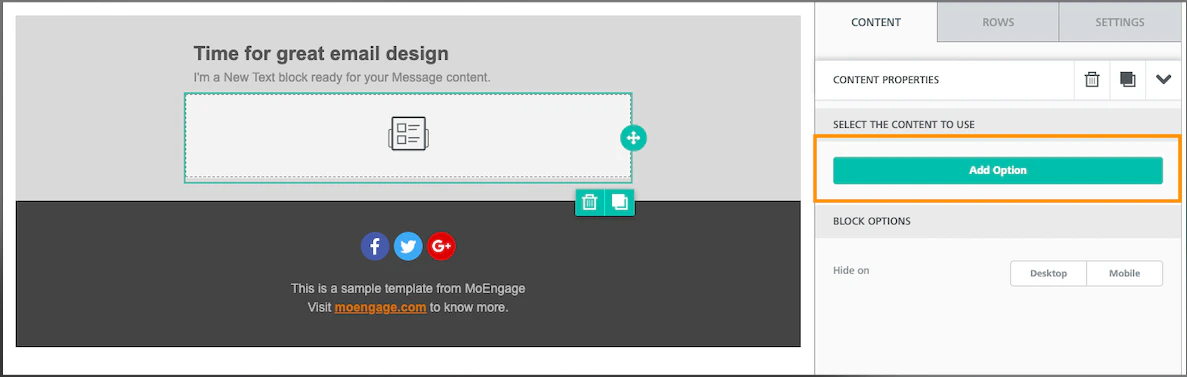
- Enter the details of the personalized image in the Personalized Content pop-up window.

- Enter the personalized attribute in the Image Source URL field.
- Enter the target link in the Target URL field.
After a Dynamic Content tile is added, it cannot be edited or previewed in the WYSIWYG editor. You can delete an existing tile and create a new one in case of edits.
HTML
How to Add an HTML Code?
To add your code, drag an HTML content element into your message. It can be positioned alone, with other HTML content items, or mixed with other types of content. The newly-inserted content tile displays some default placeholder text. Click it and the right-side property panel displays the HTML code editing pane. You will find some placeholder code inside the editing area: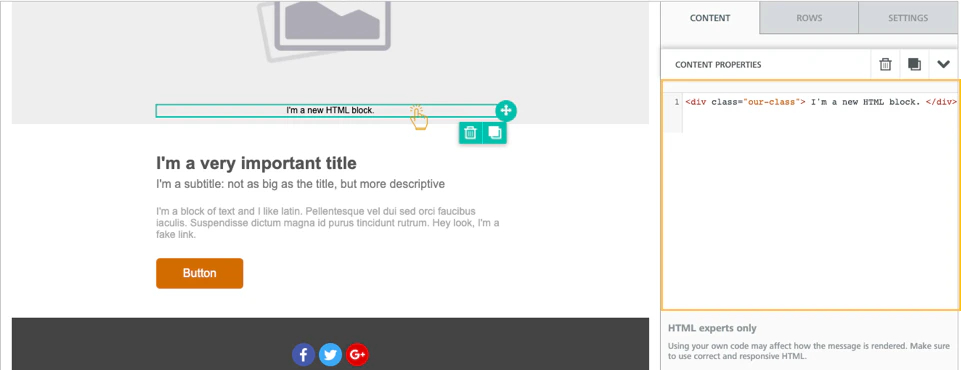
Which HTML Tags Are Allowed?
The HTML content will automatically correct some issues like HTML tags that are left open, and strip out code that cannot be used, such as script tags or iframe tags (this code tags are not allowed by the major part of email clients, can cause deliverability problems or security risks).List of Allowed Tags
<a>, <abbr>, <acronym>, <address>, <area>, <b>, <bdo>, <big>, <blockquote>, <button>, <caption>, <center>, <cite>, <code>, <colgroup>, <dd>, <del>, <dfn>, <dir>, <div>, <dl>, <dt>, <em>, <fieldset>, <font>, <form>, <h1>, <h2>, <h3>, <h4>, <h5>, <h6>, <i>, <ins>, <kbd>, <label>, <legend>, <li>, <map>, <menu>, <ol>, <optgroup>, <option>, <p>, <pre>, <q>, <s>, <samp>, <select>, <small>, <span>, <strike>, <strong>, <sub>, <sup>, <table>, <tbody>, <td>, <textarea>, <tfoot>, <th>, <thead>, <u>, <tr>, <tt>, <u>, <ul>, <var>
List of Allowed Attributes
VIDEO
- This feature does not embed the actual video in the email but rather links to it in a smart way.
- The reason why the actual video content is not embedded into the message is that, it doesn’t work very well. Many email clients do not support it.
- Additionally, many emails are opened on mobile devices, and viewing videos on a mobile device can cause substantial data usage in addition to a poor user experience due to the quality of the data connection.
ICONS
How to Add an Icon Collection?
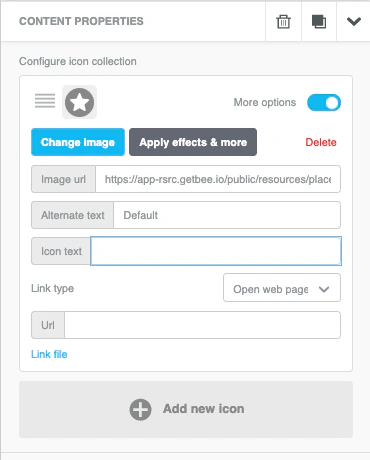
Click Add new Icon in the Content properties section of the editor sidebar to add the first icon for your collection. Then, click Change image to select an image from the file manager.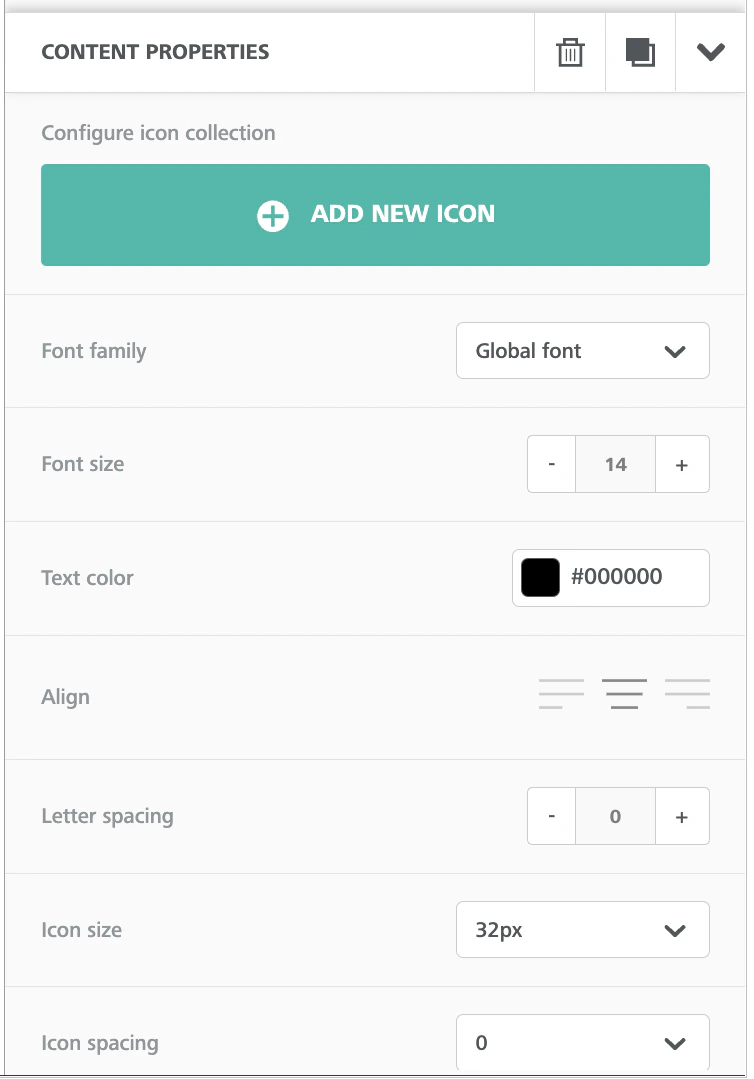
MENU
- Click Add new item in the Content properties section of the editor sidebar.
- Define the properties for each element for the menu item.
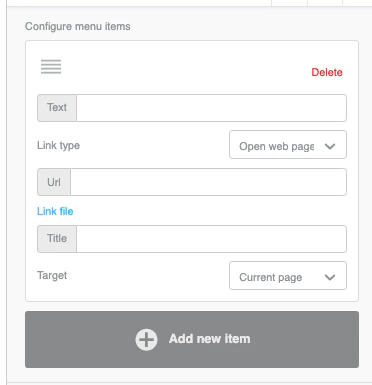
- You can also reorder menu items by dragging the icon found to the left of the menu item title.
- You can also configure the menu item as a mobile menu. This option is only applicable for mobile devices and When turned on, a “hamburger” menu will be applied on mobile. It can be expanded with a tap to reveal menu items in a vertical layout.
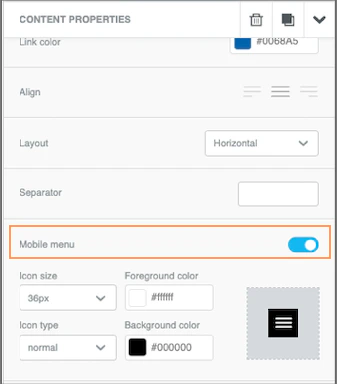
Mobile menus are not compatible with all email clients.
ROWS
The ROWS panel includes different types of structural elements for your message. They allow you to create different sections of the message.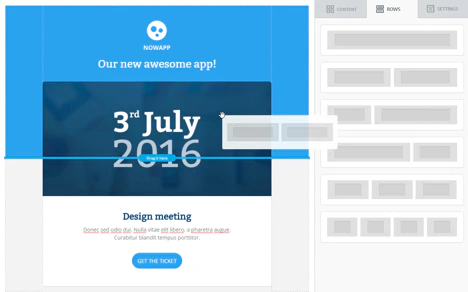
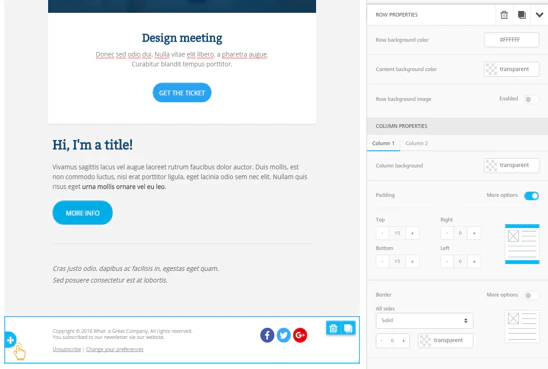
Save a Row
- If Saving Row as Content Block is not enabled
- If Saving Row as Content Block is enabled
This option allows you to save a row and reuse it in other templates. This option can be very handy while handling repetitive content, such as template headers or footers. To save a row, perform the following steps: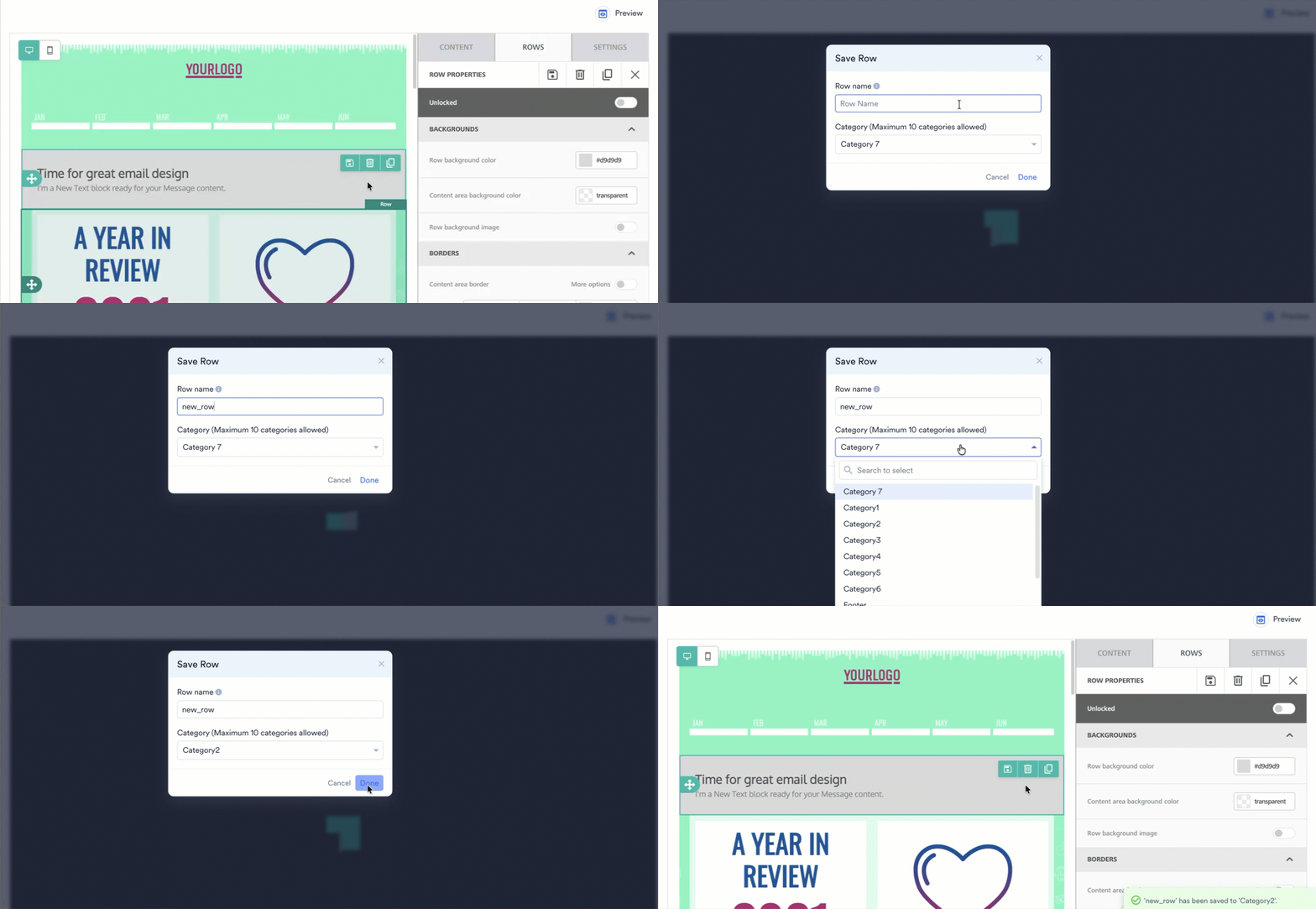
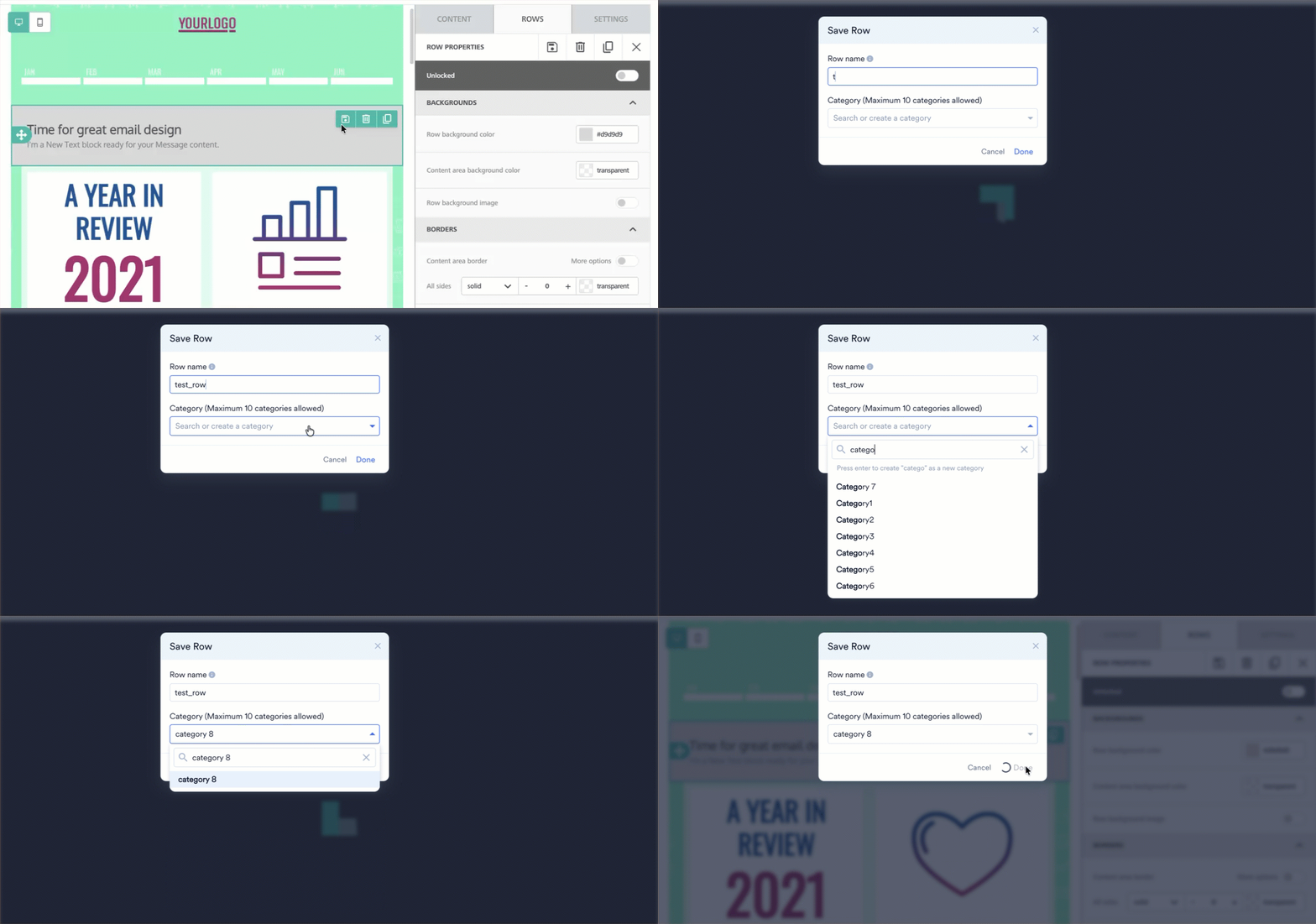
- On the editor canvas, click to select the specific row you want to save.
- Click the Save ()icon.
- In the Save Row dialog box, perform the following:
- Enter a unique Row name.
- Select an existing category from the dropdown, or type a new name to create a category.
- Click Done.
- After saving, you can easily find and reuse this row by navigating to the ROWS panel and selecting its assigned category.
Multiple saved rows cannot have the same name. Saved rows need to have unique names.
The following are Early Access features:
- Create categories
- Manage rows
- Lock and unlock rows
Create Categories
To easily organize and retrieve your saved rows, MoEngage supports categorizing your rows at the workspace level. All changes made to categories are updated in real-time across the workspace.- Default Categories: Every workspace includes three default categories: Header, Footer, and Promotional.
- Custom Categories: You can create up to 7 custom categories (bringing the total limit to 10 categories per workspace).
While users can create categories directly from the user interface, deleting a category through the MoEngage UI is not supported. To remove or delete a category from your workspace, raise a request with the MoEngage Support Team.
Create a New Category
- On the Save Row dialog box, click into the category dropdown and type the desired name for your new category.
- Press the
Enterkey on your keyboard. The text string is transformed into a new, selectable custom category. - Click Done to save both the row and the new category to the workspace simultaneously.
Manage Rows
MoEngage allows you to edit and delete your saved rows directly from the Drag & Drop (D&D) Editor. Any modifications you save happen in real-time and apply at the workspace level, making the updated design immediately available for all team members.Edit a Row
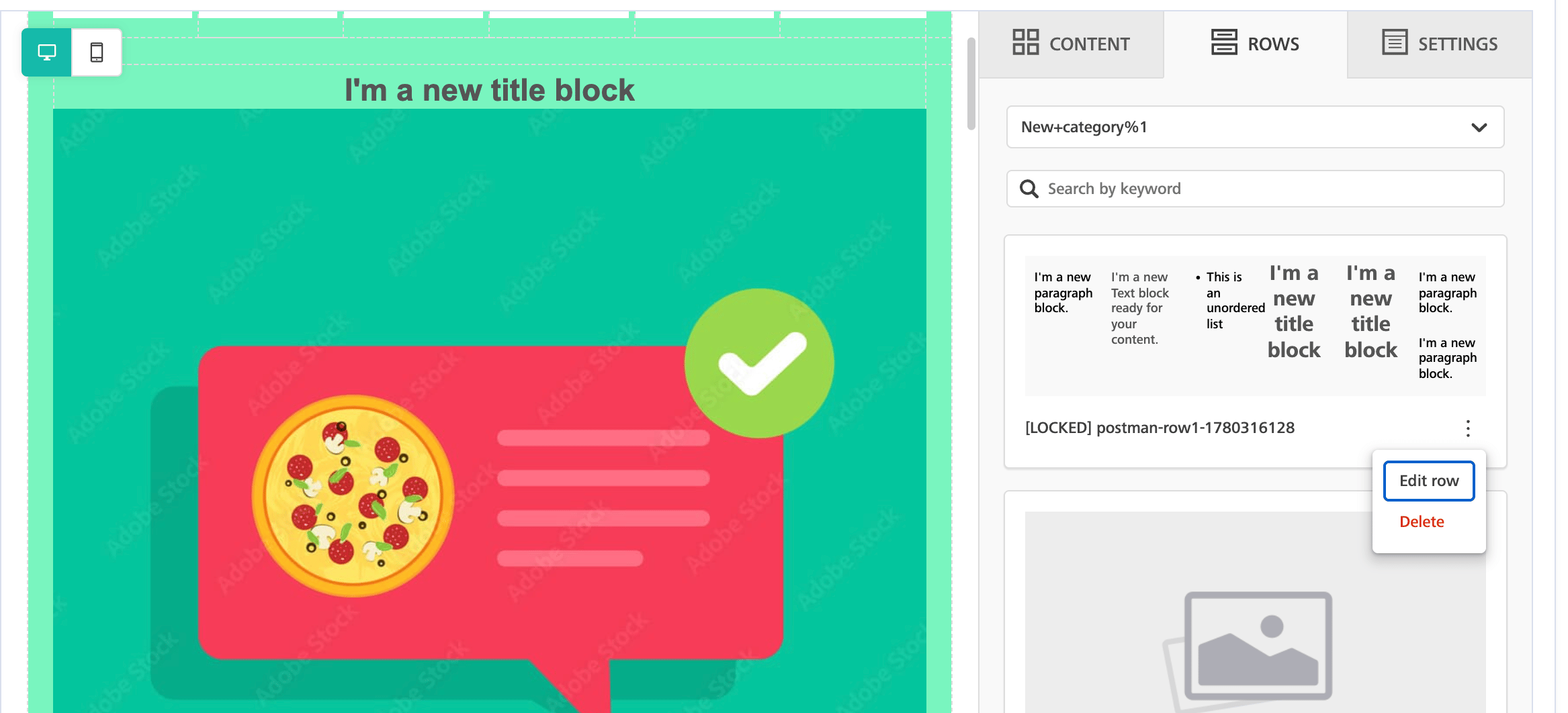
- Navigate to the ROWS tab and select the desired category.
- All the rows under that category are displayed. Click the ellipsis icon on the row you wish to edit.
- Click Edit row.
- In the Edit row slide-out panel, you can:
- Modify the row Name.
- Reassign the row to a different Category. Alternatively, you can create a new category directly from this field and reassign the row to it simultaneously.
- Update the Content within the row itself.
- Click Save changes. The updated row will be instantly available in real-time for all users in the workspace to drag and drop.
Delete a Row
- Navigate to the ROWS tab and select the desired category.
- All the rows under that category are displayed. Click the ellipsis icon on the row you wish to delete.
- Click Delete.
- In the Delete row confirmation box, click Delete. This action permanently removes the saved row from the workspace catalog.
Deleting a row does not affect any existing campaigns (active, scheduled, paused, or stopped) that currently use it. When you add a row to an email, its content is copied into the campaign at that exact moment. Because there is no active link between the row and the campaign itself, your existing emails will continue to work exactly as designed.
Lock and Unlock Rows
For large teams and enterprises, locking rows helps preserve brand language and structural integrity by preventing unauthorized or accidental modifications to crucial structural elements (e.g., legally approved footers, global headers, or brand-specific banners).- Admin and Manager: Have Lock/Unlock Row capabilities by default.
- Developer, Analyst, and Marketer: Do not have lock/unlock capabilities by default.
- Custom Roles: Can manually assign lock/unlock privileges.
- Granting a custom role the Lock/Unlock Row capability automatically forces the inheritance of View, Create, and Manage & Publish permissions for rows.
- When browsing the ROWS tab, any locked row clearly displays a [Locked] prefix in its name. This allows you to easily identify restricted rows at a glance so you can place them in the correct position within your email.
- If your role does not have lock/unlock permissions, you cannot delete or modify a locked row once it has been added to the editor.
- In addition to locking entire rows, you can lock individual row properties (such as background colors, padding, or text alignment). Only users with lock/unlock permissions can lock or unlock specific properties. Once a property is locked, it cannot be edited by users without the required access privileges.
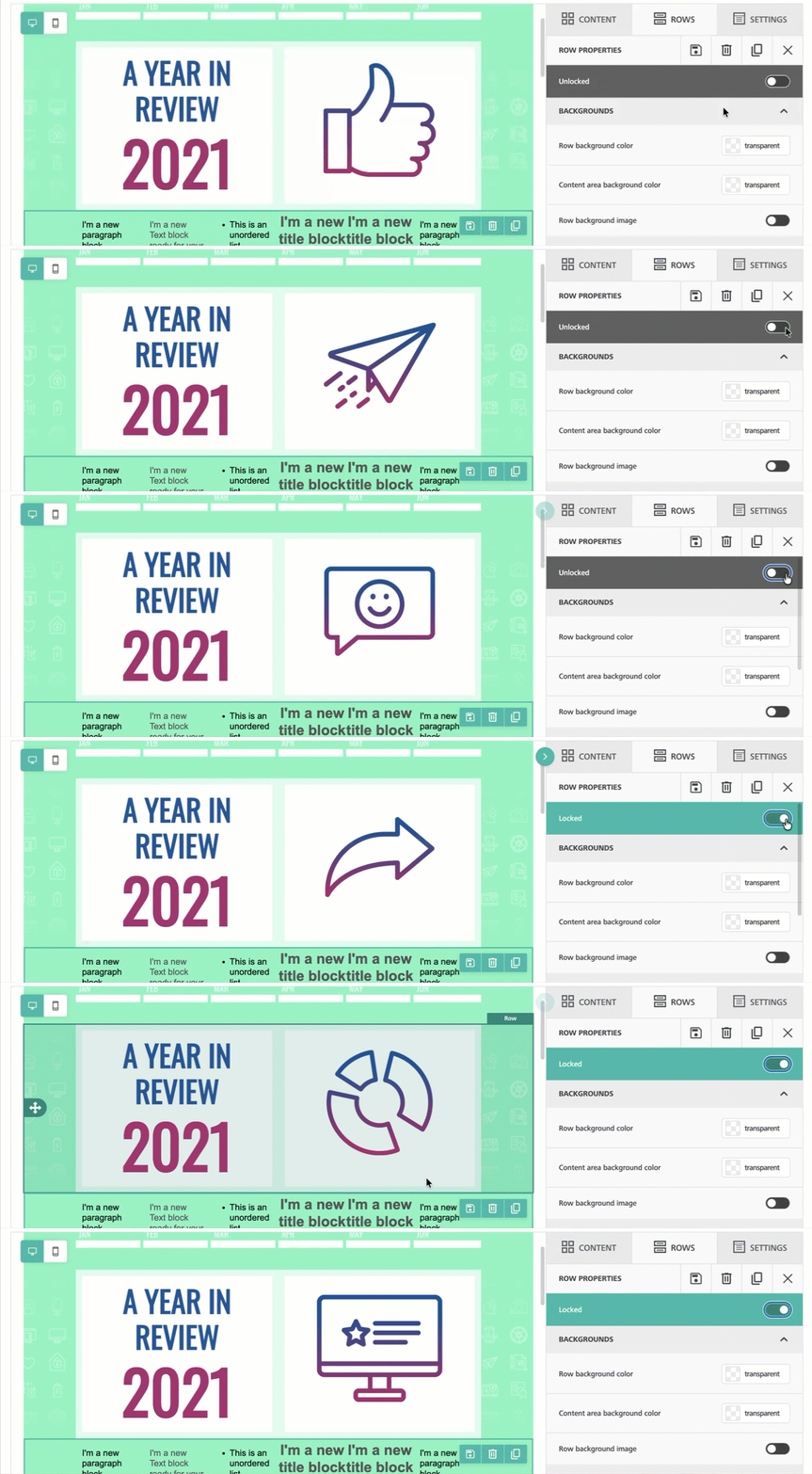
- Select the row within the drag and drop editor.
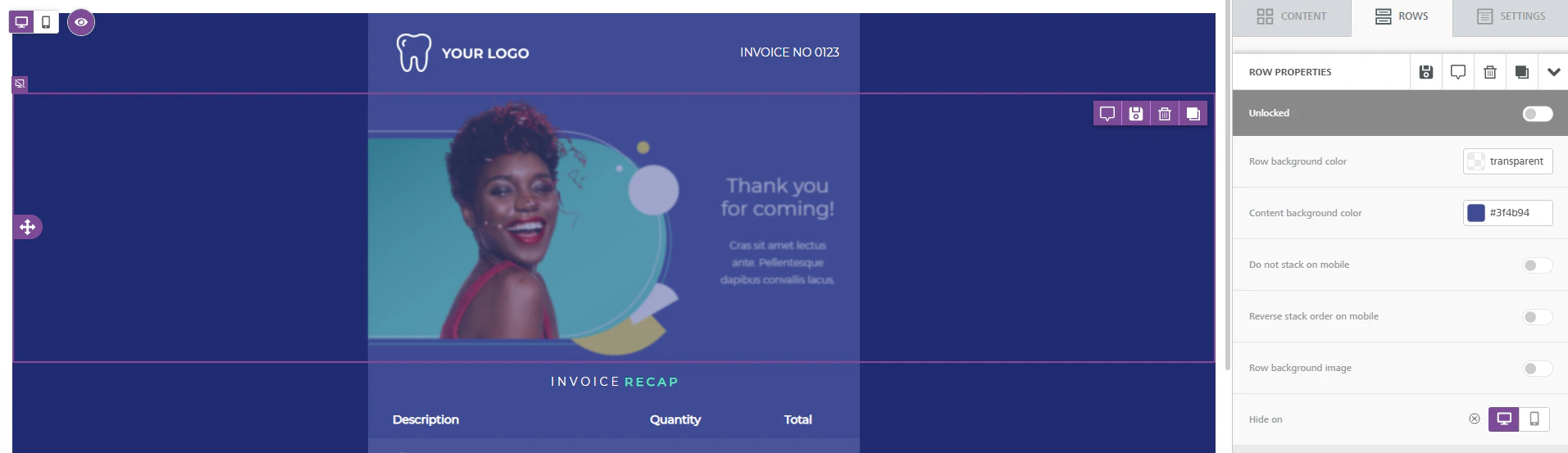
- Navigate to ROWS > ROW PROPERTIES.
- Locate the lock configuration toggle:
- To lock the row: Enable the toggle switch. When enabled, the row transitions to a Locked state.
- To unlock the row: Disable the toggle switch. When disabled, the row returns to an Unlocked state.
- You can drag, drop, and rearrange the row into your email design template.
- You cannot edit, change properties, modify, or delete the content inside the row.
- You cannot delete or modify a locked row once you have added it to the editor. To remove a locked row from the canvas, you must use the Undo button (located in the bottom-left corner of the editor).
- If you attempt to click or edit inside the locked row, the editor will display a toast notification:
This module is locked by your team. Only members with "Lock/Unlock" permission can edit it. Contact your Manager or Admin to request edits.

Create Rows with Product Set-Based Personalization
This option allows you to create rows with product blocks. A product block is a group of product attributes such as product image, product price, and so on. For more information, refer to Personalize Content Using Recommendations.Adding a Product Set row requires Recommendations to be set up for your account. Connect an Item Catalog and map your user action events, then create a Basic or Advanced recommendation. For the steps to add a recommendation to an email, see Using Recommendations in Email.
Display Conditions
Display conditions let you show or hide an entire row based on a custom conditional statement, so a single template can render different content for different recipients. For example, showing a coupon-code row only to frequent buyers, or a category-specific promotion only to users who browsed that category.Display conditions are evaluated using Jinja conditional logic (for example,
{% if %}...{% endif %} tags) that wraps the row’s content. The condition itself is written by you and is not validated by the editor — make sure the Jinja syntax and the attribute or logic you reference are correct before publishing.Add a Display Condition to a Row
- On the editor canvas, select the row you want to apply a condition to.
- In the properties panel, go to ROWS > ROW PROPERTIES.
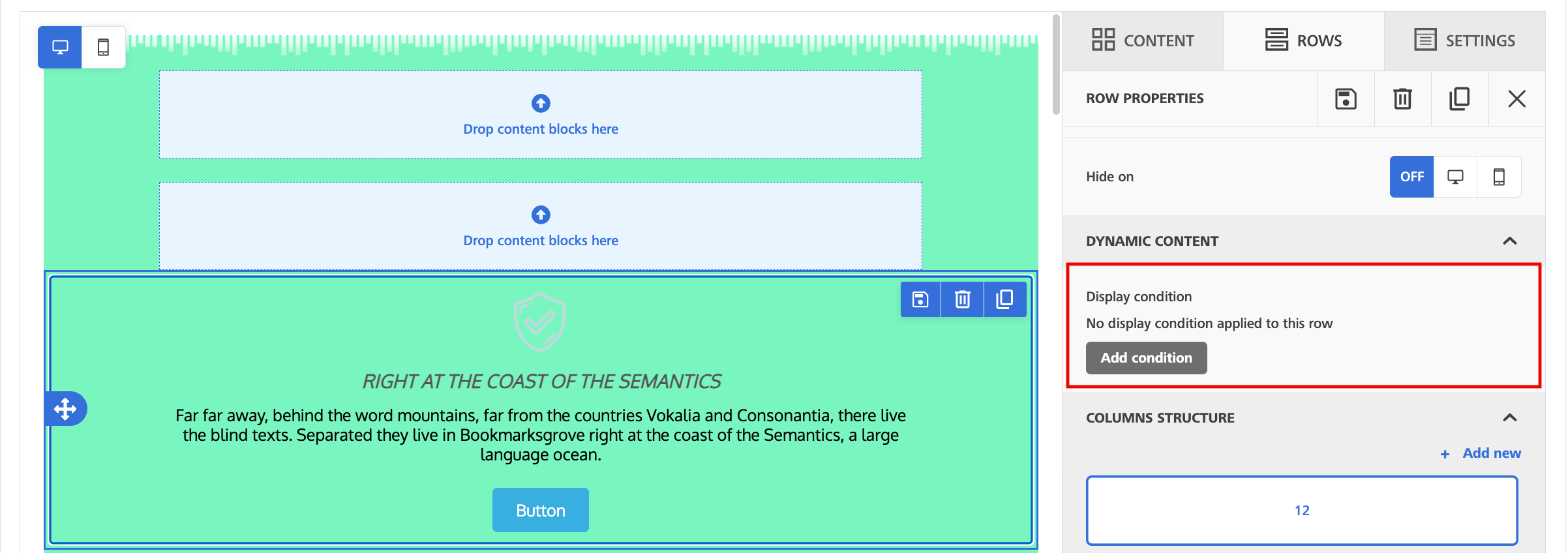
- Expand DYNAMIC CONTENT. If no condition is applied, this section shows No display condition applied to this row.
-
Click Add condition. The Add a new display condition dialog box opens.
-
Enter the following details:
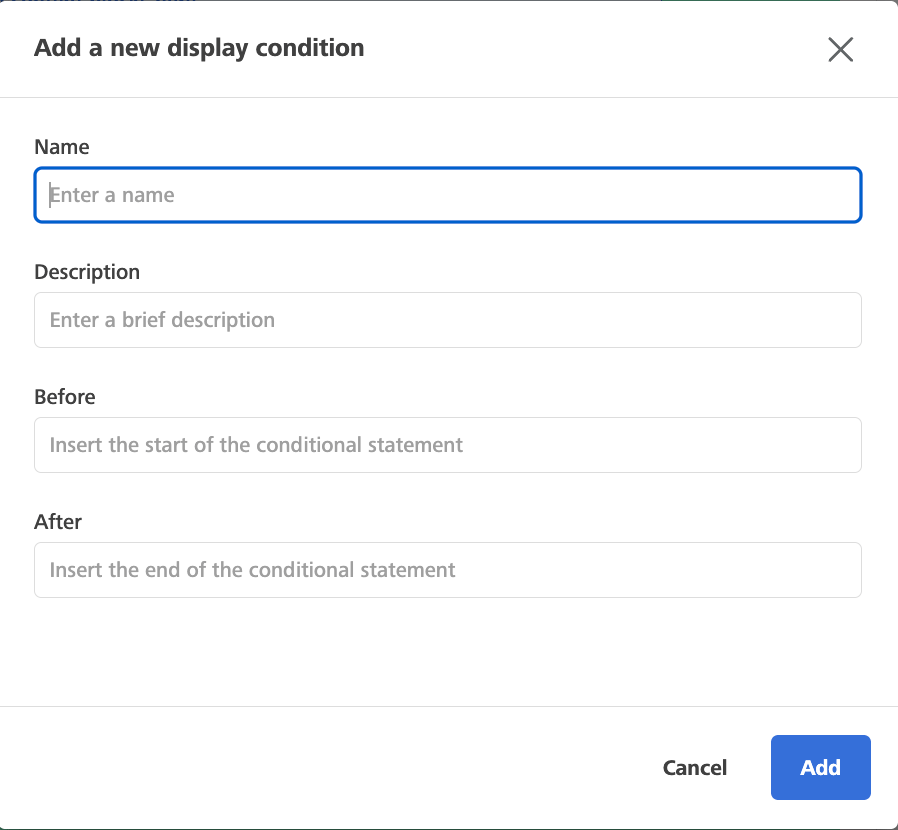
- Click Add.
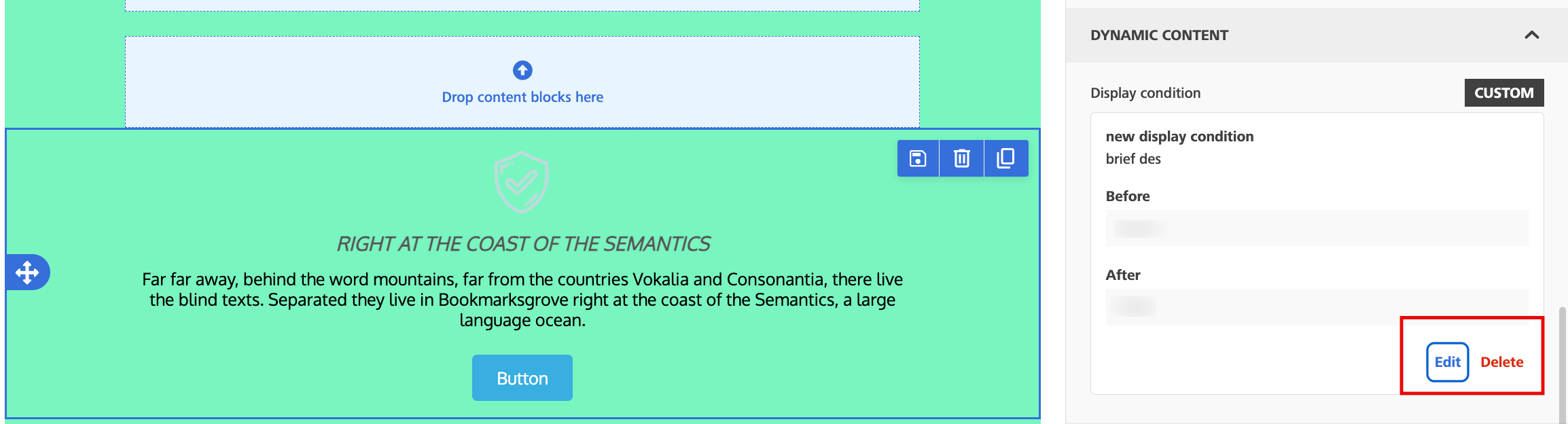
- To modify the condition, click Edit.
- To remove the condition from the row, click Delete.
Undo Widget
When enabled, the UNDO feature allows you to rewind and fast-forward to any point in your recent edit history. When changes are detected, a compact Undo widget displays in the bottom left corner of the stage (see annotation below):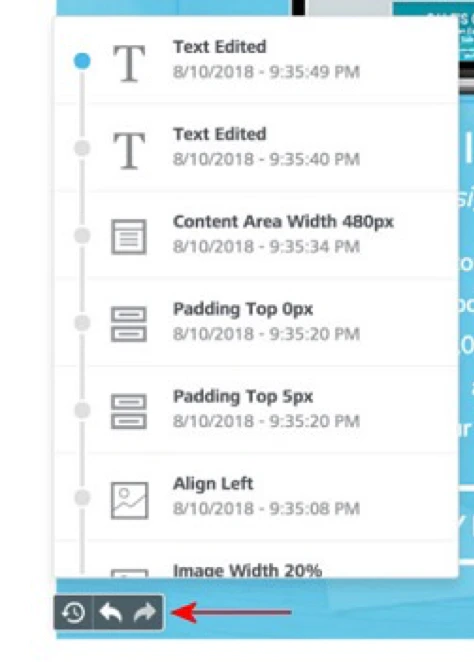
Timeline Widget
The timeline allows you to browse through the most recent changes. The widget displays:- An icon to identify the content element type (an image, text, and so on)
- A description of what changed, giving the new property value (if any)
- The exact time it happened
Hide Content on Desktop or Mobile
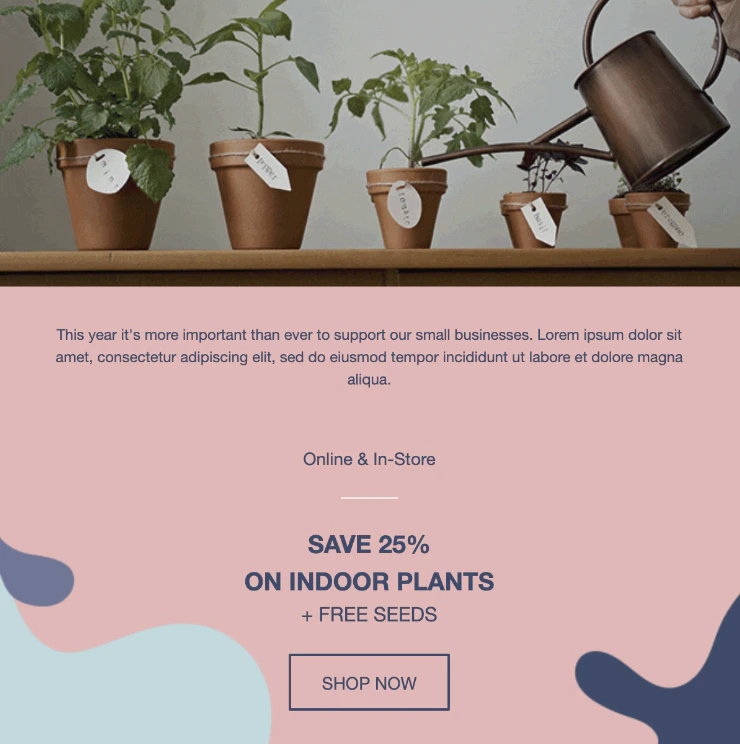
Hide on feature is available for both the content level and the row level. You can now hide individual content tiles or entire rows from a specific type of device. For example:| Content displayed on desktop | Content displayed on mobile |
|---|---|
 |  |
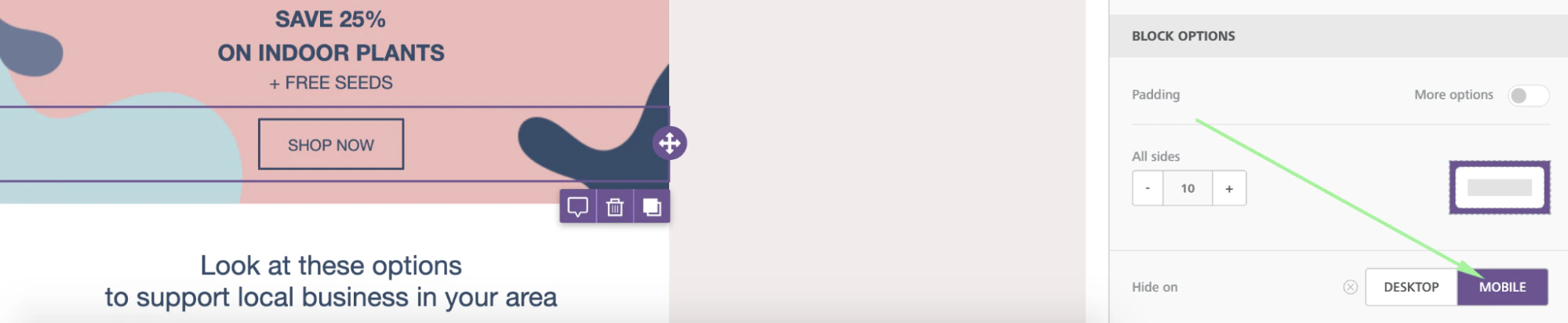
- Navigate to Property Panel.
- Scroll down to Block options settings

- In Hide on, select Desktop or Mobile.
Hide Rows
To hide a larger portion of your design, hide an entire row instead.- Select the row you want to hide.
- Navigate to Row Properties.
- In Hide on, select Desktop or Mobile.
SETTINGS
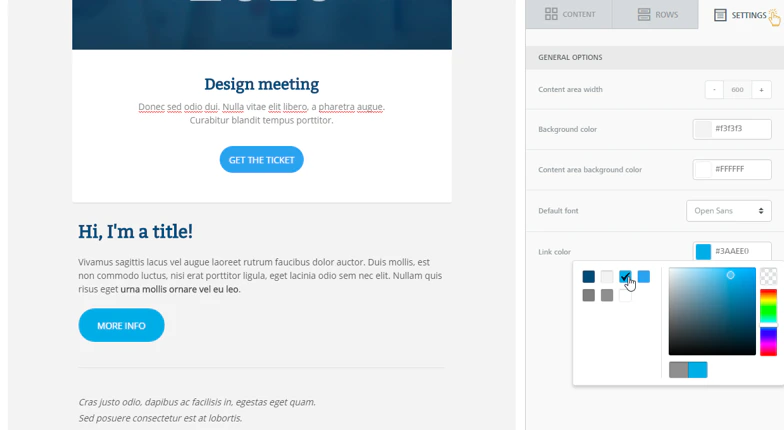
From the SETTINGS tab, you can modify general settings that apply to the entire message:- Content area width: This is the width of the area where content tiles are dropped. According to email marketing best practices, it should typically be set to 600px or less. Note that this is the maximum width that will be used on larger devices. When the device’s screen is smaller, the message will adjust automatically to it.
- Background color: It is the background color for the message. This setting is effective only for rows (and columns) where color has not been specified. Otherwise, the background color specified for that content structure will be used.
- Content area background color: It is the background color for the content area. This setting is effective only for rows and columns where color has not been specified.
- Default font: It is the default font that will be used when another font family has not been specified. This setting affects all text set to use the global font.
- Link color: It is the link color. As above, this setting affects all text links set to use the default color.
Known Limitations
Gmail Rendering Behavior
- A row or background that shrinks only in the Gmail mobile app may be Gmail’s own “auto-sizing” feature kicking in, not a template bug — Gmail post-processes the HTML it receives in ways the sender can’t fully control. Reduce the risk with
!importantwidths, keeping elements under ~600px, and a hidden min-width “bumper” div. - Don’t paste a full standalone
<html>/<head>/<body>document into a custom HTML content block — only the inner markup fragment belongs there. For content that needs to look different on mobile vs. desktop, build two literal rows (one hidden on desktop, one hidden on mobile) rather than relying on a single “smart” responsive block.
Email Clipping
- The editor’s displayed file size isn’t what Gmail actually evaluates against its clipping limit — a stray trailing style line from the editor’s export can be the difference between clipping and not. Don’t use the editor’s file-size display as your clipping budget check.
Links & Tracking
- Custom unsubscribe URLs and unsubscribe mode are stored per-sender, not per-account — reconfigure them under Settings → Email → Sender Settings for every new sender added, since a new sender starts blank rather than inheriting an existing one’s configuration.
- Deleting or editing a hyperlinked word without also clearing the whitespace around it can leave an invisible “ghost link” embedded in the underlying HTML. When editing or removing a link, clear the surrounding whitespace too, and spot-check the code view for stray anchor tags afterward.
Personalization
- Complex Jinja for auxiliary data doesn’t belong directly inside an HTML attribute like a button’s URL field — the button URL picker only exposes user attributes, and quotes inside the expression can conflict with the surrounding attribute syntax. Assign the aux-data expression to a Jinja variable elsewhere in the template, then reference that variable in the button URL field.
- Copy-pasting formatted text from another website can carry over invisible markup that the personalization engine chokes on, causing an “undefined variable” error at send time even though nothing looks wrong in the visual editor. Always paste as plain text when bringing in copy from another source, then reapply formatting and links manually.
Images
- Only use images uploaded through the editor’s own file manager — manually pasted external image URLs can expire without warning, causing images to silently disappear from a live template weeks after setup. Always upload images via the built-in file manager rather than hot-linking externally hosted URLs.
Editor Behavior Quirks
- The legacy Text block stores manual Enter/blank-line spacing as non-breaking spaces; a platform-wide anti-clipping fix now collapses that spacing away, causing intentional gaps to disappear. The Text block is deprecated — use the Paragraph/List blocks and create spacing structurally via block/row padding or a transparent Divider block.
- A reusable content block should be a bare HTML fragment — wrapping it in its own
<html>/<body>document breaks mobile stacking, centering, and hide-on-device rules once nested inside the parent template. - Copy-pasting a styled icon or glyph from an external source into a text block can inject hundreds of redundant nested tags and corrupt the template. Paste plain text only and use the built-in special-character picker for symbols and arrows instead of copying styled characters from other apps.
- Repeatedly toggling formatting (like bold) on the same text can generate hundreds of nested tags that break parsing when the campaign is published. If publishing fails after heavy inline editing, delete the affected text element/row and re-add it rather than continuing to toggle formatting on the same node.
Third-Party / ESP Limitations
- Outlook can distort a correctly-built email specifically when the recipient forwards it, in ways that can’t reliably be fixed from the template side. Treat this as a known, low-control Outlook forwarding quirk rather than a template defect worth chasing indefinitely.