


MoEngage Tracking
If you select MoEngage tracking, MoEngage will add the unsubscribe link in the non-transactional email. Follow the below steps to add the unsubscribe URL:- In the MoEngage dashboard, go to Settings > Channels > Email.
- In the following Email Settings page that appears, click Sender Configuration tab
- Click Add Sender, and go to the Unsubscribe Settings section.
- Select MoEngage Tracking. Ensure that other email service provider connectors such as Sendgrid, Mandrill, Sparkpost, or custom connector have turned off unsubscribe tracking. Otherwise, there will be two unsubscribe links in the same email.
- In the Unsubscribe Page URL field, enter the required URL. MoEngage provides a standard landing page.
-
You can add the unsubscribe URL shown below to the Unsubscribe Page URL field. In this case, the user automatically gets unsubscribed.
“X” here denotes your data center.
- They have the option to resubscribe by clicking on the resubscribe mebutton on the landing page. You can also create a landing page of your own and add the URL for the same. This gives you more autonomy over the process and allows you to do things like capturing the reason why the user wants to unsubscribe.
-
You can also choose to place the unsubscribe link anywhere in the email body by using the below HTML code:
HTML
Each customer is hosted on a different data center. You can find your data center number (value of “X” in the Unsubscribe page URL) by checking the data center and API endpoint mapping page here.Also, while custom positioning, please make sure the link within the href has HTTPS or HTTP protocol mentioned for the same to work in the correct manner.
Configure a Replacement Tag for MoEngage Tracking
You can use replacement tags and codes to include the unsubscribe link in emails and customize the text for the unsubscribe link.- If you want to customize your landing page, you can add your own page URL.
-
To include the unsubscribe link in your custom landing page, add the following HTML code in the HTML template of your email body:
HTML
 which results in the following output:HTML
While custom positioning, please make sure the link within the href has HTTPS or HTTP protocol mentioned for the same to work in the correct manner.
Email Service Provider Tracking
If you are using SendGrid, Mandrill, or SparkPost for unsubscribe tracking, you can go to their documentation to understand how to set this up. If you choose this option, your email service provider will include an unsubscribe link in the body of the email and not MoEngage.-
You will also need to update MoEngage’s callback URL on the email service provider’s dashboard. To access the URL, In the MoEngage dashboard, go to Settings > Under Channels, Emails> Sender Configuration tab>Add Sender>Bounce&Compliant Tracking.

SendGrid
If you choose SendGrid tracking for unsubscribe management, make sure that you make the corresponding change in the subscription tracking in SendGrid. If subscription tracking is enabled in SendGrid, it will insert a one-click unsubscribe link in the emails.- If you want to add the unsubscribe link within the email body, make use of the replacement text: [unsubscribe_here]. This text is case-sensitive. This is only relevant to the MoEngage-managed SendGrid customers. Other customers can add their own replacement text. [unsubscribe_here] will not be added by default.
Configure a Replacement Tag for Sendgrid Tracking
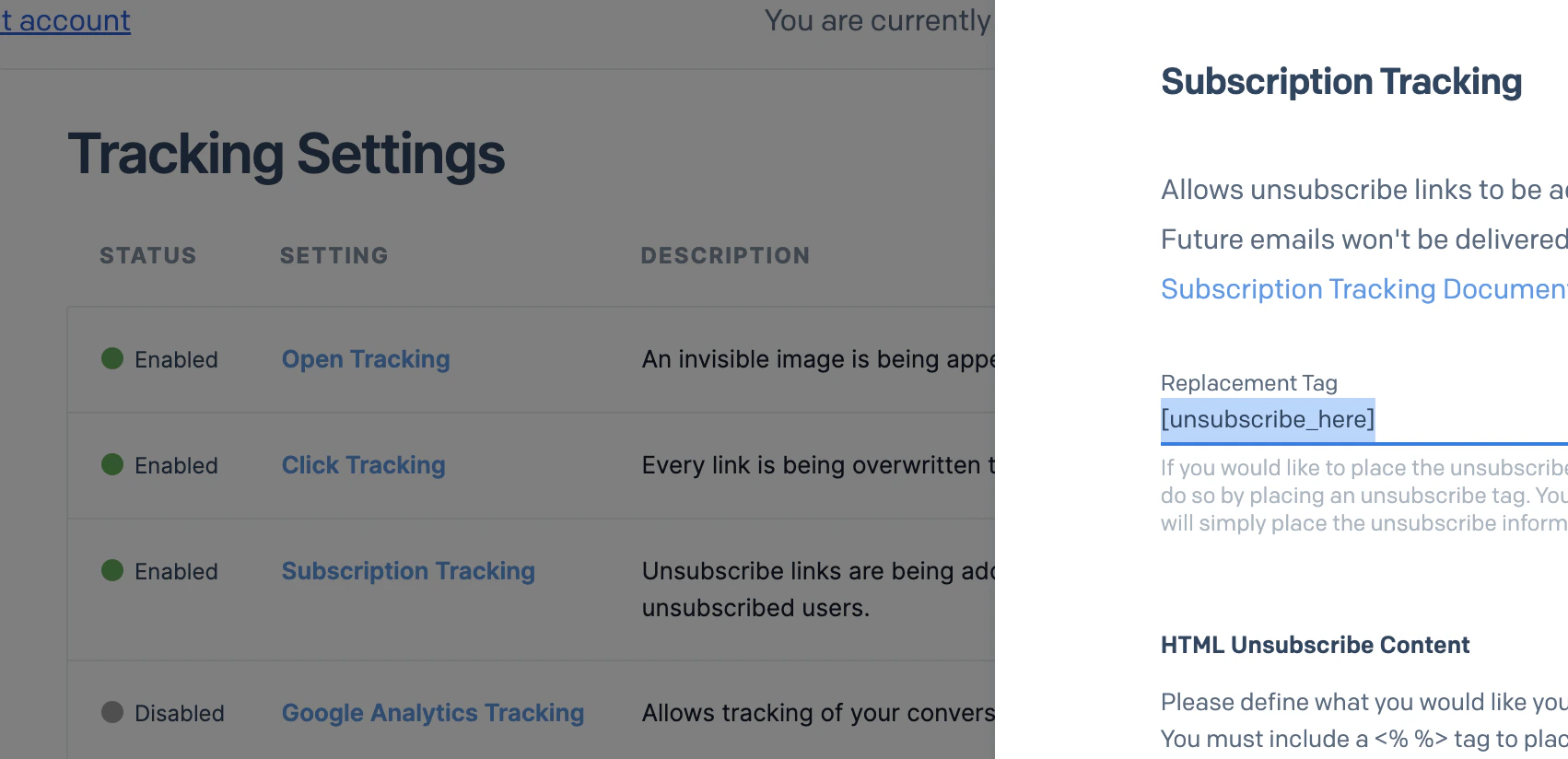
You can use replacement tags and codes to include the unsubscribe link in emails and customize the text for the unsubscribe link.- Go to Sendgrid > Settings > Tracking > Suppression Tracking.
-
Add your preferred replacement tag.
- MoEngage uses the tag “[unsubscribe_here]” because it is unlikely to be used by mistake in the email body.
- The replacement tag is case-sensitive.
-
If you place this tag as the link value anywhere in the email body, it will act as the Unsubscribe link.
For example:In HTML Editor 
In Drag and Drop Editor 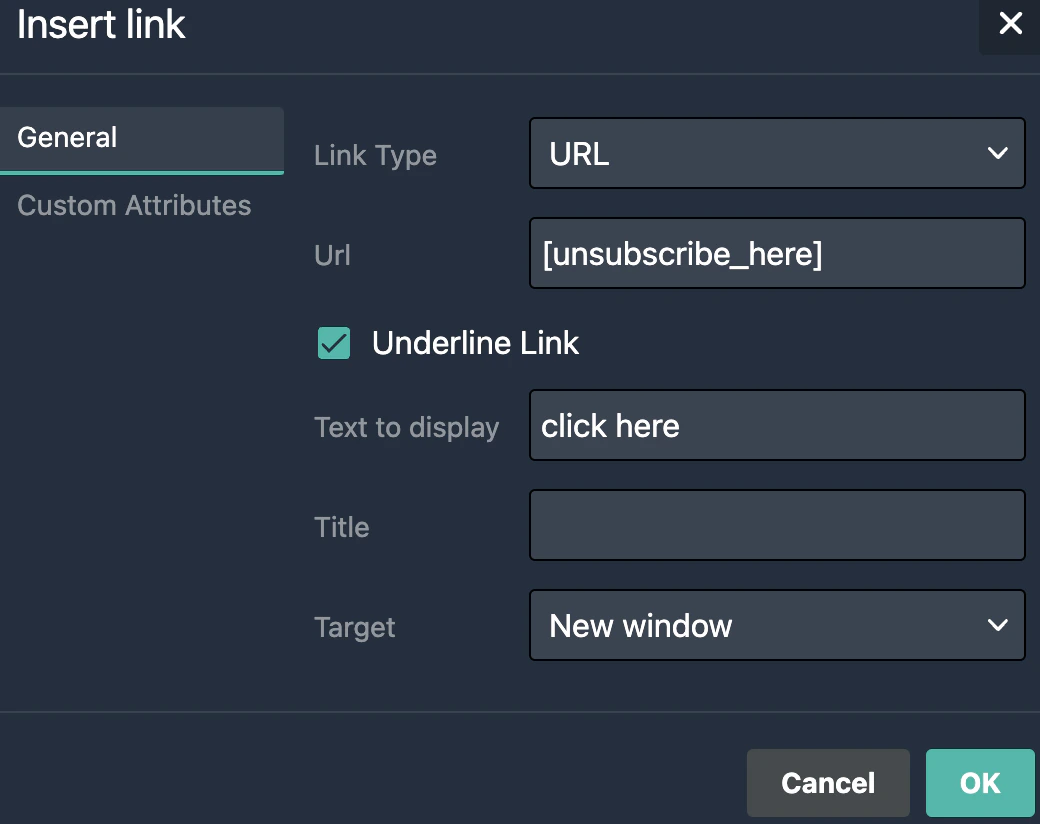
Mandrill
If you choose Mandrill tracking for unsubscribe management on the MoEngage dashboard, then ensure that you make the corresponding change in the subscription tracking section of Mandrill.- If you enable subscription tracking in Mandrill, they will insert an unsubscribe link in the emails.
SparkPost
If you choose SparkPost tracking for unsubscribe management on the MoEngage dashboard, then ensure that you make the corresponding change in the subscription tracking section of SparkPost.- If you enable subscription tracking in SparkPost, they will insert an unsubscribe link in the emails.