

- Go to the MoEngage Dashboard.
- From the left navigation, use one of the following options:
- On the Engage menu, click Campaigns. The All Campaigns page appears. In the upper-right corner, click + Create Campaign. The Create Campaign page appears.
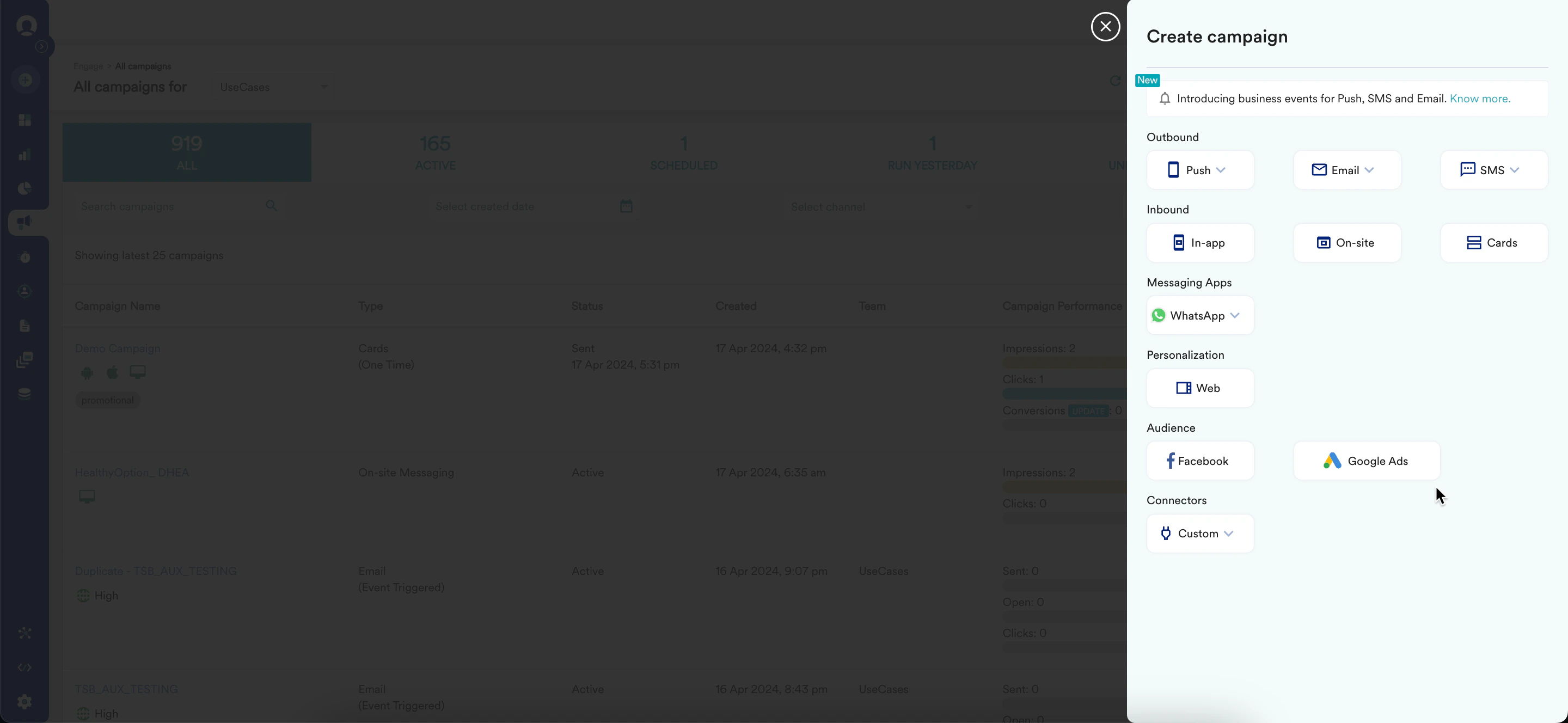
- Click Create New, and then click Campaign. The Campaign page appears.
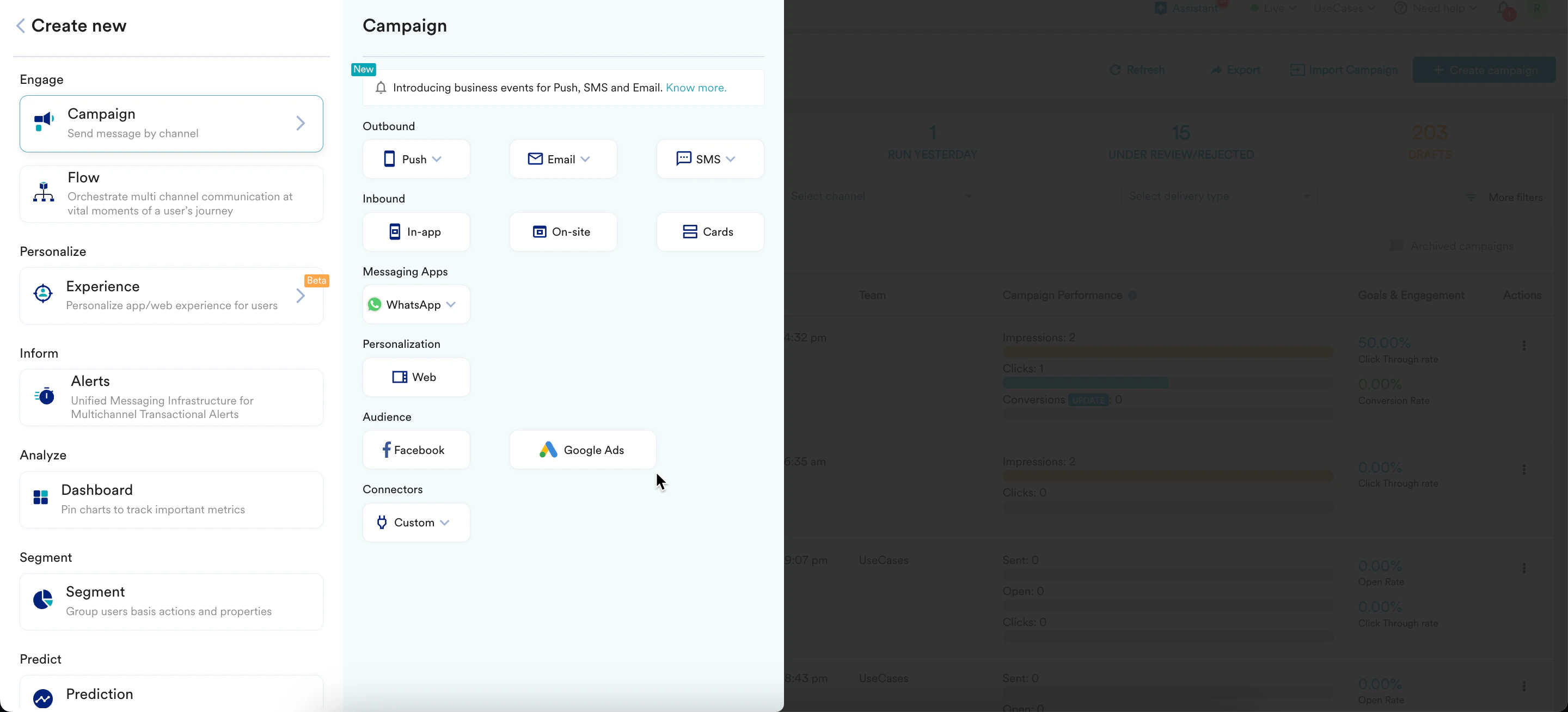
- On the Engage menu, click Campaigns. The All Campaigns page appears. In the upper-right corner, click + Create Campaign. The Create Campaign page appears.
- In the Audience section, click Facebook. The Facebook Audience creation page appears.
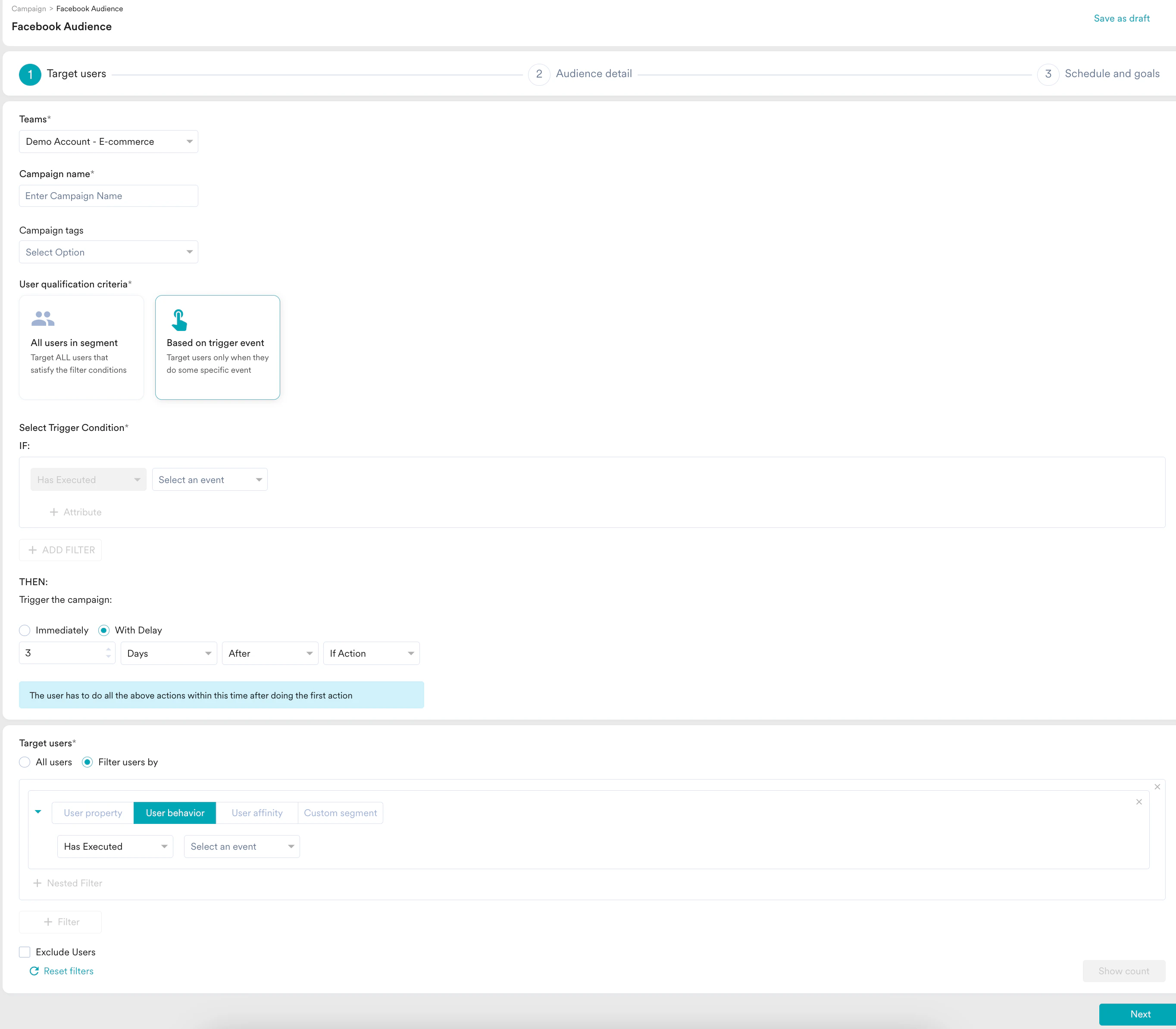
Create a Facebook Audience Campaign
Use the following steps to create a Facebook Audience campaign:- Target users: Define the target audience for the campaign.
- Audience detail: Define the audience to add or remove from the Facebook Account.
- Schedule and goals: Define the campaign’s delivery schedule and goals.
Step 1: Target Users
This section includes:Campaign Details
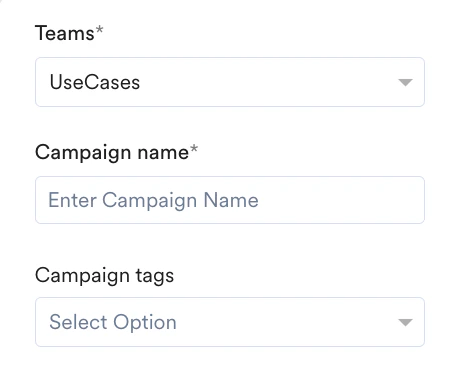
The Campaign Details section contains the following fields:- Teams: If your organization uses teams, select a team from the drop-down list. For more information, see Teams in MoEngage.
- Campaign name: Enter a name for the campaign to help manage and identify it. The campaign name must contain at least five characters, with a maximum of 256 characters.
- Campaign tags: Select campaign tags from the drop-down list. You can select a maximum of five tags. For more information, see Campaign Tags.
User Qualification Criteria
This section helps define the users you want to add to or remove from the custom Facebook Audience. You can define two types of user segments here:- All users in segment
- Based on trigger event
This option selects all users who meet the filter criteria. Select the All Users in Segment option to create a custom segment of all users who satisfy the filter criteria defined in the Target Users section. You can create one-time or periodic campaigns by using this option.Use this option to synchronize users to Facebook based on specific user properties. Go to the Target Users section, and select either All Users or create a segment based on specific rules.Example: You can create a segment of users who have not received a Push notification on Android and iOS. MoEngage sends all users in this segment to Facebook to add or remove them from a specific custom audience (as described in Step 2).
Target Users
This section provides segmentation filters to select your campaign’s target users. The following options are available:- All Users
- Filter by User Property
- Filter by User Behavior
- Filter by User Affinity
- Filter by Custom Segment
This option sends the campaign to all app users. You cannot add multiple filters when you use this option. 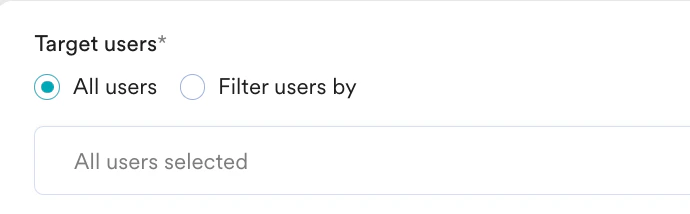
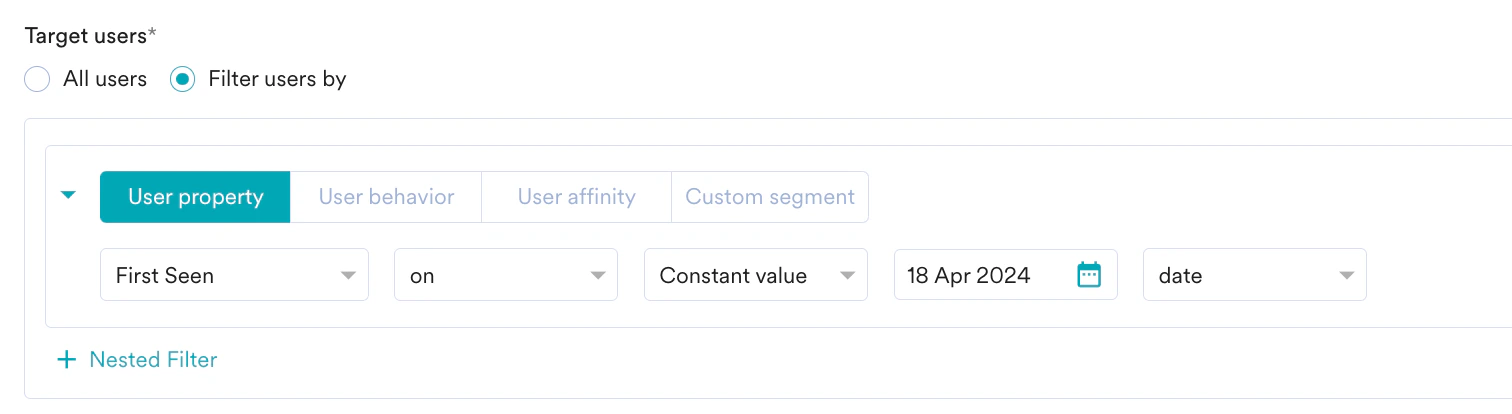
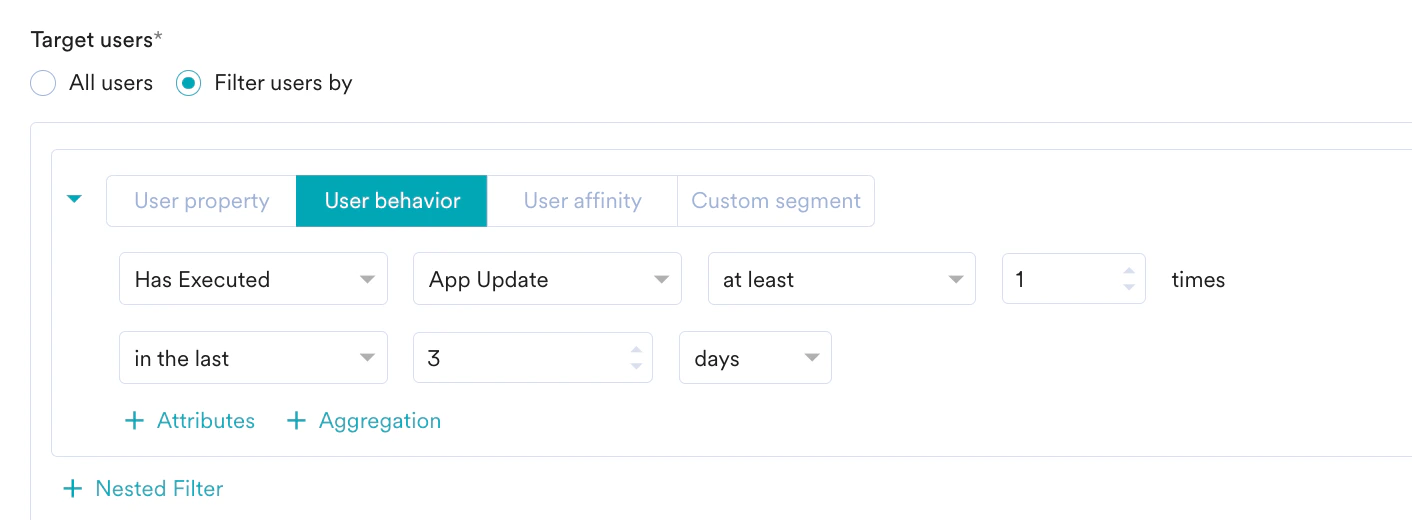
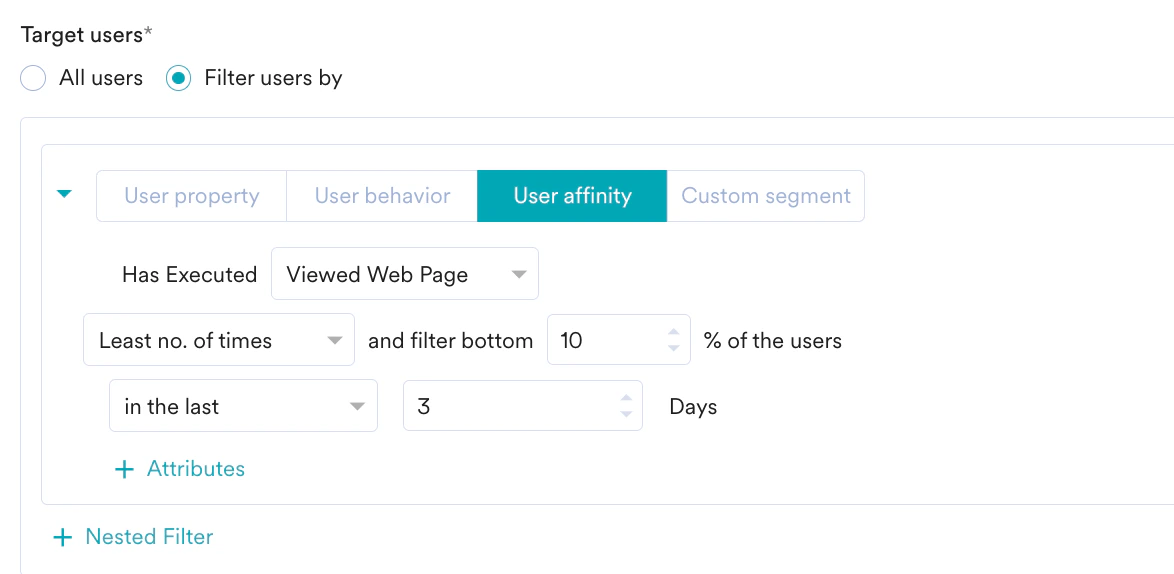
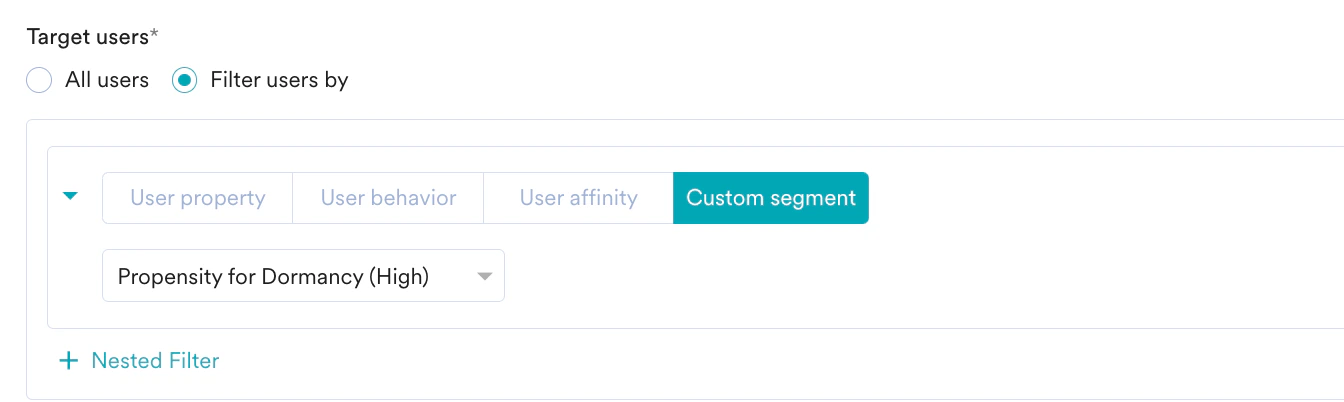
- Create Multiple Filters: You can combine multiple user property rules, user activity rules, and custom segment rules to create complex user segments.
- Click + Filter.
- Click AND or OR.
- Select the attribute or event, and then define the filter conditions.
- Exclude Users: Select this check box to define the filter criteria for users to exclude from the campaign.
- Reset Filters: Click this option to reset the segmentation filters.
- Show Count: Click this button to display the total number of users currently in the configured segment.

Control Group
This section provides information about control groups for the campaign. To exclude users from control groups, do the following: In the Enable Control Group section, turn on the Global Control Group toggle to exclude users from the campaign’s target segment. For more information, see Control Group Click Next, or use the tabs at the top of the campaign creation wizard to go to Step 2.
Step 2: Audience Detail
Ad Account ID
Select the Ad Account ID that contains a custom audience. Ensure you select the correct ID from the drop-down list. The default Ad Account ID, configured in the Facebook Audience settings page, is automatically selected. You can change this selection at any time.Add or Delete Facebook Audience
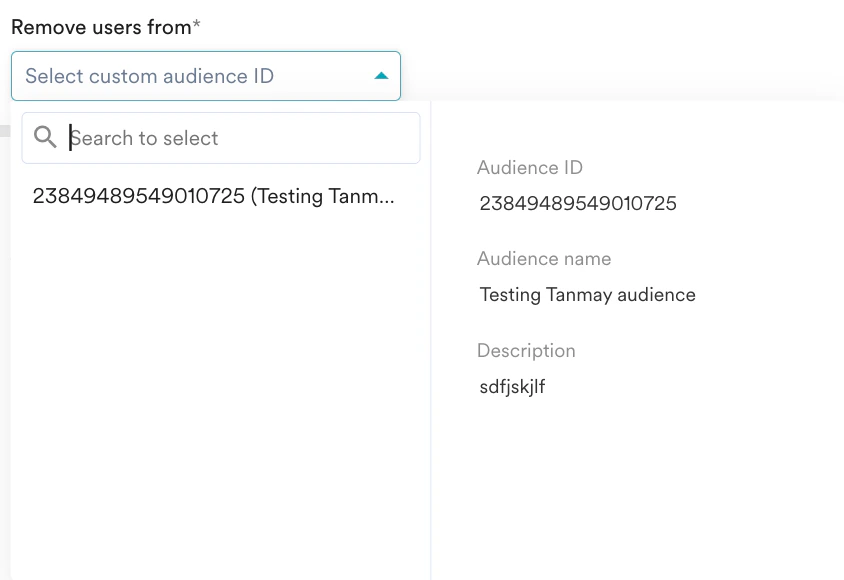
Select the operation (add or delete users) you want to perform through this campaign.- Add users to Facebook audience
- Delete users from Facebook audience
With this option, you can add users from MoEngage to an existing audience or create a new list by specifying match criteria.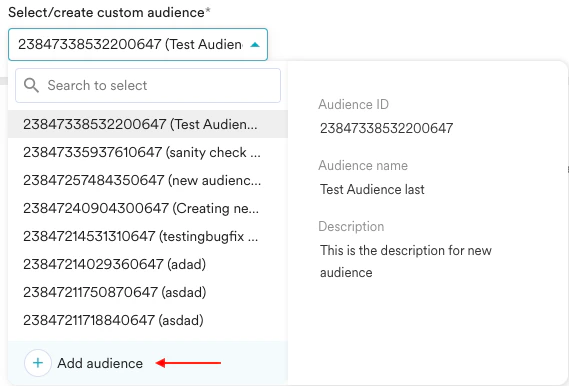
Select or Create a Custom Audience
You can either select an existing custom audience or create a new one.Use an Existing Custom Audience
MoEngage retrieves and displays a list of existing custom audiences for the selected Ad Account ID. You can view the name and description of each custom audience. Select the audience you want to use. If you cannot find the custom audience you are looking for, ensure you selected the correct Ad Account ID.Create a New Custom Audience
You can also create a new custom audience, and then add users to Facebook by using this audience.To create a new audience:- In the Select/Create Custom Audience drop-down list, click + Add Audience.
 The Create New Audience window appears.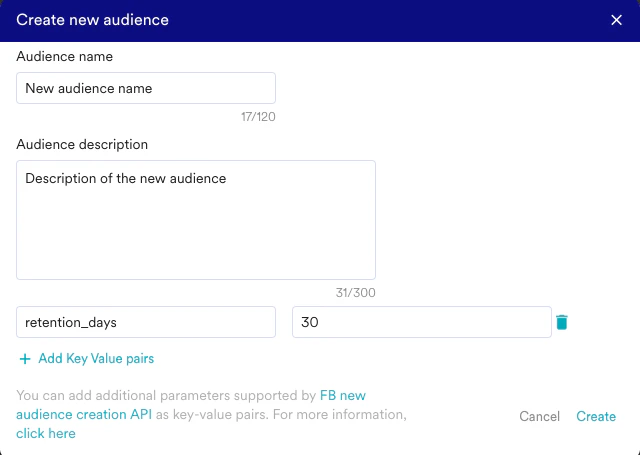
- In the Audience Name field, enter a name.
- In the Audience Description field, enter a description.
- Click + Add Key Value Pairs to add more parameters as key-value pairs for this new custom audience. Ensure that the fields you add are supported by Facebook. For a list of supported fields, visit the Facebook Custom Audience Creation page.
- Click Create. You immediately see a success message that displays the custom audience ID.
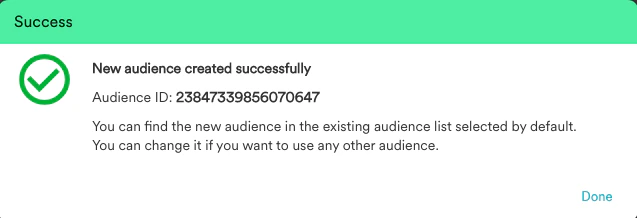
- Click Done. You are redirected to the main screen, where the newly created audience is automatically selected in the Custom Audience drop-down list. Users are now added to this new custom audience.
- You can create a custom audience from multiple sources.
- Facebook might not allow external access to custom audiences created directly in the Facebook dashboard. If you select such an audience, MoEngage Add/Delete calls will fail.
- We recommend you run a test campaign to ensure programmatic access to the selected custom audience (via MoEngage). If an error occurs, select another custom audience or create a new one.
- Facebook does not allow deleting users from a custom audience if the audience size is too low. Facebook has not provided a minimum count for this. Therefore, run a test campaign to ensure the delete operation is permitted for the selected custom audience.
- According to Facebook: You can add an unlimited number of records to an audience, but only up to 10,000 at a time. Changes to your Custom Audiences are not immediate and usually take up to 24 hours.
- To create or edit a Custom Audience, your ad account must be associated with a business (mapped to a Business ID).
Match Identifiers
You can select one or more of the following identifiers for Facebook to match users:- Device identifier [Google Advertising ID (Android), Advertising Identifier (iOS)]
- Email ID
- Mobile Number
- User U1: Only advertising identifier exists in the system
- User U2: Advertising identifier and email ID exist in the system
- User U3: All three identifiers exist in the system
Case 1: Single Identifier Selected
If you select only one identifier (for example, Mobile Number) for matching users to Facebook, only User U3 is sent for the add or delete operation. This occurs because User U1 and User U2 do not have a mobile number.Case 2: Two Identifiers Selected
If you select two identifiers (for example, Mobile Number and Email ID) for matching users to Facebook, Users U2 and U3 are sent for the add or delete operation. This occurs because User U1 does not have both a mobile number and an email ID.Case 3: All Three Identifiers Selected
If you select all three identifiers, MoEngage sends all three users (U1, U2, and U3) for the add or delete operation. This occurs because at least one identifier exists for all users.- An additional benefit of Case 3 is that for User U3, MoEngage makes three calls to Facebook, one for each identifier. This means that if one or two identifiers fail to match at the Facebook level, the user is still added as long as at least one identifier matches successfully.
- This approach contrasts with Facebook’s multi-key matching, where a user is added to Facebook only if all identifiers or keys passed in the multi-key array match, which results in a lower match rate.
Test Campaign (Optional)
Test Campaign (Optional)
Test campaigns enable you to preview a campaign on a test device, ensuring that your notification is conveyed as intended. A successful test campaign results in the actual addition or deletion of the user in the Facebook Audience (based on your selection in the previous step).You can test the campaign by selecting any of the following options and providing the value for the attribute chosen for your test user:
- Unique ID
- Email ID
- Mobile Number (Registered with MoEngage)
- Google Advertising Identifier
- iOS Identifier for Advertising
- Device Push Token
-
Custom Segment

Step 3: Schedule and Goals
This section includes:- Delivery Schedule: Choose when the campaign should be delivered to your users and the periodicity of delivery.
- Conversion Goals: Choose the conversion goals and revenue metrics to track for the campaign.
Delivery Schedule
One Time
One Time
- As soon as possible
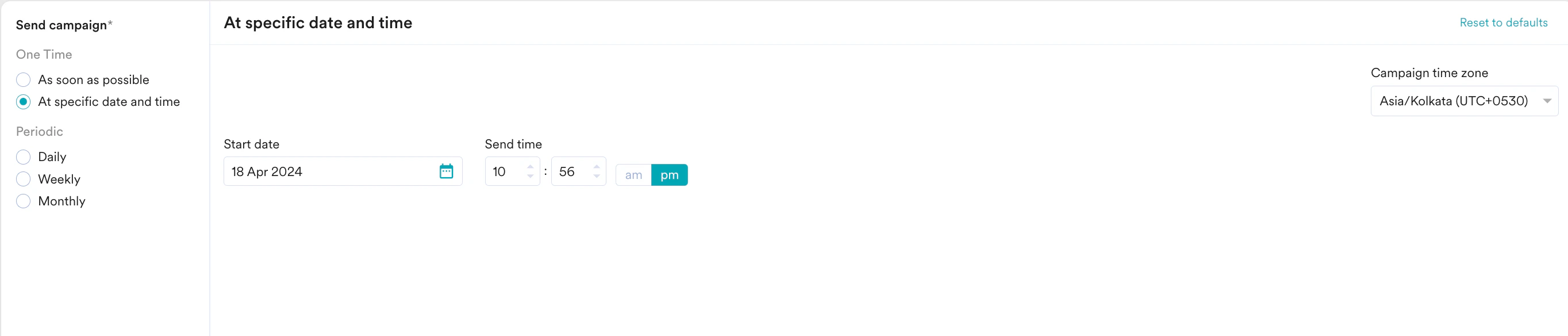
- At specific date and time
This option sends the campaign immediately to target users.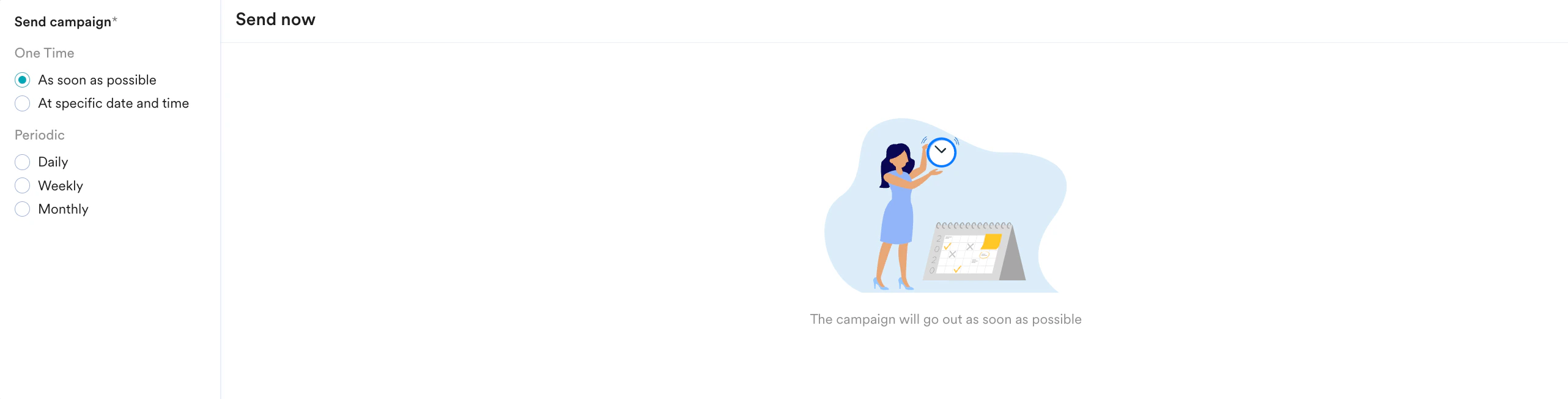
Periodic
Periodic
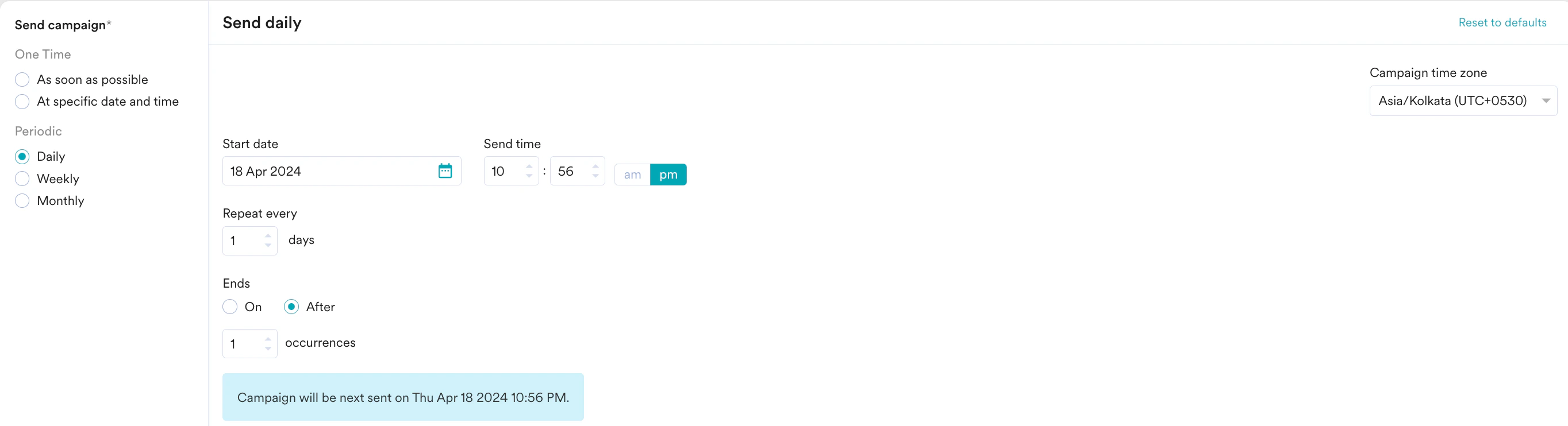
This option sends the campaign periodically on a specified date and time. The following fields are available in this section:
- Campaign time zone: The time zone in which the campaign should be sent.
- Start date: The date on which the campaign should be sent.
- Send time: The time at which the campaign should be sent. Select AM or PM, depending on the time of day the campaign should be sent.
- Periodicity: The frequency of the campaign. You can select from the following options:
-
Ends: The date on which the campaign should end. The following options are available:
- On: The campaign ends on the end date specified in the End Date field.
- After: The campaign ends after the number of occurrences specified in the Occurrences field.
Conversion Goals
Conversion goals are optional. To add a conversion goal, click + New Goal. You can add conversion goals to track the business metrics for your campaigns. You can track a maximum of five conversion goals. You can select any app event as a conversion goal activity and set multiple conversion goals. The first goal is treated as the primary goal. For example, to track the number of customers who purchased an iPhone after your campaign was sent (Event: Purchase event, Product: iPhone), your conversion goal setup might resemble the following image: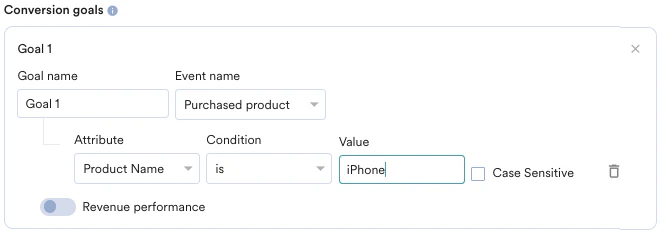
- How many users viewed the product page?
- How many of them added that product to the cart?
- How many of them made a successful order?
Tracking Revenue Performance (Optional)
Tracking Revenue Performance (Optional)
With MoEngage, you can track the revenue generated by your campaigns. For example, you can track revenue generated by your product after sending a communication. To track revenue performance, turn on the Revenue Performance toggle for the desired conversion goal. In this example, to track revenue for the orderSuccessful event, you must turn on the Revenue Performance toggle. | 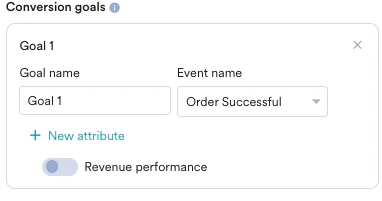 |
After selecting the goal, select the numeric attribute that captures the total monetary value of the order. For example, cartValue contains the total order value. You can select the currency in which your monetary value is reported. | 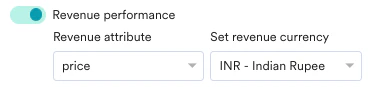 |
| Set Attribution Window: You can set an attribution window, which defines the time period (since a user received or clicked the campaign) for attributing conversion goals to a specific campaign. By default, it is 36 hours, with a maximum of 10 days. For example, the attribution window is set to 5 hours. |  |
- For Facebook Audience campaigns, MoEngage tracks conversions for a user after successfully sending the user’s details to Facebook for matching.
- Because Facebook does not provide status updates on whether a user was synced successfully (added or deleted), MoEngage assumes a successful response from Facebook as a proxy for successful syncing. For definitions of the campaign metrics, including how eligible, attempted, and successfully synced users are counted, see Facebook Audience Campaign Analytics.