

Resolve the business_management permission error
If the Facebook Audience sync fails because your access token is missing the business_management permission, generate a new token that includes this permission using the Graph API Explorer, and then extend it to a long-lived token.- Open the Graph API Explorer.
- From the Meta App drop-down, select your app.
- From the Permissions drop-down, make sure ads_read, ads_management, and business_management are all selected.
business_managementis the permission commonly missing that causes this error. - Click Generate Access Token.
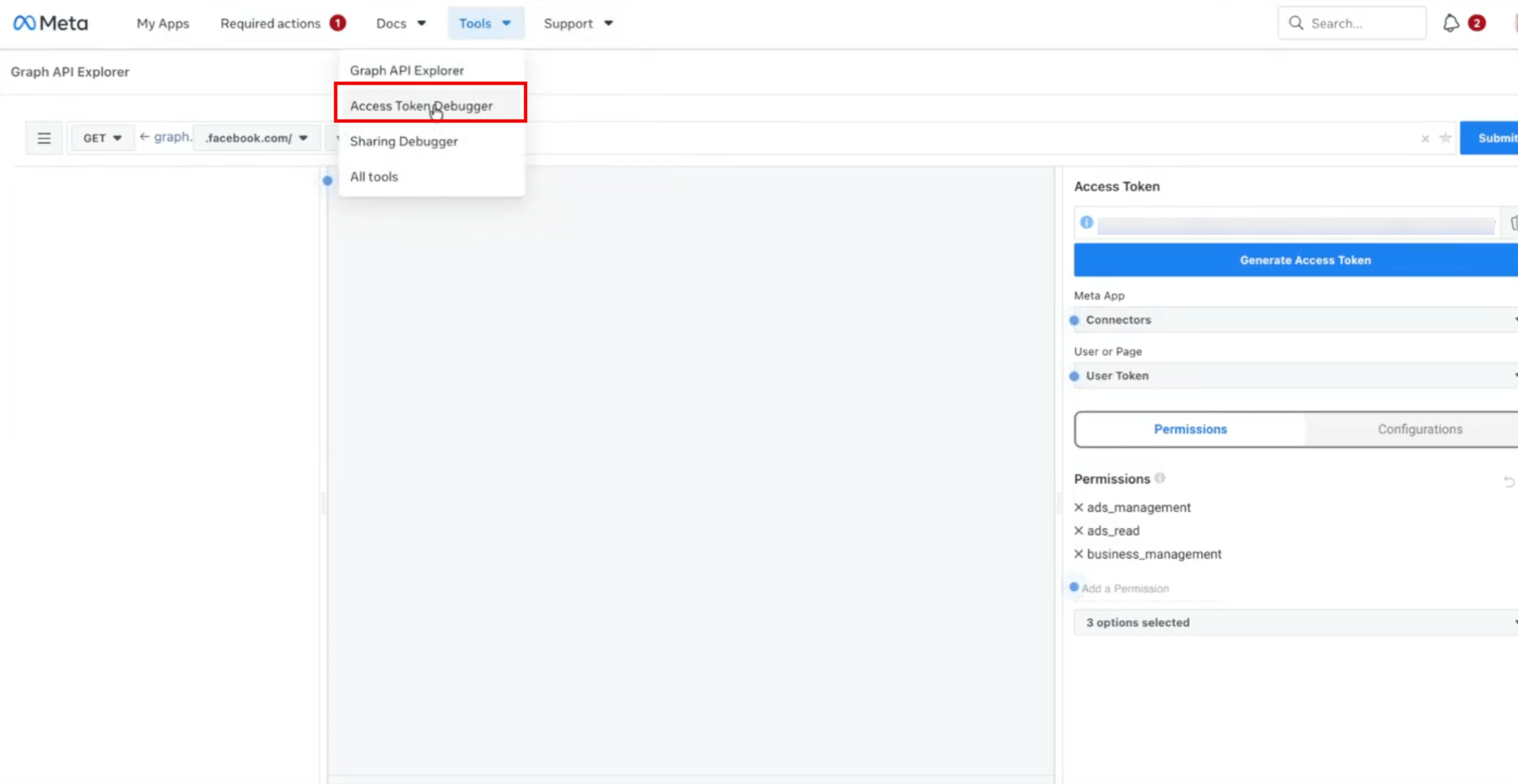
- The generated token is short-lived. To extend it, open the Access Token Debugger.
- Paste the token, and then click Extend Access Token to generate a long-lived token that is valid for 60 days.
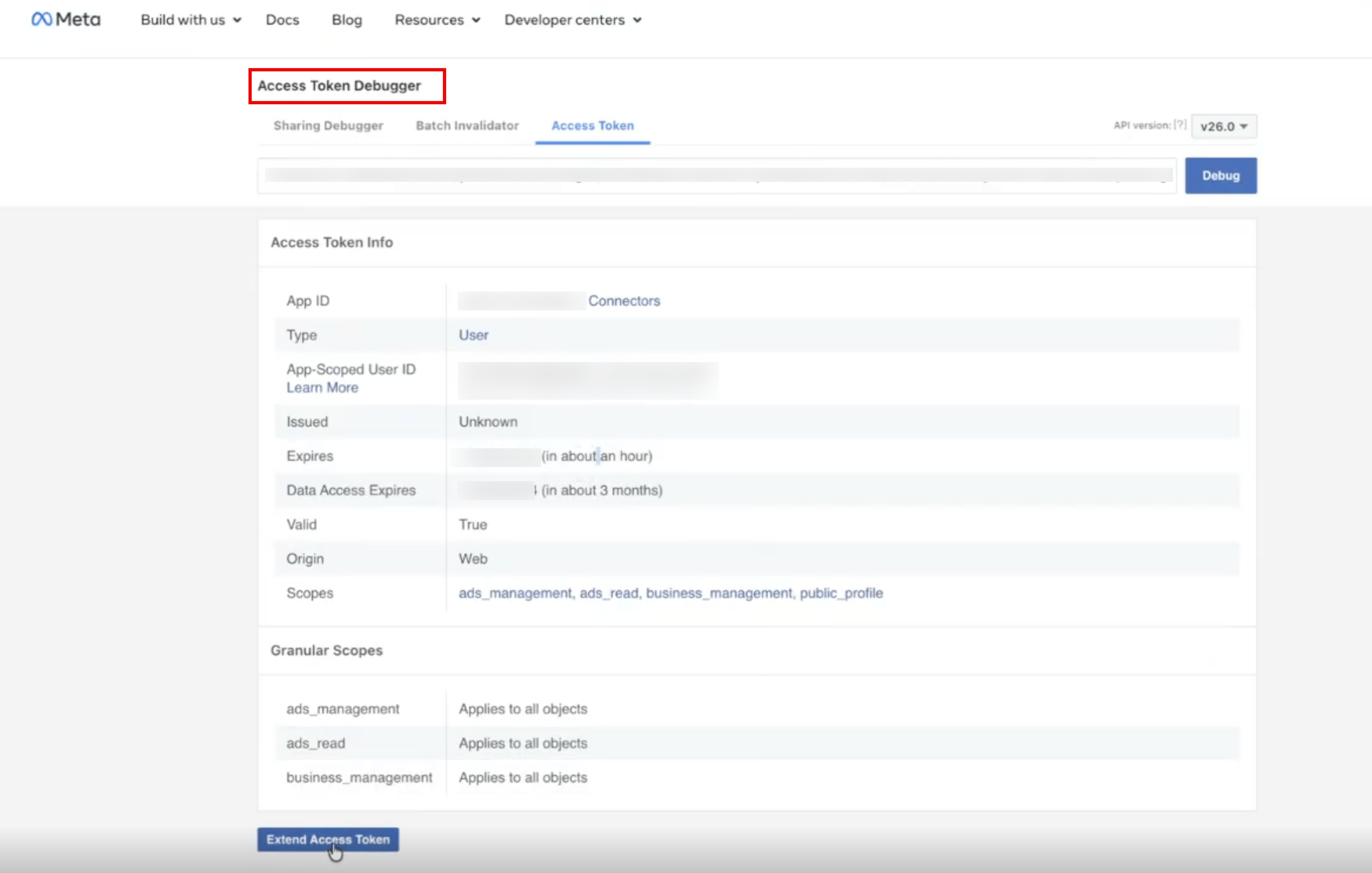
- Copy the extended token, and then use it to connect Facebook Audience in MoEngage.
Check for Required Permissions
Facebook’s API does not let you create or change Custom Audiences if the terms have not been accepted. If the contract is not signed, Facebook triggers an error when you try to create or edit a Custom Audience.Identify Permission Issues
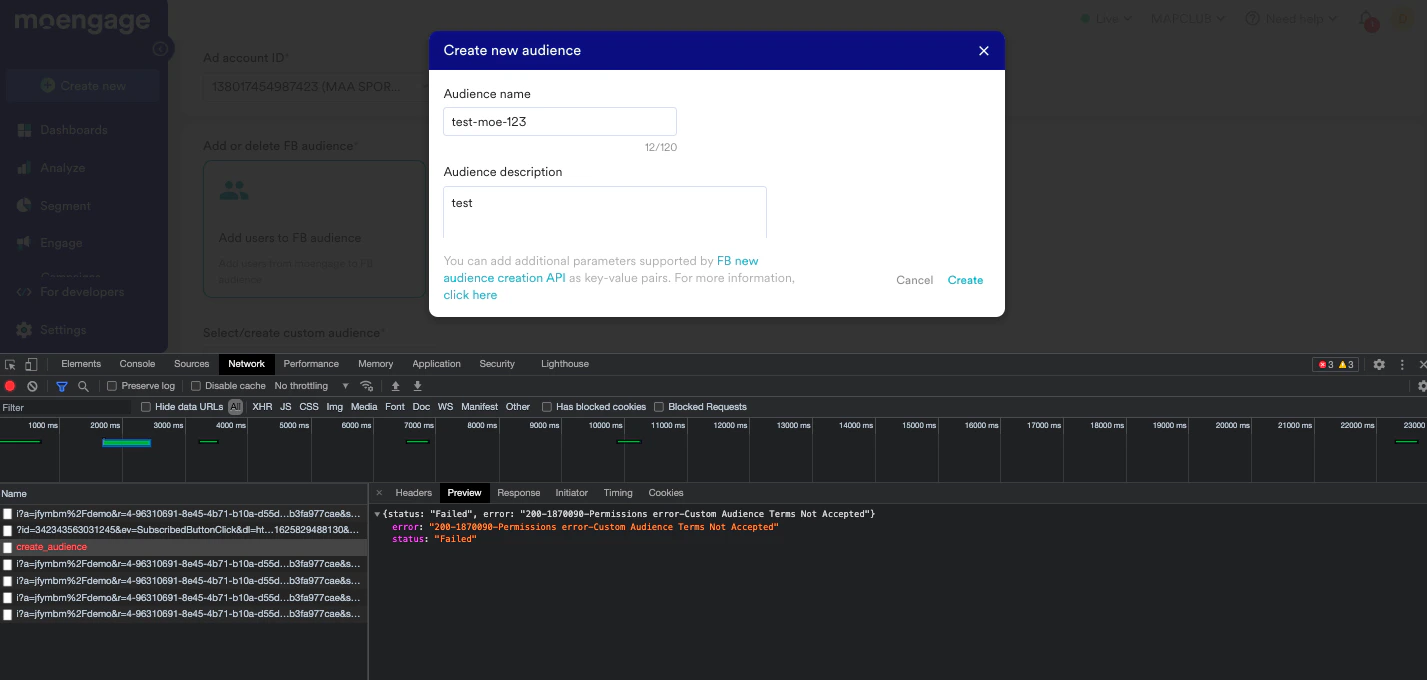
To confirm that permission issues are causing the audience creation failure, follow these steps:- Go to Developer Tools in your browser.
- Select the Network tab.
- In MoEngage, click Create Audience in the Create new audience section.
- Look for the error message that appears in the Network tab, as shown below.
Resolve Permission Issues
To resolve this issue, follow these steps:- Navigate to the Manage Custom Audiences page on Facebook. You might be asked to log in if you are not already logged in.
- Update the correct Ad account ID in the URL.
- Accept the terms and conditions for the Ad account.
- Fetch a new access token from the Facebook App dashboard.
- Go to the MoEngage dashboard. Log out from Facebook on the MoEngage Settings page, and then log in again with the new access token.
- Try creating a new audience or adding new users to an existing audience.
- Go to the Facebook App dashboard, and then click Add Product.
- Search for Facebook Login, and then select it.
- Fill in the relevant details. This should add Facebook Login to the left panel under Products.
- Return to the MoEngage dashboard, and then try creating a new audience or adding new users to an existing audience.