Overview

The Push Notification Center feature provides users with a history of received push notifications. This ensures important messages aren’t missed and remain accessible for later review, enhancing user engagement. MoEngage provides two distinct approaches to implementing a Push Notification Center:
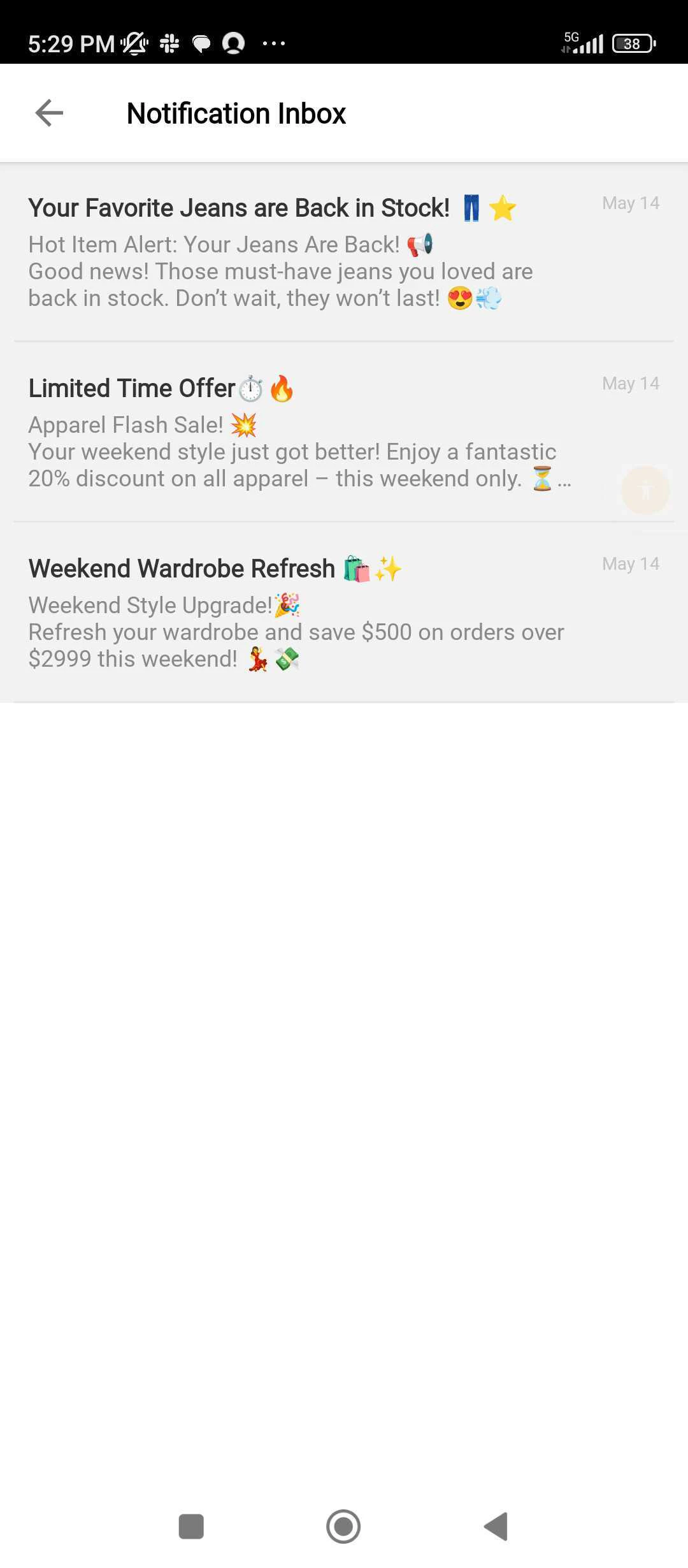
  • MoEngage Push Notification Center: This is a ready-to-use option with extensive UI customization capabilities.
  • Self-Handled Push Notification Center: This is a fully customizable Self-Handled Push Notification Center.
MoEngage Push Notification CenterSelf-Handled Push Notification Center
moengagepushnotificationcentre.jpgselfhandled.png
  • A built-in inbox inside the application that displays push notification history with basic UI customization options.
  • Managed and rendered by the MoEngage SDK.
  • For example, in the MoEngage push notification center, MoEngage provides the look and feel of the inbox where users view past notifications, though you can customize some elements.
  • A custom inbox developed by your app team using MoEngage SDK notification payloads. In this case, MoEngage provides the notification content (for example, the text of the message), and your developers design and build the UI.
  • Your developers design and build the UI based on your app’s design guidelines.
  • For example, in the Self-Handled Push Notification Center, you have full control over the design of this inbox; you populate it with data from MoEngage.
Regardless of the preferred implementation method, the push notification center serves as a valuable tool for improving user engagement, providing message persistence, and enhancing the overall user experience within your application.

Benefits

  • Persistent content: Users can interact with push notifications inside the app, even after they are dismissed from the notification drawer.
  • Interaction data: Interaction done within the notification center can be tracked on the MoEngage dashboard.
  • Non-intrusive: Notification center content appears as a native part of the user’s app experience and is non-disruptive. This increases user receptivity, resulting in better engagement.

Use Cases

  • Offers and Promotions
  • Gamification and enrolment in contests
  • Reminders and tips
  • Changes to policies and terms and conditions
  • Transactions and service updates
  • Cart or wishlist reminders
  • Recommendations

Push Notification Center Capabilities

These capabilities apply to both notification center types unless stated otherwise.
FactorsDescription
Delivery MechanismDelivered when the push notification is delivered via APNS/FCM or on every app open through the backup delivery mechanism.
ReachabilityAny user who is eligible and has opted in for Push notifications.
Trigger Option
  • Bulk (one-time)
  • Trigger Based
    • Event-triggered
    • Device triggered
    • Location triggered
    • Business event triggered
    • Flow triggered
  • Periodic
  • Inform
Content RetentionMessages are saved locally on the devices that received them. They are not retained across uninstalls, logouts, or data clearing.
Content BehaviorNotifications remain static after delivery. Bulk deletion isn’t supported. Users can delete individual notifications.
Expiry OptionWhile creating a campaign, you can configure how long the message remains in the notification center before expiring (in days). For more information, refer here.
Grouping and Replacement
  • Notifications appear as individual entries.
  • Grouping and Replacement features aren’t supported in the MoEngage Push Notification Center.
  • The group key and update key are available in the payload for custom UIs in Self-Handled Push Notification Centers.
Media supportBig images, icons, and other media aren’t supported in the MoEngage Push Notification Center, but are available in the payload for custom UIs in Self-Handled Push Notification Centers.
Placement and DeliveryNotification center content can be displayed to the user in the following ways:
  • MoEngage Push Notification Center with a few UI customization options
    • As a full-page Activity that can be launched on a user action, OR
    • As an embedded Fragment in your app’s activity (Android only)
  • For a Self-handled Push Notification Center, you have access to the entire notification payload, which can be used to build a custom UI.
For more information, refer to Notification Center Placement and Delivery.

Notification Center Placement and Delivery

You can use one of the following methods to display the Notification Center to your users on your application:
MoEngage Push Notification Center displays push notifications as a feed in the users’ notification center or inbox.
Integration EffortLow It requires basic integration and the setting of UI customization values.
Notification Center UIThe MoEngage Push Notification Center UI provides basic customizations of the inbox appearance, such as:
  • Activity theme
  • Activity Label
  • Toolbar Style
  • Message Text Appearance
    • Header
    • Message
    • Timestamp
  • Scrollbar style
  • Empty Notification Center style
Tracking AnalyticsAutomatically track deliveries, impressions, and clicks.
Ideal forTeams with limited developers who are looking to build a Feed (Inbox) inside their app.
Platforms SupportedAndroid (Native), iOS (Native).

Next Steps

To integrate the Notification Center in your app:

Related Information