Overview
Notification Action Buttons enable your Push Notification to have up to three Call To Actions (CTA) - one for the default notification clicks and two for the notification actions. Marketers can drive users to take specific actions without opening the app and make immediate decisions. The image below is a snapshot of the Android Message preview configured with Share and Call Actions, where marketers can drive their customers to take these two actions directly from the notification panel.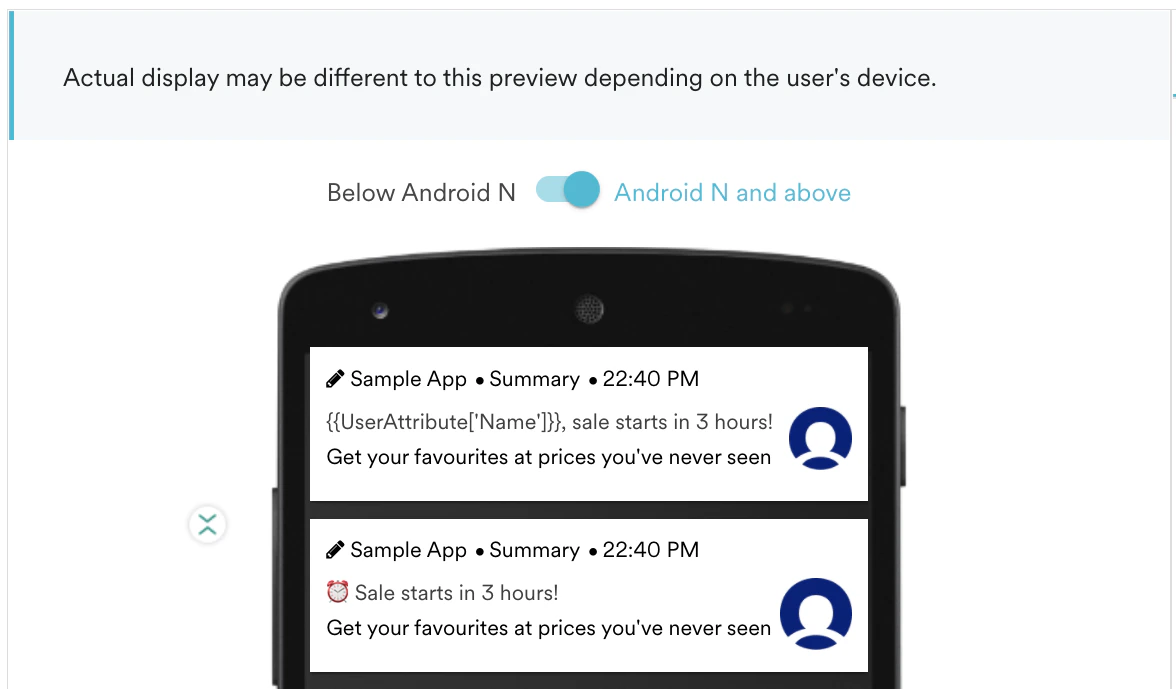
- Your Notification display is being handled by MoEngage SDK.
- Your app is using a suitable SDK version. If not, upgrade that to the latest SDK version.
Actions supported currently for Android
How to use the Actions
Go to Step 2: Messaging, and after configuring your message, click on Actions Tab.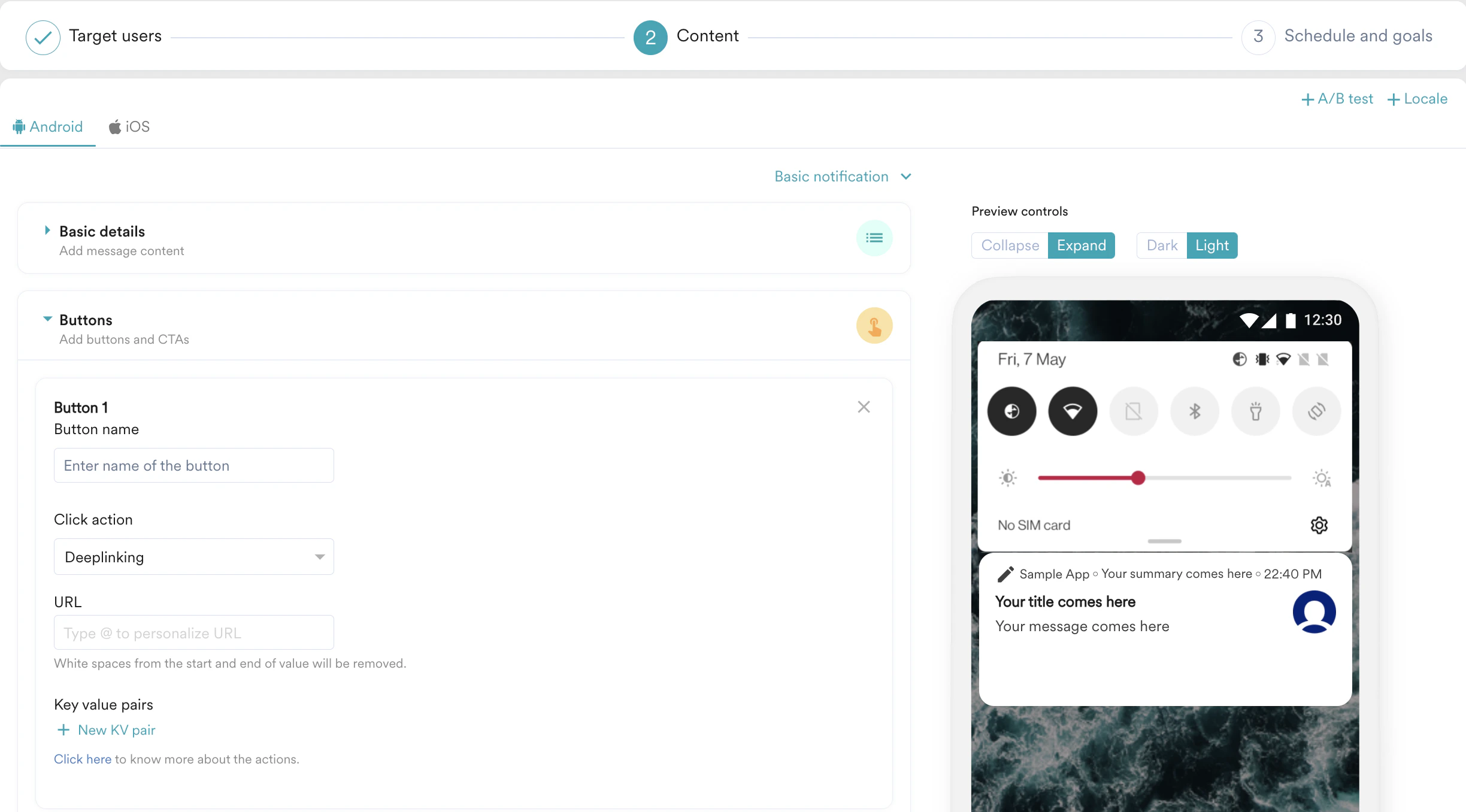
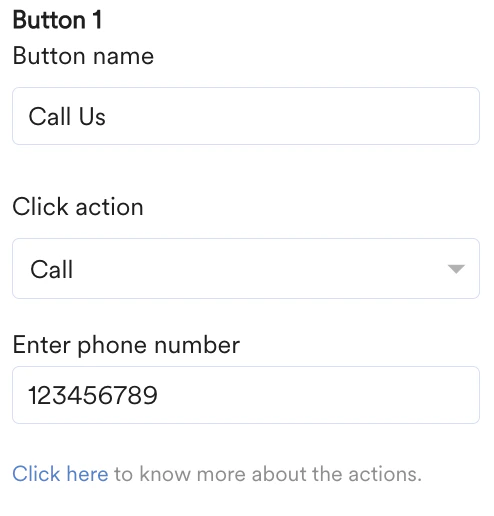
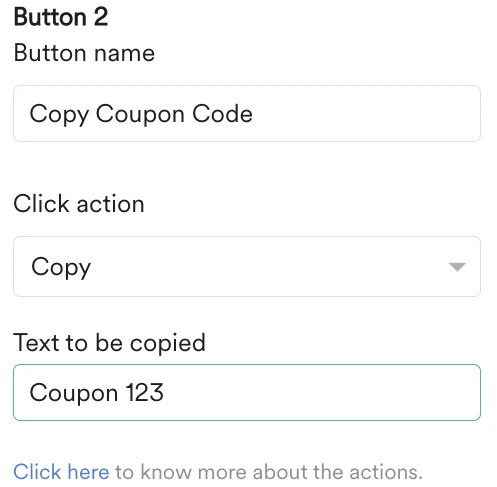
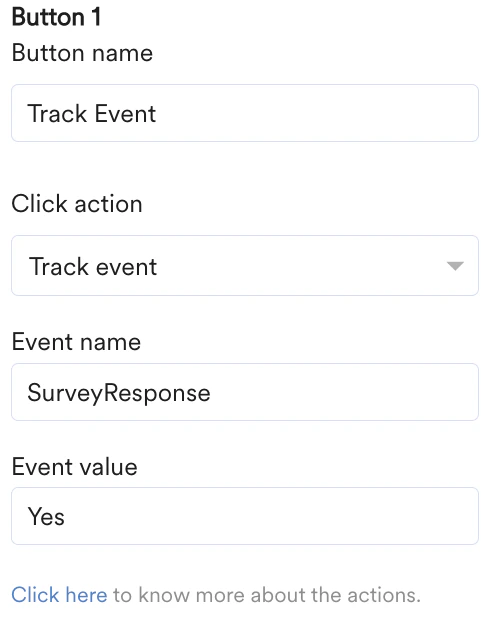
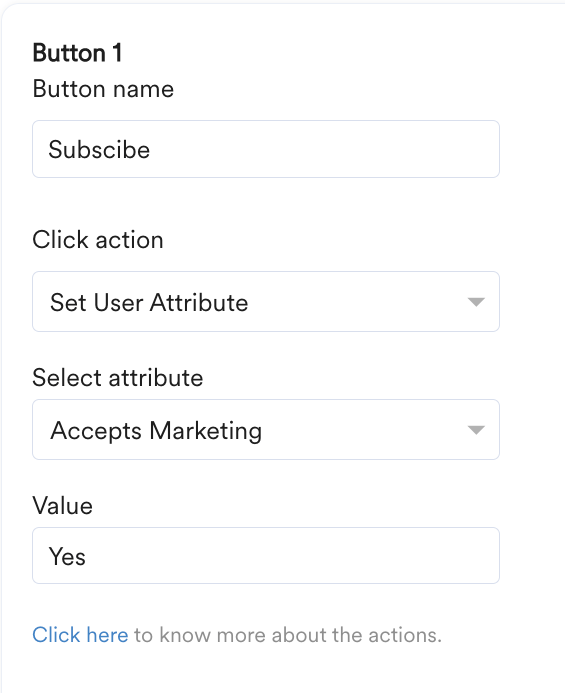
Regarding the supported actions, the app developer has to himself define the categories (and corresponding actions) in the app itself and provide the list of categories to SDK. Our SDK will use the categories supported across the app versions to reference those categories and map actions. They are not configurable on the go by the marketer but are to be developed and released by the app developers. Check out more about it here.
Click Performance for Notification Actions
Once you have created and sent your campaign, you can also track the click performance of these notification actions.- Go to the All campaigns page and click the campaign created by you.
- On the analytics page, select the platform and you can see the platform-wise click performance of your notification actions.