

- Import a landing page you designed in another tool.
- Bring in HTML that your team has already developed.
- Write and build custom HTML directly in MoEngage.
- HTML Upload: Write or paste your HTML in a code view.
- HTML Zip Upload: Upload a ZIP file that contains your HTML and its assets.
Open the HTML Editor
- On the left navigation menu, click Content, and then click Landing pages.
- Click Create a landing page and define the page name and tags.
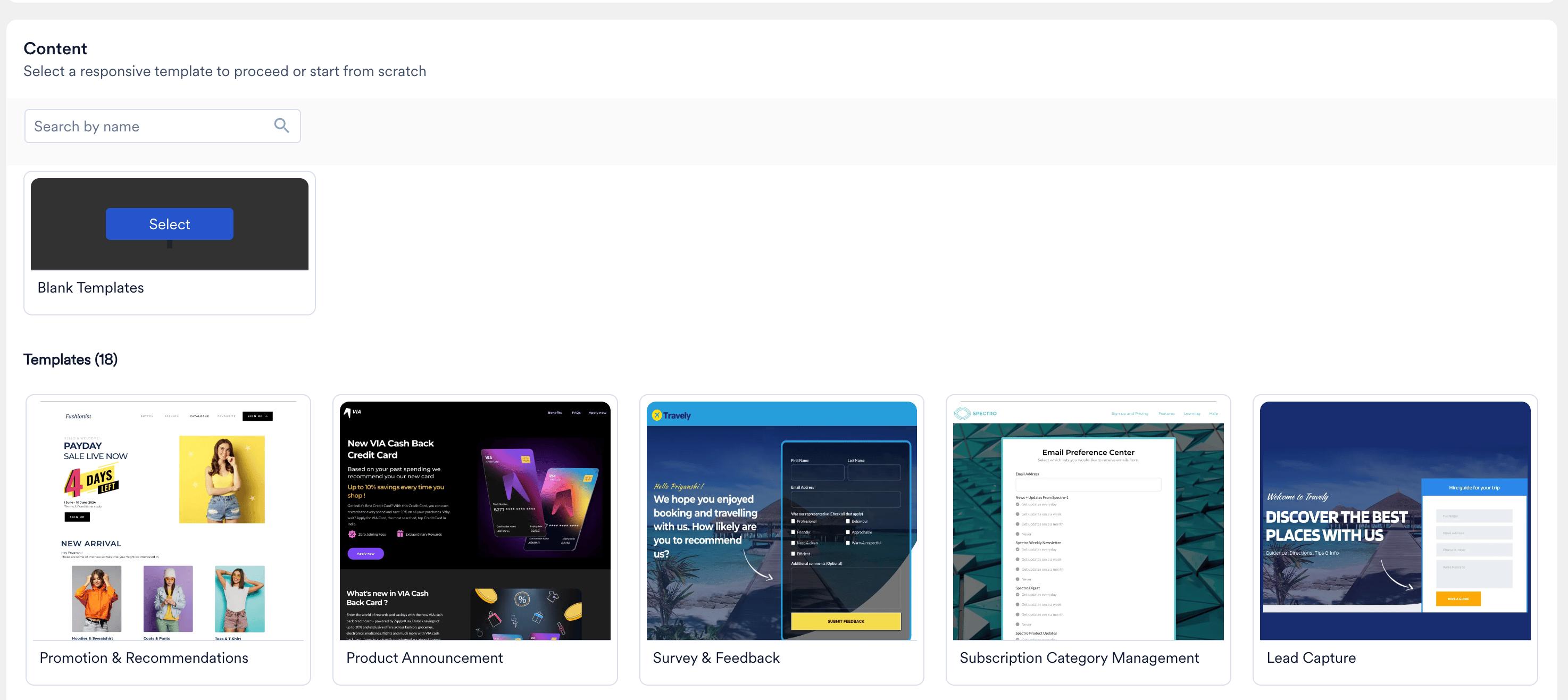
- In the Content step, on the Blank Templates card, click Select.
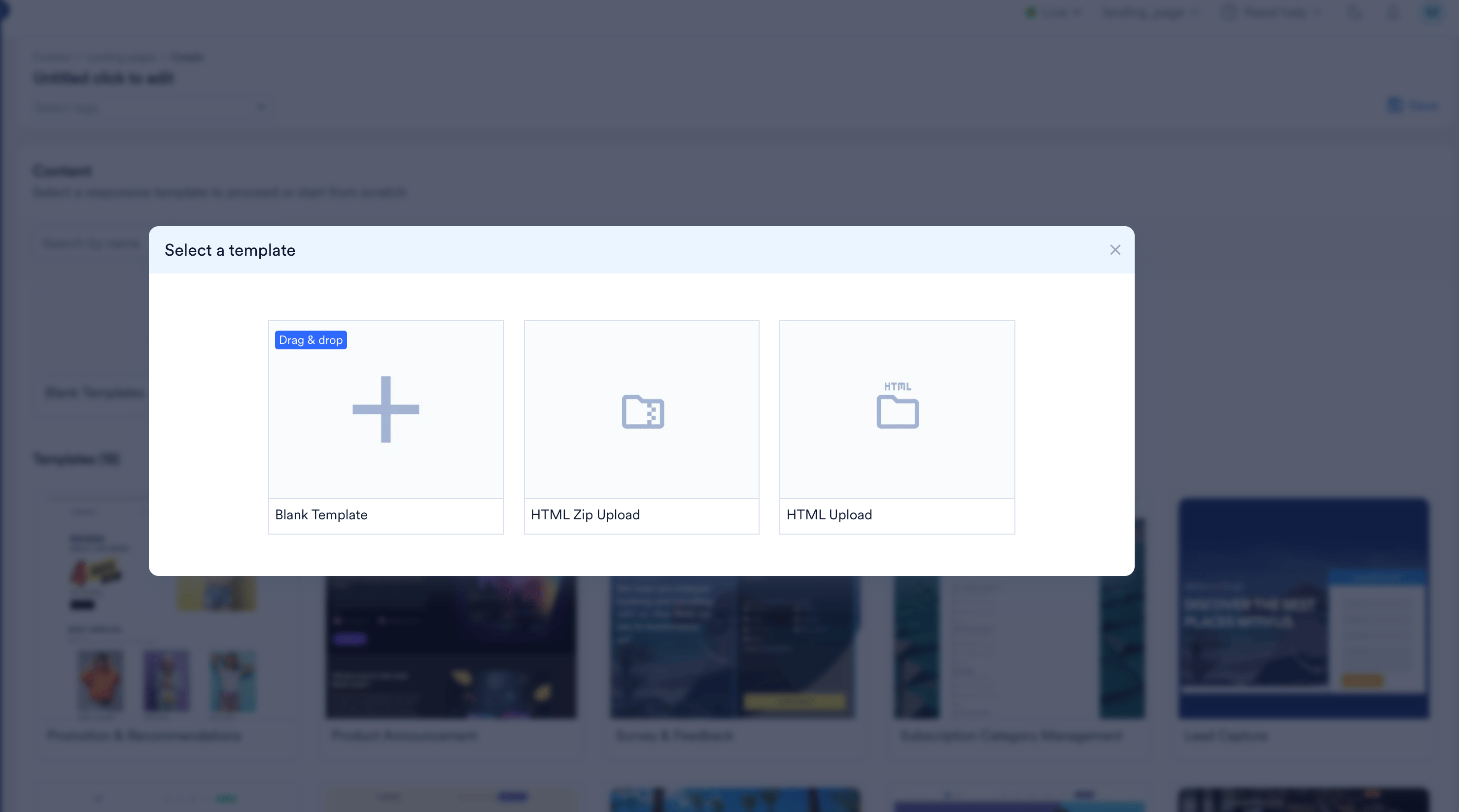
- In the Select a template dialog, choose HTML Upload or HTML Zip Upload.
HTML Upload
Choose HTML Upload to write or paste your HTML directly in the Code View editor. To add images or other assets that your HTML references, click Upload next to Upload files to use in your template. To start over, click Clear.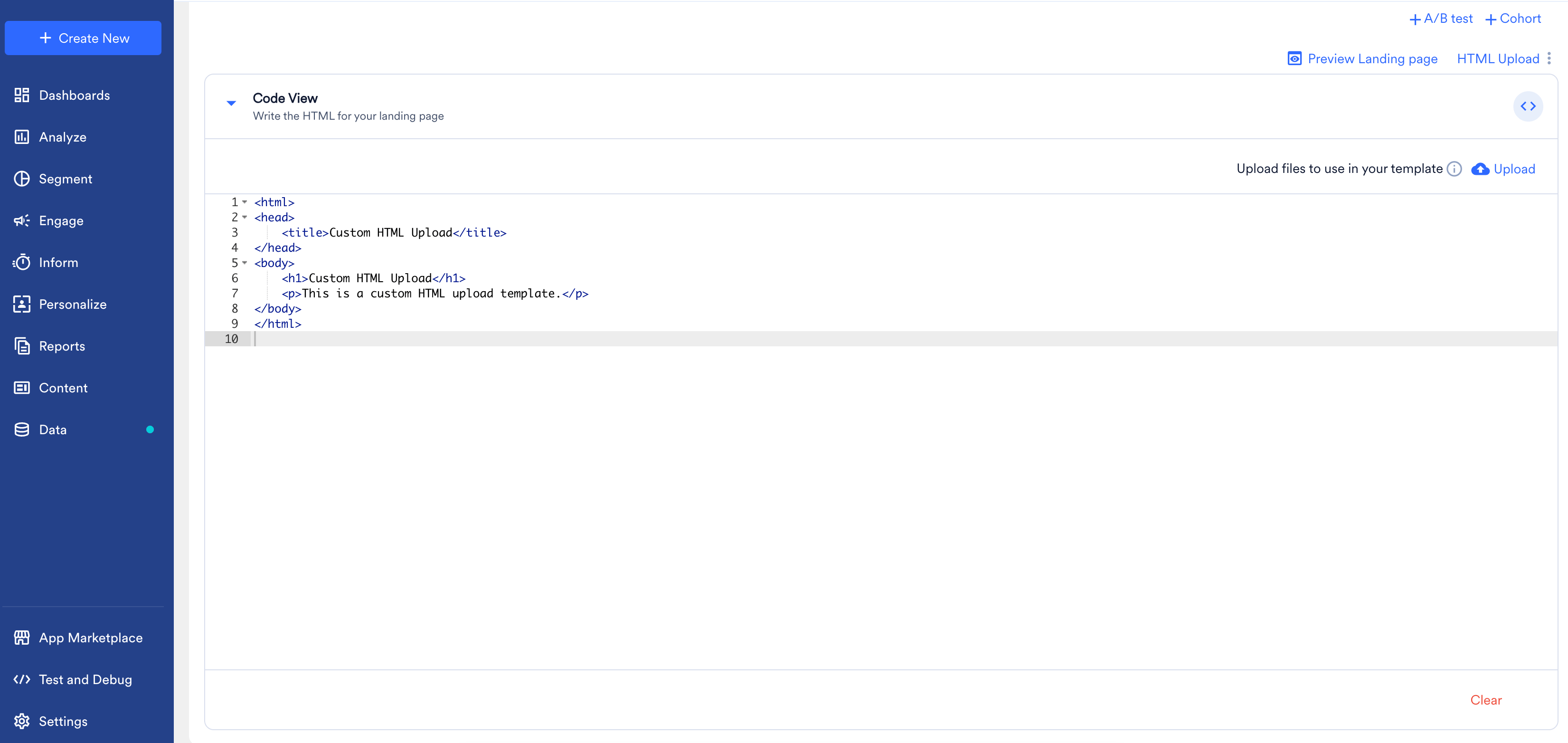
HTML Zip Upload
Choose HTML Zip Upload to upload a ZIP file that contains your HTML and its assets. In the Zip template dialog, drag and drop your file or click Upload from computer, and then click Done.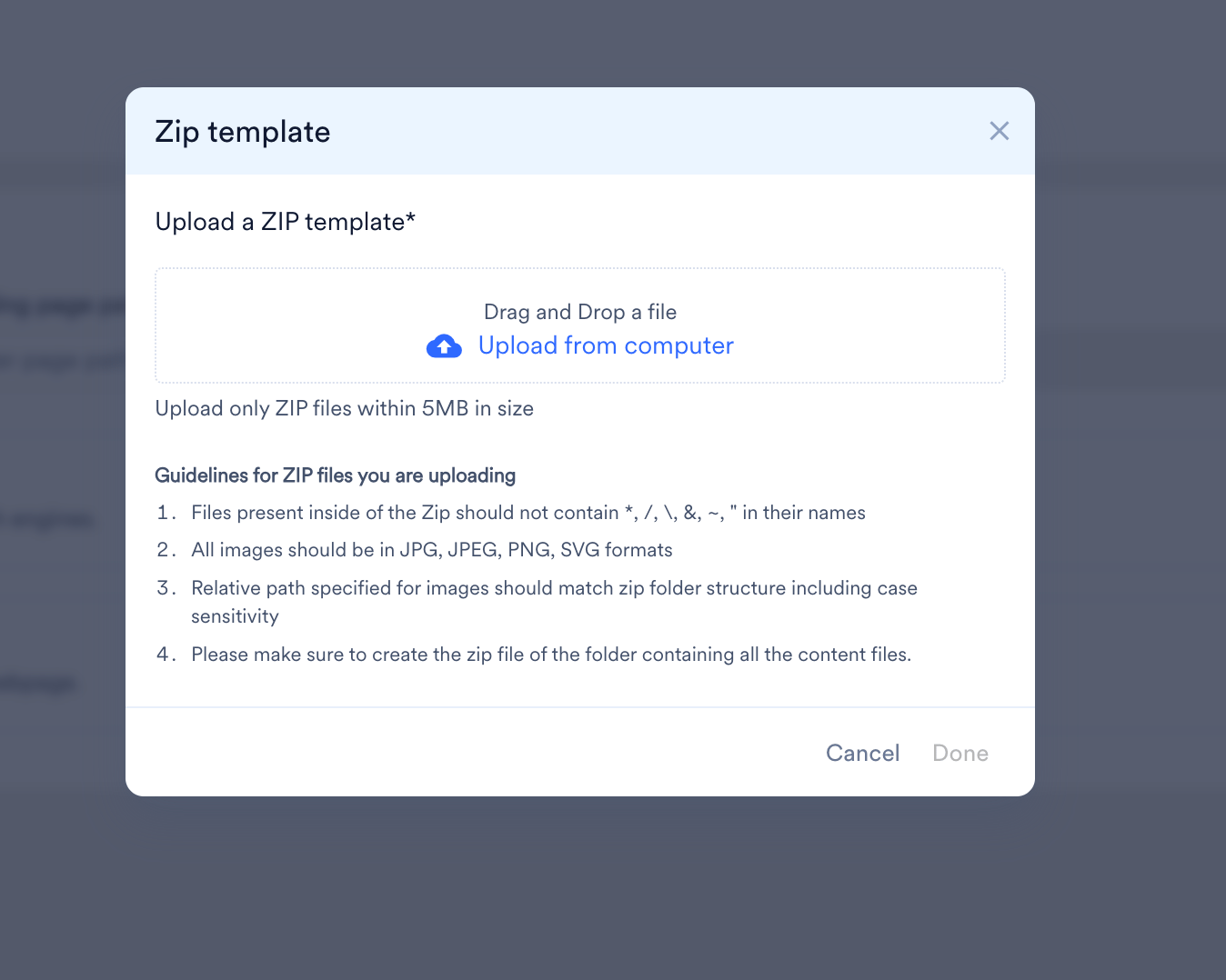
- Files inside the ZIP must not contain
*,/,\,&,~, or"in their names. - All images must be in JPG, JPEG, PNG, or SVG format.
- The relative path specified for images must match the ZIP folder structure, including case sensitivity.
- Create the ZIP file from the folder that contains all the content files.