

Prerequisites
- Access to the Landing Pages feature. If you don’t have it, contact your MoEngage Customer Success Manager (CSM) or the Support team.
- Subscription categories and groups configured for email. The landing page reads the categories and groups you have already defined. To set them up, see Configure Subscription Categories.
Use Cases
A landing page preference center supports the following use cases:- Branded preference center: Match the preference page to your brand’s look and feel—logo, fonts, and colors—instead of using the default styling.
- Granular opt-in and opt-out: Let users subscribe to or unsubscribe from specific categories, such as newsletters, promotions, or product updates, instead of only unsubscribing from all email.
- Lower unsubscribe rates: Offer category-level choices as an alternative to opting out of everything, so users stay subscribed to the content that is relevant to them.
- Self-serve preference updates: Let users update their own email preferences at any time, stored natively in MoEngage without any manual sync.
How It Works
What You Build
In the landing page editor, you build the preference center using either the Subscription Categories element or a custom form mapped to your categories, and then publish it. MoEngage connects the page directly to the email subscription categories you configured in settings.What Your Users See
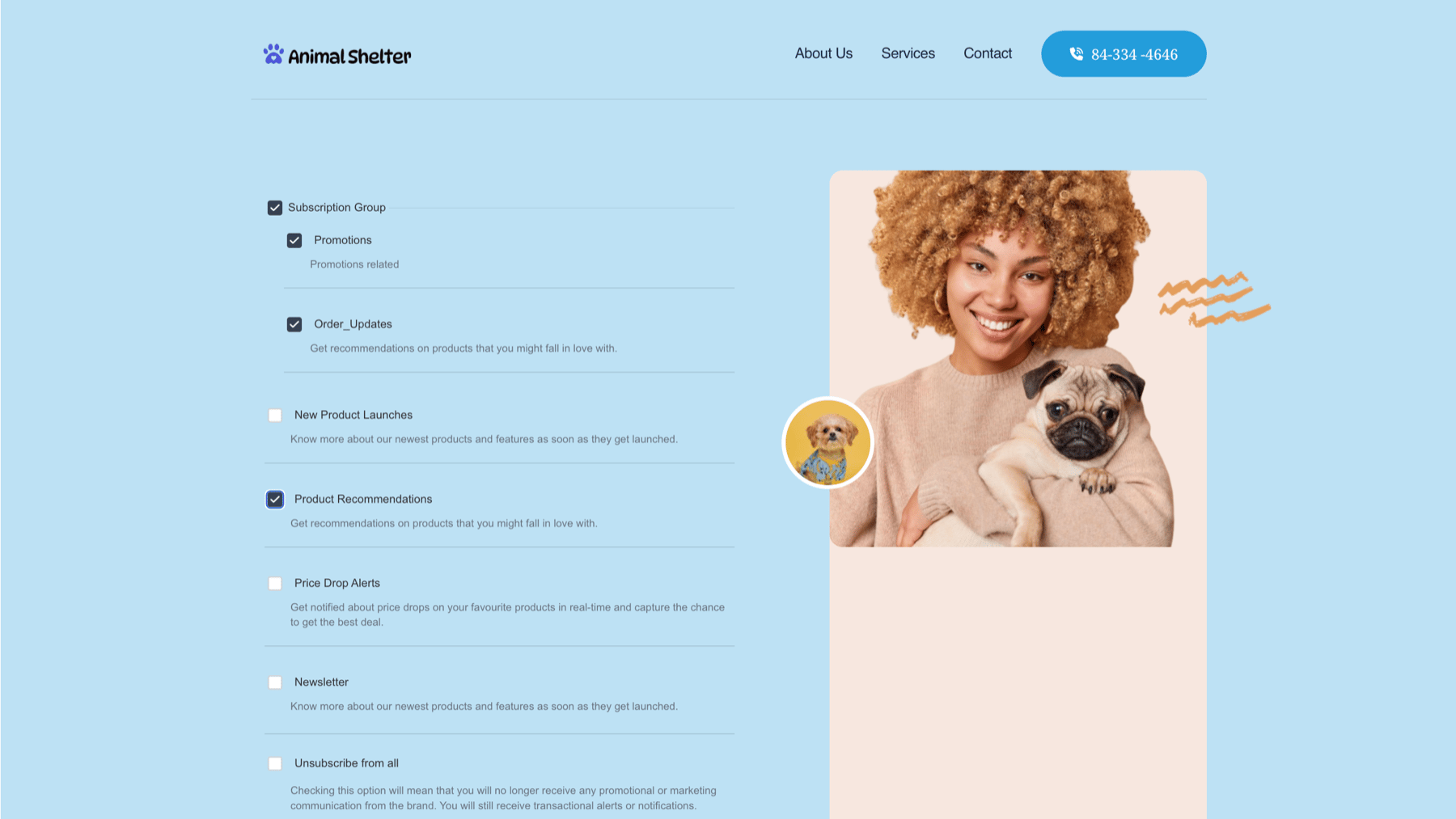
When a user opens a page built with the Subscription Categories element, it shows their current preferences with the categories they are subscribed to already selected. The user changes their selections and saves, and MoEngage stores the updates on their profile so that future email campaigns respect them. A custom form behaves differently—see Build a Custom Form Mapped to Categories.For MoEngage to fetch and save a user’s preferences, it must be able to identify the user (resolve their MoEngage ID). This is resolved automatically when the preference center link is delivered through a MoEngage channel, such as an email campaign. If the page is opened without this context, MoEngage can’t identify the user, so it can’t prefill or save preferences.
Use the Subscription Categories Element
The Subscription Categories element pulls in every subscription category and group you have configured for email, so you don’t have to recreate them on the page.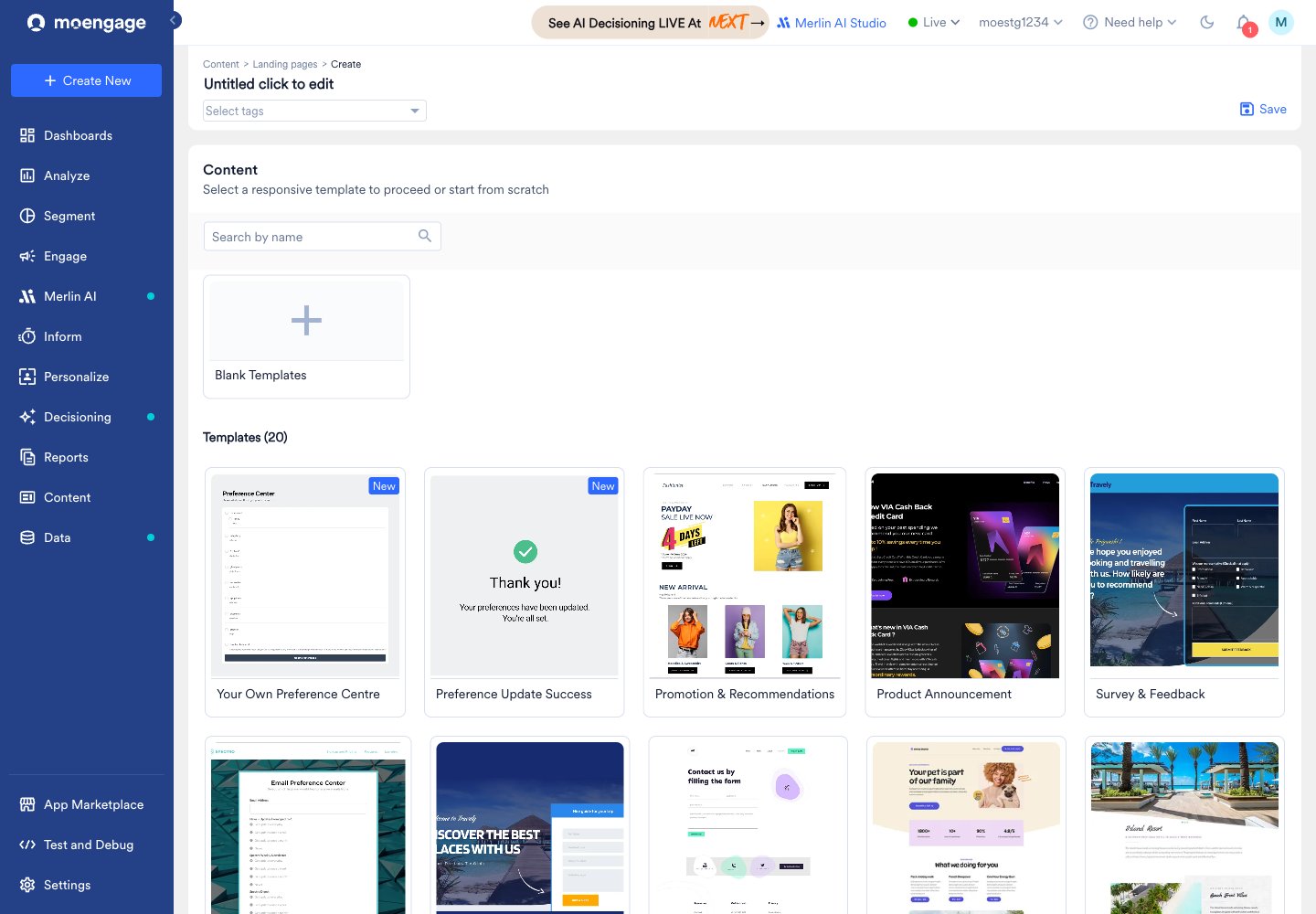
- In the landing page editor, open the elements panel and scroll to the Custom section.
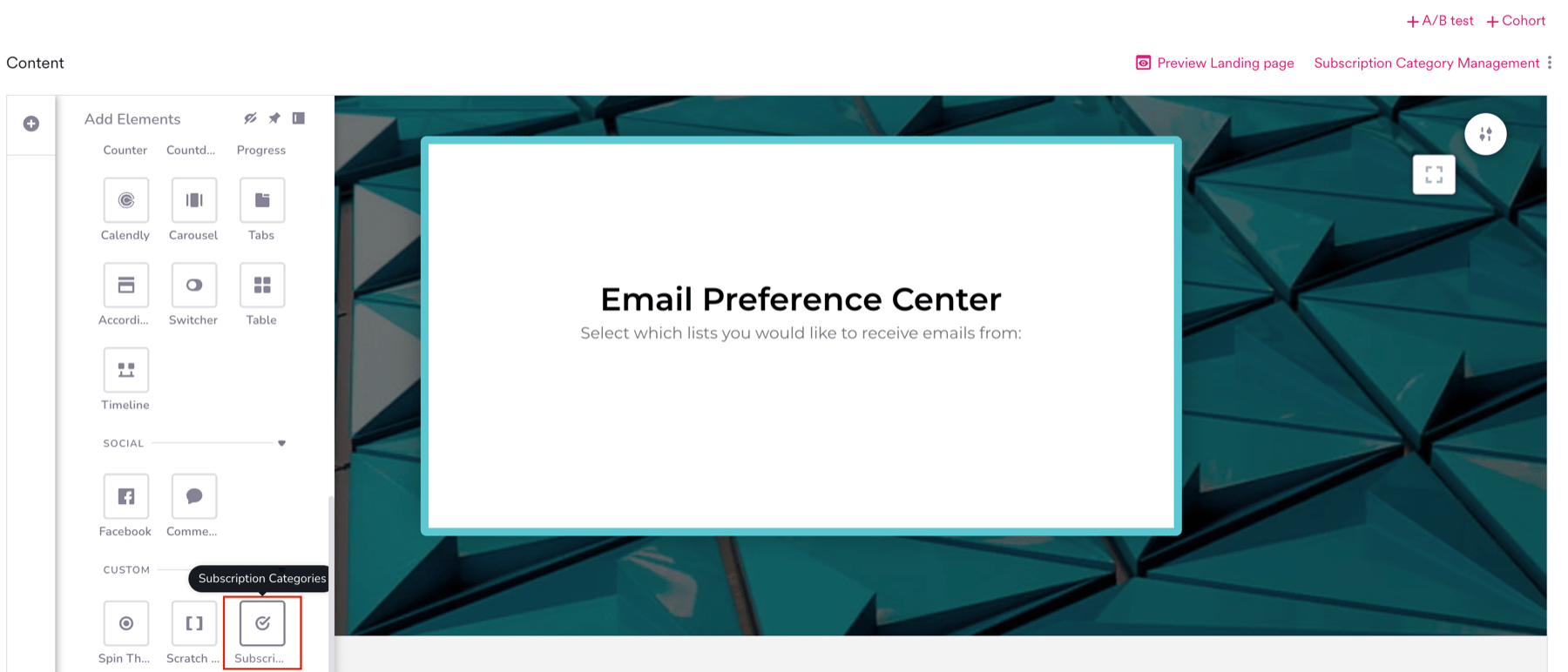
- Drag the Subscription Categories element onto the canvas. All your configured categories appear automatically, each with its display name, description, and a checkbox.
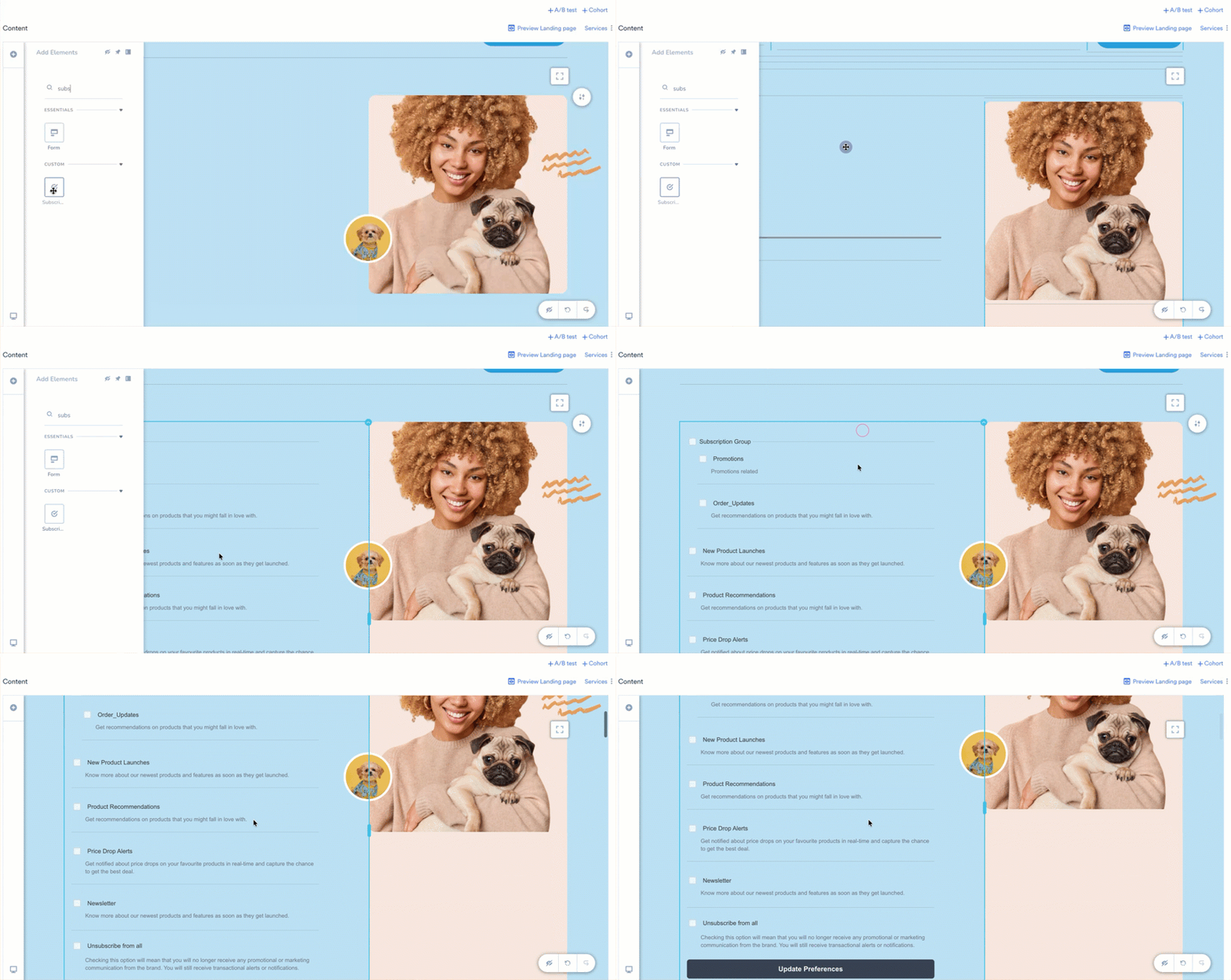
The element always reflects the categories and groups defined in your email subscription settings. You can’t remove individual categories from the element—to change which categories exist, edit them in Configure Subscription Categories.
Configure the Element
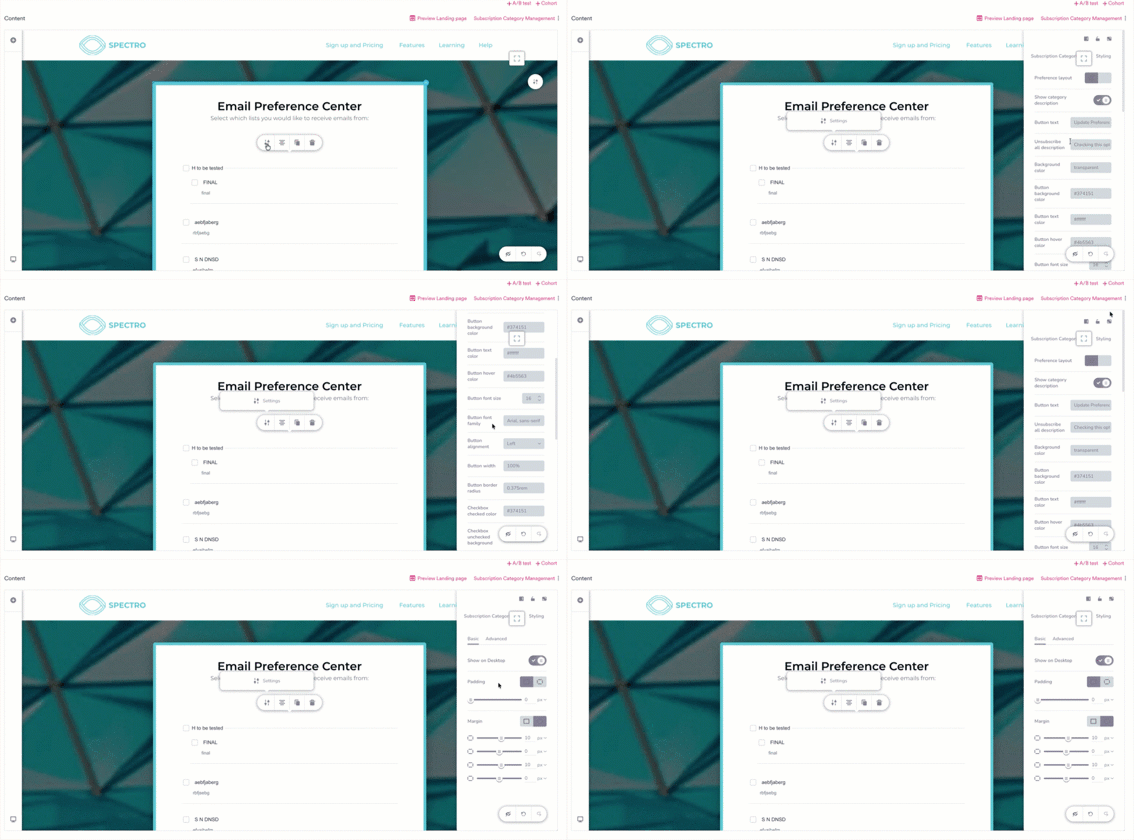
Select the element to open its settings. The settings have two tabs: Subscription Categories and Styling. On the Subscription Categories tab, configure the content and appearance:
On the Styling tab, apply the common styling options such as showing the element on desktop, padding, and margins.
Build a Custom Form Mapped to Categories
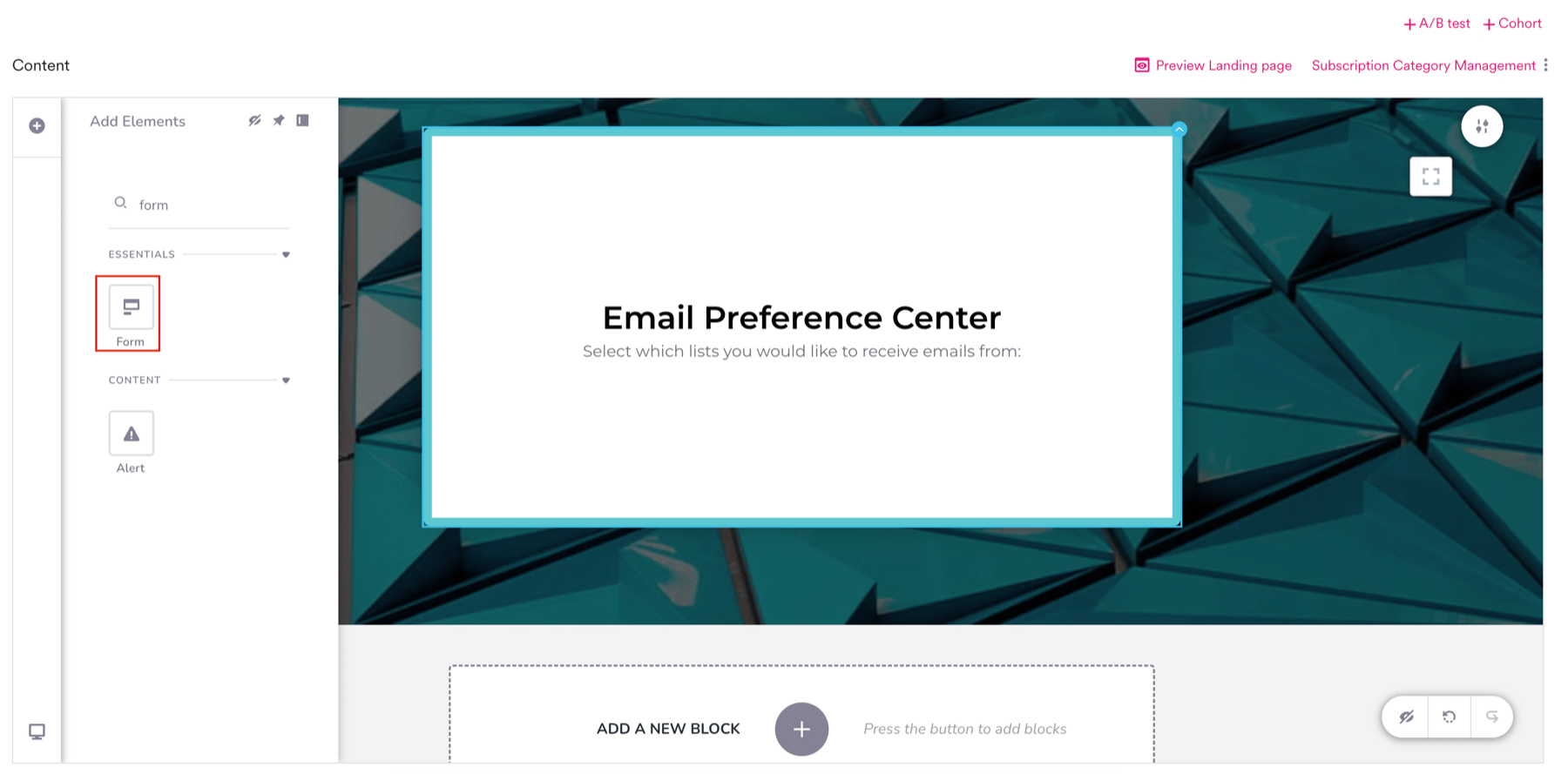
If you want to collect preferences for only specific categories—rather than showing the full list—build the fields yourself with the Form element and map each field to a subscription category.- In the elements panel, under Essentials, drag a Form element onto the canvas.
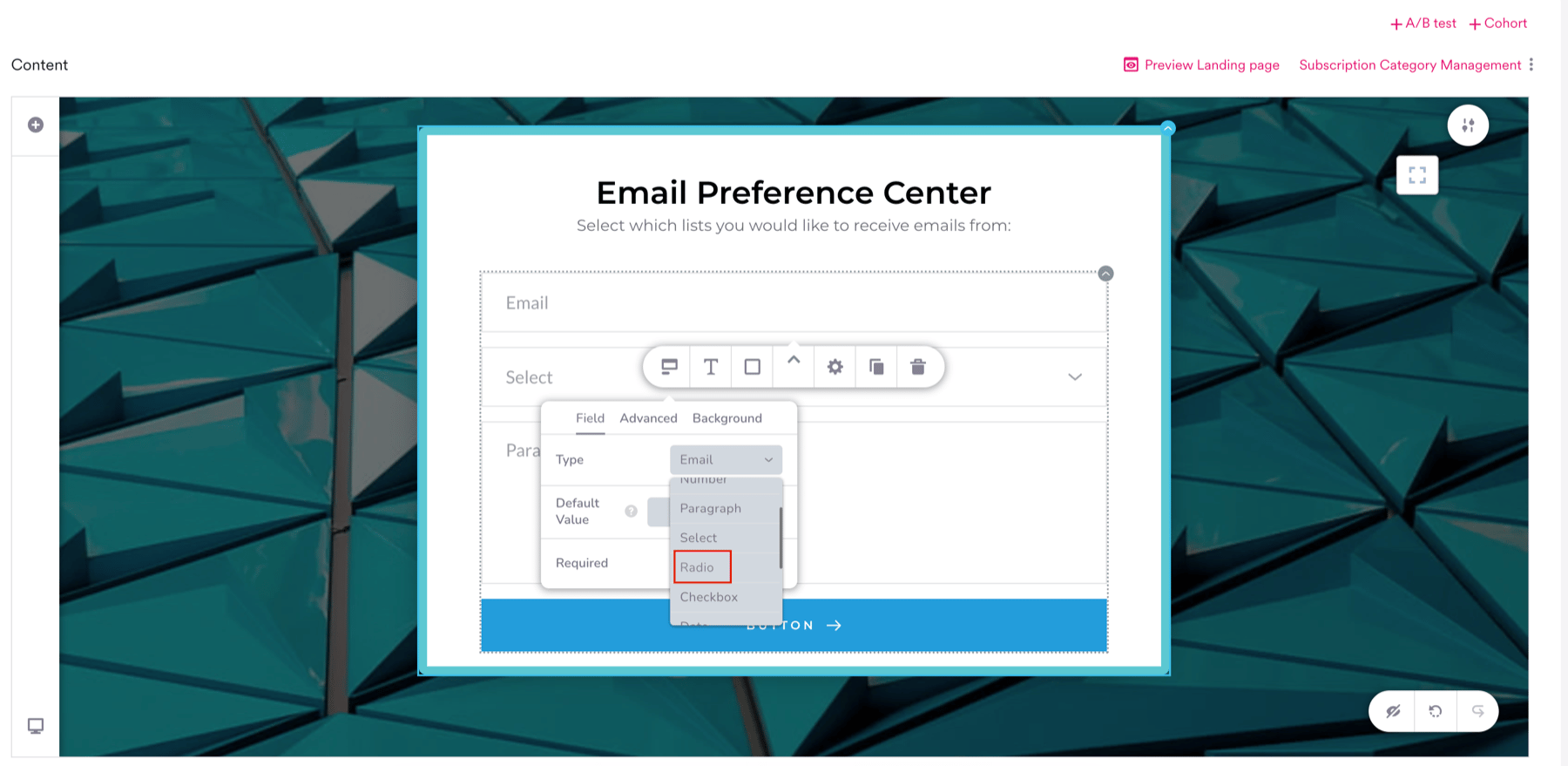
- Select a field in the form to open the field editor. On the Field tab, set the Type to Checkbox or Radio—these are the only two field types you can map to a subscription category. Use a Checkbox so users can both opt in and opt out. A single Radio option can’t be cleared once selected, so a user can’t unsubscribe from that category.
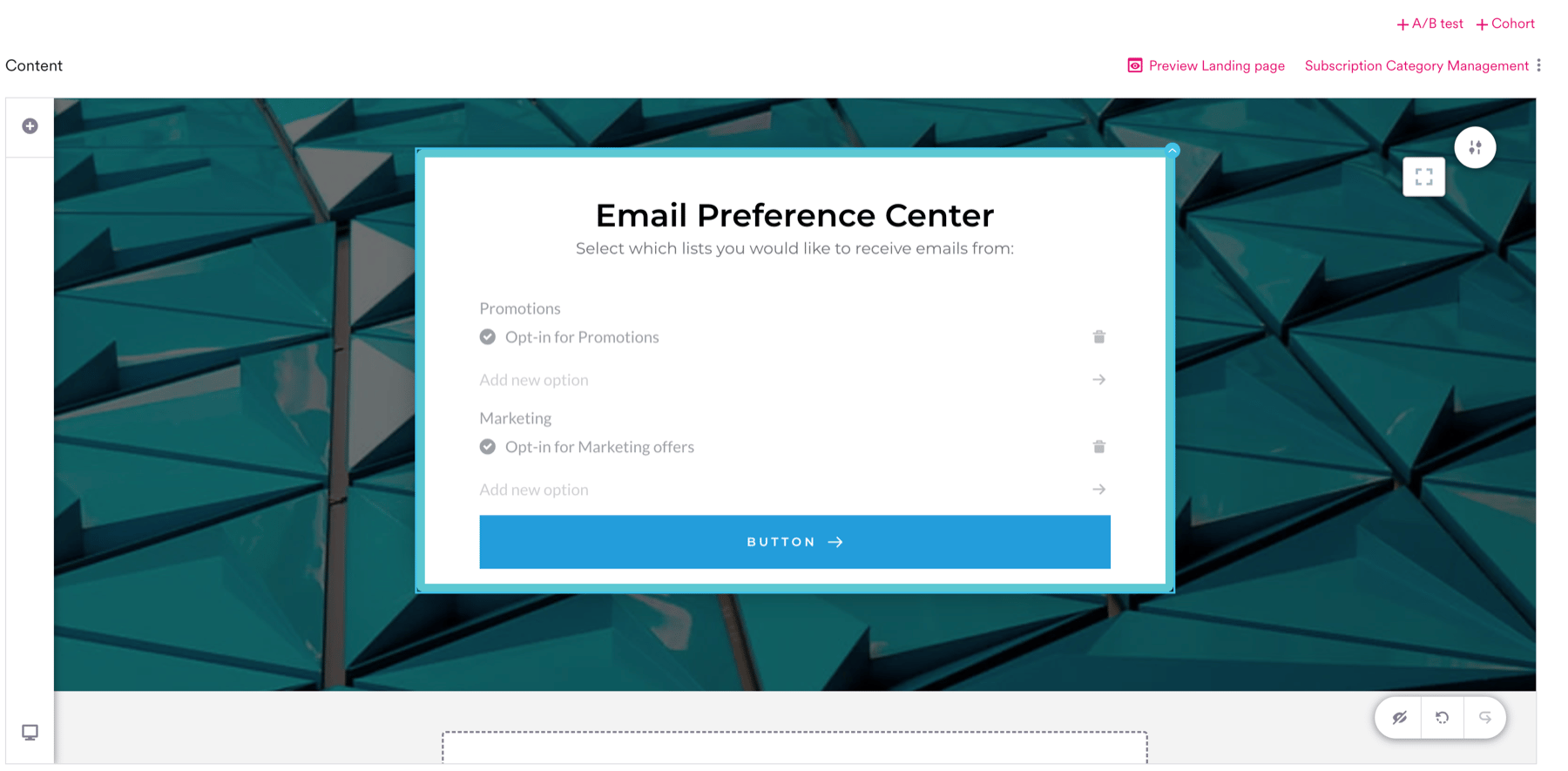
- Add a label for the field—for example, Promotions—and give it a single option, such as Opt-in for Promotions.
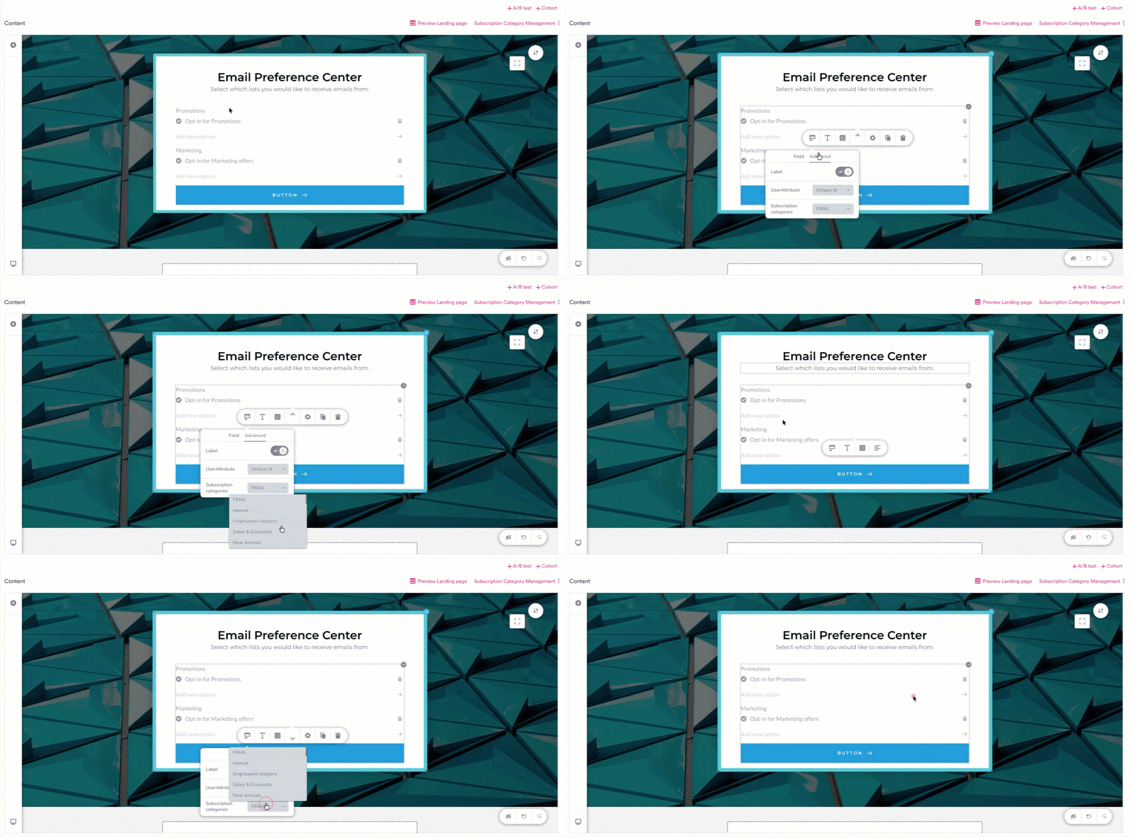
- Select the field, open the field editor’s Advanced tab, and in the Subscription categories list, select the category to map the field to.
- Selected (checked, or any value entered) sets the subscription to
true. - Not selected (unchecked, or left blank) sets the subscription to
false.
Show a Confirmation Page
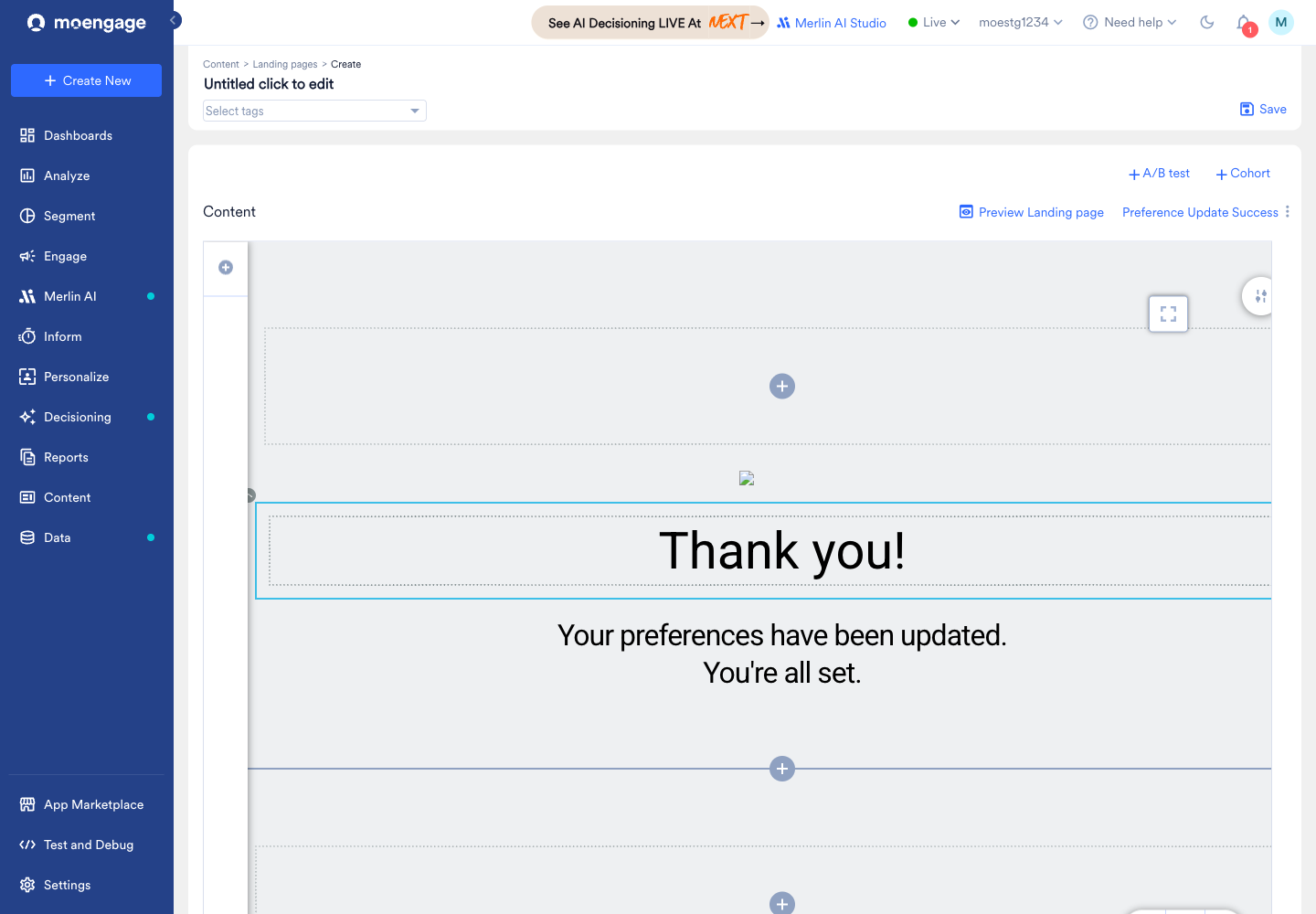
Unlike the Subscription Categories element, a custom form doesn’t show a built-in confirmation after a user saves their preferences. To confirm the update, publish a separate confirmation page and set it as the destination of the form’s submit button.- Create a landing page using the Preference Update Success template—a ready-made page that shows a “Your preferences have been updated” message—and publish it. Copy its published URL. You can also build and publish your own confirmation page instead.
- In your preference form, select the submit button and click the Link icon.
- On the URL tab, in the Link to field, enter the published confirmation page URL. For more information about link options, refer to Landing Page Editor.
Publish and Share the Preference Center
After you finish building the page, publish it and deliver it to your users so they can manage their preferences.- Publish your landing page and copy its URL.
- Deliver the page through a MoEngage channel—for preference management, this is typically an email campaign. For example, add the URL as the manage-preferences link in your email. Delivering through a channel lets MoEngage identify each user and personalize the page for them.
Use a Fully Custom HTML Landing Page
If you host a fully custom HTML landing page instead of building it in the drag-and-drop editor, use the MoEngage JavaScript bridge to read and write subscription categories:Moengage.getEmailSubscription()fetches the user’s current preferences so you can pre-fill the form.Moengage.updateEmailSubscription(<subscription_object>)writes the user’s updated preferences back to MoEngage.
JavaScript