

Overview
Trending Items is a Merlin AI-powered recommendation model that identifies items gaining traction based on aggregated user interactions. MoEngage groups interaction events such as purchases, views, and wishlists over a defined time period to surface what is trending within a catalog attribute you choose, such as category, subcategory, or city. You can then link those trending results to individual users based on their recent activity or profile attributes.PrerequisitesBefore you create a Trending Items recommendation, make sure you meet the following requirements:
- You’ve enabled Advanced Recommendations for your account.
- You’ve integrated user action events with MoEngage and ensured each event includes a unique item ID.
- You track and map the relevant user-item interaction events to standard MoEngage events.
- Your account contains an active catalog.
- For Attribute Trend, your catalog includes at least one categorical item attribute, such as
categoryorcity.
Use Cases
Trending Items supports the following use cases:- Category-specific trends: When a user browses the Electronics section, show items trending in Electronics. When they browse Fashion, show trending items in Fashion.
- Regional trends: Surface items trending in a user’s city or region based on a location attribute in your catalog.
- Fallback recommendations: Use Trending Items as a fallback when Frequently Viewed Together or Frequently Bought Together recommendations have insufficient interaction data.
Popular Items Fallback
Popular Items rank the items with the highest overall interaction counts across your catalog. It is not personalized, so every user receives the same crowd-level list. MoEngage serves Popular Items as the default fallback for every Advanced Recommendations model. If a model has too little data, MoEngage falls back to Popular Items, which means new users and users with little interaction history still receive recommendations. You do not configure this fallback, and MoEngage serves it automatically. For more information, refer to Overview of Advanced Recommendations.Trend Types
Trending Items supports two trend types: Global Trend and Attribute Trend.- Global Trend: Aggregates interaction data across all items in your catalog to surface items trending at the catalog level, regardless of category or attribute. Configurations include:
- Generate trends, ranked by: The interaction metric used to rank items such as Best sellers, Most viewed, Most wish-listed, Most cart additions, or Top revenue generators.
- In the last: The period over which interactions are aggregated, such as 24 hours, 7 days, 14 days, or 30 days.
- Attribute Trend: Identifies items trending within the value of a specific catalog attribute. Instead of surfacing trending items globally, it shows what is trending within the attribute value relevant to each user, such as the category they last browsed or the city stored in their profile.
Trend Configuration
You can use the following options to configure an attribute trend:Trend Source
After you configure the trend, MoEngage determines the relevant attribute value for each user based on their profile. Select one of the following options to define the attribute value:- Custom value: Enter a fixed attribute value. MoEngage shows items trending in that specific value for all users targeted by this recommendation. Example: If your catalog attribute is
Categoryand you set the custom value toElectronics, all users will receive recommendations for trending electronics items, regardless of their individual locations or browsing history. - User property: Map to a dynamic user property that stores the relevant attribute value for each customer. MoEngage uses each individual user’s real-time property value to personalize their results.
Example: If your catalog attribute isCityand you map it to the user propertyHome City:- User A (with
Home Cityset to “Chicago”) will see items trending in Chicago. - User B (with
Home Cityset to “London”) will see items trending in London.
- User A (with
Create a Trending Items Recommendation
Admin, Manager, and Marketer roles can create recommendations.
- On the sidebar menu in MoEngage, hover over the Content menu icon
 . The Content menu is displayed.
 - Click Recommendations.
 The Recommendations page is displayed.
 - Click + Create recommendation.
 The Create recommendation page is displayed.
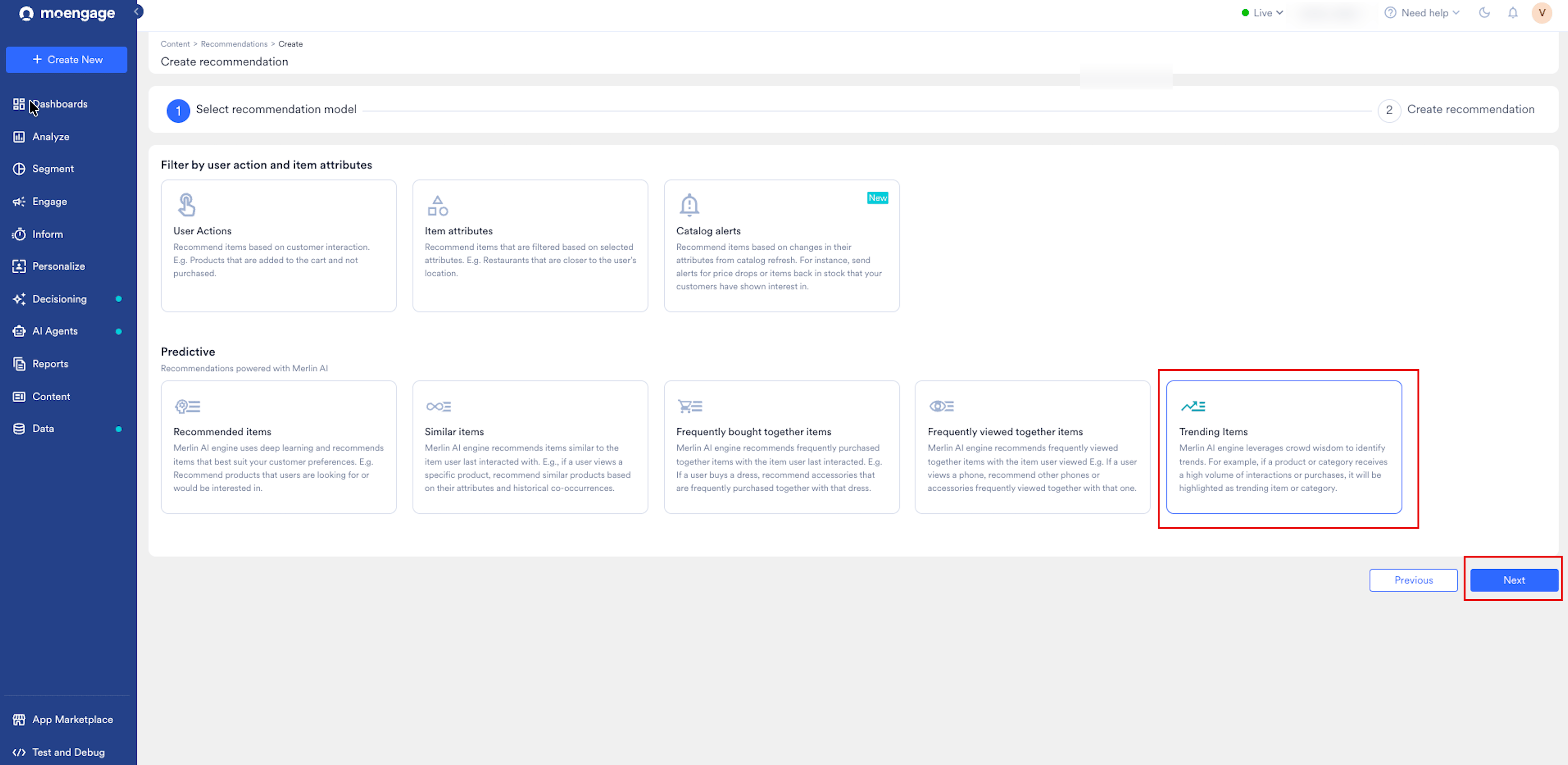
 - Under Predictive, select Trending Items and click Next.
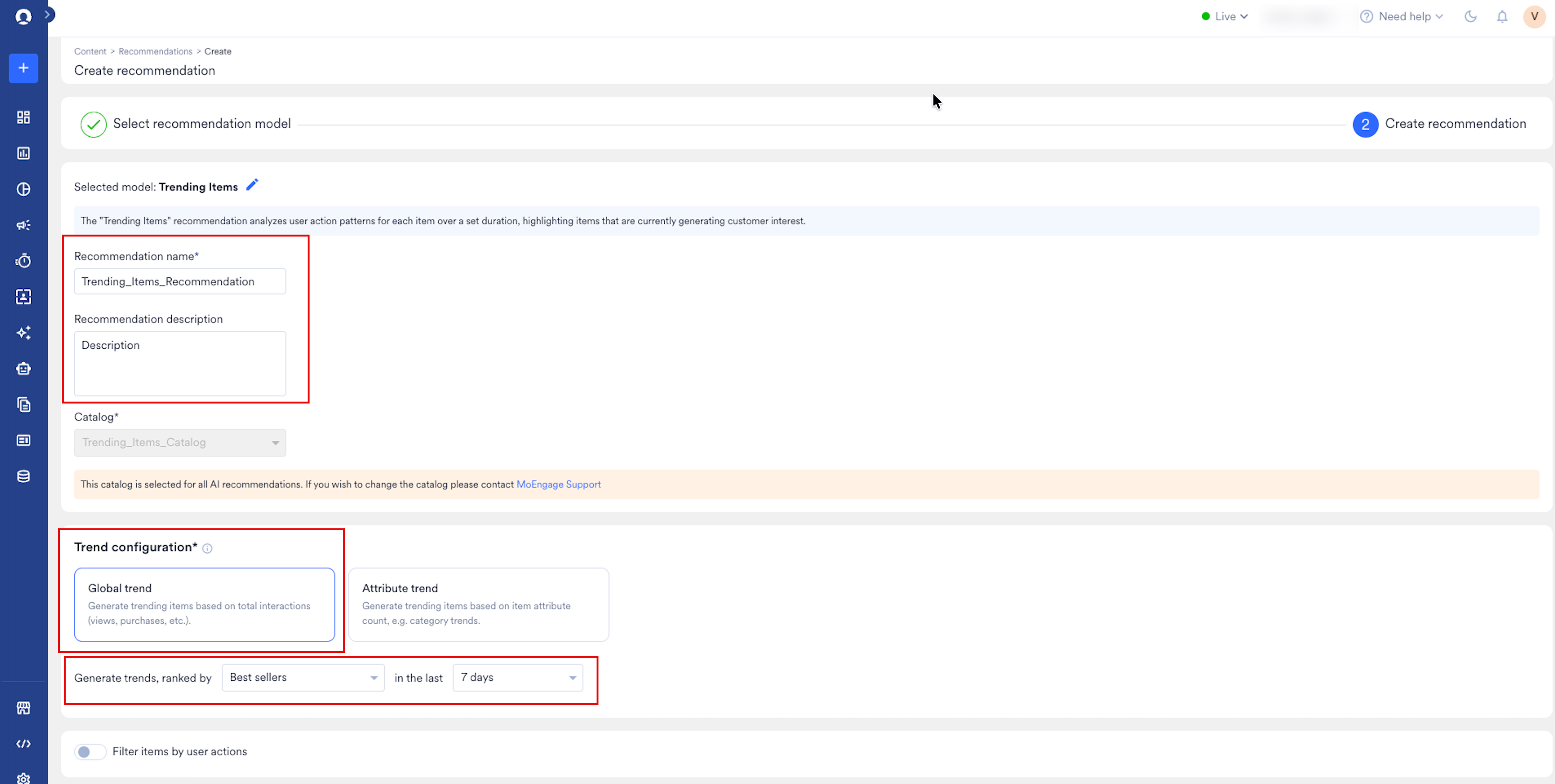
- In the Recommendation name box, enter a name for the recommendation.
- In the Recommendation description box, enter a description (optional).
MoEngage pre-populates the Catalog box with the catalog selected for all AI recommendations in your account. The Catalog field is disabled and cannot be changed after selection. To use a different catalog, contact your customer success manager (CSM).
- Under Trend configuration, select a trend type:
- Global trend: Aggregates interactions across all items in your catalog.
- Click the Global trend card.
- In the Generate trends, ranked by list, select the interaction metric that MoEngage uses to rank the trending items (for example, Best sellers).
- In the In the last list, select the time period over which MoEngage aggregates interactions (for example, 7 days).
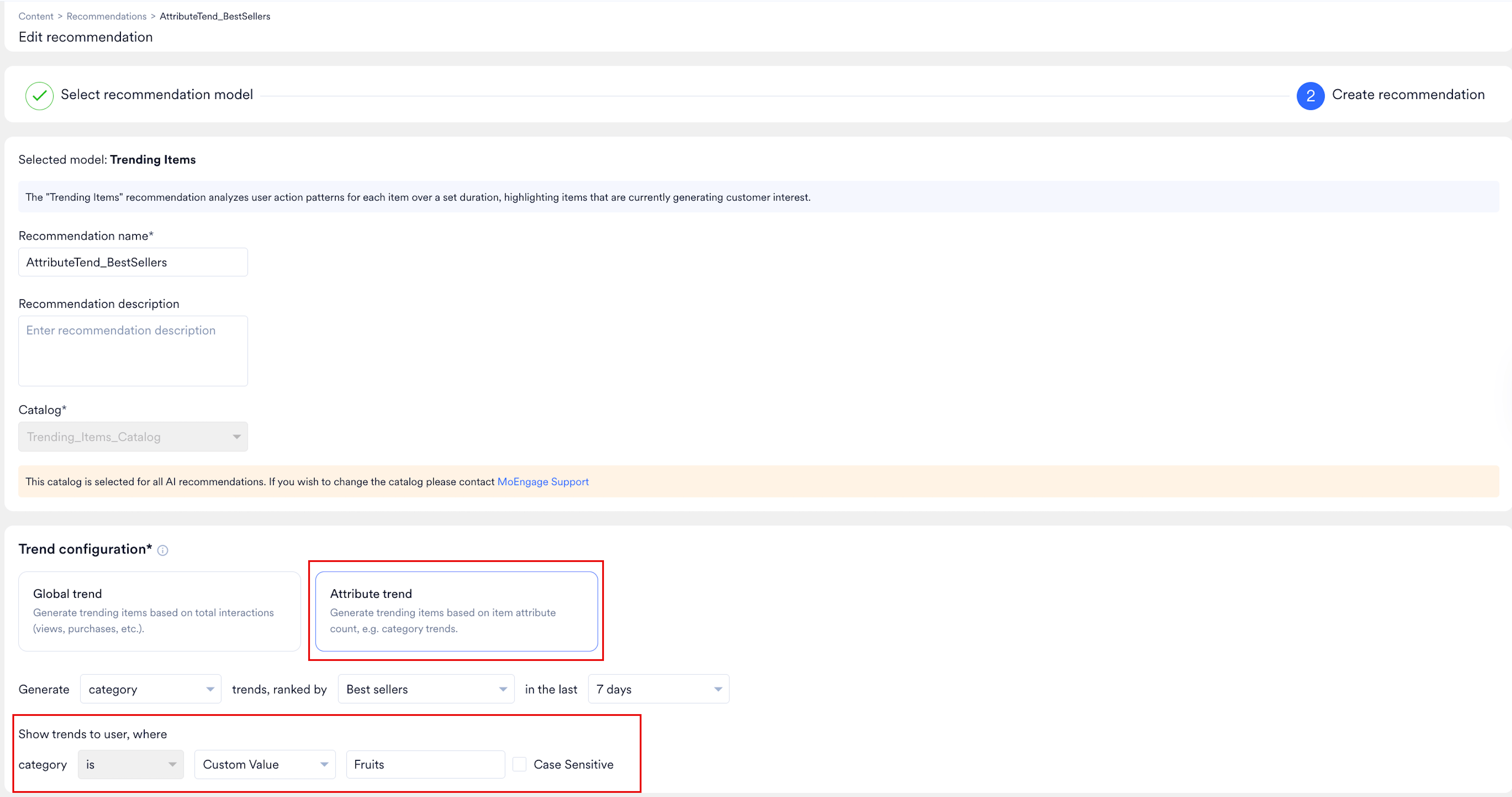
- Attribute trend: Surfaces items trending within the value of a catalog attribute.
- Click the Attribute trend card.
- In the Generate [attribute] trends list, select the catalog attribute to group trends by, such as
category. - In the Ranked by list, select the interaction metric.
- In the In the last list, select the aggregation period.
- Under Show trends to user, where, select the catalog attribute and the operator. Choose Custom Value to enter a fixed value, or User property to map to a user profile property. Optionally, select Case Sensitive to match the value exactly.
- Global trend: Aggregates interactions across all items in your catalog.
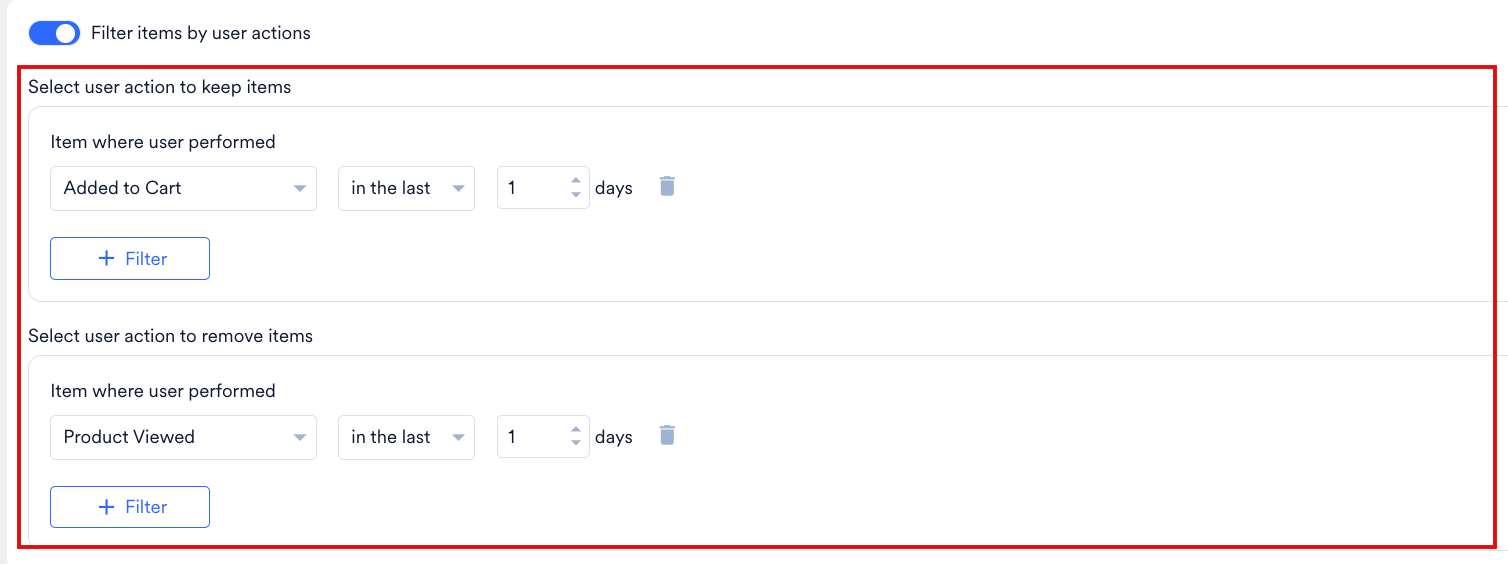
- Optionally, turn on Filter items by user actions to control which items appear in the results:
- Select user action to keep items: Include only items that appear in both the recommendation results and the specified user action criteria. Click + Filter to add the action, time operator, and value.
- Select user action to remove items: Exclude items from the recommendation results based on the specified user action criteria. Click + Filter to add the action, time operator, and value.
- Optionally, turn on Filter items by item attributes to filter the results based on catalog data. Under Item where, select the product attribute and the operator, and then choose Custom value or User property to define the value. To match the value exactly, select Case sensitive. Click + Filter to add the condition.

- Click Create.
In the Test recommendation section, Show results stays disabled until MoEngage finishes processing the recommendation. A banner is displayed: “You will be able to test recommendations after processing is complete. Processing will complete in 2 hours.”