

Introduction
Databricks is a platform that allows organizations to store, analyze, and process large volumes of structured and semi-structured data in a highly scalable and efficient manner. With its unique architecture, organizations can consolidate their data, perform quick analytics, and gain valuable data-driven insights accessible to all users.MoEngage <> Databricks
With this integration, you can export data from campaign interaction events to your Databricks tables.
Integration
If not done already, you need to set up a MoEngage<> Databricks integration for your account. For more information, refer to the Databricks Integration help doc.
Export Events from MoEngage to Databricks
Step 1: Ensure Your User’s Assigned Role Has Required Permissions
MoEngage will needWRITE access to your Databricks database to store data. You have the option to grant these permissions to an existing database user or create a new dedicated database user specifically for MoEngage.
Use the following code to configure write access for data storage in your Databricks database:
<CATALOG_NAME>- The name of your catalog.<SCHEMA_NAME>- The name of your database or schema.<EMAIL_ID_OF_THE_USER>- The email ID of the user who created the token.
Step 2: Add a New Databricks Export on the MoEngage App Marketplace
- For the full list of events and attributes, refer to the Data Exports Glossary.
- The event_time of the exported events will always be in UTC.
- As of now, we do not support exporting Historical Data from MoEngage
- On the left navigation menu in the MoEngage dashboard, click App marketplace.
- On the App Marketplace page, search for Databricks.
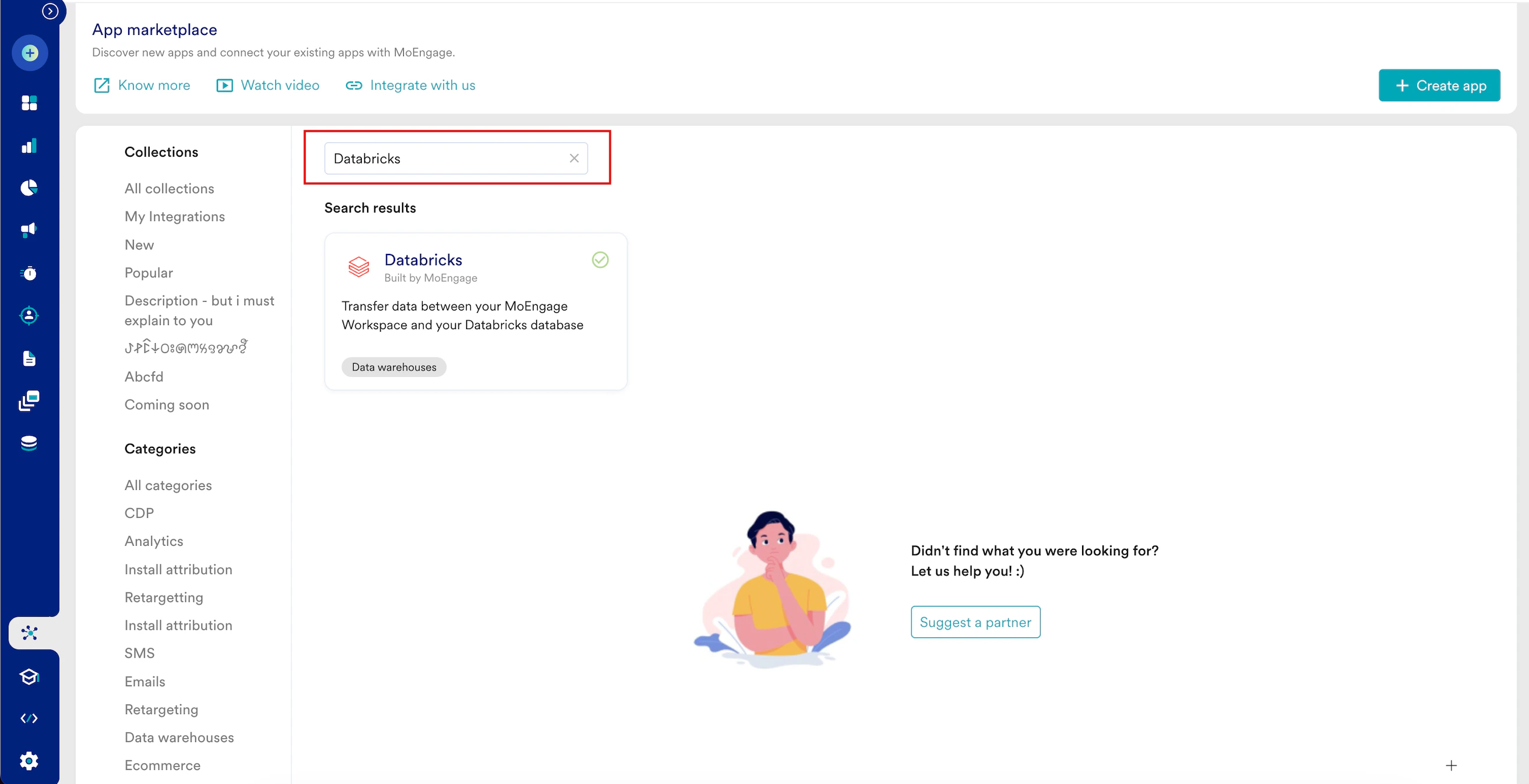
- Click the Databricks tile.
- On the Databricks page, go to the Integrate tab and click +Add Export.
- Enter the following details:
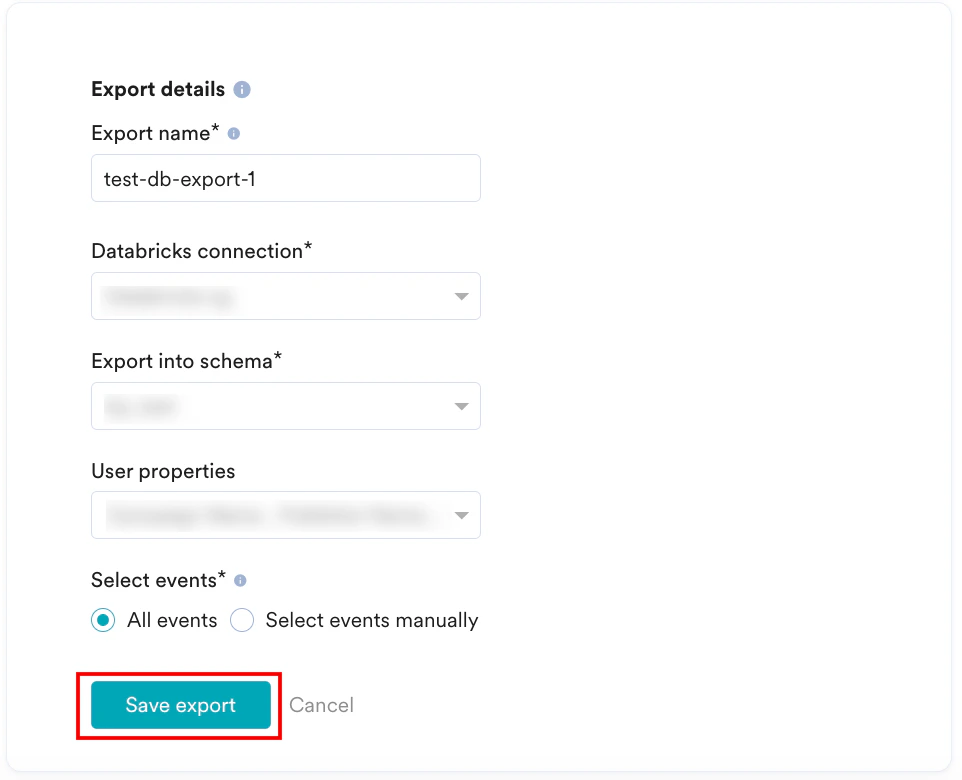
- Click Save export.
Export Process and Frequency
After you save the export, MoEngage creates a destination table in your schema. New event data is then appended to the existing table at hourly intervals:- Initial action: MoEngage creates the table when the first export is triggered.
- Recurring action: MoEngage adds (appends) data to the same table every hour.
Sample Table Structure
MoEngage creates a single table in your schema using the following format:moe_events_<table_creation_timestamp.
Note: This table is created after per connection. All hourly exports and different event types configured under this connection are consolidated and appended to this specific table.
The overall structure of the table remains fixed for all event types. Any new user property or event attribute that is exported will be included in the user_attributes or event_attributes column, respectively. All events are consolidated in a single table containing necessary information, such as event names and event times, for easy analysis:
Frequently Asked Questions
How soon will I start getting the data?
How soon will I start getting the data?
It typically takes up to 30 minutes for the automated data exports to be set up for your account and for you to start seeing data there.
Can I export additional events at a later time?
Can I export additional events at a later time?
Yes, if you need to export new events at a later time, you can always edit your configuration on the App Marketplace and get the new events added to your exports.
Can I export historical data using Automated Data Exports?
Can I export historical data using Automated Data Exports?
As of now, you cannot export historical data using Automated Data Exports. Once configured, you will start seeing data for each event from the time you enabled your exports.
Is there any pricing involved for Automated Data Exports?
Is there any pricing involved for Automated Data Exports?
If your billing plan does not cover this already and you need to get this enabled at a later time, you would need to work with your Customer Success Manager to get this included in your billing plan. Based on the amount of data that MoEngage will place in your Data warehouse/Partner/API on a monthly basis, this could lead to additional charges.
Does Data Exports guarantee the latest user attributes?
Does Data Exports guarantee the latest user attributes?
No, Data Exports is primarily built to export your Events in near real-time and user attributes in MoEngage are updated asynchronously so it is currently not possible to guarantee the latest values of user attributes in the exports.