

Overview
Users interact with your brand across channels such as website, app, offline store, social login. Each channel can generate a separate profile for the same person. The Identity Resolution feature of MoEngage merges these profiles into one, using identifier attributes such asID, Email, or Mobile Number from data ingested via Data APIs, MoEngage SDKs, or CSV files. This gives you one accurate view of each user for segmentation, personalization, and reporting.
PrerequisitesTo use identity resolution, choose an existing user property as an identifier (like a phone number or email ID) that uniquely identifies the user and activate it as an identifier. Only Admins can access this setting.
Use Cases
Identity resolution plays a critical role in the following scenarios:- Online-to-offline matching: A user browses your site with their email, then completes a purchase in-store using their phone number. Identity Resolution links both records to the same person.
- Multiple sign-in methods: A user registers via email, mobile OTP, and Facebook login, each creating a separate profile. Identity Resolution consolidates them into one as more identifiers are collected.
Configure Multiple Identifiers
- You can configure up to five identifiers per workspace.
IDis the default and always active; at least one identifier must remain active at all times. - You can opt to configure other user properties, such as email and mobile number, as additional identifiers. For example, if you choose email ID and mobile number as identifiers, MoEngage checks the email ID and mobile number for all users. In cases where multiple users share the same mobile number but have distinct email IDs, the system consolidates those users into a single profile as one of the identifier values matches successfully.
- When two profiles share the value of any active identifier, MoEngage merges them. If profiles have conflicting data, the retained profile wins and the merged profile is deleted after its events and attributes transfer over.
- On the left navigation menu in the MoEngage dashboard, go to Settings > Data > Identity resolution.
-
On the Identity resolution page, click +Add identifier(s). You can add up to five identifiers for identity resolution.
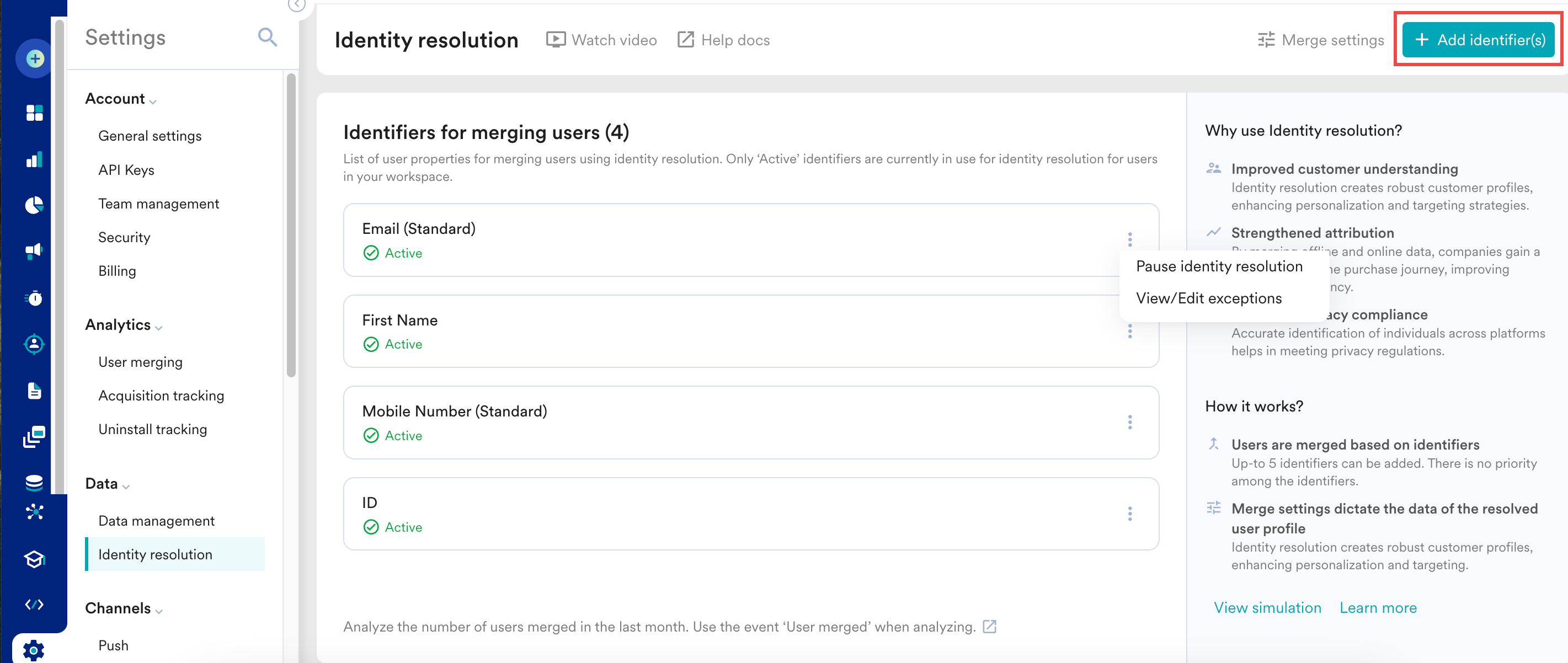
- By default, ID is listed as an identifier for merging user profiles using identity resolution. The Active tag represents the identifier currently used for identity resolution for merging users in your current workspace.
- All the identifiers added are listed on this page. Click the ellipsis icon ( ) to perform the following:
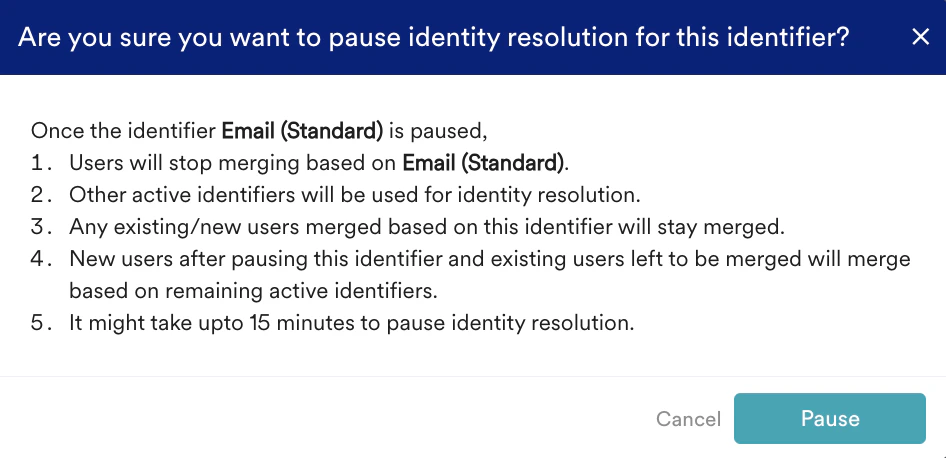
- Pause identity resolution: This option allows you to pause merging the user based on that identifier.
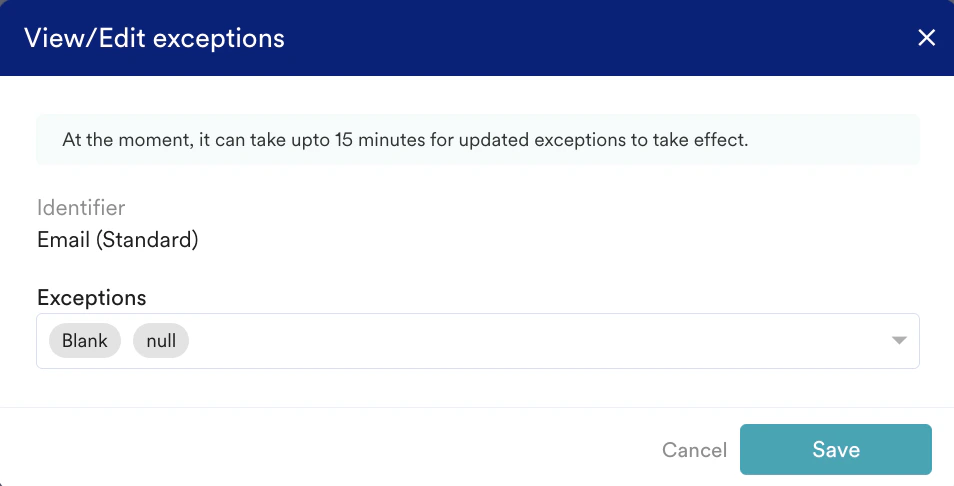
- View/Edit exceptions: This option allows you to view or edit exceptions of that identifier. In the View/Edit exception dialog box, select the exception from the list and click Save.
- Pause identity resolution: This option allows you to pause merging the user based on that identifier.
- The Merge settings option takes you to Step 2: Review merge rules.
- On the Add identifier(s) page, you can perform the following steps:
Step 1: Select Identifiers
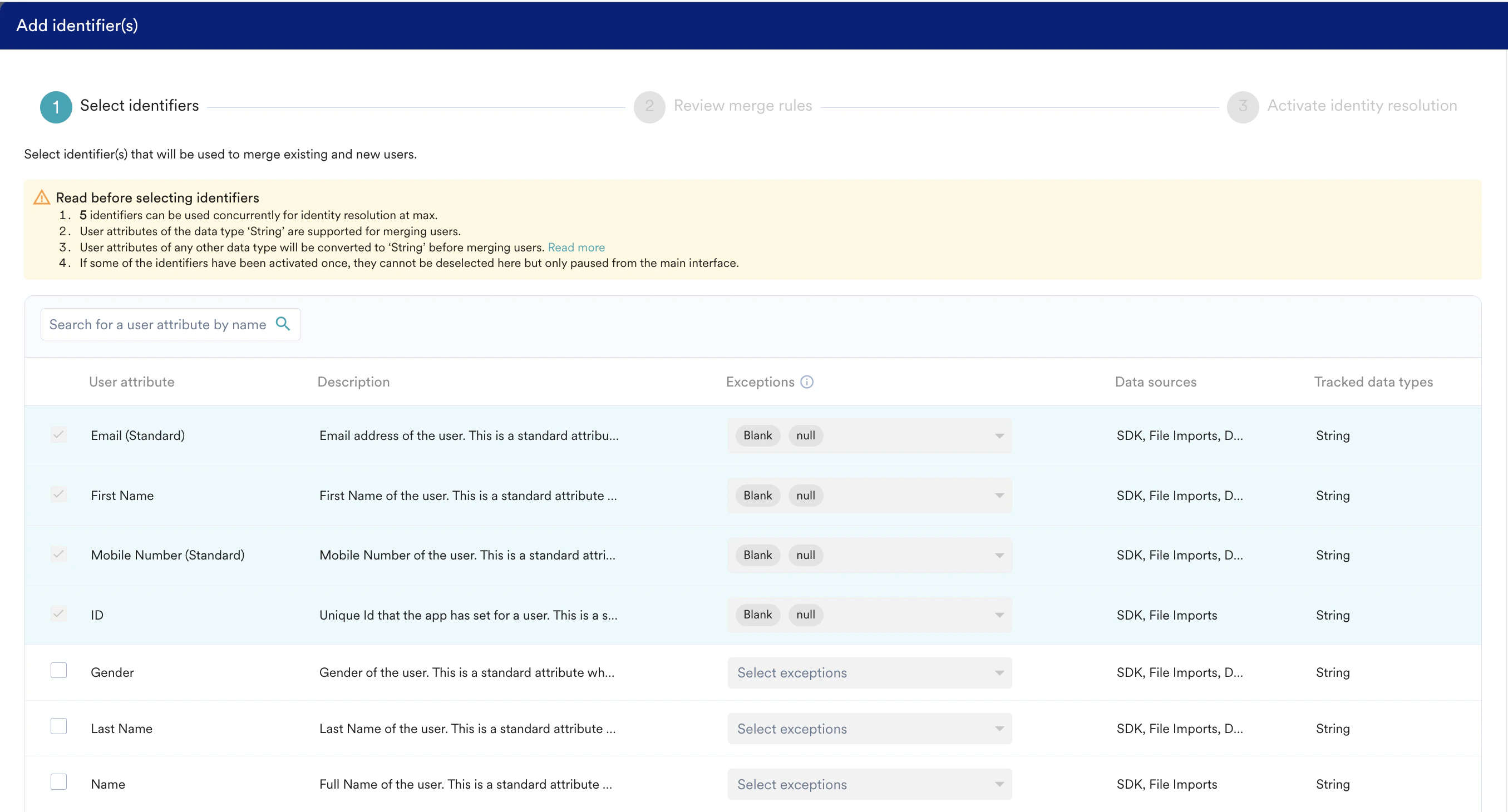
- Select the checkbox next to the User properties you want to select as identifiers for identity resolution.
- You can view the Description for each attribute.
- Exceptions: Null and blank values are always excluded from identity-matching process and cannot be edited or removed. You can add further exceptions in string format.
- You can view the various Data sources from which these identifiers are obtained. Identifiers backed by more data sources make for more reliable matching, check the Data sources before selecting.
- The Tracked data types denote the various data types for which the data for that attribute has been tracked in MoEngage so far.
- Only string type attributes can be identifiers; other types are converted to string automatically.
- Identity-matching process uses exact string values.
- Click Next.
Step 2: Review Merge Rules
-
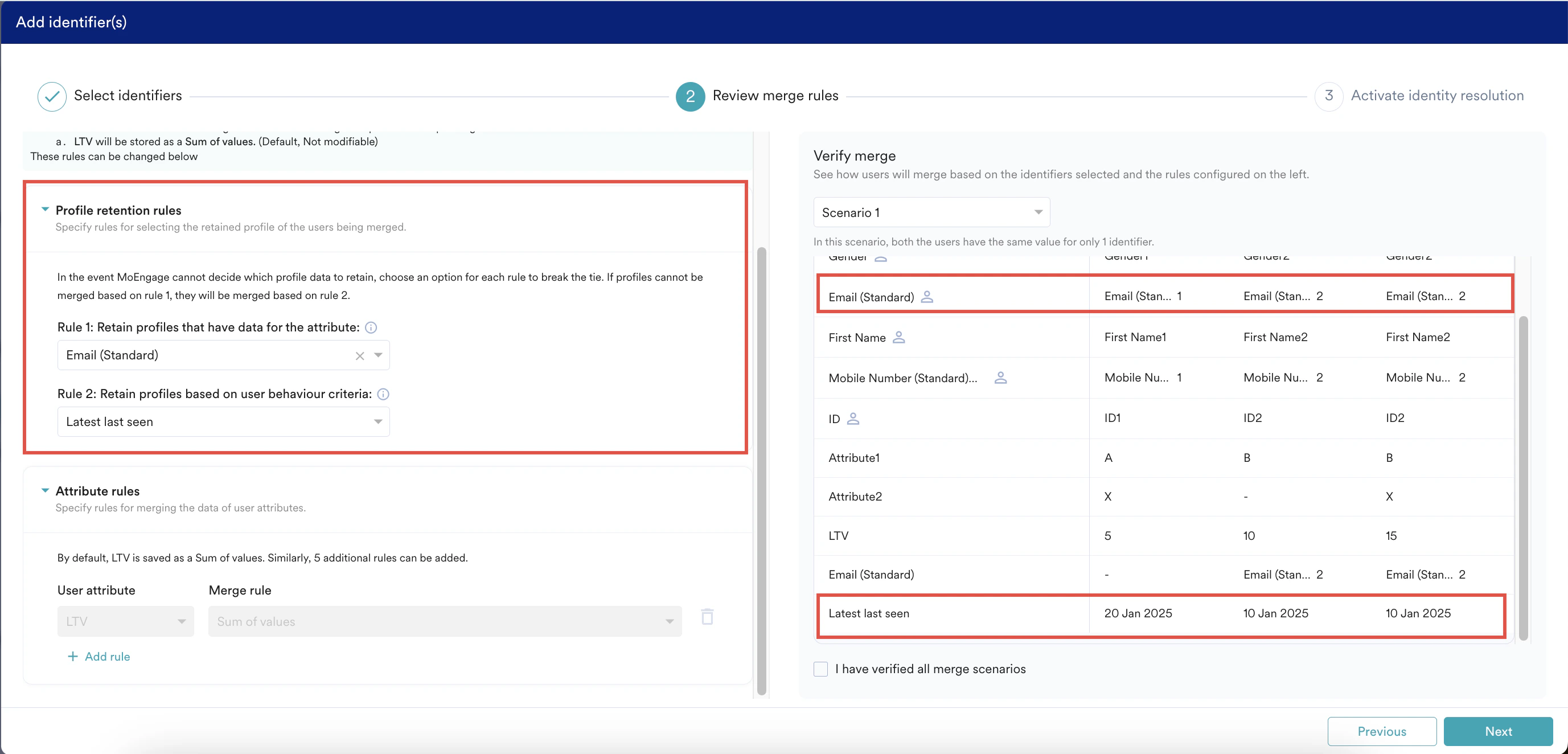
Profile retention rules: This rule decides which user profile survives a merge, and are evaluated in order. Perform the following steps to add profile retention rules:
- In the Rule 1 list, select a user property. If only one of the two profiles has data for that attribute, that profile is retained. If both profiles have data for it, Rule 1 can’t break the tie and Rule 2 runs instead. Rule 1 is optional and is empty by default.
- In the Rule 2 list, select a user behavior. This is the tiebreaker rule and defaults to Latest Last Seen. Whichever profile matches the behavior is retained.
-
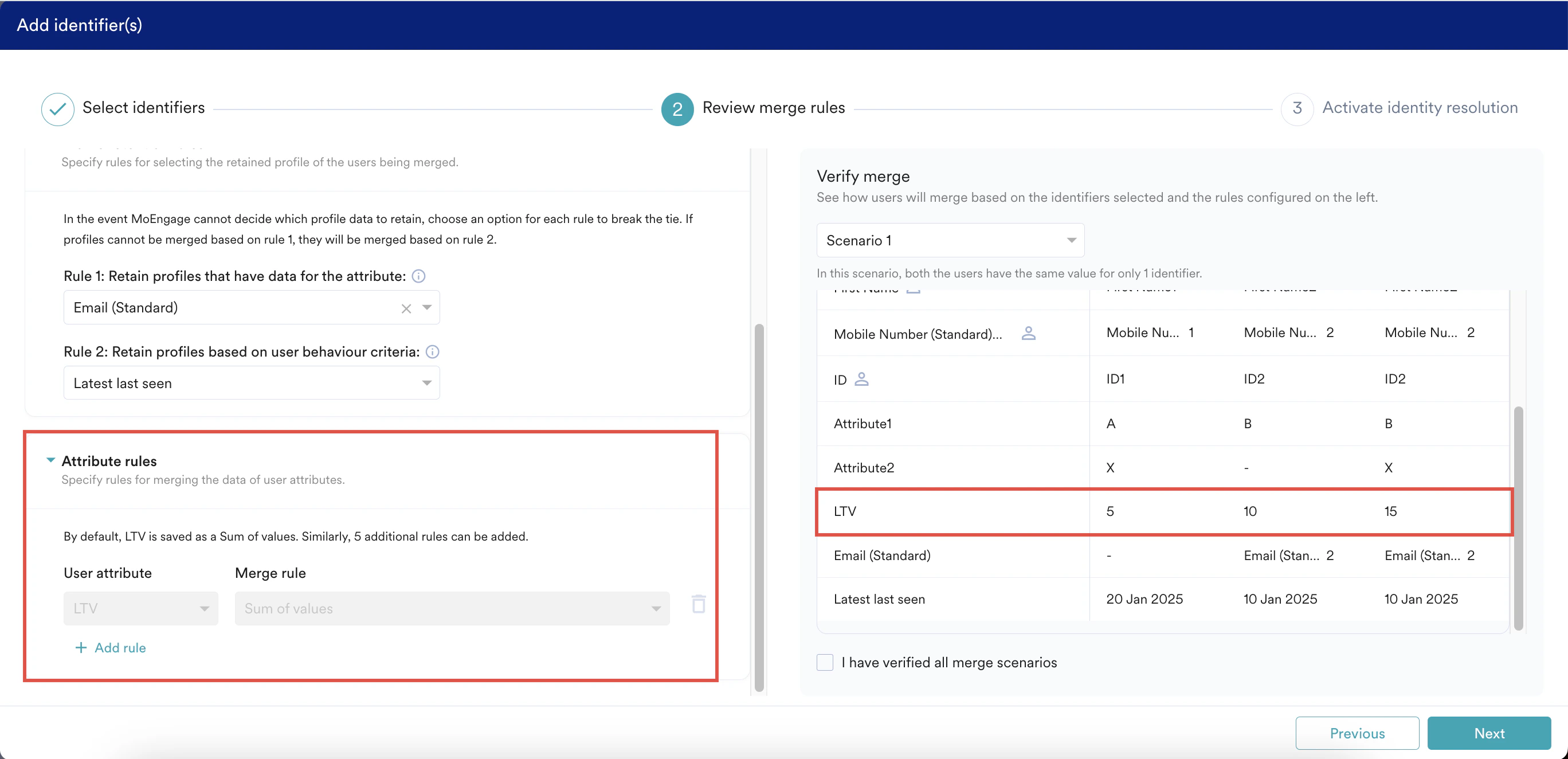
Attribute rules: This rule controls how specific custom attributes combine on merge. You can add a maximum of five such rules.
Perform the following steps to add your own custom user property rules:- Click Add rule.
- Select User properties and Merge rules.
For example, consider you have two customer profiles for the same user in which Profile 1 is received online, and Profile 2 is received offline. Each profile has a Loyality_points attribute and has data in it, and if you want the SUM of both Loyality_points when both these profiles are merged, perform the following:
- Select Loyality_points in User property list.
- Select Sum of values in Merge rules list.
So, whenever user profiles are merged, the resulting profile comprises the combined sum of both profiles’ loyality points. LTV ships with Sum of values pre-configured, no setup needed.
-
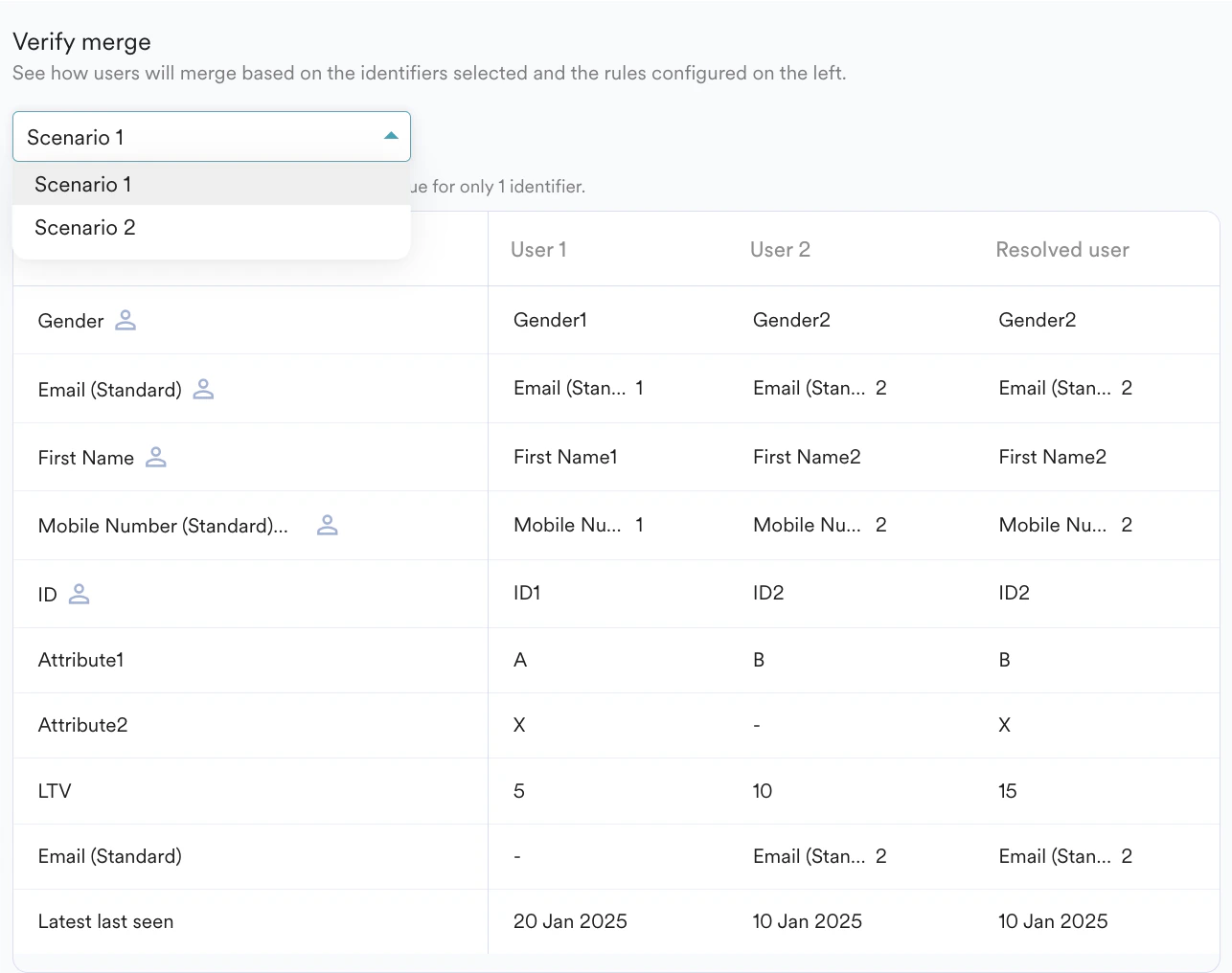
The Verify merge section shows how users are merged based on the profile retention and attribute rules you configured. Select I have verified all merge scenarios checkbox after verifying the merge scenarios.
- Click Next.
Whenever new data is ingested for an existing user, MoEngage automatically updates the existing user profile and their properties. Profile retention rules applied only during a merge.
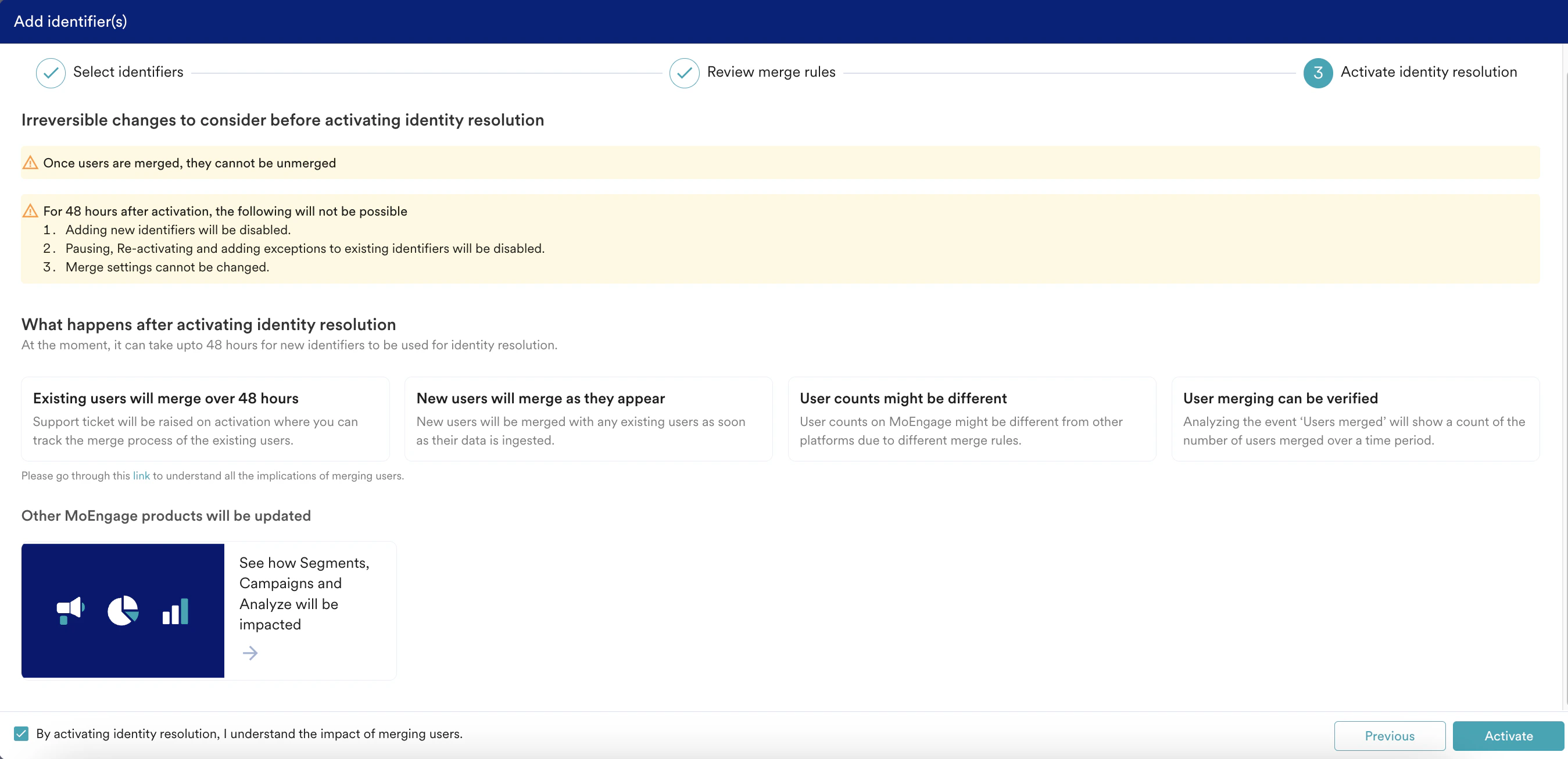
Step 3: Activate Identity Resolution
This step provides the instructions to be considered before and after activating the identity resolution. After activating identity resolution:- Existing users in the workspace merge over 48 hours
- New incoming users merge with existing users based on profile retention rules
Data Ingestion Support
MoEngage supports multiple identifiers across every ingestion path: Data APIs, SDKs, file imports, and native integrations like Shopify.- Data APIs
- SDK
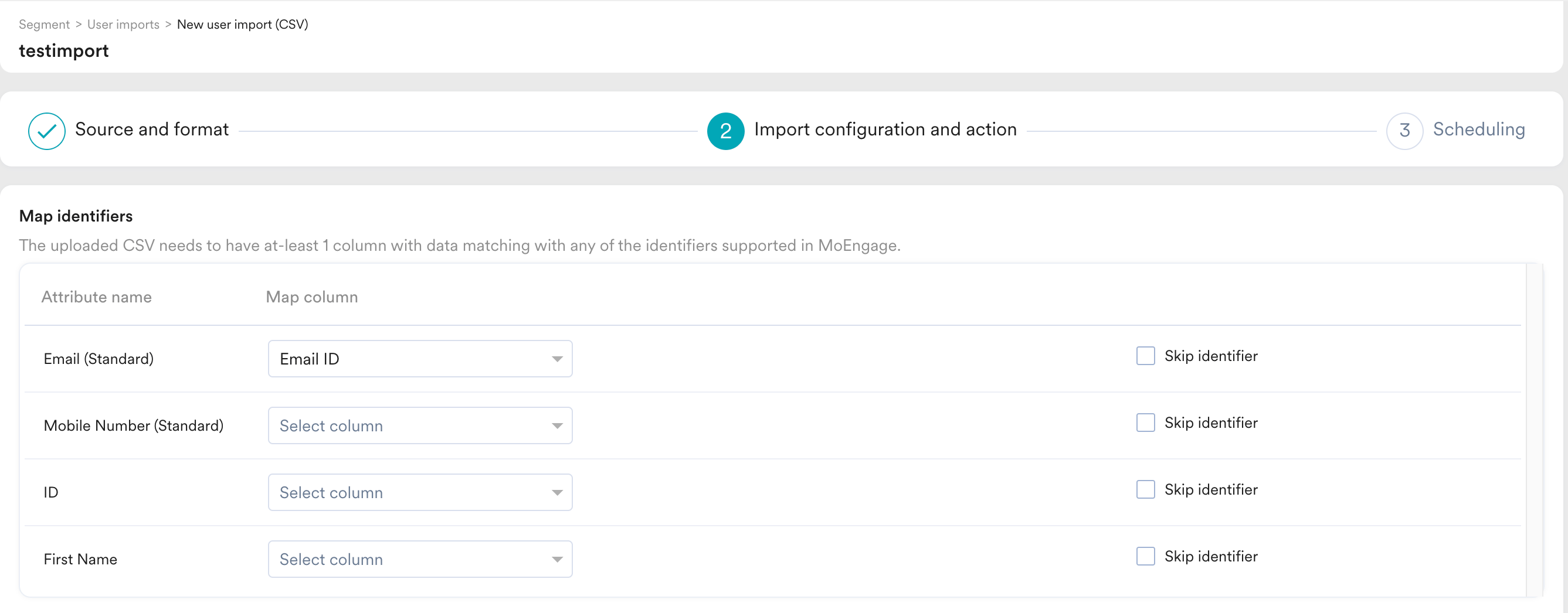
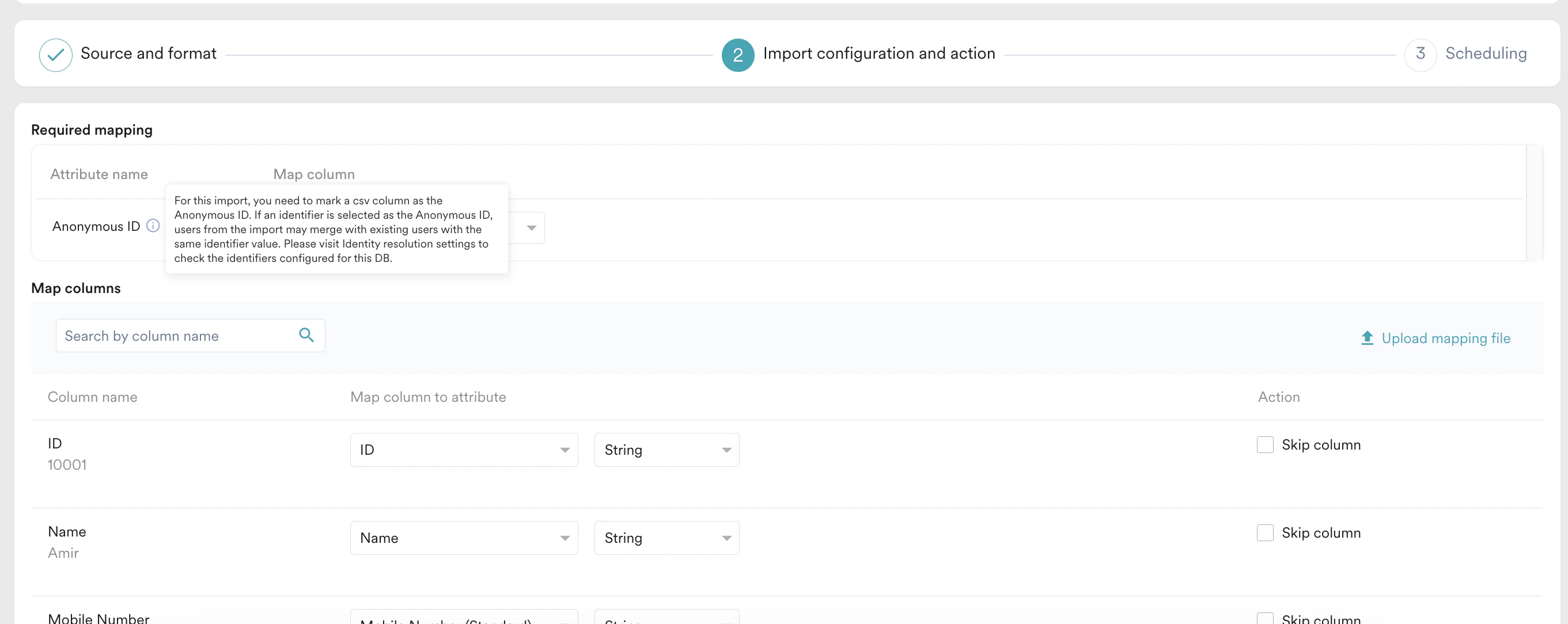
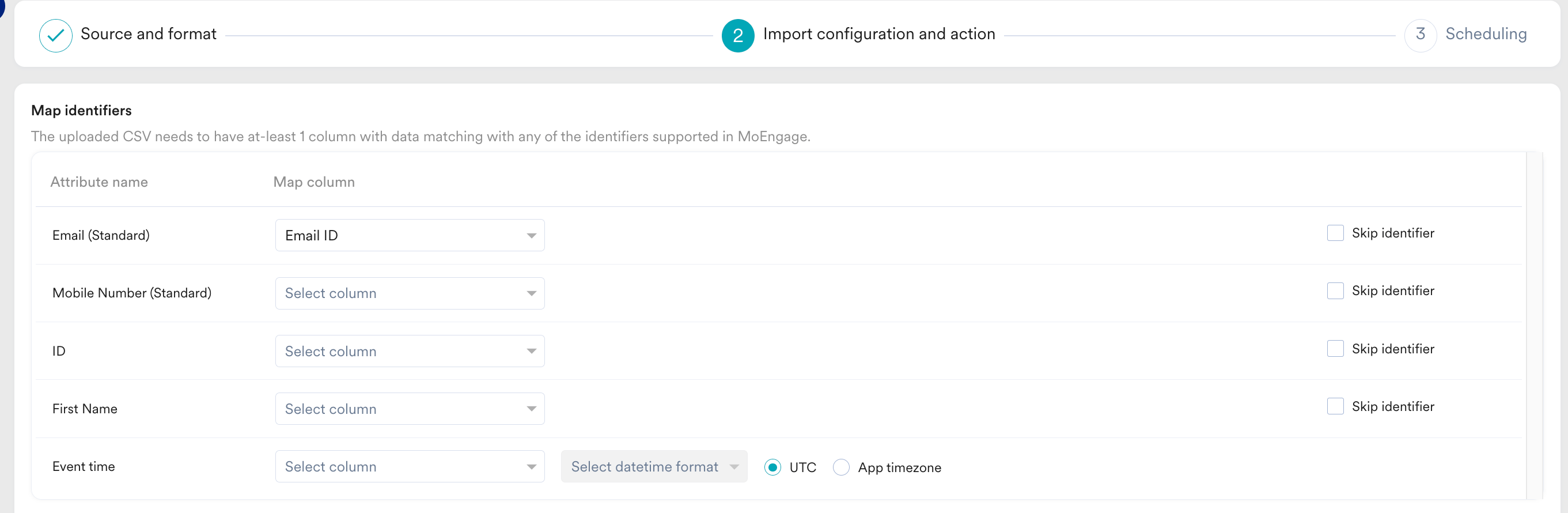
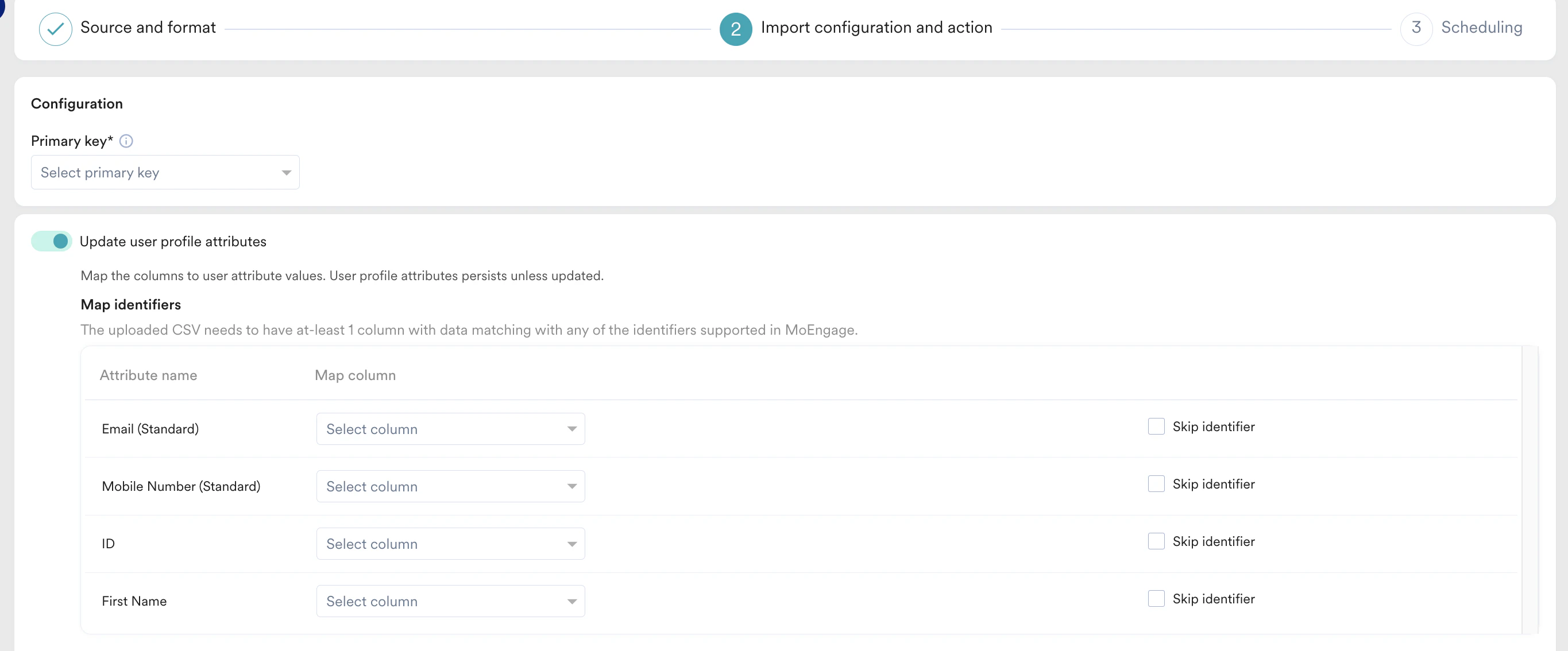
- File Imports
- Shopify
- Data APIs (Track User, Create Event, Bulk Import) can create or update users using any active identifier, not just
ID. - You can create a Server-to-Server user with no ID at all, as long as another identifier is present.
Request Body
The following is a sample cURL request for a Bulk Import API consisting the User and Event payloads:- User payload must contain at least one configured identifier in
attributes. - Event payload must include identifiers inside
user_identifiersas shown in the below example where moe_mobile is one of the identifiers in the workspace
Sample cURL Request for Bulk Import API:
The following Bulk Import API consists of payloads for both users and events.cURLPre-Flight Checklist for S2S User Creation
Before sending S2S requests with multiple identifiers, confirm:- All identifiers you intend to send are configured as active identifiers in Settings > Data > Identity resolution.
- Requests include the full set of configured identifiers rather than a partial subset wherever possible, to avoid ambiguous matches.
- Profile retention rules are configured to reflect which data source (online vs. offline, primary system vs. secondary) should win in a conflict.
- You have a process to handle API error responses for merge conflicts rather than silently retrying.
- Merges triggered this way are irreversible, test in a staging workspace before rolling out to production.
Cross-Profile Identifier Matching
A single ingested payload can carry identifier values that already belong to different existing users. For example, theid in the payload may match User A while moe_mobile matches User B. In these cases:- All matching profiles merge into a single profile. There is no identifier priority order and no “first match wins” logic — every existing profile that matches on any active identifier is pulled into the merge.
- The merge is automatic. The request is not rejected, and it is not queued for manual review.
- The retained profile’s values are decided by your configured profile retention rules. With the default Latest Last Seen tiebreaker, the incoming request typically becomes the most recent activity, so its identifier values are retained.
ExampleAssume
id, email, and moe_mobile are all active identifiers, and the default profile retention rule (Latest Last Seen) applies.Existing state:- User 1:
id = ID1,email = E1 - User 2:
id = ID2,email = E2,moe_mobile = M2
id = ID3, email = E1, moe_mobile = M2The new payload matches User 1 on email and User 2 on moe_mobile. Both merge together with the incoming record, producing:- Merged User:
id = ID3,email = E1,moe_mobile = M2
ID3 and the incoming values win because the new request has the most recent last-seen timestamp. ID1, ID2, and E2 are dropped.Partial Identifier Payloads
When a Data API call includes only a subset of the identifiers configured for your workspace — for example, the workspace hasid, moe_email, and moe_mobile active, but the request only carries moe_mobile — MoEngage treats the call as a straightforward user update, not a merge.- Lookup: MoEngage searches for an existing user using whatever identifiers are present in the request (
moe_mobilein the example above). - Update: Every attribute in the request payload is written to the matched profile. Identifier values not included in the request are left untouched on the existing profile.
- No merge: Because only one profile is resolved, no profile retention or attribute merge rules are evaluated. This differs from Cross-Profile Identifier Matching above, where multiple existing profiles collapse into one and retention rules decide which values survive.
A partial identifier payload does not cause data loss on its own — attributes outside the request are preserved on the existing profile. Data loss only happens when a payload’s values overwrite existing values for the same attribute, which is standard update behavior across all ingestion paths.
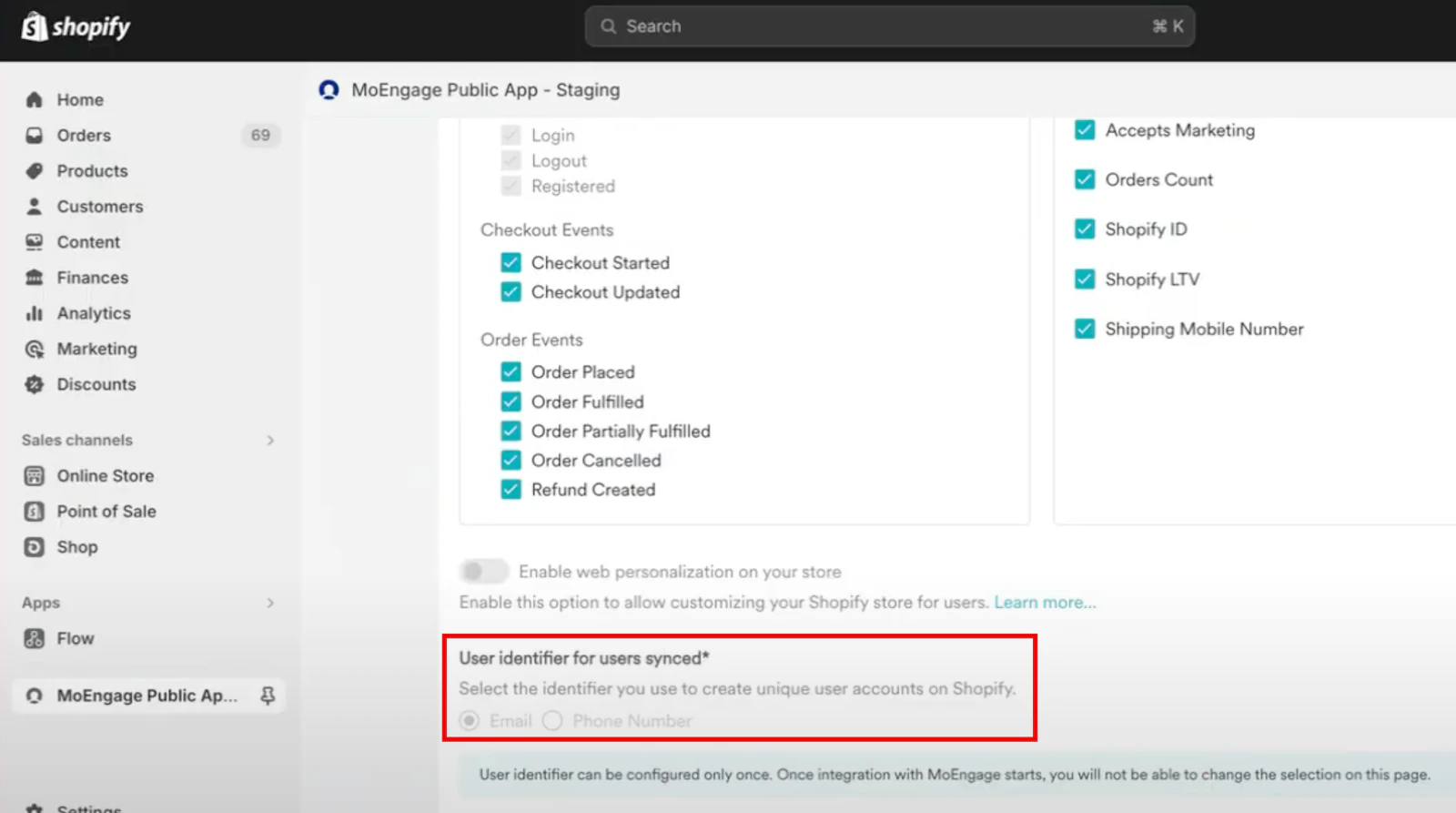
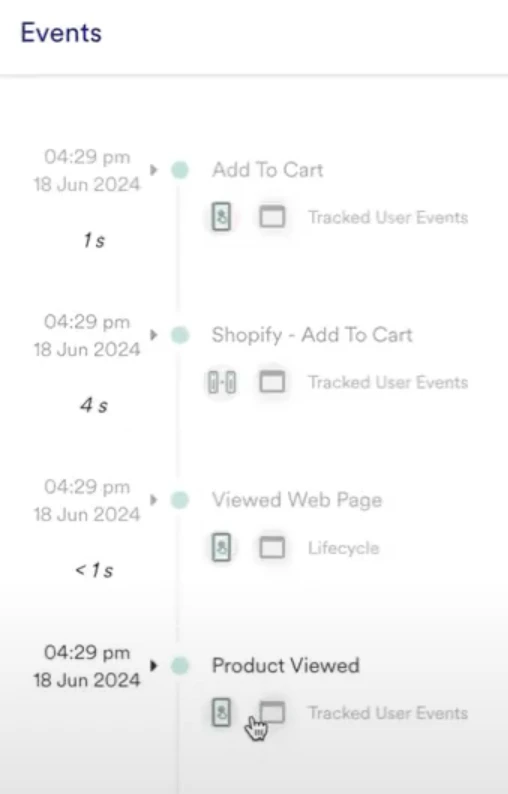
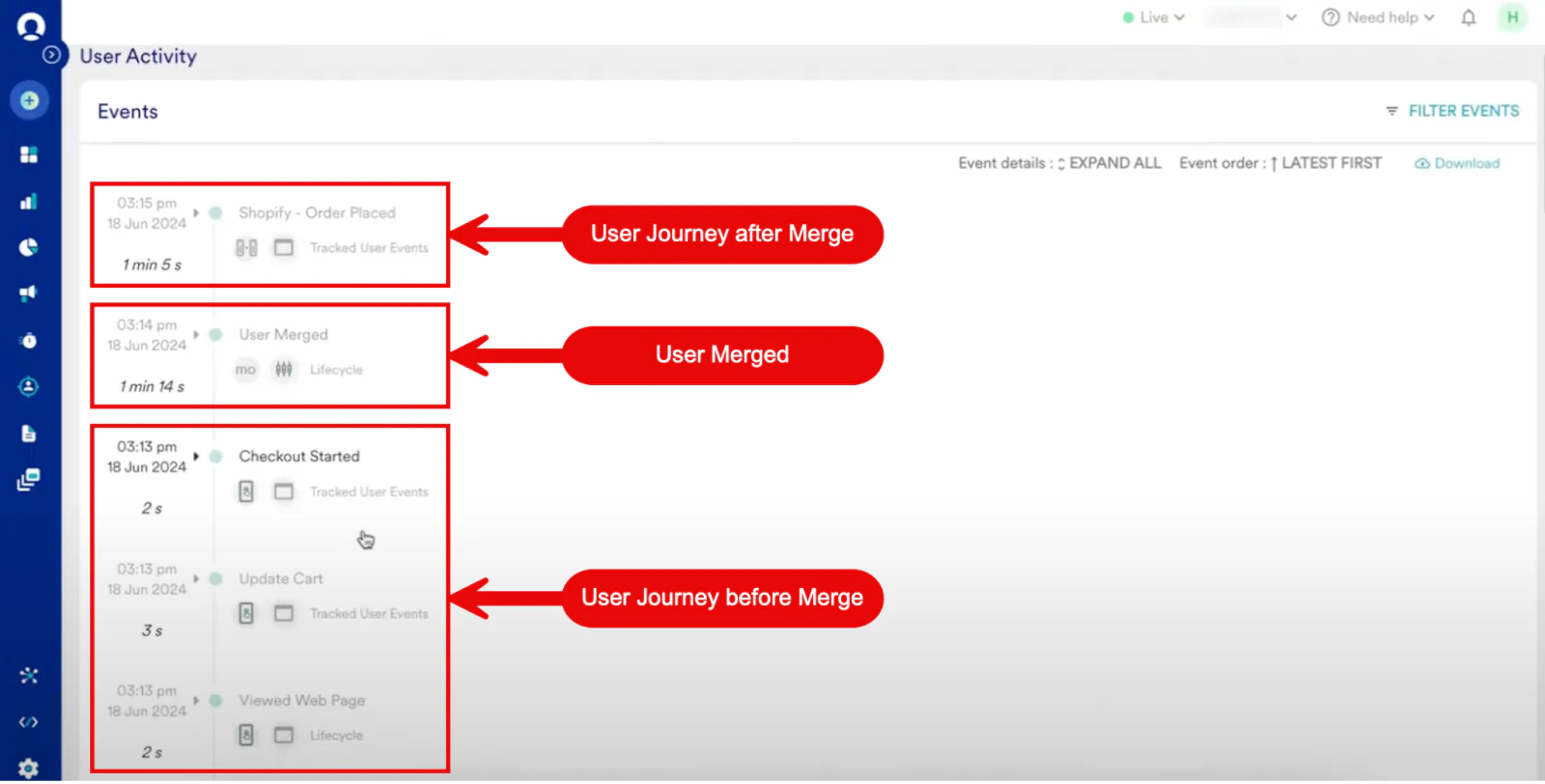
Simulate Merge Scenarios
Merges performed by identity resolution are irreversible. Before you activate identifiers in your workspace, use the Identity Resolution Sandbox to validate your specific scenarios. For example, you can test cross-profile identifier matching, the outcomes of profile retention rules, and how attribute values are retained or dropped.The sandbox is a simulation for learning and validation only. It is not connected to your MoEngage workspace, and actions performed here do not affect your user data.
Impact of Merging Users
Merging affects data, segments, campaigns, and triggers internal system events. Review each before activating.- On Data
- On Segments
- On Campaigns
- On System Events
- On Reachability
- User property info: the retained profile’s attributes win; any attribute missing from the retained profile is filled in from the merged profile.
- Devices: all devices from both profiles carry over to the retained profile, no device data is lost.
- Events: Events from the merged profile transfer to the retained profile, including for transitive multi-ID merges (a user merging into a profile that has itself already been merged).
FAQs
Some user properties and events seem to be lost during merge. Is it possible?
Some user properties and events seem to be lost during merge. Is it possible?
Yes.
- Example 1: If two users merge on a shared identifier but have a different attribute value, the merged profile only retains the value based on the retention rules. Hence, one of the attribute values is lost.
- Example 2: If two users merge on a shared mobile number but have different emails, the merged profile’s email is lost — only the retained profile’s email survives.
The user count and MTU numbers have suddenly reduced after activating identity resolution. Why?
The user count and MTU numbers have suddenly reduced after activating identity resolution. Why?
One of the profiles is deleted when two profiles merge into one. This reduces your key metrics, such as Total users, MTU, MAU, and more.Note that every unmerged duplicate profile counts separately toward your Monthly Tracked Users (MTU) — a key input to your MoEngage bill. Merging duplicates into one profile reduces your MTU count, so cleaning up existing duplicates can also lower cost in addition to improving data accuracy.