

Each workspace is limited to one active brand book. Currently, this feature is exclusive to In-App campaigns and does not support Portfolio.
Access the Brand Book
The brand book is managed at the account level. To access it, perform the following steps:- On the sidebar menu in MoEngage, point to the Settings icon
 . The Settings menu expands.
 - Click Account, and then click Brand Book.
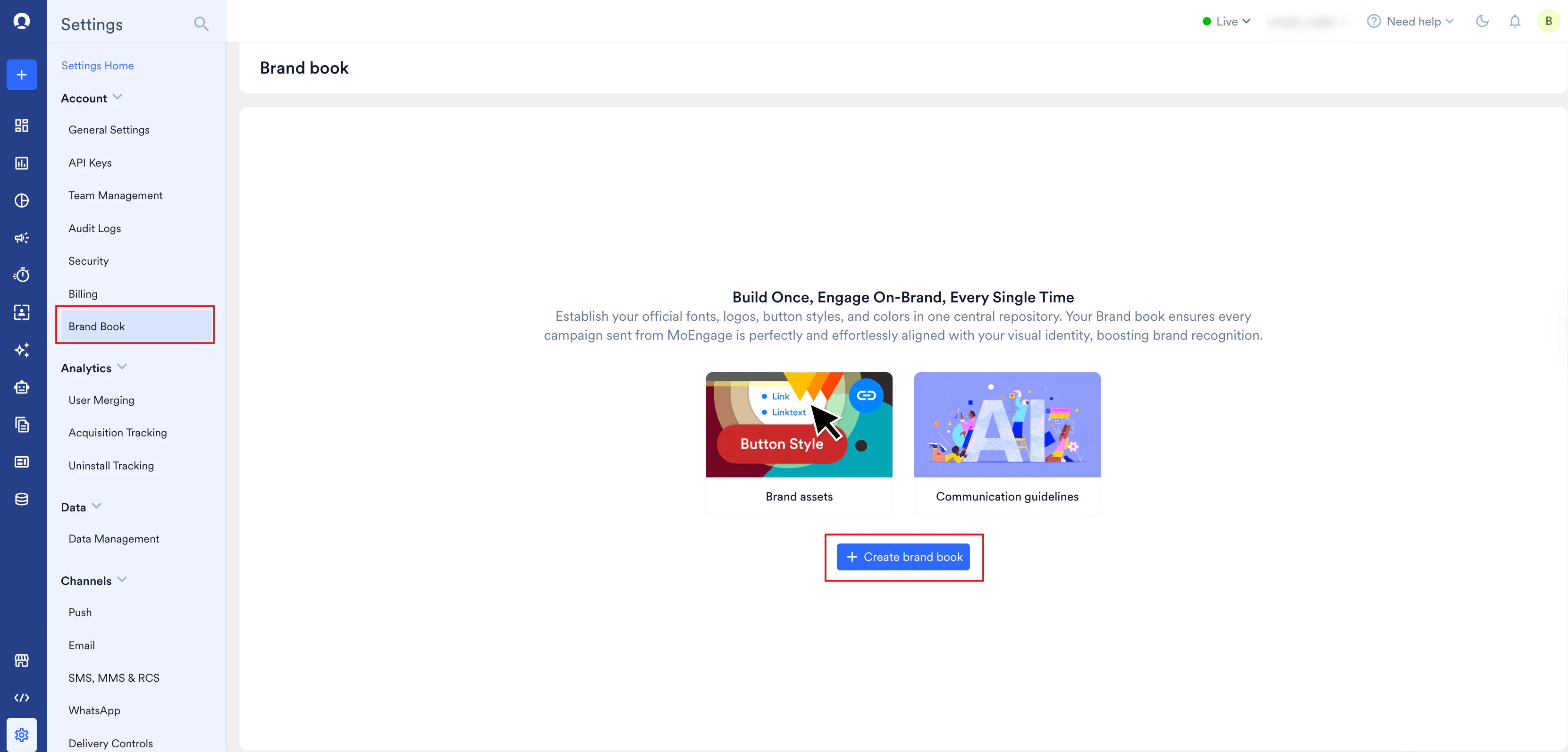
The Brand Book is positioned as a standalone option in the navigation pane, separated from standard configuration settings.
Permissions and Access Control
The system enforces role-based access control for managing brand assets. Review your assigned permissions inside your current workspace to verify your access:| Workspace Account Role | Access Permission Level | Functional Details |
|---|---|---|
| Admin / Manager | Read, Create, and Modify | Full access to upload brand assets, change fonts, delete files, and publish your brand settings. |
Create Your Brand Book
When you configure your brand book, select one of the following creation methods:Method 1: Import Through Website URL
The platform fetches your visual identity directly from your brand’s live website. To import via website URL, perform the following steps:- On the Brand Book landing page, click Create brand book. The Create brand book dialog box appears.
- In the Enter your brand website URL box, type or paste your web address (for example,
https://www.example.com). Leading and trailing whitespace is removed automatically. - Click Import.
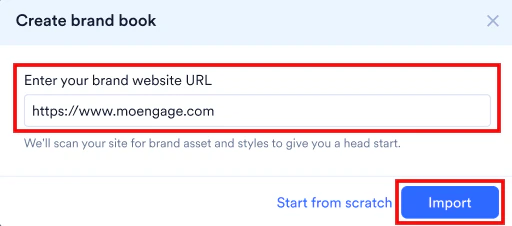
Method 2: Manual Setup from Scratch
If your target site is protected by corporate access firewalls, or if you prefer full manual control, define your style parameters from scratch:- On the Brand Book page, click Create Brand Book. The Create brand book dialog box appears.
- Click Enter manually.
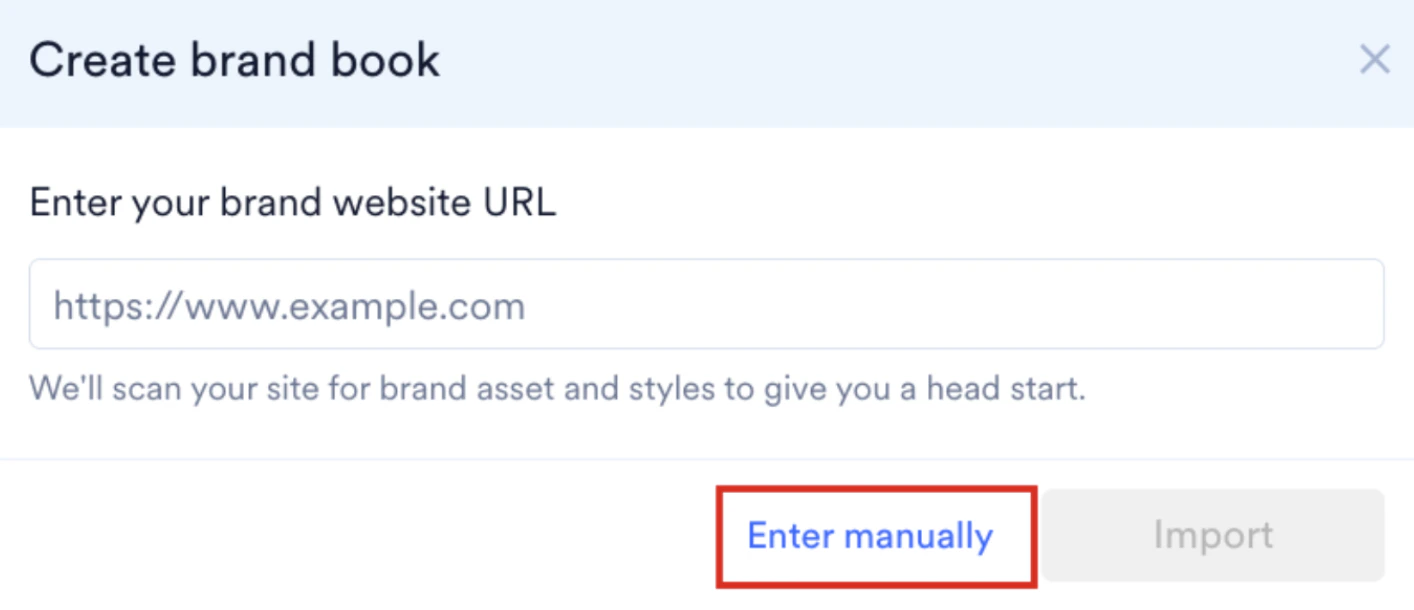
Configure Brand Assets
The asset manager is divided into visual modules under the Brand Assets tab. You can save and publish your details one module at a time. Partial configurations are valid, and you can return to add details later.Logo Style
Logo Style
Manage your official logos to enable selection inside campaign visual editors. To upload and manage your brand logos, perform the following steps:
- In the Foundation panel, click Logo Style to expand the section.
-
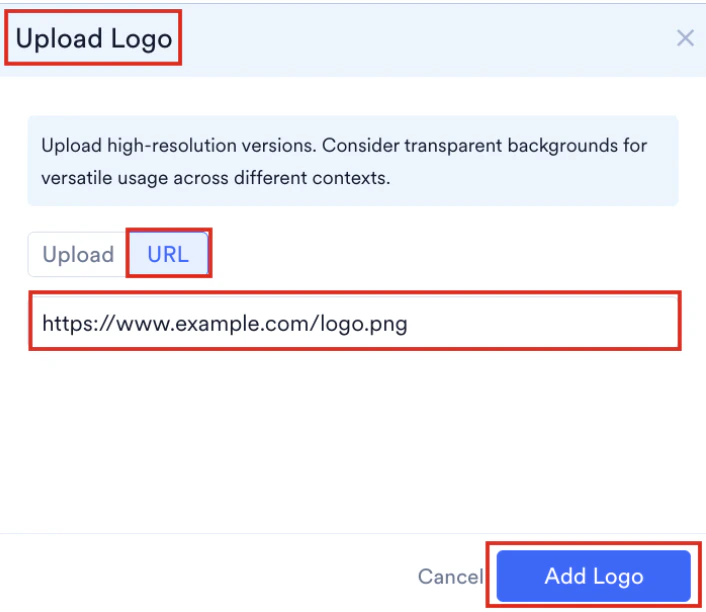
Click + Add Logo on the right side of the panel. The Upload Logo dialog box opens.

-
To upload a local image file:
- Click the Upload tab.
- Drag and drop your logo file into the target zone, or click upload from computer to browse files. The uploader supports
.ico,.png,.gif,.svg, and.jpgformats, with a maximum file size of 5 MB.
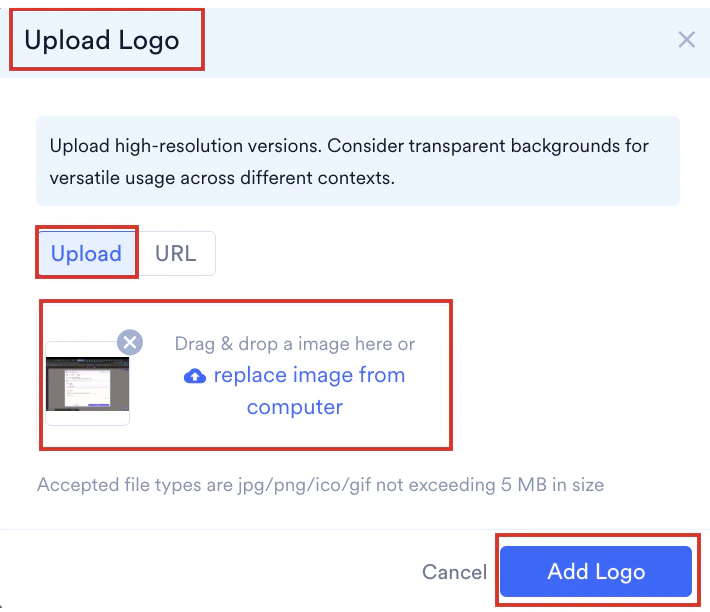
-
To import an image from a public web server:
- Click the URL tab.
- In the Add URL here (only 1 URL at a time) box, type or paste the direct image link (for example,
https://www.example.com/logo.png). The URL must point directly to an image file. - Click Add Logo.
-
(Optional) Under the Logo Name column, click the text box to enter a custom descriptor name containing between 5 and 150 characters.

-
To manage your uploaded brand logos, do any of the following:
- To copy the direct file path: Click the Logo URL icon
 in the row of the logo, and copy its absolute web path to your clipboard.
 - To delete a logo: Under Actions, click the delete icon
 in the row of the logo, and then click Delete in the Delete Logo confirmation dialog box.
- To copy the direct file path: Click the Logo URL icon
- You can add up to 10 logos per brand book.
- If long file names in the Logo File column are truncated with an ellipsis (…), hover to see the full name.
Brand Colors
Brand Colors
Set up your brand colors to keep your designs consistent and prevent unapproved color choices. To configure your brand color palettes, perform the following steps:
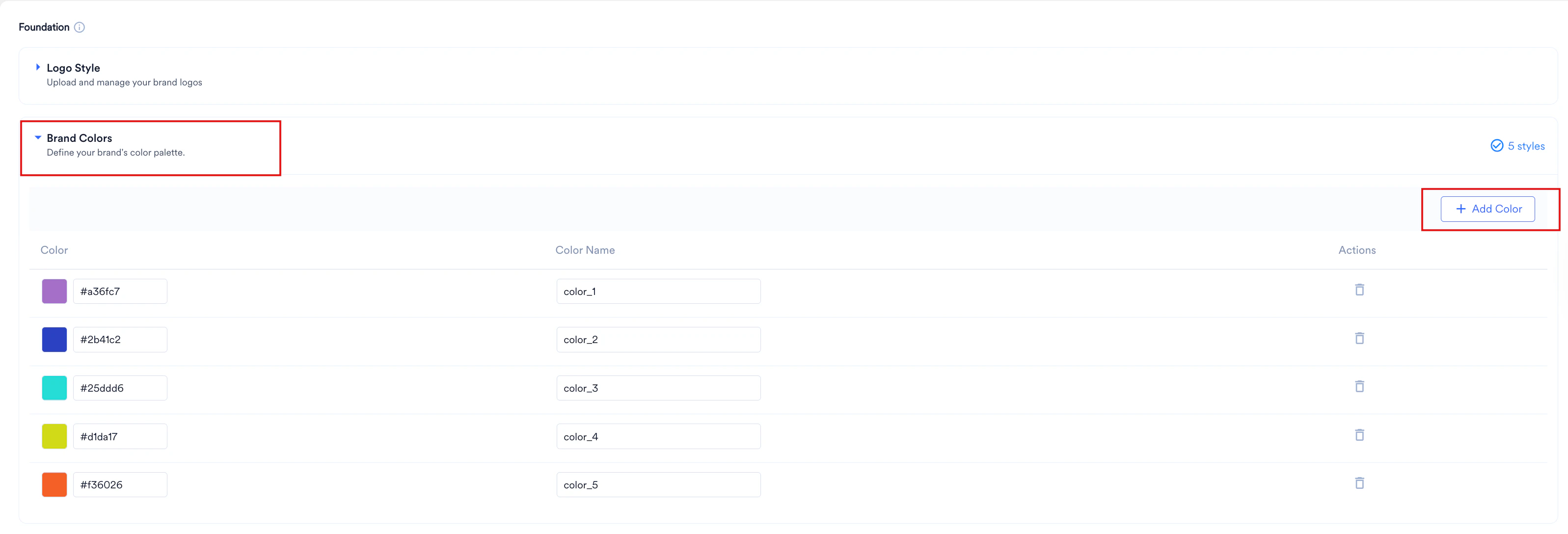
- In the Foundation panel, click Brand Colors to expand the section.
-
Click + Add Color on the right side of the panel. A new color row is added to the table.
-
In the Color column, do one of the following:
- Click the text box to type a six-digit hex code (for example,
#aa0566).

- Click the text box to type a six-digit hex code (for example,
-
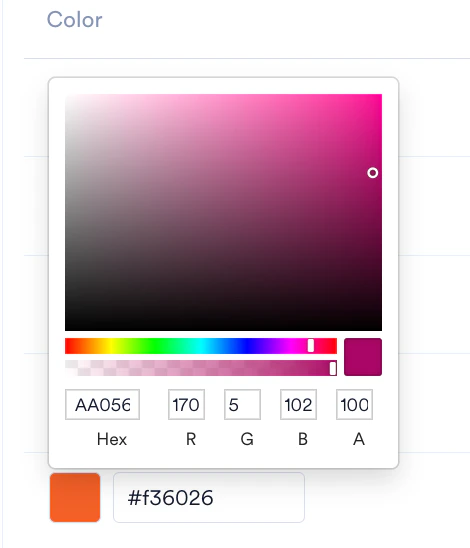
Click the color preview box to open the color picker, where you can drag the pointer to select a color, or type custom values in the Hex box, or in the R (red), G (green), B (blue), and A (alpha) boxes. Duplicate hex codes are not allowed within the same palette.
-
In the Color Name column, click the text box, and then type a unique descriptive name containing between 5 and 50 characters (for example, Primary Brand Orange).

-
To remove a color from your palette, click the delete icon
 in the Actions column.
You can add up to 10 colors per brand book.
Fonts
Fonts
Upload custom typography files and map fallbacks to maintain consistency when custom fonts cannot be displayed. To upload and configure your custom fonts, perform the following steps:
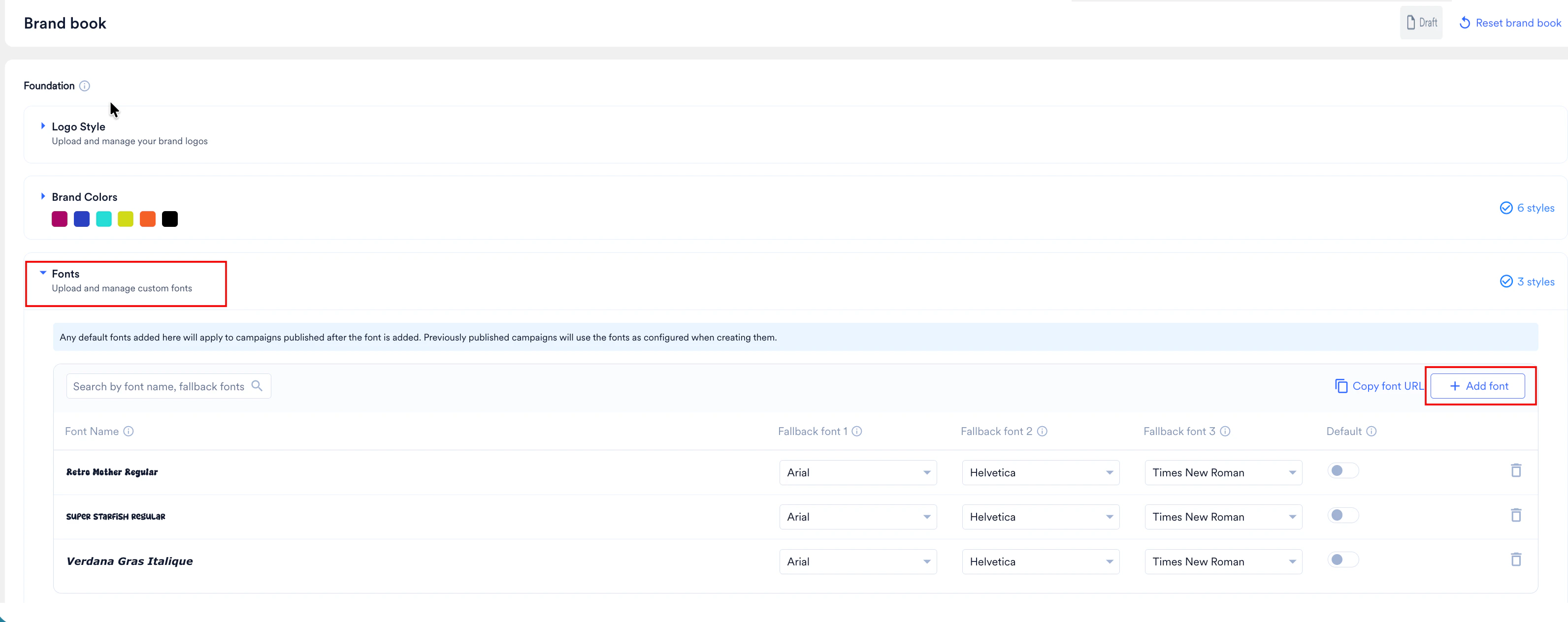
- In the Foundation panel, click Fonts to expand the section.
-
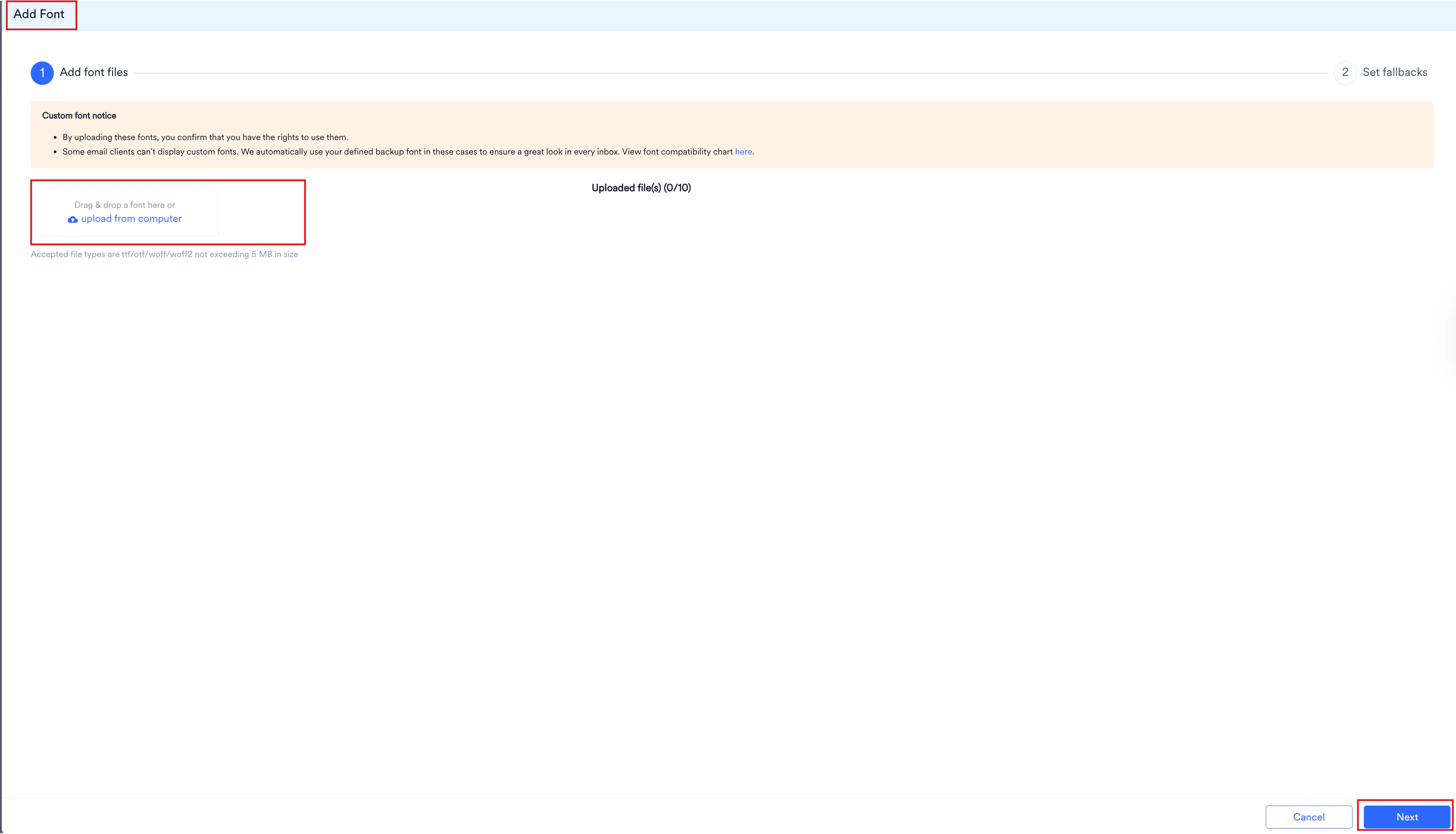
Click + Add font on the right side of the panel. The Add Font wizard opens.
-
In step 1 (Add font files):
- Drag and drop your font files into the target zone, or click upload from computer to select them. The uploader supports
.ttf,.otf,.woff, and.woff2formats, with a maximum file size of 5 MB per file.
You can upload up to 10 font files per brand book.- Click Next.
- Drag and drop your font files into the target zone, or click upload from computer to select them. The uploader supports
-
In step 2 (Set fallbacks):
- Choose your fallback priority across the Fallback font 1, Fallback font 2, and Fallback font 3 drop-down lists. These fallbacks render in your recipient’s inbox if their client does not support your custom font.
- Click Publish.
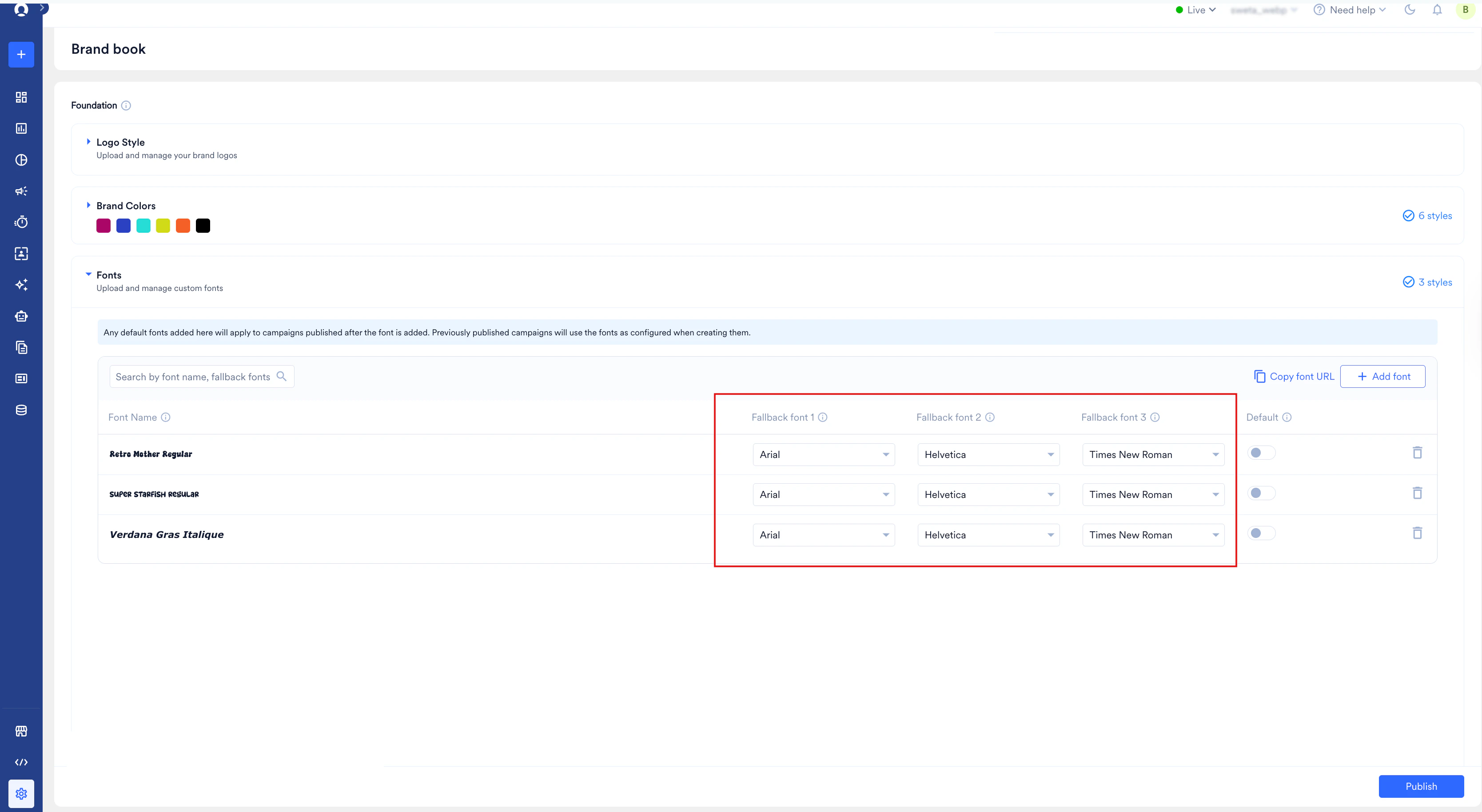
- To copy the direct file path of an uploaded font, select the font row in the table and click Copy font URL.
-
To manage your uploaded fonts, do any of the following:
- To search: In the Search by font name, fallback fonts box, type the name of the font or fallback you want to find.
- To copy the direct file path: Click the row of the custom font in the table, and then click Copy font URL.
- To set or remove a default font: In the Default column, turn on the toggle for the font you want to use as your default. Turning on a default font automatically applies it to all campaigns published after the font is added. Previously published campaigns continue using the fonts that were configured when they were created. To stop using the font as the default, turn off the switch.

-
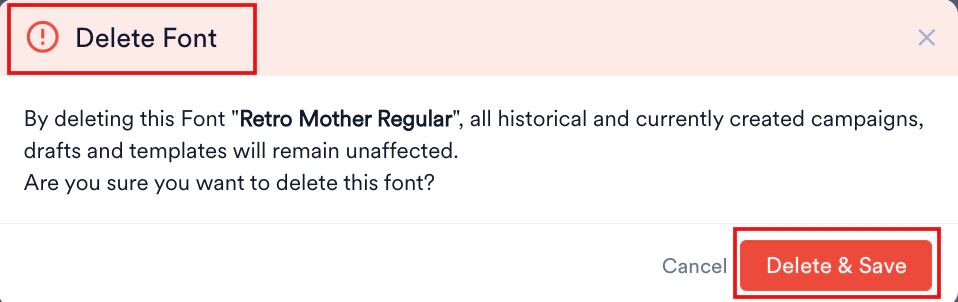
To remove a custom font: Under Actions, click the delete icon
 in the row of the font, and then click Delete & Save in the Delete Font confirmation dialog box.
Typography
Typography
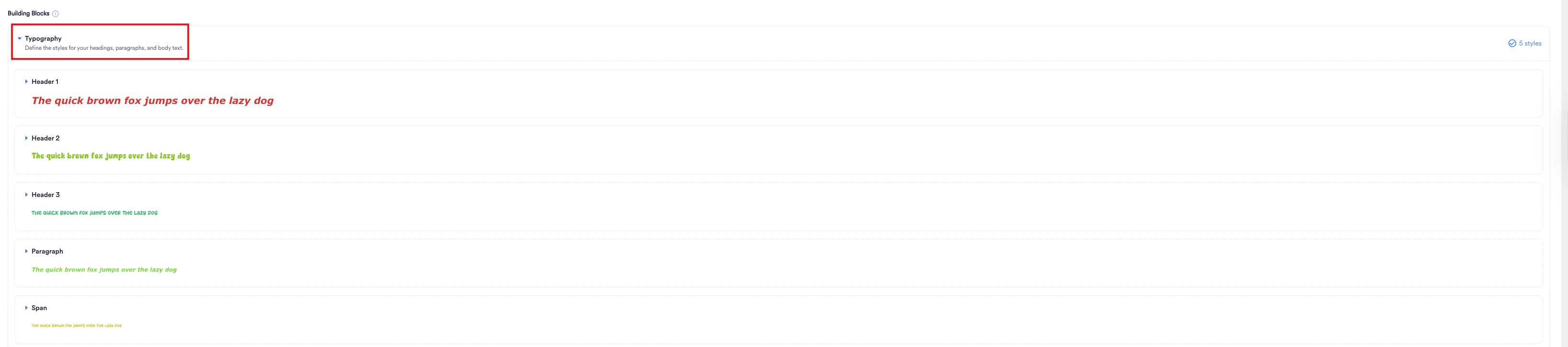
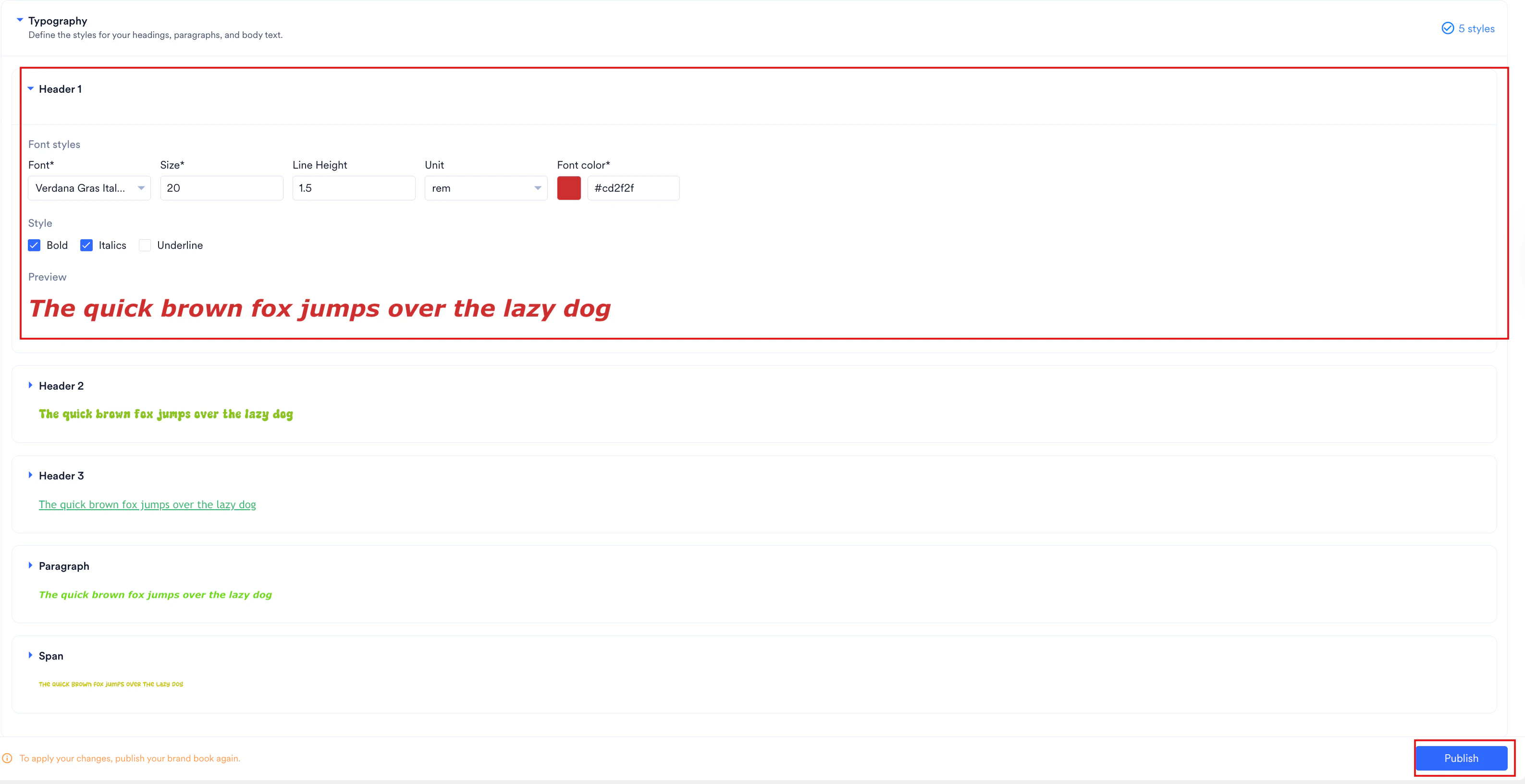
Define specific typography styles across five core tags: Header 1 (H1), Header 2 (H2), Header 3 (H3), Paragraph, and Span. To configure your brand typography styles, perform the following steps:
- In the Building Blocks panel, click Typography to expand the section.
-
Select the typography element you want to modify (Header 1, Header 2, Header 3, Paragraph, or Span).
-
Under Font styles, configure your visual parameters:
- In the Font list, select your preferred brand typeface (for example, Inter).
- In the Size box, type a numerical value (for example,
14). - In the Line Height box, enter a custom spacing value (for example,
1.5). - In the Unit list, select either px or rem.
- In the Font color box, type a six-digit hex code (for example,
#cd2f2f) or click the color block.
- Under Style, select or clear the check boxes for Bold, Italics, or Underline.
- Review the changes in the Preview section, which displays the standard string: “The quick brown fox jumps over the lazy dog”.
-
Click Publish.
Size and line height ranges
- When unit is px: accepts integer values between 1 and 48.
- When unit is rem: accepts decimal values between 0 and 3.
Buttons
Buttons
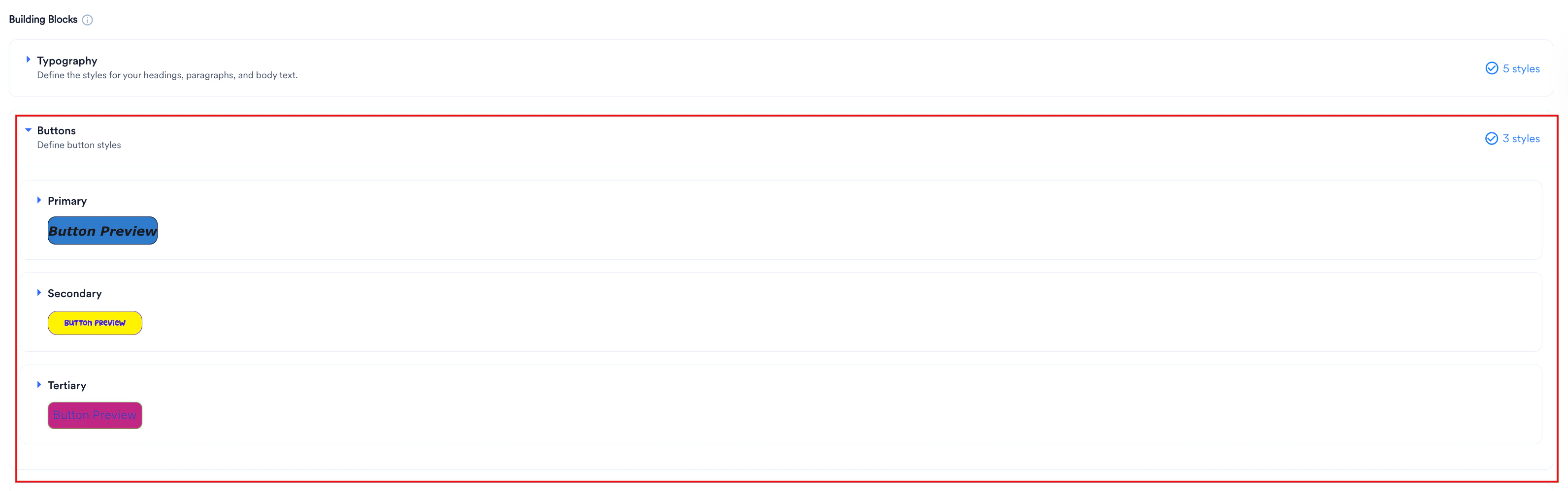
Define layout structures and interactive attributes for three button tiers: Primary, Secondary, and Tertiary. To configure your brand button styles, perform the following steps:
- In the Building Blocks panel, click Buttons to expand the section.
-
Select the button tier you want to modify (Primary, Secondary, or Tertiary).
-
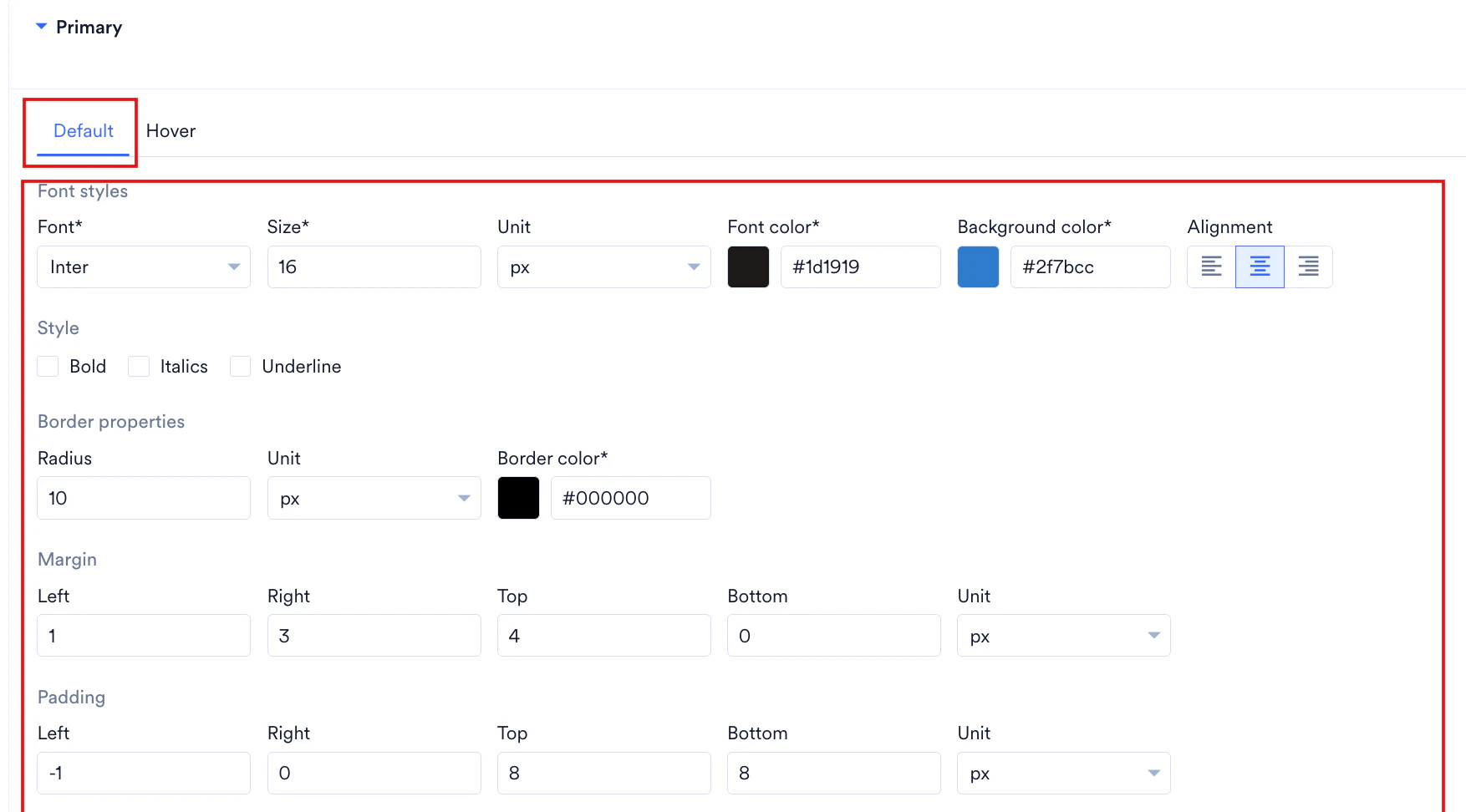
To set standard rendering attributes, select the Default tab and configure the following parameters:
- In the Font list, select your preferred brand typeface (for example, Inter).
- In the Size box, type a numerical value for your font size (for example,
14). - In the Unit list, select either px or rem.
- In the Font color box, type a valid six-digit hex code or select the color block.
- In the Background color box, type a valid six-digit hex code (for example,
#007bff) or select the color block. - Under Alignment, click the left-align, center-align, or right-align icons to position your button text.
- Under Style, select the check boxes for Bold, Italics, or Underline to apply font decorators.
- Under Border properties, enter a numerical value in the Radius box (for example,
0), select the Unit, and type a valid six-digit hex code in the Border color box. - Under Margin, enter custom numerical values in the Left, Right, Top, and Bottom boxes, and select the unit from the Unit list.
- Under Padding, enter custom numerical values in the Left, Right, Top, and Bottom boxes (for example,
8for Top and Bottom), and select your preferred unit.
-
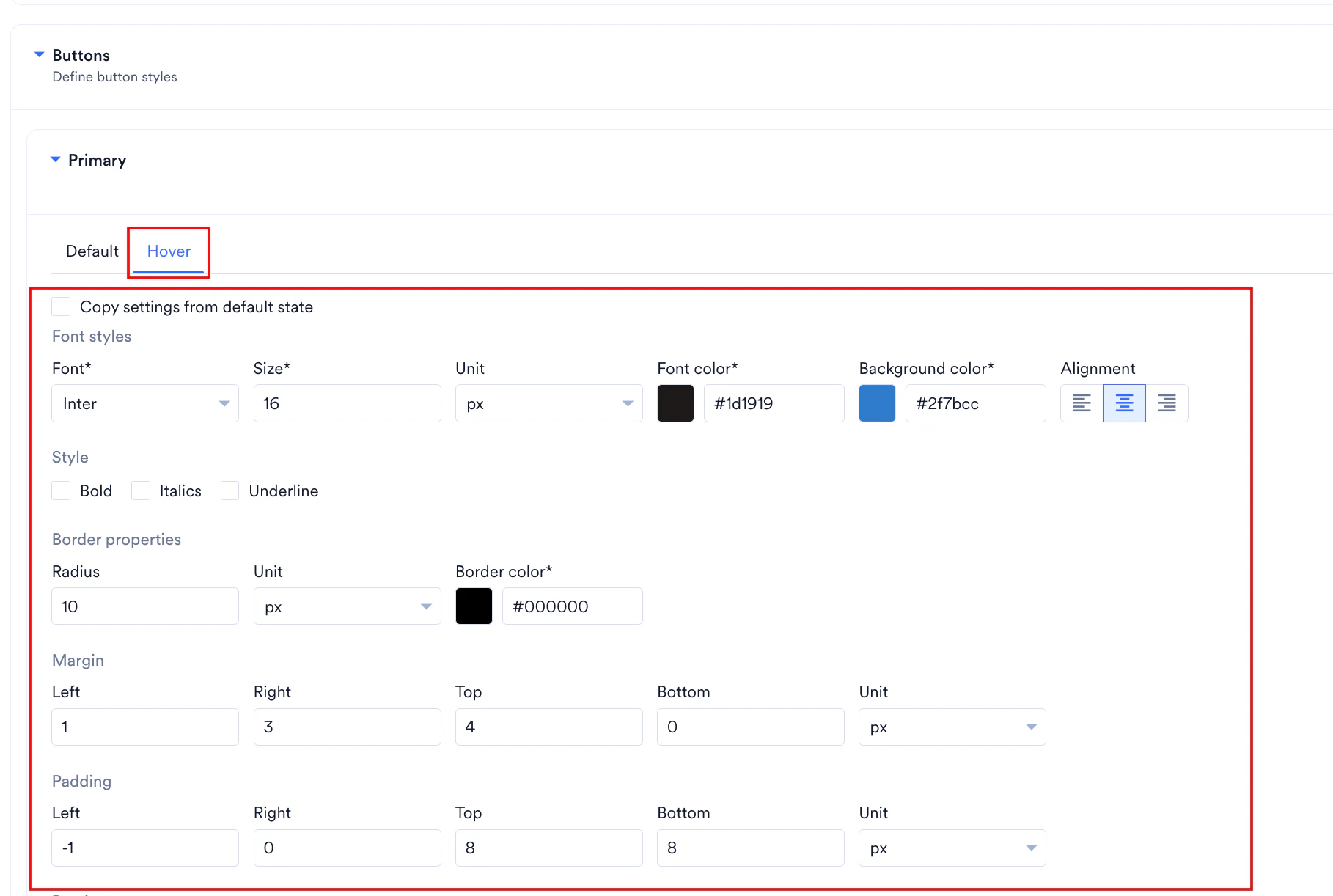
To set interactive styling, select the Hover tab:
- To duplicate your default settings, select the Copy settings from default state check box.
- To customize your hover behavior, clear the Copy settings from default state check box and enter your custom values by repeating steps 1 through 10 under step 3.
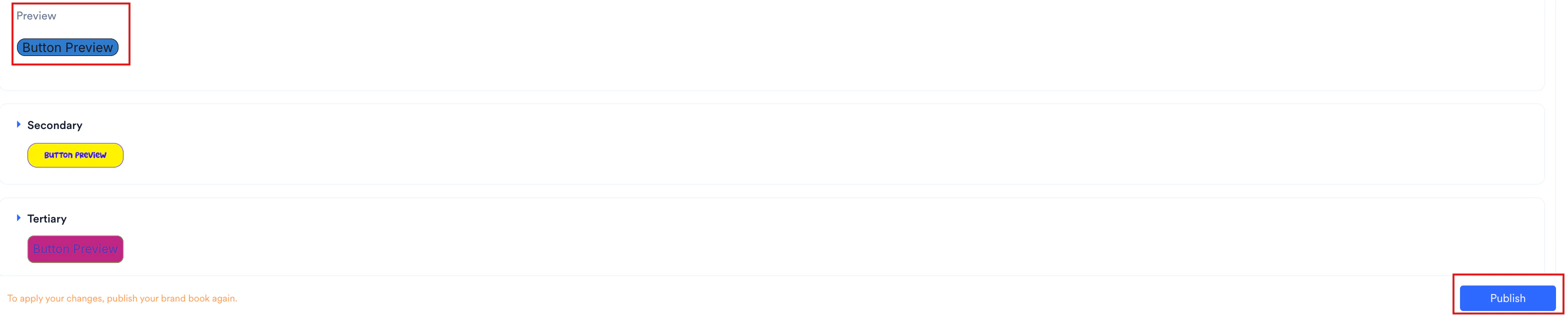
- Review your configuration in the Preview section at the bottom of the section.
-
Click Publish.
Hyperlinks
Hyperlinks
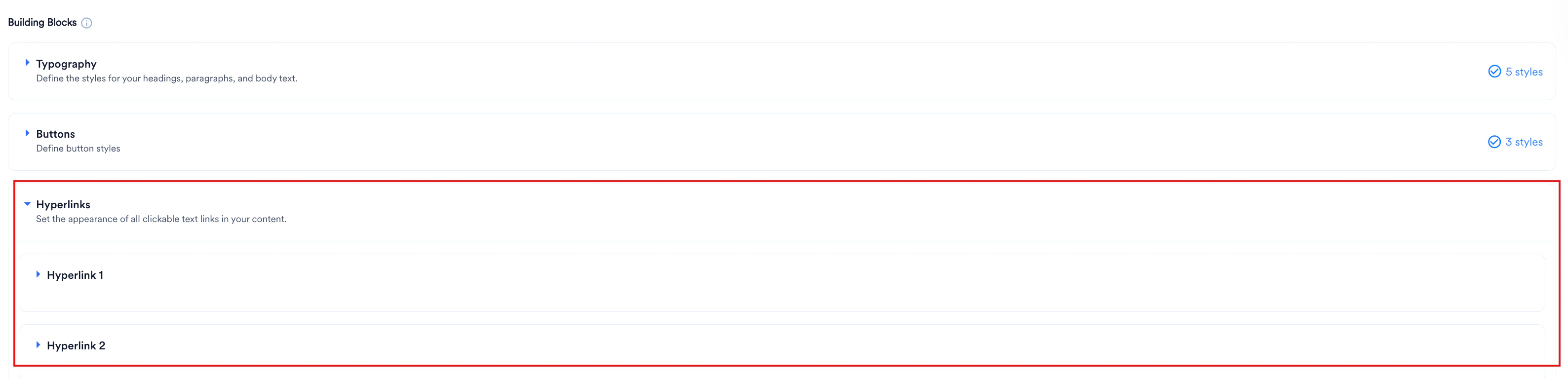
Define styling specifications for two distinct hyperlink variants to ensure consistent clickable elements in your campaigns. To configure your hyperlink styles, perform the following steps:
- In the Building Blocks panel, click Hyperlinks to expand the section.
-
Click the hyperlink variant you want to modify (Hyperlink 1 or Hyperlink 2).
-
Click the Default tab and configure your base variables under Font styles:
- In the Font list, select your preferred typeface (for example, Inter).
- In the Size box, enter a numerical value for your font size (for example,
14). - In the Line Height box, enter a numerical spacing value (for example,
1.5). - In the Unit list, select either px or rem.
- In the Font color box, type a valid six-digit hex code (for example,
#0000EE) or click the color block. - Under Style, select or clear the check boxes for Bold, Italics, or Underline.

-
To set interactive styling, select the Hover tab:
- To duplicate your default settings, select the Copy settings from default state check box.
- To customize your hover behavior, clear the Copy settings from default state check box and enter your custom values by repeating steps 1 through 6 under step 3.
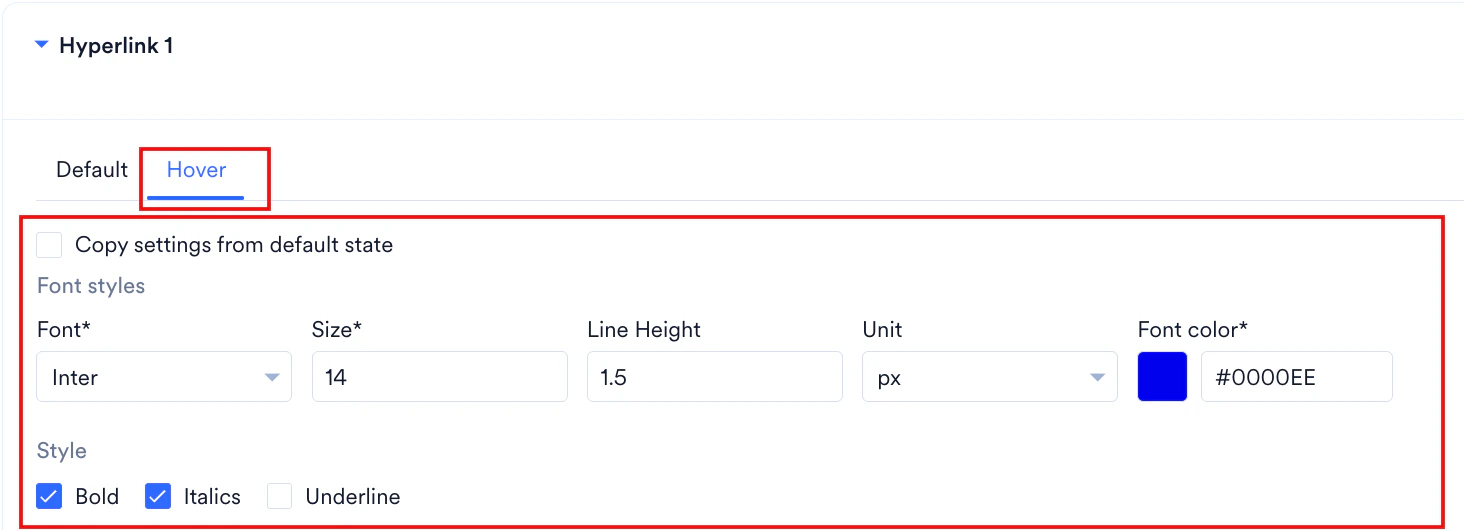
- Verify the layout in the Preview section at the bottom of the section.
-
Click Publish.

Publish Your Brand Book
Publishing applies your configured brand assets across all your marketing channels. The flow differs slightly the first time you publish versus when you update an already published brand book.Publish a New Brand Book
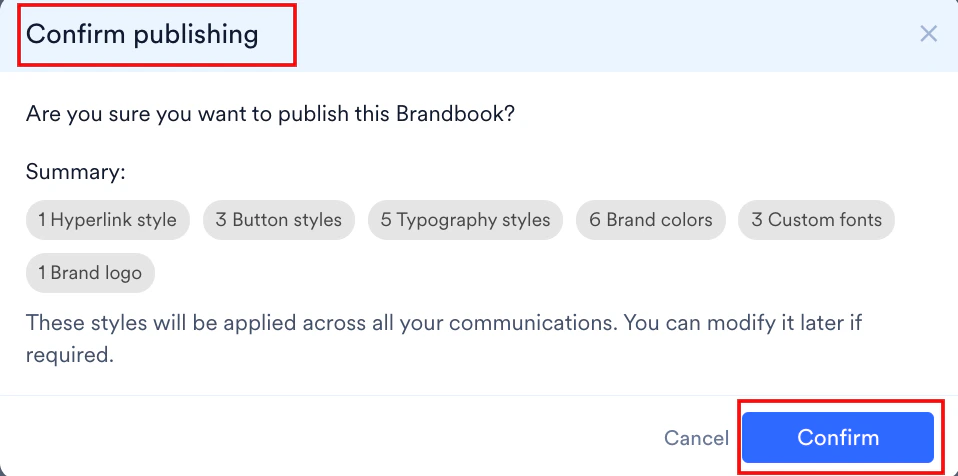
When you finish your initial configuration, perform the following steps:- After you configure your assets (logos, colors, fonts, or button styles), click Publish in the lower-right corner of the page.
- In the Confirm publishing dialog box, review the summary of the styles that are applied (for example, 2 Hyperlink styles, 3 Brand colors, 1 Brand logo).
- Click Confirm to publish the brand book and apply the styles across your communications.
- To exit without publishing: Click Cancel or the close icon (×). Your configuration remains in draft mode until you publish it.
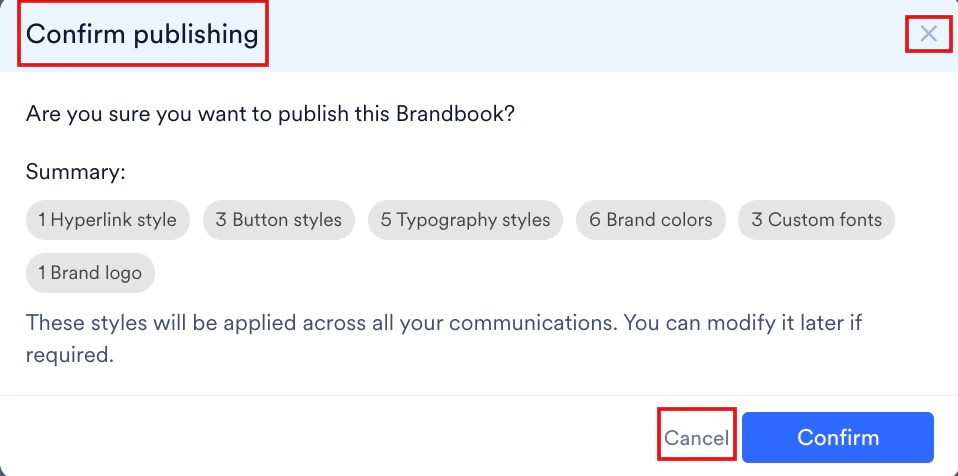
- To exit without publishing: Click Cancel or the close icon (×). Your configuration remains in draft mode until you publish it.
Republish Your Brand Book
When you edit a brand book that has already been published, perform the following steps:- After you update or add brand assets, verify that the orange notification banner appears at the bottom of the workspace.
To apply your changes, publish your brand book again.
- Verify that the yellow Unpublished Changes
 indicator appears in the top header alongside the Reset brand book
  icon.
icon. - Click Publish in the lower-right corner of the workspace.
- In the Confirm publishing dialog box, review the summary of queued changes.
- Click Confirm to publish your updates and apply them across your communications.
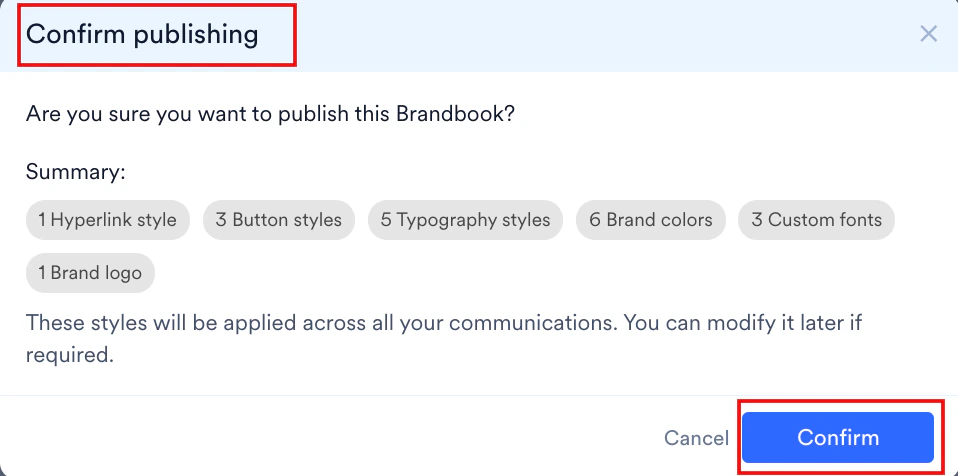
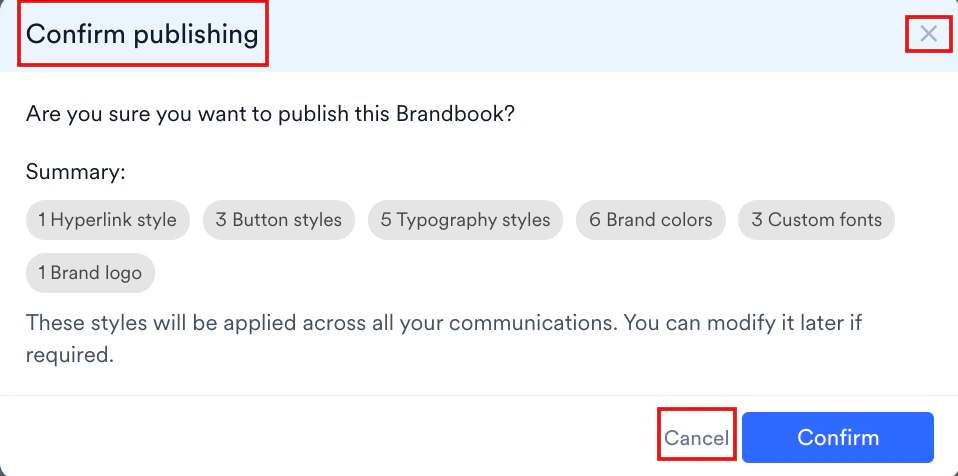
- To exit without publishing: Click Cancel or the close icon (×). Your configuration remains in draft mode until you publish it.
FAQs
Can I create multiple Brand Books for different product lines inside a single workspace?
Can I create multiple Brand Books for different product lines inside a single workspace?
In the current scope of the feature, only a single master brand book can be configured and used across an entire workspace. By default, this master configuration applies across all teams.
Why does the website automatic fetch tool sometimes fail to extract my brand logo or corporate font files?
Why does the website automatic fetch tool sometimes fail to extract my brand logo or corporate font files?
Automatic ingestion relies on background crawling scripts. If your website incorporates strict cross-origin resource sharing (CORS) rules, access restrictions, or web application firewalls, the background scanner is blocked from accessing those assets. Logos hosted behind authentication or fonts loaded from private CDNs are also often skipped. In these cases, use the manual workflow to update your brand book assets.
How do published brand book changes affect active campaigns and templates inside the editor?
How do published brand book changes affect active campaigns and templates inside the editor?
Publishing modifications to your brand book immediately updates the default options available inside the asset color pickers and typography menus for new campaigns. However, existing live experiences and pre-saved campaign templates do not update their styled layouts automatically. Changes to existing editor elements must be managed manually within the visual editor interface.