Overview
Config-based initialization keeps your MoEngage configuration in aMoEngage dictionary in your app target’s Info.plist. You generate the dictionary from the MoEngage config generator, and the SDK initializes from it.
Prerequisites
- MoEngage iOS SDK 10.03.2 or later. See SDK Integration.
- Your Workspace ID, from Settings > Account > General Settings in the MoEngage dashboard.
- Your data center. See Data Center.
Generate the Configuration
1
Choose the Platform
Go to the MoEngage config generator, select iOS, then select Continue.
2
Select Your Features
Select the modules your app needs, then select Continue.
3
Set Your Values
Enter your values.
4
Generate the Configuration
Select Generate the code. The generator lists your packages under Dependencies and the configuration under Config File. Select Copy.
Add the Configuration to Info.plist
1
Open Info.plist
Open your app target’s
Info.plist. An app created with Xcode 13 or later often has no Info.plist file, because the target generates one at build time. In that case, add the dictionary under Custom iOS Target Properties on the target’s Info tab, and Xcode creates the file.2
Add the MoEngage Dictionary
Add a top-level key named
MoEngage of type Dictionary, and add the generated keys inside it.Test and Live Environments
The TEST environment serves development and testing. The LIVE environment runs campaigns against your production user base. You switch between the two environments in the dashboard. Select the environment in the generator’s MoEngage Environment field:Set the Build Configuration
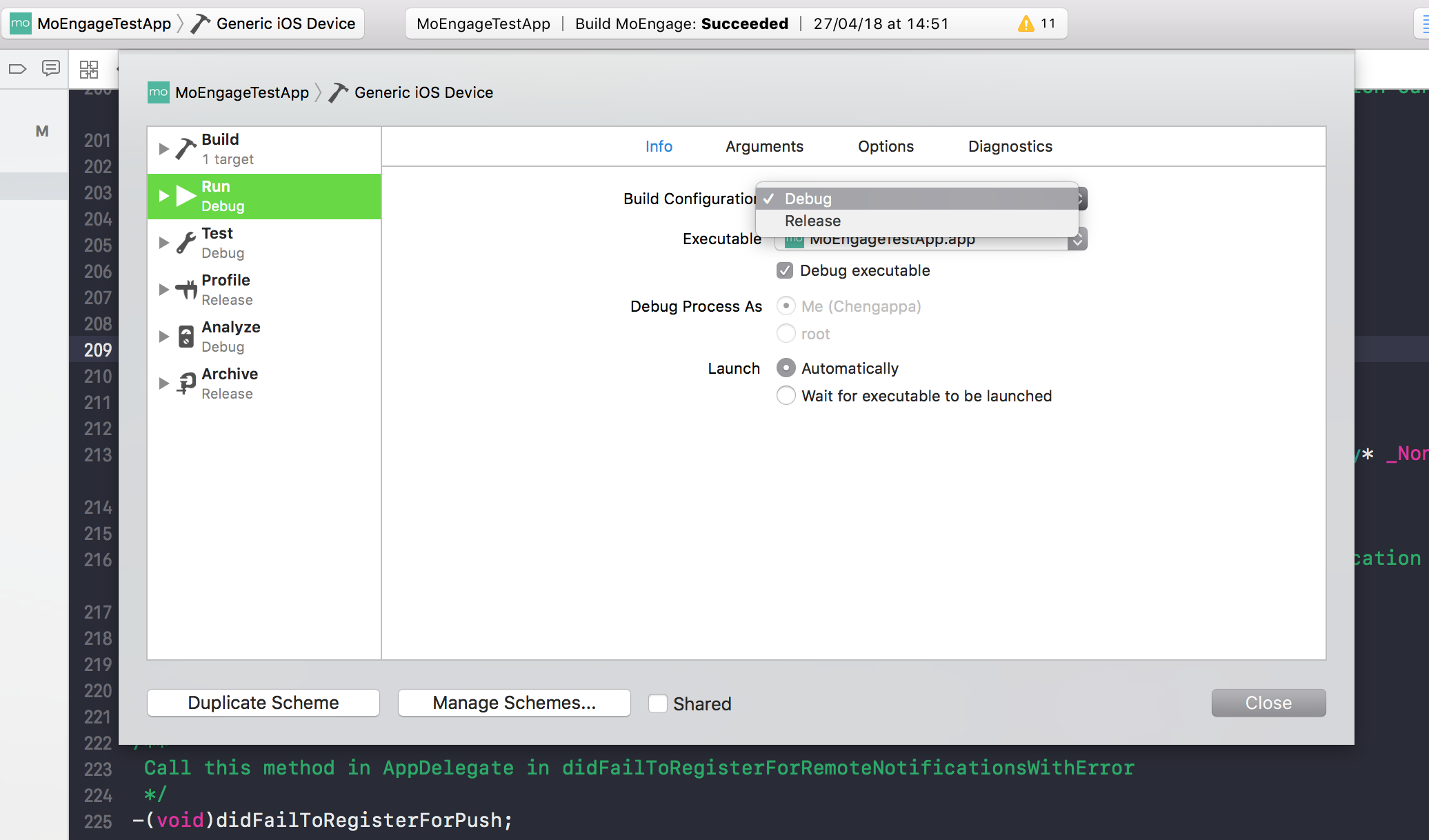
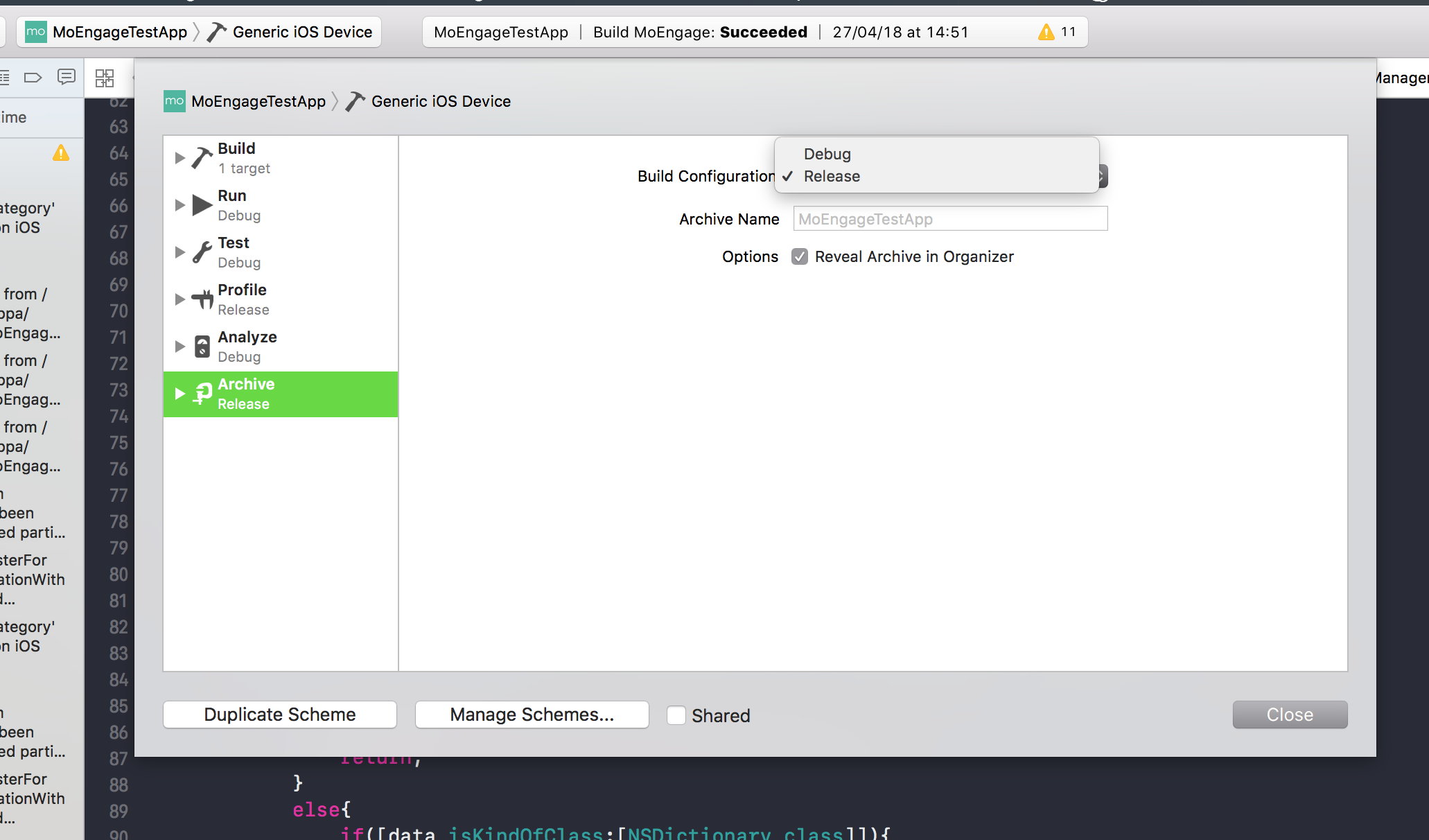
When you run the app from Xcode without archiving, confirm that the build configuration for Run mode of the app target in Edit Scheme is set to Debug, which is the default. The SDK then tracks data in the TEST environment.