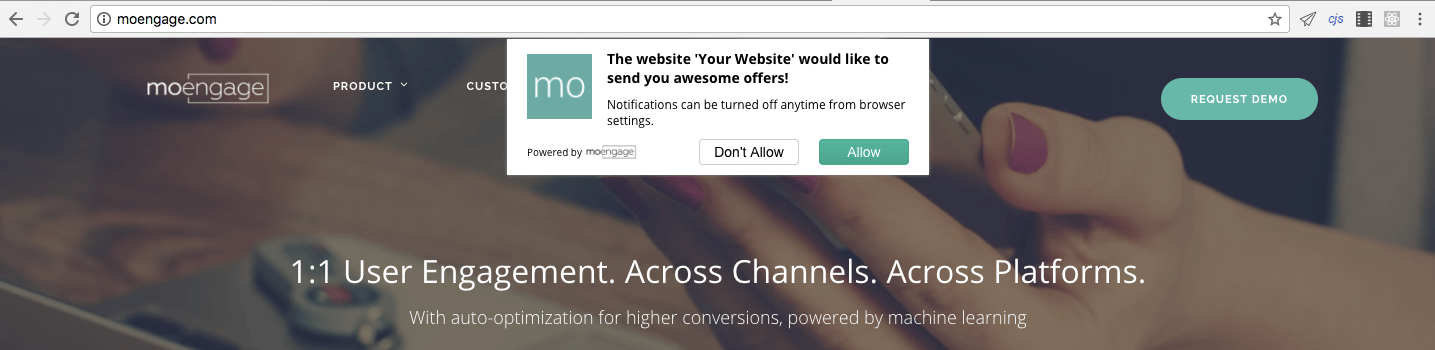
Control when and where the browser push permission prompt appears using MoEngage self-handled opt-in.
You can integrate the self-handled opt-in option using the web SDK. You need to select the Self-Handled opt-in on the MoEngage app.For information, refer to Configure Web Push settings.
The advanced setting where you can selectively show the Browser Opt-in on specific pages or after certain actions. You have to call our function Moengage.callWebPush() from your script to show the Push permission.
<head><script type="text/javascript">...// Moengage Initialization script here// Docs: https://www.moengage.com/docs/developer-guide/web-sdk/web-sdk-integration/basic-integration/web-sdk-integration...// call to show the Chrome's push notification opt-in box.Moengage.callWebPush();</script></head>
(Mandatory) Call the function Moengage.callWebPush() from your script to show the Push permission.
<head><script type="text/javascript" src="https://cdn.moengage.com/webpush/moe_webSdk.min.latest.js><script type="text/javascript">Moengage = moe( { appId: "YOUR_WORKSPACE_ID" });///call to show the browser's native notification opt-in box.Moengage.callWebPush();</script></head>
For more information about the sample code, refer to Sample Code.
Call Moengage.callWebPush( {...} ) with the following object argument on every page:
(Using the noted class attributes in the second step)
{ "soft_ask":true, "main_class":"moe-main-class", //parent div enclosing the entire Soft-Ask-HTML "allow_class":"moe-allow-class", //the Allow Button(s) "block_class":"moe-block-class" //the Block Button(s)}
The SDK will handle when to display the soft ask and everything else. If you want callbacks for any user interactions, refer to Fully functional Custom Soft-Ask.
...<script type="text/javascript">Moengage = moe({ appId: "YOUR_WORKSPACE_ID"});///call the function callWebPush with this object argument to make your custom Soft-Ask visibleMoengage.callWebPush({ "soft_ask":true, "main_class":"moe-main-class", "allow_class":"moe-allow-class", "block_class":"moe-block-class"});</script></head><body>{/* Your Custom Soft Ask Div */}{/* Don't forget to set the style-display of your main_class to none */}<div class="moe-main-class" style="display:none;">Recieve Notifications ?...<button class="moe-allow-class">YES</button><button class="moe-block-class>NO</button></div></body>
boolean (assumed as false if not present which will trigger the hard ask)
main_class
string (class name of the soft ask HTML) Do not forget to set the style-display of yourmain_class to none initially.
allow_class
string (class name of the allow button)
block_class
string (class name of the block button)
If the soft_ask flag is set to true, it will make the soft ask appear (make the main_class appear) and wait for user interaction with the soft ask and fire the respective callback when interacted with.
If the hard ask is blocked, you will not be prompted again.
You wouldn’t know what all browsers are supported for web-push by the MoEngage SDK, so you’ll end up displaying the soft ask but without any push_token.
You wouldn’t know that the user has already given the necessary permissions and might end up displaying the soft ask unnecessarily.
You wouldn’t know when the user last dismissed the soft-ask and will end up displaying the soft ask immediately on the next page load and not after the configured optIn-reappear-time (on MoEngage Dashboard) which will lead to a bad user experience.
If you have built a personalized Soft-Ask for your website, We strongly recommend you to use the Custom Soft-Ask API.
...<script type="text/javascript">Moengage = moe({ appId: "YOUR_WORKSPACE_ID"});///call the function callWebPush with this object argument to make your Custom Soft-Ask visibleMoengage.callWebPush({ "soft_ask":true, "main_class":"moe-main-class", "allow_class":"moe-allow-class", "block_class":"moe-block-class",});</script></head><body>{/* Your Custom Soft Ask Div */}<div class="moe-main-class" style="display:none;"><div class="moe-chrome-style-notification moe-chrome-style-notification-safari"data-rapid_height="50"><div class="moe-safari-notification-inner-wrapper"><div class="moe-notification-image-wrapper-safari"> <img src="https://www.moengage.com/img/icon-web-push.png"></div> <div class="moe-text-wrapper-safari"> <span class="moe-notification-title-safari">The website "Your Website" would like to send you awesome offers!</span> <p class="moe-notification-message-safari">Notifications can be turned off anytime from browser settings.</p></div> <div style="clear: both;"> <div class="moe-modal-branding"><span><a href="https://moengage.com" target="_blank">Powered by </a></span><a href="https://moengage.com" target="_blank" style="text-decoration: none;"><img src="https://cdn.moengage.com/images/logo-dark.png"></a> </div> <div class="moe-button-wrapper"> <button class="moe-chrome-style-notification-btn moe-btn-close moe-block-class">Don't Allow</button> <button class="moe-chrome-style-notification-btn moe-btn-allow moe-allow-class">Allow</button> </div><div style="clear:both"></div></div> </div></div></div> {/* Styles for the Custom Soft Ask created above */} <style>.moe-modal-branding img {vertical-align: bottom!important;width: 63px!important;height: 30px!important;padding-right: 2px!important;display: inline-block!important;margin-bottom:-9px;margin-left:-5px;}.moe-modal-branding span a {text-decoration: none!important;color: #000!important;font-size: 10px!important;line-height: 1.2em!important;font-weight: 400!important;}.moe-modal-branding {float:left;font-size: 10px;margin-top: -2px;font-family: Arial!important;line-height: 1.2em!important;}.moe-chrome-style-notification-safari{width:422px;top:1px;left:calc(50% - 211px);background-color:#FFFFFF;margin:0;padding:0}.moe-chrome-style-notification{box-shadow:0 0 4px #888;font-size:11px;font-weight:400;position:fixed;z-index:2147483647}.moe-safari-notification-inner-wrapper{margin:0;padding:0 20px 10px}.moe-notification-image-wrapper-safari{float:left;position:relative;margin:15px 15px 0 0!important;padding:0!important;display:inline-block}.moe-chrome-style-notification-safari *{word-spacing:normal!important;letter-spacing:normal!important;font-family:"Open Sans",sans-serif!important}.moe-text-wrapper-safari{position:relative!important;padding:10px 0 0!important;color:#000!important;text-align:left!important;margin:0!important;line-height:1.4em!important;display:inline-block!important;width:calc(100% - 80px)!important}.moe-notification-title-safari{margin-bottom:5px;text-align:left;font-size:14px;font-weight:700;line-height:1.4em;color:#000;font-family:"Open Sans",sans-serif}.moe-notification-message-safari{font-size:12px!important;line-height:1.4em!important;margin:10px 0!important;padding:0!important;text-align:left!important;font-family:"Open Sans",sans-serif!important}.moe-chrome-style-notification .moe-button-wrapper{float:right!important;margin:0!important;padding:0!important}.moe-chrome-style-notification-safari .moe-chrome-style-notification-btn.moe-btn-close{background:#FFF!important;color:#000!important;border-color:#CCC!important;margin-right:20px!important;width:100px!important}.moe-chrome-style-notification-safari .moe-chrome-style-notification-btn{width:90px!important;height:26px!important;font-size:14px!important;cursor:pointer!important;line-height:1.1em!important;border-radius:4px!important;color:#fff!important;background: linear-gradient(to bottom,#23bd9f,#12ac8e)!important;border: 1px solid #12ac8e!important;display:inline-block!important;font-weight:400!important;margin:0!important;padding:5px!important;text-transform:none!important;box-sizing:border-box!important;font-family:Arial!important;text-shadow:none!important;box-shadow:none!important;white-space:nowrap!important}.moe-notification-image-wrapper-safari img{height:65px!important;width:65px!important}</style> </body>
MoEngage recommends that you call the function Moengage.callWebPush() on every rendered webpage to avoid any kind of interference with the site elements.
Search for the OPT_IN_SHOWN_TIME in localstorage (MOE_DATA)
var moeData = localStorage.getItem('MOE_DATA')moeData = JSON.parse(moeData)var optInShownTime = moeData.OPT_IN_SHOWN_TIME // it is epoch time in milliseconds
Check if softAskStatus is shown or dismissed and decide to display the soft ask based on the optInShownTime.
var softAskStatus = moeData.OPT_IN_SHOWN_TIME // it can be one of these: shown, allowed, dismissed
After you configure the opt-in and the user visits your website, there is a prompt for opt-in permission requests. If the user accepts the opt-in request, the reachability icon for web push is green in color on the MoEngage user profile page. For more information, refer to User Reachability.
I wish to customize Notification permission opt-in banner or nudge.
You can customize the time (after which to show banner or nudge), Text, Fonts & Font-size. For more information, refer to Configure Web Push Settings.For further assistance, please contact your MoEngage Customer Success Manager (CSM) or the Support team.
Assistant
Responses are generated using AI and may contain mistakes.