

Manual uploads differ from automated file and warehouse imports in a few ways:
- CSV only: JSON is not supported.
- No periodic scheduling: You can run an upload immediately or at a specific date and time, but not on a recurring schedule.
- No Object/JSON (complex) types: Mapping is done column by column in the dashboard.
- Users
- Events
User uploads let you create new user profiles or update attributes of existing users. Updating existing users never creates new users, it only updates those already in MoEngage.Entry point: Segment > User Imports > Import Users.
Step 1: Upload Your CSV
Choose the user list type and upload your file:- Registered Users: Users with a registered account. Your file must include a column with a unique user identifier, mapped to the ID attribute.
- Anonymous Users: Users who have not signed up but whom you can recognize by an identifier (email, mobile number, and so on), mapped to the Anonymous ID attribute.
If an identifier already exists in MoEngage, the existing user is updated with the new attributes. If it does not exist, MoEngage creates a new user with that identifier.
Step 2: Configure Columns
Map each CSV column to a MoEngage user attribute (or create a new one). You see the top 3 rows (excluding the header) and all columns.- Configure the identifier: For registered users, mark one column as ID. If you have Unified Identity enabled, you will have an option to map the additional identifiers as well. For anonymous users, mark a column as Anonymous ID.
- Add new attributes: Click + and enter a unique attribute name.
- Values with commas: Enclose any value containing a comma in double quotes, for example,
"221B, Baker Street, London", otherwise only the text before the comma is imported. - Skip columns: Click Skip the column to exclude it. Toggle Show Skipped Columns to hide or re-include skipped columns.
Column names are case-sensitive and must match the attribute name on the dashboard exactly. Do not use
moe_ as a prefix for events, event attributes, or user attributes, it is a reserved system prefix, and using it may result in periodic blacklisting without prior communication.Import Behaviour
Select Skip new users during this import to bulk-update attributes on users MoEngage already has. MoEngage creates no new users from that upload, and a row whose identifier is not already in MoEngage is ignored. Leave it off to let the upload create users as well as update them.Send Import Notifications
Turn on notifications and select up to 10 email recipients to be alerted when an import is created, succeeds, or fails. When your mappings are complete, click Next.Save as a File Segment
Turn on Save as File Segment and enter a name to create a segment from the imported users, usable in campaigns.- Existing segment: Users are added in append mode, new users are added, none are removed.
- New segment: Choose the update mode: Replace (each import fully replaces the segment’s users) or Append (each import adds users, none removed).
Step 3: Schedule the Upload
Define when to run the import:- As soon as possible: Starts when you click Done.
- At specific date and time: Runs at your selected start date and time.
Channel reachability and custom segments for imported users are available within 2 hours of import completion. Plan your campaigns accordingly.
Reference
The following applies to both user and event uploads.Supported Data Types
String, Numeric, Boolean, Datetime, and Array (String, Double, Float, Int).Array Support
- Simple arrays are supported. Nested and associated arrays are not supported.
- The supported delimiter in the CSV is the pipe (
|). For example:[1|2|3]. - The supported data types are Array String and Array Double (numeric). Select the type in the Map column to attribute list during column mapping.
- All elements in an array must be homogeneous, either all integer/double or all string. If they are not, MoEngage attempts to typecast each element to the declared type and stores the result.
- Array typecasting: If an array
["1" | 2 | "abc"]is mapped as Array Double, MoEngage ingests[1, 2], because"abc"cannot be cast to a number and is dropped.
tagsis mapped as Array String, MoEngage ingests["premium", "beta_user", "newsletter"].scoresis mapped as Array Double, MoEngage ingests[4.5, 3.8, 5.0].
[element1|element2|element3], with no spaces around the pipes.
Supported Datetime Formats
Portfolio Support (Project-Level Routing)
You can route imported events to specific projects in your MoEngage portfolio workspace using column mapping. Map your project identifier column (such asbrand_name or app_id) to the MoEngage attribute moe_project_name. Values must match your MoEngage project names exactly (matching is case-sensitive).
- Successful routing: If the value matches a project in your portfolio, MoEngage ingests the user or event at that project level.
- Fallback: If the mapping is missing, blank, or does not match a project name, MoEngage ingests the data at your global portfolio level.
Language and Empty Values
MoEngage handles languages and empty values as follows:- Language: You can import data in any language using UTF-8 decodable characters.
- Empty values: Empty values are still imported. MoEngage creates or updates the attribute with an empty value.
Limits
Manual uploads have the following limits:
Rate limits (defaults, contact MoEngage to increase):
The hourly rate is the maximum ingested per hour; the daily rate is the total cap per day. When a rate limit is breached, you receive a Rate limit breached alert on the Data Imports dashboard.
To see how much of your hourly and daily import limit you have used, which imports are held back when a limit is reached, and which imports are consuming the most, refer to Check Import Limits.
What Is Not Supported
Manual uploads do not support the following:- Attribute type list and other complex types (JSON, dictionaries, and so on).
- Multi-line support in CSV files is disabled by default. Please get in touch with support if you need this feature. Newline formats other than
\n, such asCtrl+Mand\r, are not supported. Enabling multi-line support can negatively impact the processing speed of your import. - JSON files.
Run History
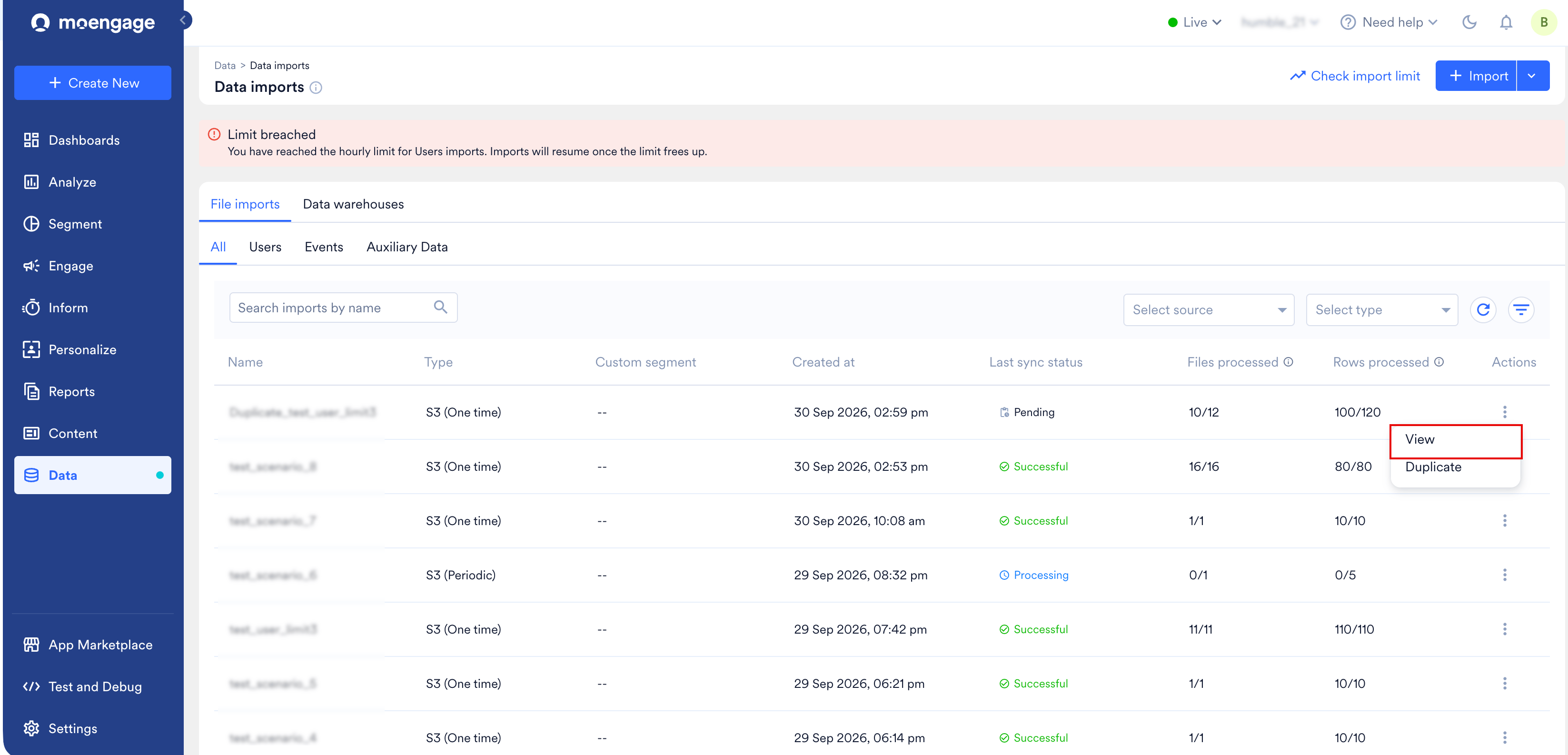
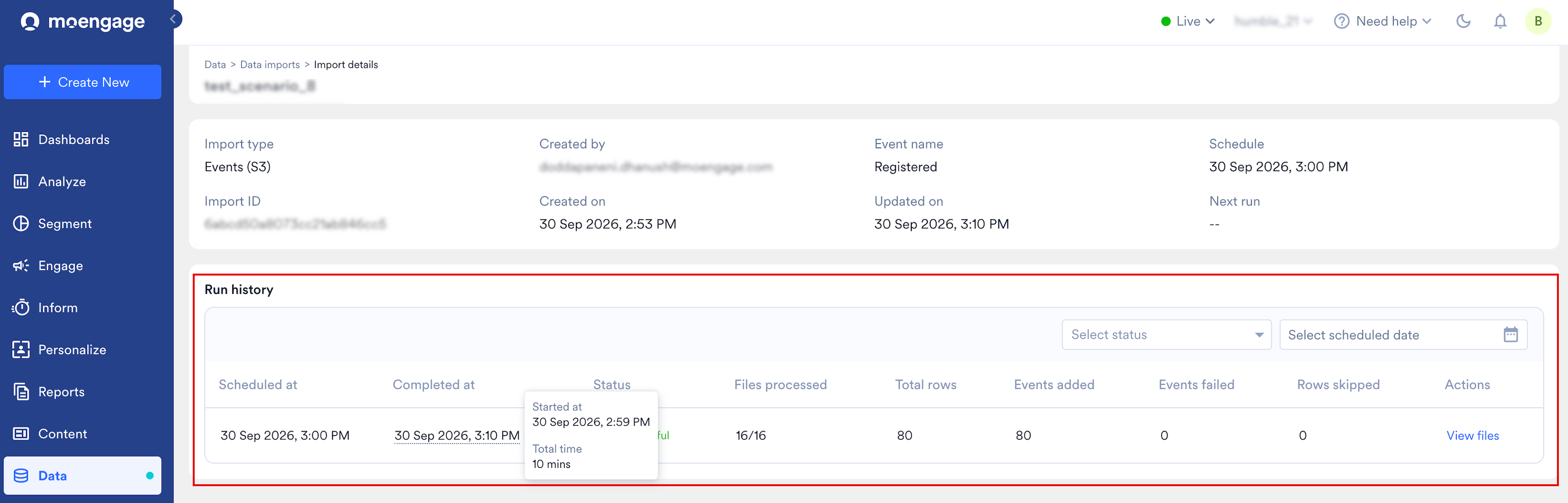
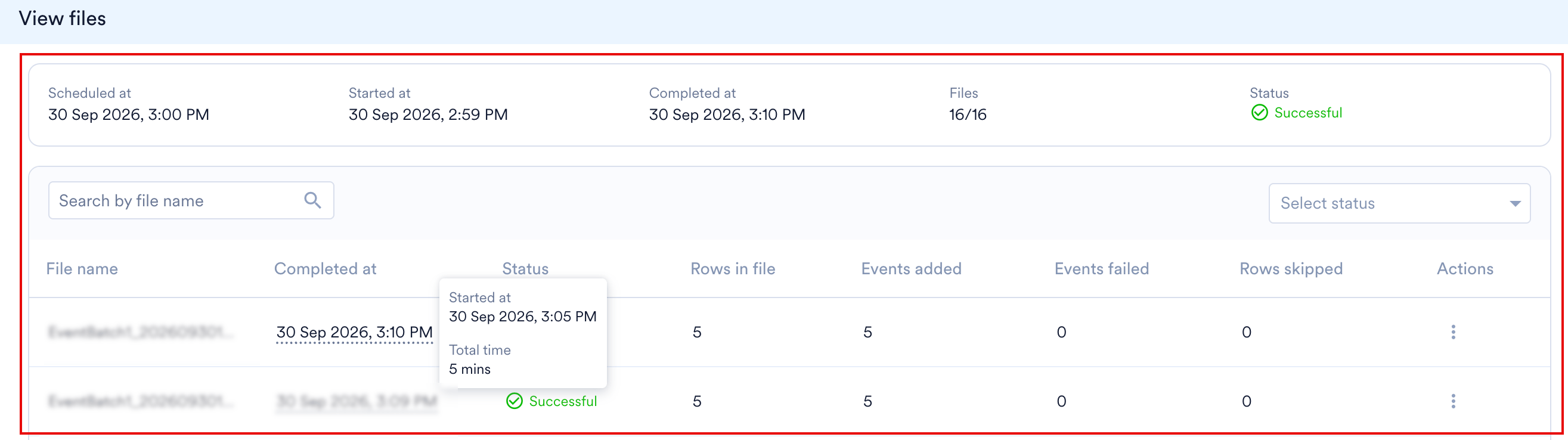
Run history on the import details page shows the run for your upload, so you can see when it was scheduled, when it finished, how long it took, and how the file performed. A manual upload is a one-time import, so it has a single run. To open Run history, perform the following steps:- On the Data imports page, click the kebab menu under Actions for the import.
- Click View.
Manage Your Imports
To monitor your imports, understand import statuses, or trigger a run manually or via API, see How Imports Work on the Imports Overview.Frequently Asked Questions
My imports have failed. How do I check what went wrong?
My imports have failed. How do I check what went wrong?
Click the ellipsis on the right and click View to look up the Import details. Hover over the Failed Status to learn the reason.
What if a scheduled import adds the data into a recently archived segment?
What if a scheduled import adds the data into a recently archived segment?
In such cases, the new data will still be added to the archived segment. You can unarchive the segment as required.
Can an import be stopped while it's running?
Can an import be stopped while it's running?
Once an import process starts, it can’t be stopped midway. This is because the data goes through several steps, and interrupting it could lead to incomplete or inconsistent results. It’s best to let the current import finish.
How can I stop future runs of a scheduled import?
How can I stop future runs of a scheduled import?
Yes, you can stop future scheduled imports from running automatically. To do this, find the import schedule and select the Archive option from the Actions menu on the Data Imports dashboard. This will prevent it from running on its next scheduled time.
What should I do if an import seems stuck or is taking a long time?
What should I do if an import seems stuck or is taking a long time?
If an import appears to be stuck or is taking longer than usual, it’s best to wait. The system has checks in place to handle these situations automatically and retry if necessary. Manually starting the same import again while it’s still processing can cause conflicts and may prevent the original import from completing successfully.