

Introduction
This integration is part of the Salesforce CRM paid add-on. Contact your dedicated MoEngage Customer Success Manager (CSM) to enable it for your account.
| Integration step | Use case |
|---|---|
| Install MoEngage app | Required for both Salesforce-to-MoEngage and MoEngage-to-Salesforce integrations. |
| Create a connected app | Required only for MoEngage-to-Salesforce integration. Not needed for Salesforce-to-MoEngage data flow. |
Install MoEngage app
Search for MoEngage
In the search bar, type MoEngage and press Enter. Click the MoEngage app to open its details page.
Select Salesforce organization
Choose the appropriate Salesforce org (for example, Production). Then click Install in Production to proceed.
Confirm installation details
- Review the installation details provided.
- Agree to the terms and conditions by selecting the appropriate checkbox.
Install in your organization
Select whether to install MoEngage for Admins only, All Users, or Specific Profiles. Depending on your option, you may need to grant your users the relevant MoEngage app permissions. Click Install.After clicking Install, approve remote site settings by selecting the checkboxes for the four API endpoints corresponding to the MoEngage data centers.
If you do not see MoEngage in the listed apps, contact your dedicated Customer Success Manager. They will share the app build separately.
Permission sets required for the MoEngage app
The MoEngage app comes with the following permission sets.| Permission set | Permissions |
|---|---|
| MoEngage Admin Permission | Assign to users who will create and manage the syncs. No additional permissions are required for admin users. This permission provides access to:
|
| MoEngage User Permission | Assign to users who will interact with the synced objects (for example, Leads, Contacts) by creating or updating them. This permission provides access to:
|
Installing for admin users only
- Assign the MoEngage User Permission permission set to all non-admin users who create or update mapped object records.
- Admin users do not require additional permission sets for basic use.
Installing for all users
- Custom profile users: No need to assign any permission set.
- Standard profile users: Assign the MoEngage User Permission permission set to users who create or update mapped object records.
- Admin users: No permissions are needed for general access. Assign the MoEngage Admin Permission set to specific admins who require access to configuration settings.
Managing user permissions with custom views
Managing user permissions with custom views
We recommend creating a list view to manage permissions easily. From your Salesforce dashboard:Next, to assign MoEngage app permissions:
Create a new view (optional)
Click Create New View only if no relevant list view exists; otherwise, use an existing view.
Important notes
After installation, the package automatically:- Creates (or verifies) the required configuration custom-setting records.
- Schedules the Delete Processed Syncs job.
If created during install, the job is owned by the package installer. Reschedule it under an admin user (with the MoEngage Admin Permission set assigned) by going to Setup > Scheduled Jobs > Delete Processed Syncs > Manage > Reschedule Job.
Creating sandboxes with the MoEngage app enabled
By following these steps, you can control whether the sync remains active or inactive in the sandbox environment, depending on your requirements.Full and partial copy sandboxes
- When a full or partial copy sandbox is created from a production environment with an active MoEngage sync, the MoEngage package is automatically installed and the sync is enabled by default.
- To prevent syncing in the sandbox environment, deactivate all connections associated with the MoEngage package.
- If a sandbox template is used and MoEngage package objects are deselected for sync during creation:
- The package connections are not copied to the sandbox.
- In this case, no deactivation step is required.
Developer and Developer Pro sandboxes
- In Developer and Developer Pro sandboxes, no data of standard or custom objects is copied over, so no sync data is copied to the sandbox.
- Only custom settings data (connections and authentication information) is copied. You will see connections in these sandboxes, but no mapping records are present.
- These sandbox types do not require deactivation. We still recommend deactivating connections before creating them.
Configuring custom settings
When the app is installed, a public configuration custom setting is created with the following default values. Administrators can adjust these values at any time. To access the custom settings: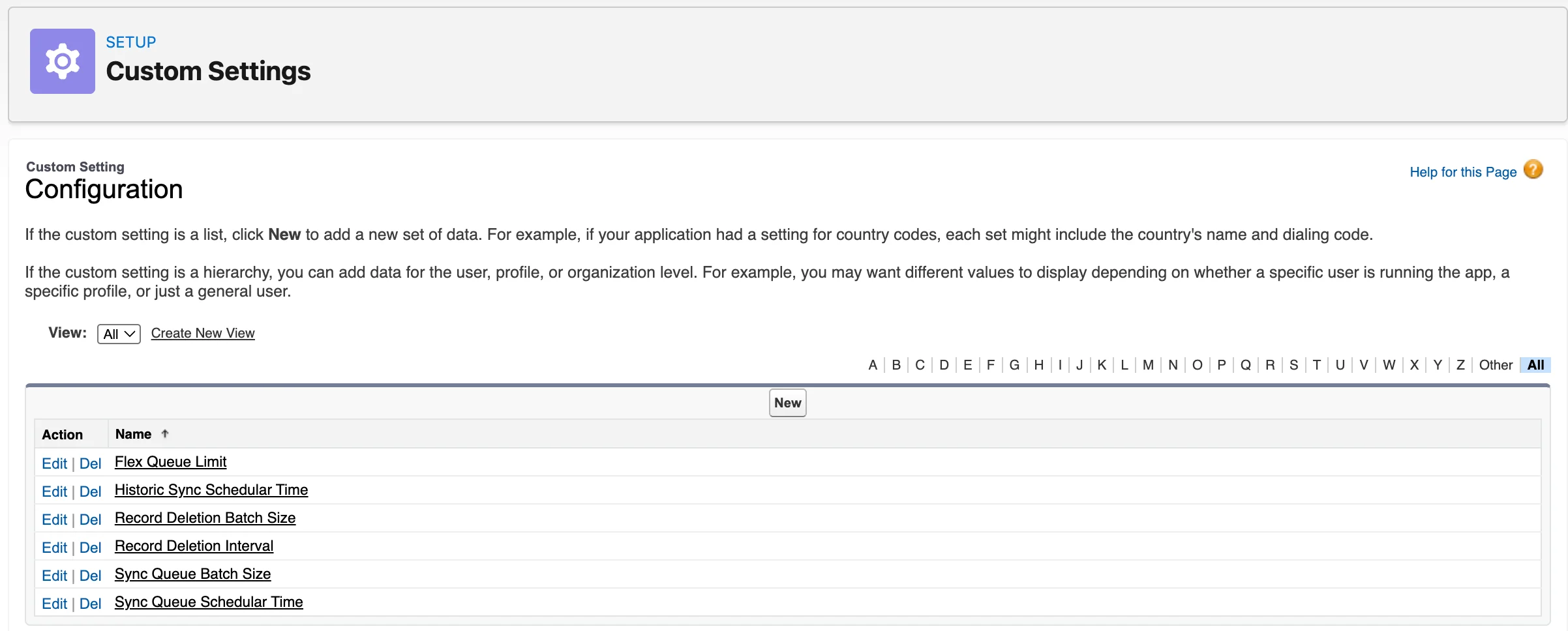
| Setting name | Default | Purpose | Valid values |
|---|---|---|---|
| Flex Queue Limit | 50 | New sync batches are submitted only when the org’s Flex Queue has fewer than this number of jobs. | Positive whole number less than 100. No negatives or decimals. |
| Historic Sync Scheduler Time (minutes) | 5 | If the Flex Queue is full, Historical Sync jobs are rescheduled after this delay. | Positive whole numbers. No negatives or decimals. |
| Record Deletion Batch Size | 2000 | Batch size used by the cleanup job. | Positive whole numbers. No negatives or decimals. |
| Record Deletion Interval (days) | 7 | How long to keep successful Sync Queue records (and related Exceptions) before cleanup. | Positive whole numbers. No negatives or decimals. |
| Sync Queue Batch Size | 20 | Default batch size for real-time processing. | Positive whole numbers. No negatives or decimals. |
| Sync Queue Scheduler Time (minutes) | 5 | If the Flex Queue is full, real-time processing jobs are rescheduled after this delay. | Positive whole numbers. No negatives or decimals. |
Create a connected app
Skip these steps if you only want to send data from Salesforce to MoEngage. They are required only for the bi-directional integration — that is, sending event data from MoEngage back to Salesforce.
Step 1: Fetch your domain URL
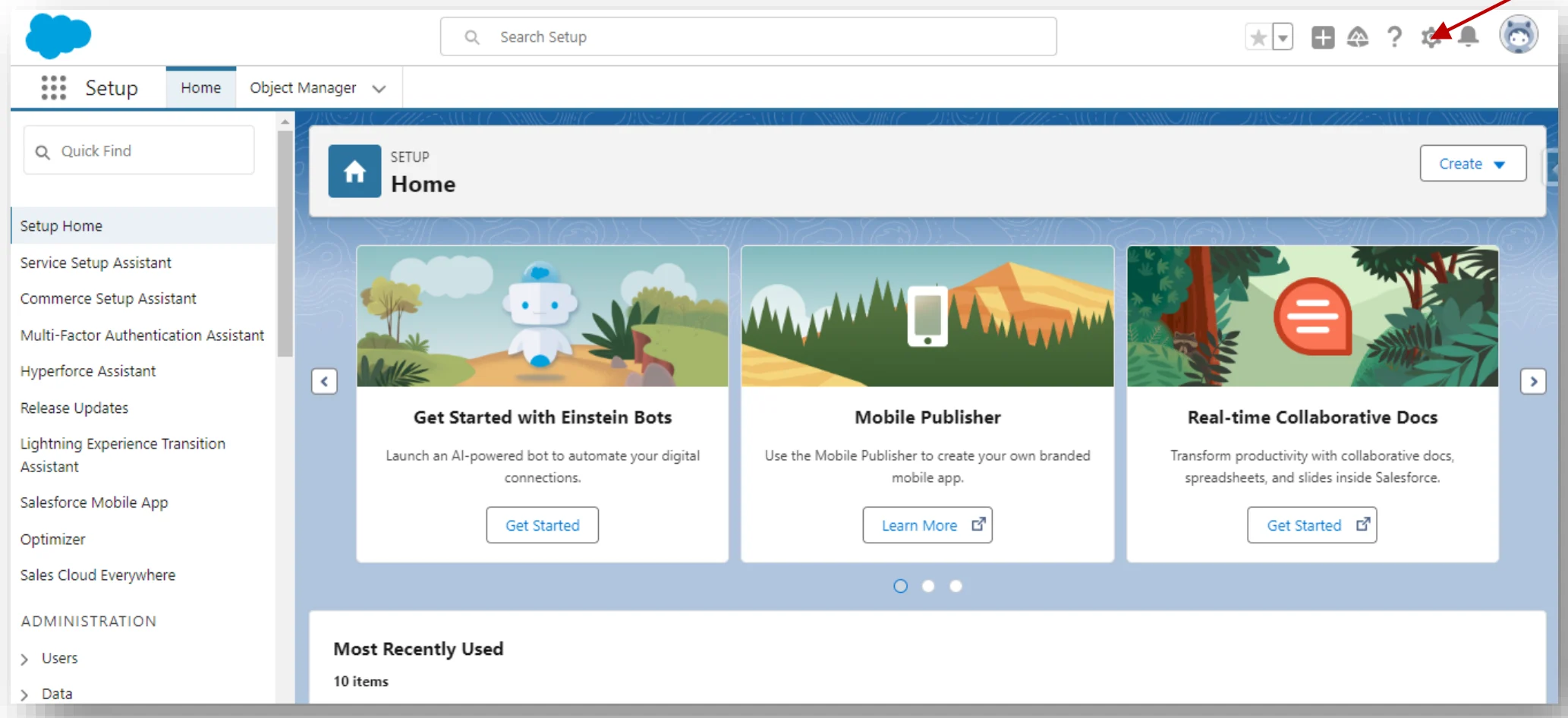
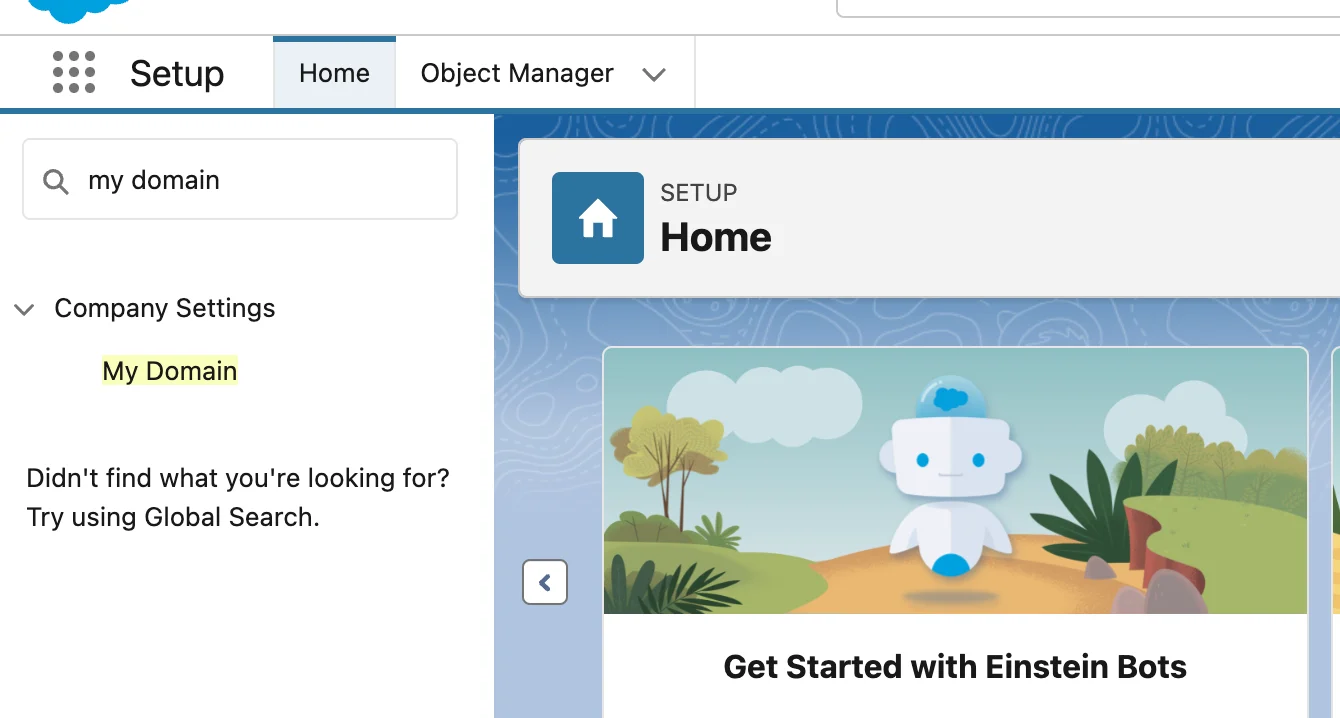

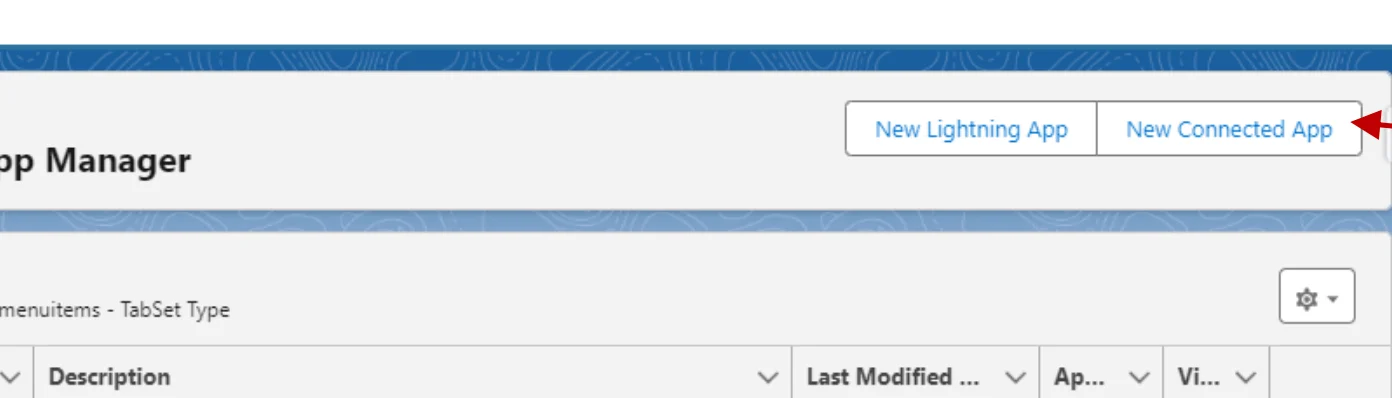
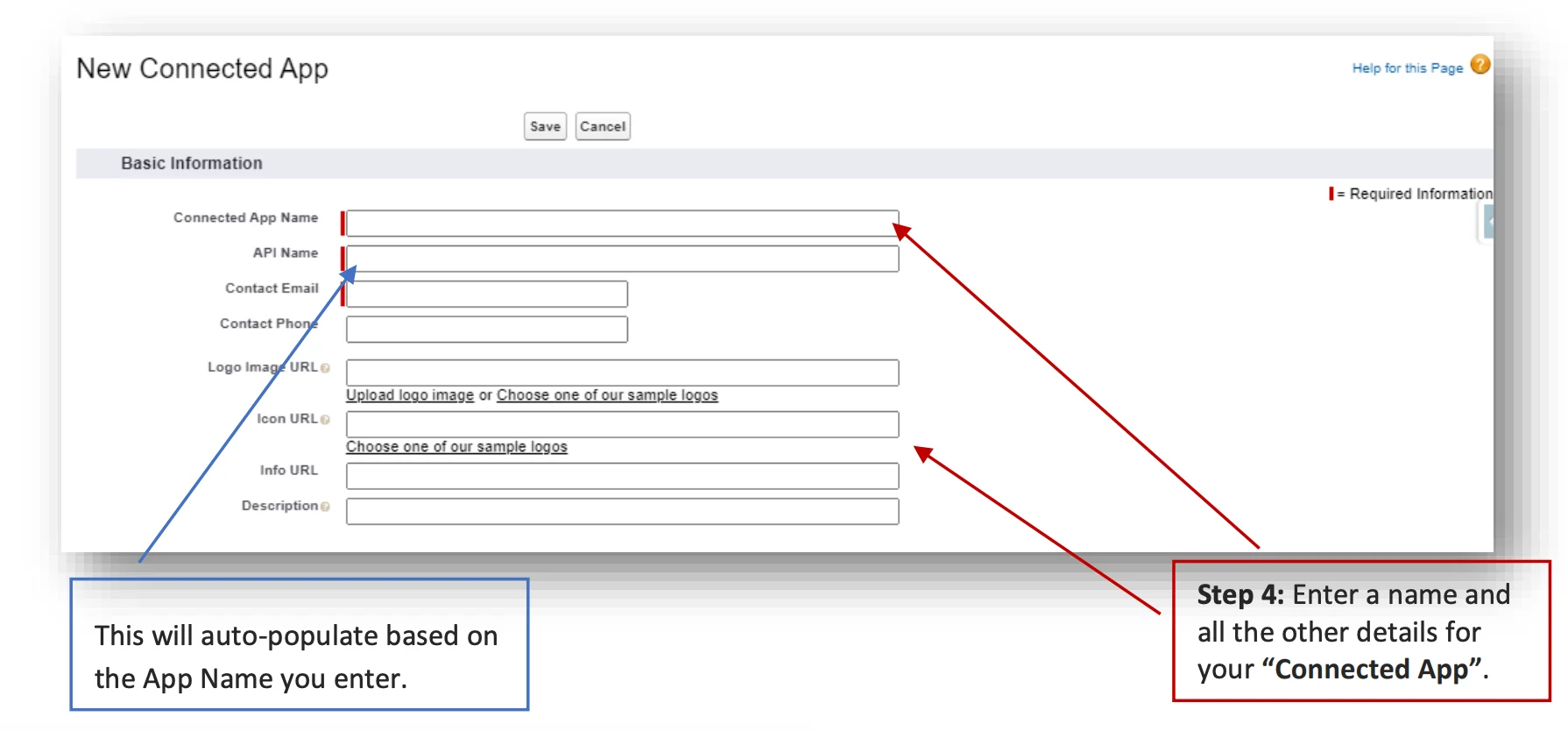
Step 2: Create a new connected app
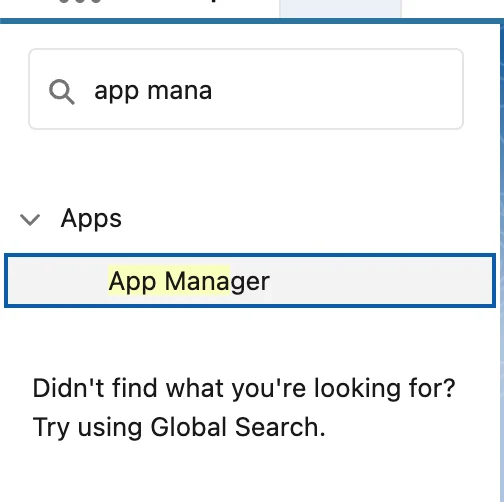
Enable OAuth settings
Scroll down to the API (Enable OAuth Settings) section and select Enable OAuth Settings.
Set the callback URL
In the Callback URL field, enter
https://api-0X.moengage.com (replace 0X with your data center identifier).Configure OAuth scopes
Move the Manage user data via APIs (api) scope from Available OAuth Scopes to Selected OAuth Scopes.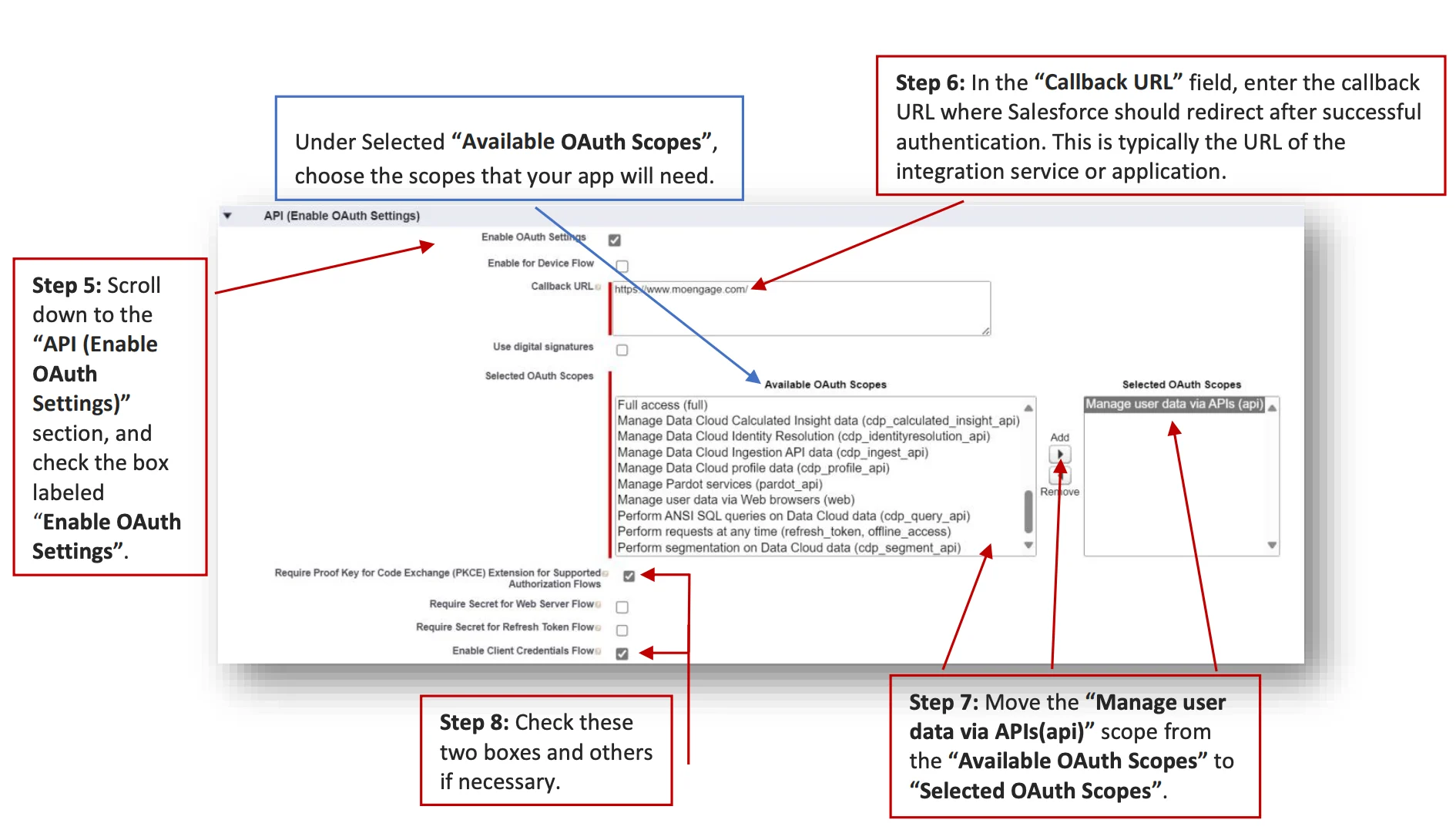
After saving, you will see a confirmation page. The app may take around 10 minutes to process. To manage your app, return to the App Manager.
Step 3: Fetch the consumer key and consumer secret
Once the app is created, you can access the Consumer Key and Consumer Secret in the API (Enable OAuth Settings) section. These are essential for setting up the data flow from MoEngage to Salesforce.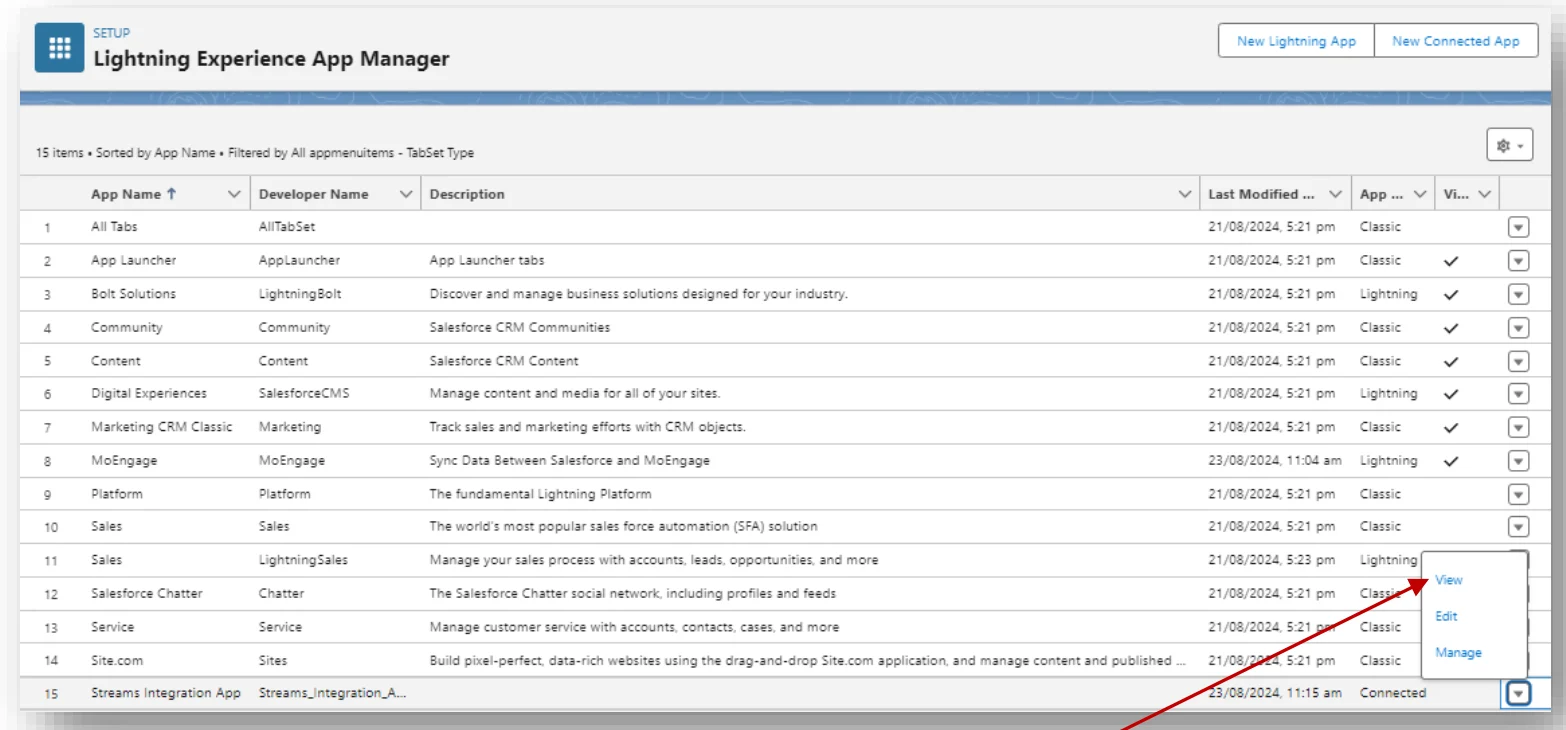
Open Manage Consumer Details
Scroll down to the API (Enable OAuth Settings) section and click Manage Consumer Details.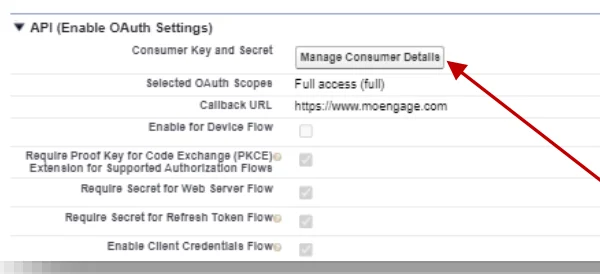

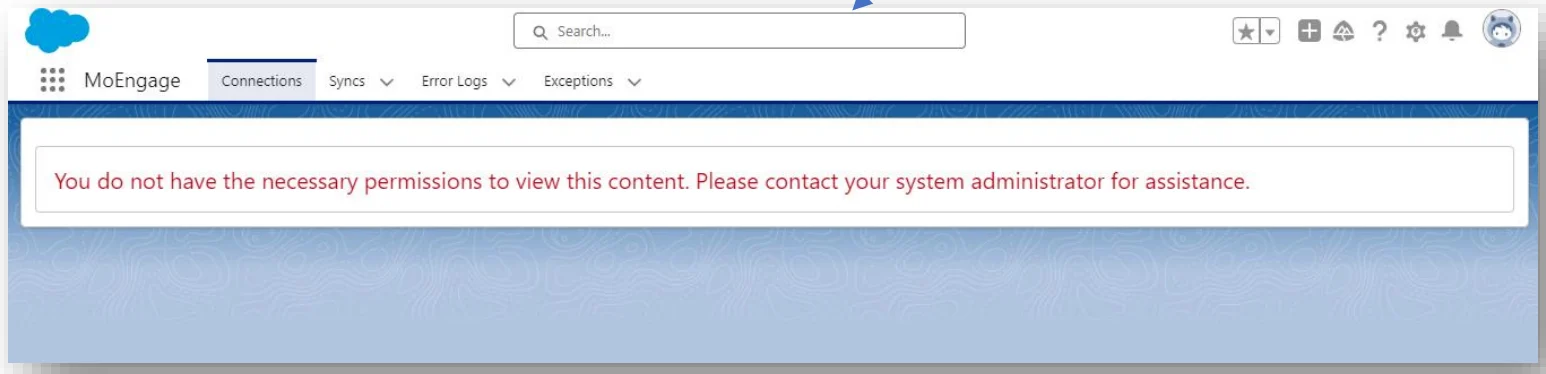
Step 4: Add the MoEngage Sync Configuration permission set
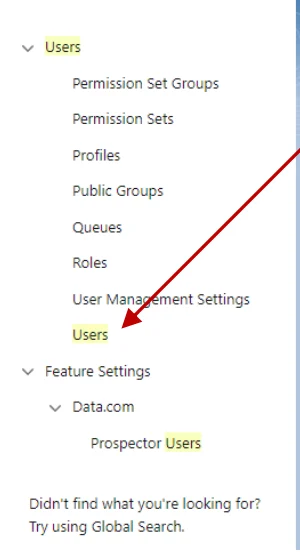
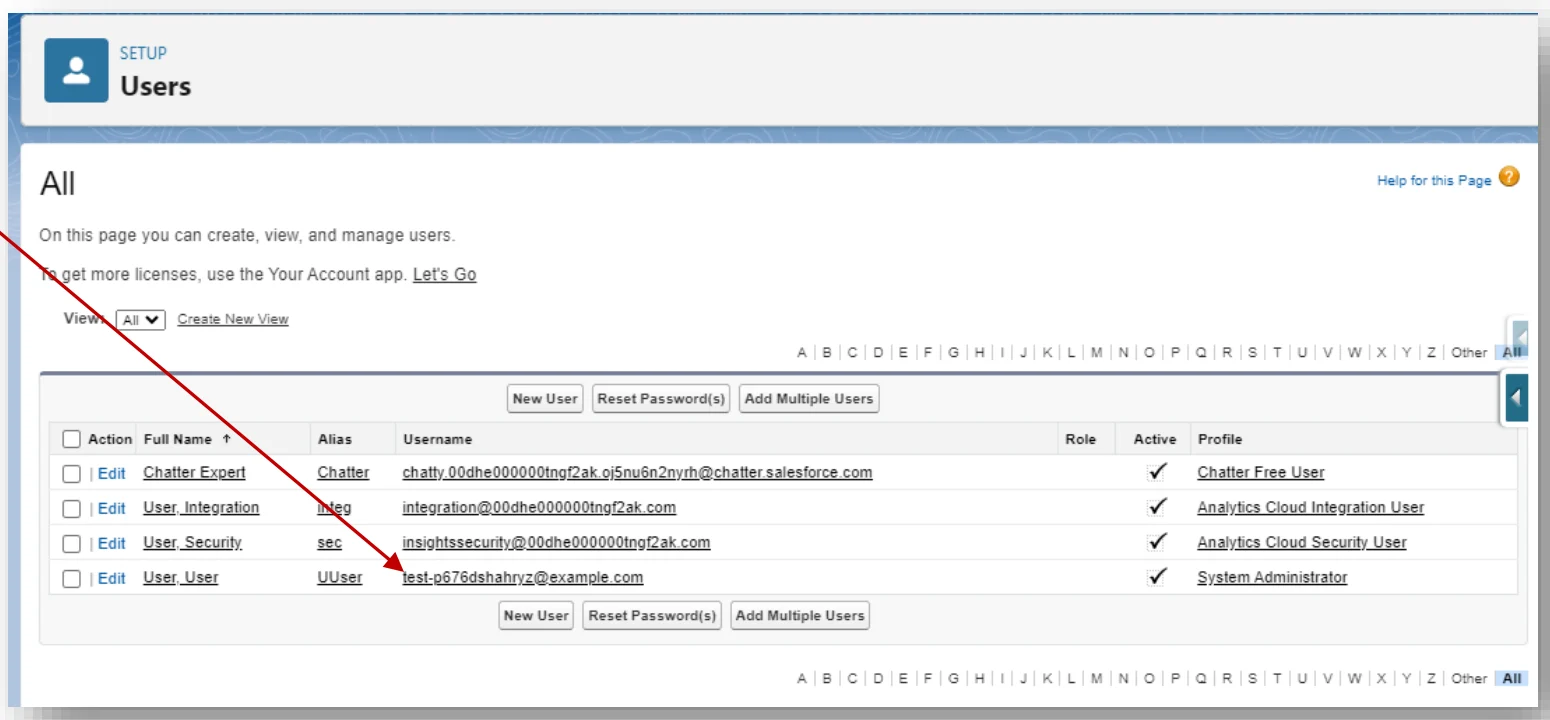
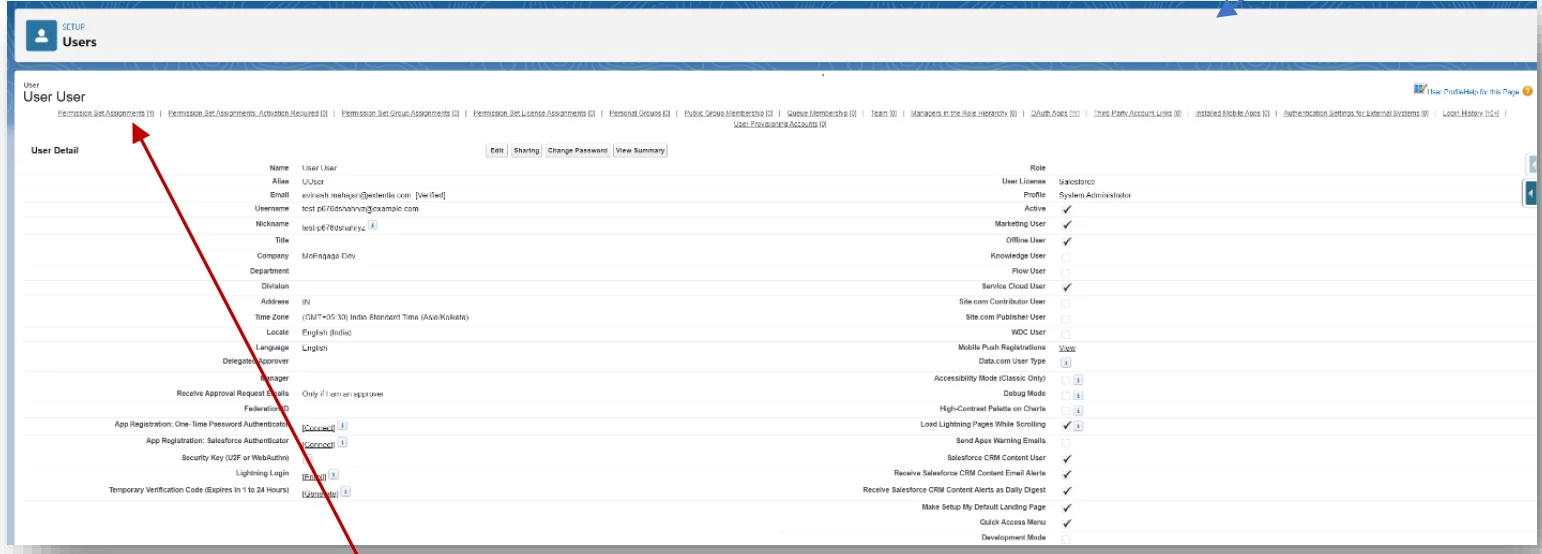
Edit assignments
The page automatically scrolls down to Permission Set Assignments. Click Edit Assignments.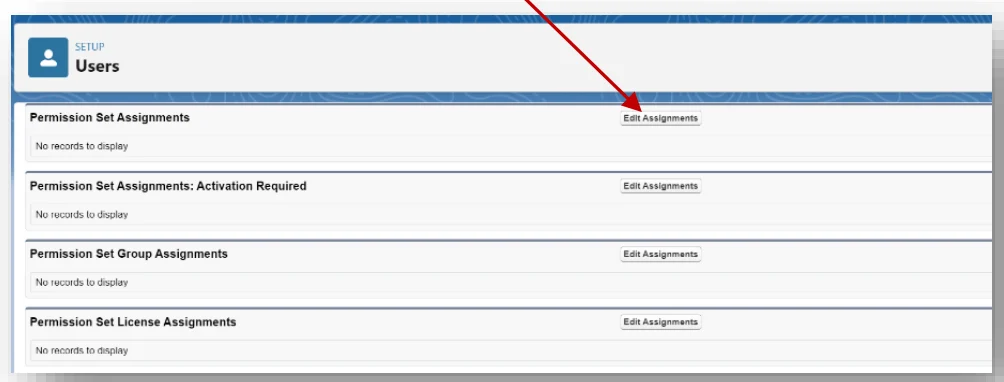
Assign the permission set
Select MoEngage Sync Configuration Permission in the Available Permission Sets column and click Add. The permission set then appears in the Enabled Permission Sets column.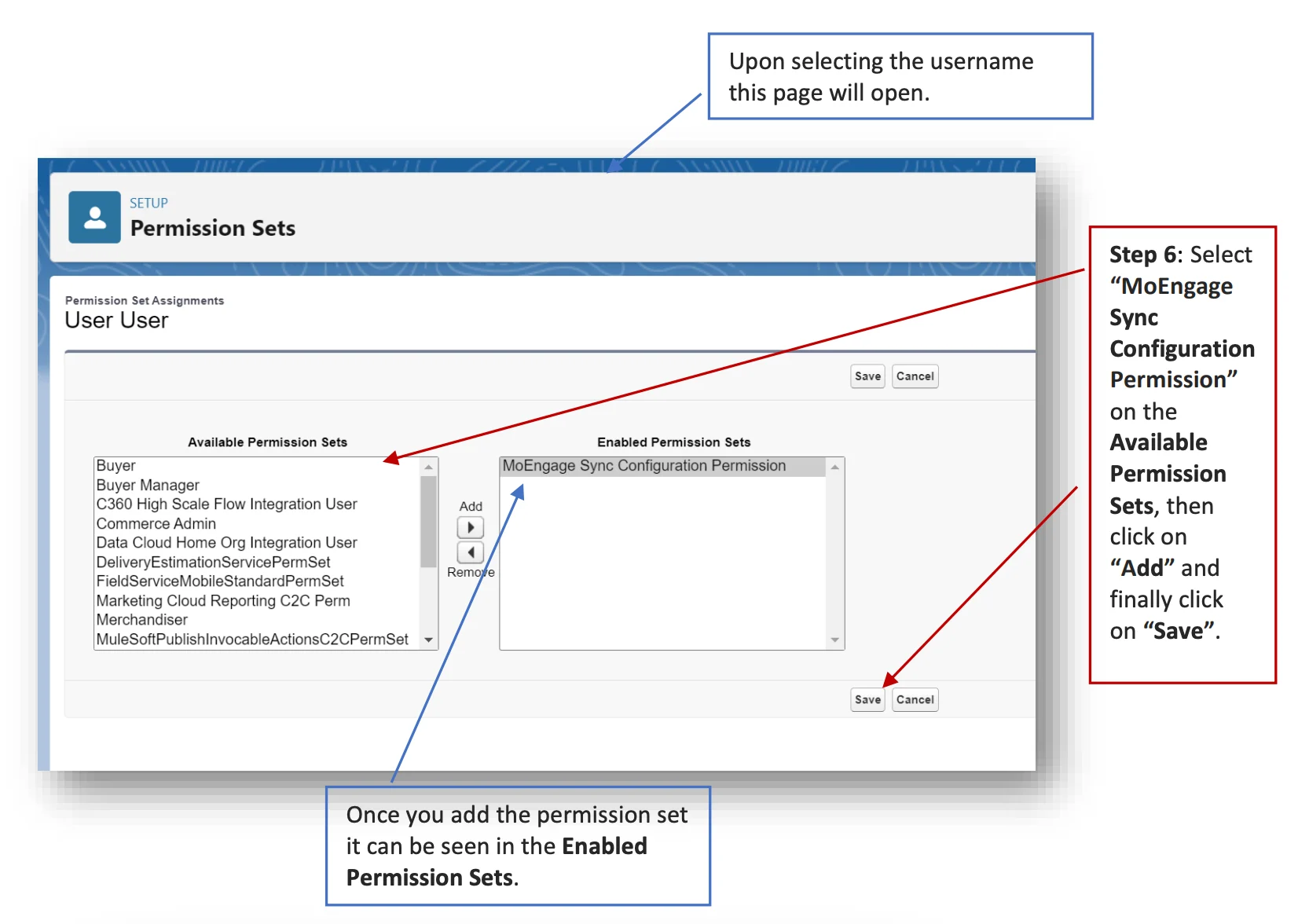
Next steps
Now configure the data syncs:Sync Salesforce objects to MoEngage
Sync any Salesforce object to MoEngage as users or events. Newly created or updated records sync in real time.
Sync data from MoEngage to Salesforce
Forward MoEngage events to Salesforce as Activities or any standard or custom Salesforce object through MoEngage Streams.