View Organization Details
Users on the Starter plan cannot view the organization details on the Organization tab.
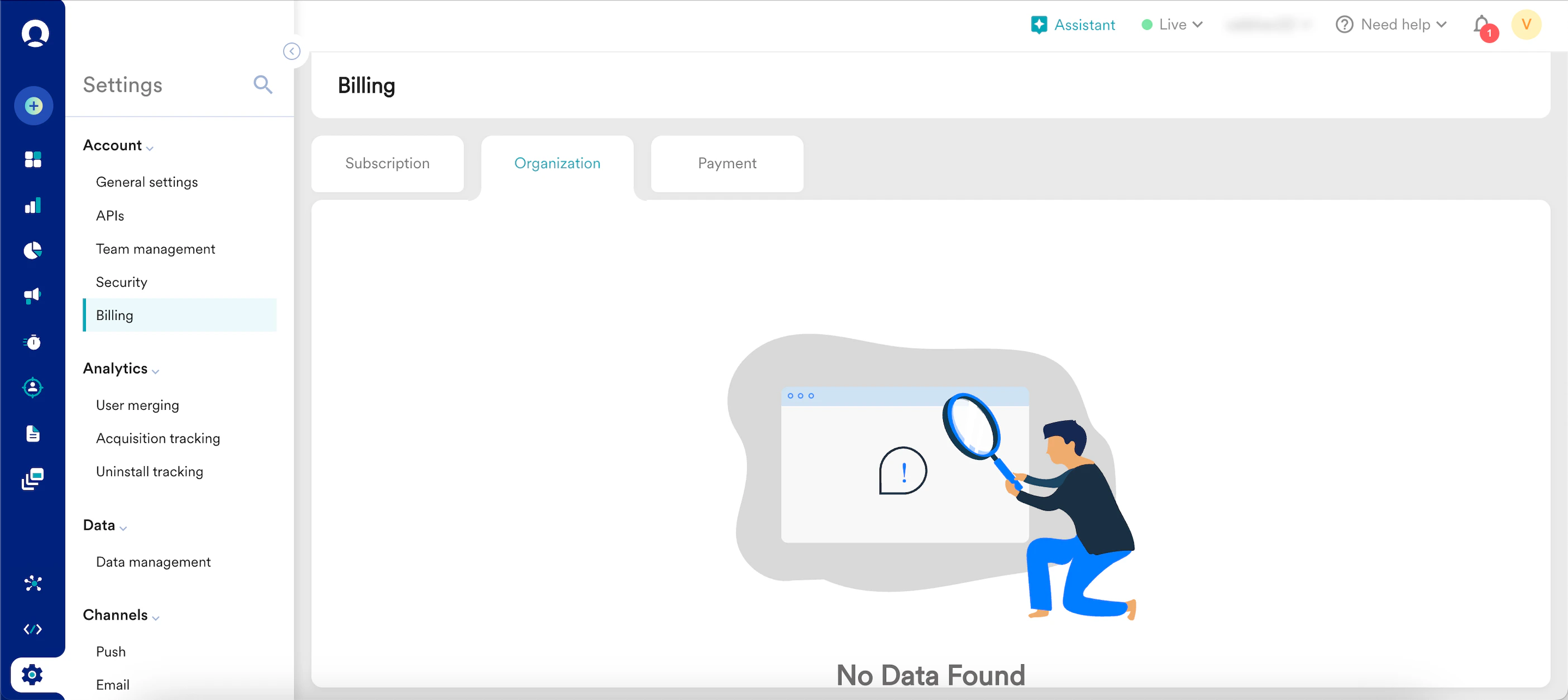
- On the left navigation menu in the MoEngage dashboard, click Settings > Billing.
- On the Billing page, select the Organization tab.
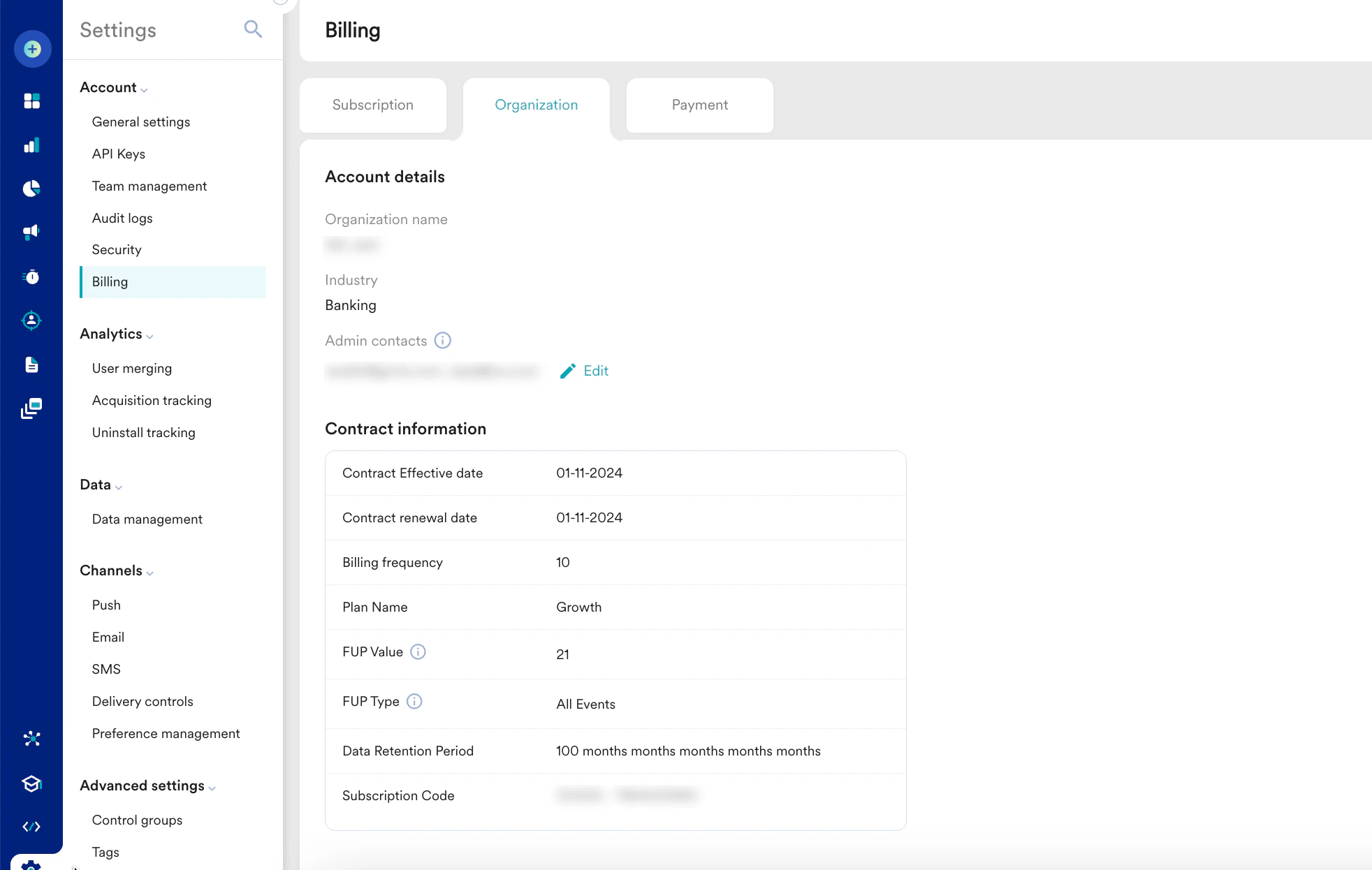
- On the Organization tab, you can view the following details:
Section Fields & Description Account Details - Organization name: This field specifies the name of your organization.
- Industry: This field specifies the industry in which your organization operates. For example, banking or e-commerce.
- Admin contacts: This field specifies the email address(s) of your admins in the organization.
MoEngage will send invoices, overages, and other organization-related messages to this email address.
Contract Information - Contract Effective Date: This field shows the date on which the contract for the organization was signed.
- Contract renewal date: This field shows the date on which the contract is renewed for the organization.
- Billing frequency: The field shows the frequency at which the organization is billed.
- Plan name: This field shows the name of the current active plan configured for your workspace.
Note: To update your account, contact your MoEngage Customer Success Manager. - FUP Value: This field displays the threshold or limit established in the Fair Usage Policy (FUP). The FUP outlines guidelines and rules to guarantee equitable and non-discriminatory access to MoEngage resources for all customers. For more information, refer here.
- FUP Type: This field shows the type of policy (FUP) applied. The FUP type defines whether you are charged for utilising All Events or Custom Events.
- Data Retention Period: This field shows how long your data is kept within the organization.
- Subscription code: This field shows the subscription code entered (used to upgrade the plan details).
Note: If you have already subscribed to a plan but have not received a subscription code, contact your customer success manager.
Edit Organization Details
You can edit only the Admin contacts field in the Account details section.
- On the left navigation menu in the MoEngage dashboard, click Settings > Billing.
- On the Billing page, select the Organization tab.
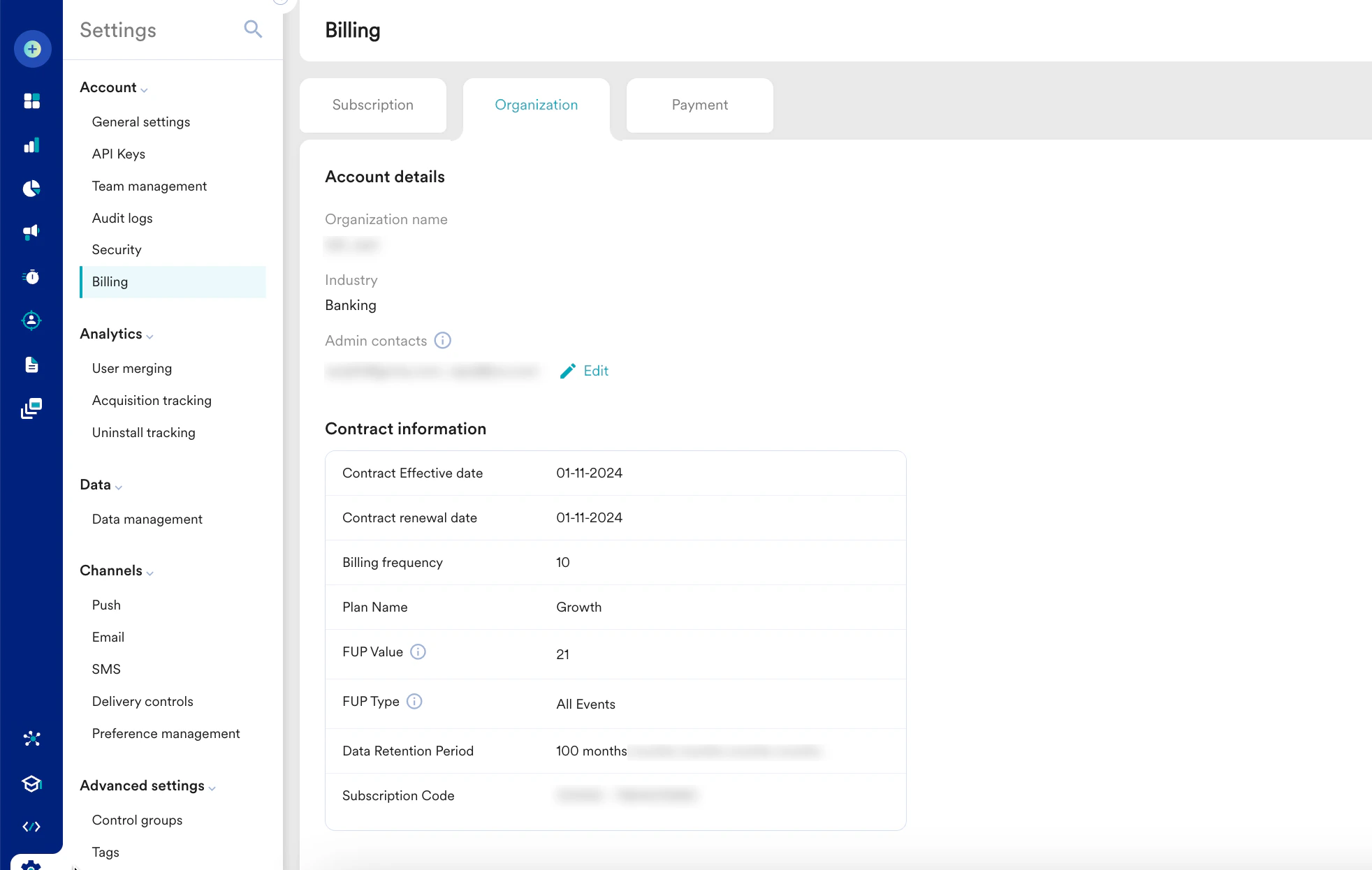
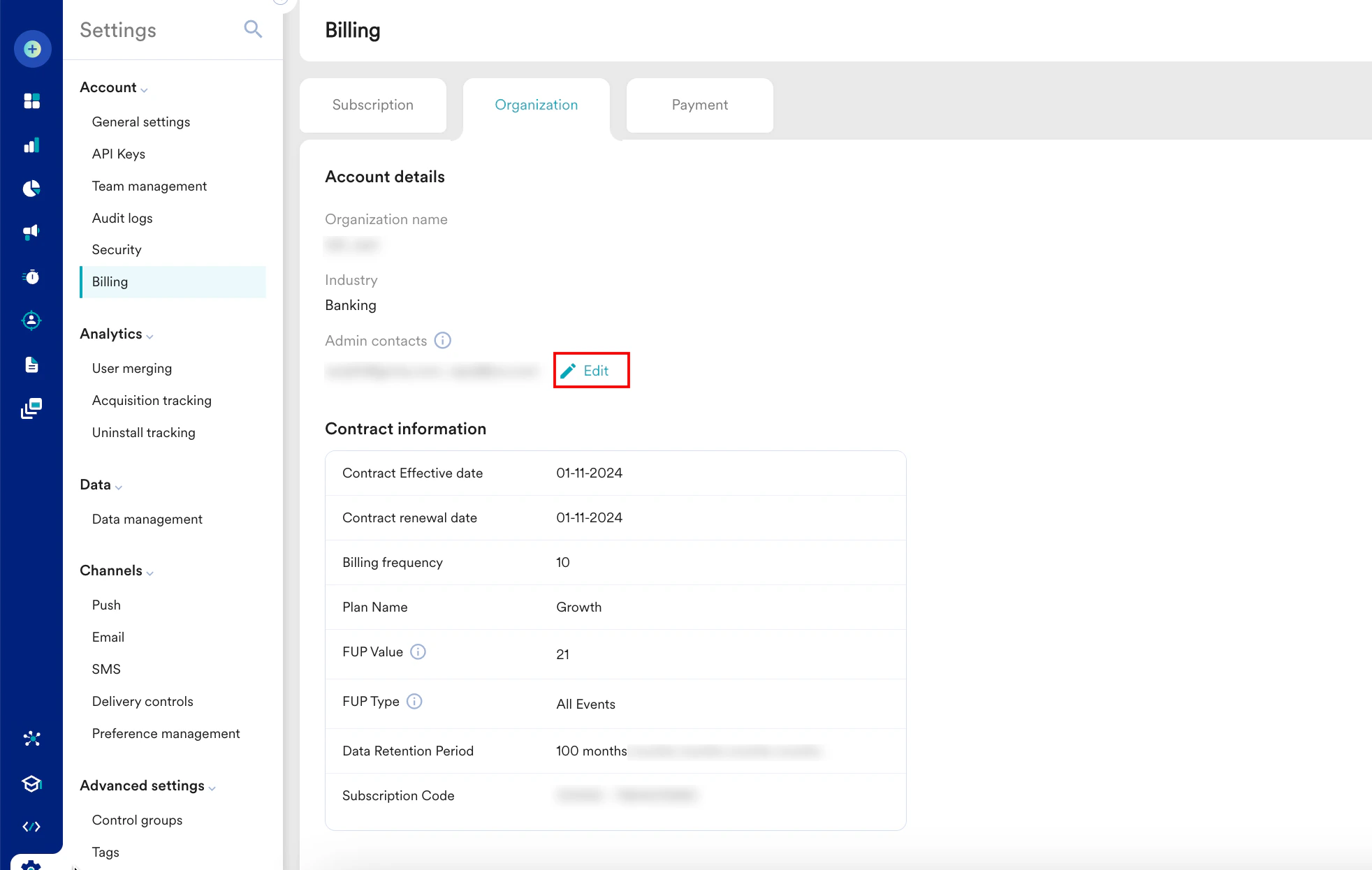
- On the Organization tab, click the Edit link.
- On the Edit admin contacts pop-up window, edit the existing admin contacts as necessary. You can add multiple email addresses, separate them with a comma, and press Enter.
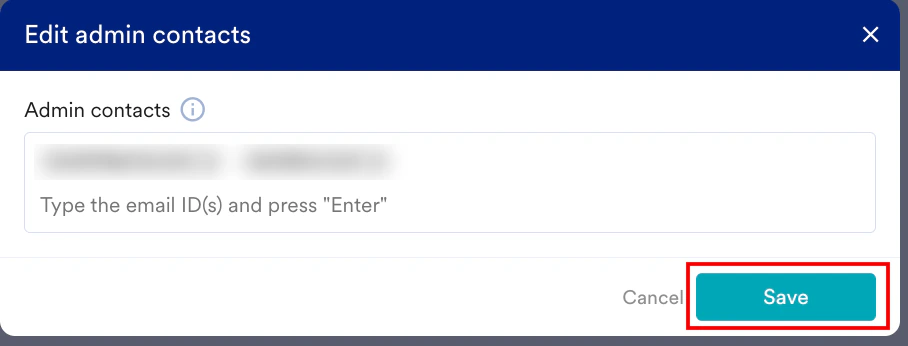
- Click Save.