Introduction
Route Mobile provides mobile communication solutions. The Company offers text messaging, voice calling, number lookups, firewall, email, and other related services. Route Mobile serves customers worldwide.Ensure you have access to your Route Mobile Dashboard and have the API key for your Route mobile account.
Configure Route Mobile as a Custom SMS Connector (Service Provider)
This article will help you set Route Mobile as a Custom Connector on the MoEngage dashboard. Log in to the MoEngage Dashboard and follow these steps:- Navigate to Settings -> Channel -> SMS -> Sender Configuration.
- Click +Add Service Provider at the top right corner.
- Add the following details in the Sender Details screen.
- Configure the Webhook by adding the following details:
- In the Body Type field, choose the Body Type as JSON and add the following details:
Change the values of Sender_ID and YourMoEngageAccountURL based on your Route Mobile and MoEngage accounts.
- Send a test SMS to verify your configuration.
- Click Save to save the Sender Configuration.
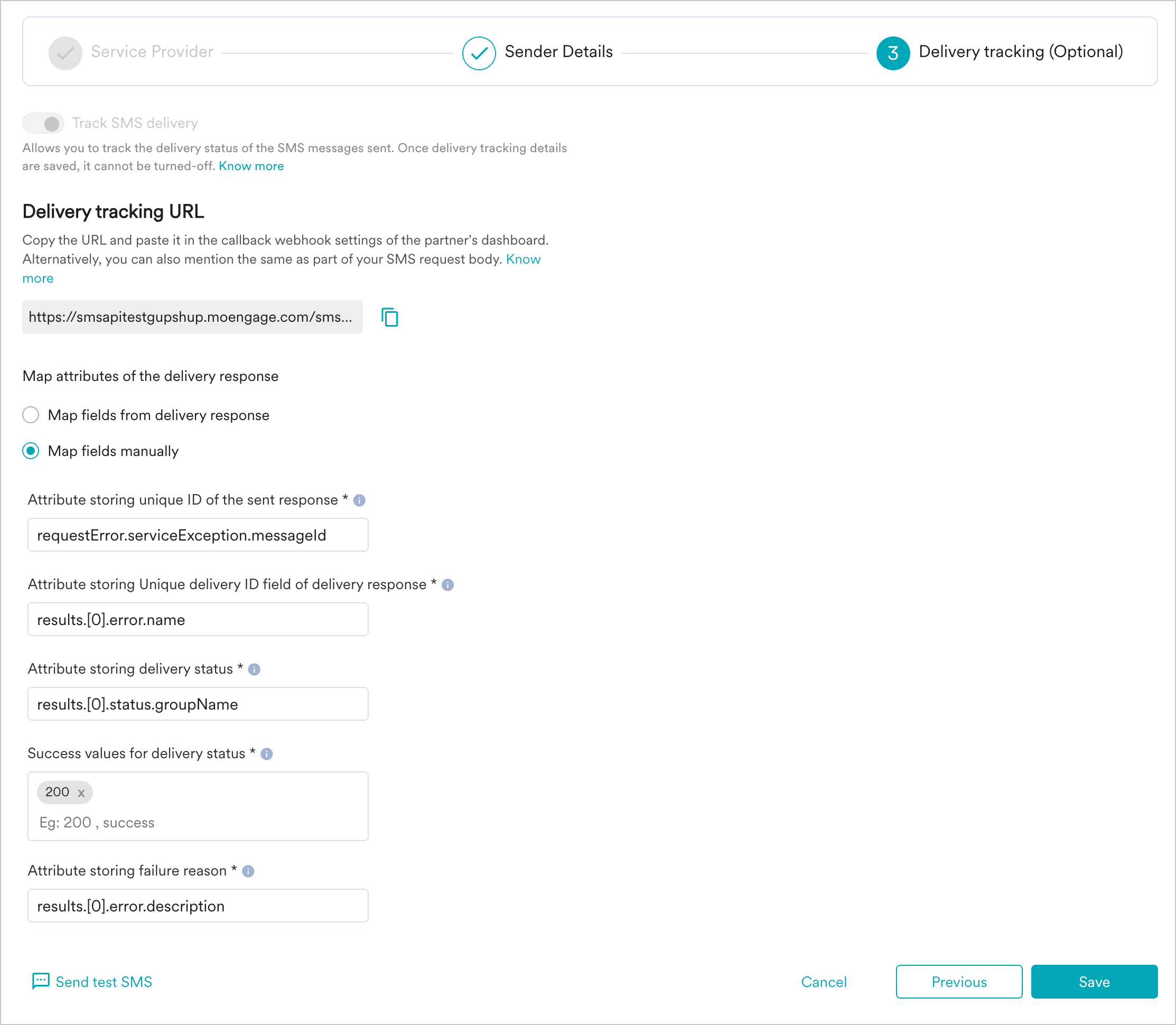
- You can configure delivery tracking after creating the sender in the MoEngage Dashboard. For information about Delivery Tracking, refer to Delivery Tracking for Custom Connectors.
- You can map the attributes of the delivery tracking response manually or automatically.
For International Customers
i. Sender Type Promotional : Choose the Sender Type as Promotional when you would be using the Sender for sending information about your brand, promoting deals, or engaging with users. Transactional : Choose the Sender Type as Transactional when you would be using the Sender for sending alerts about transactions, OTPs, security information, or any information that can be classified as transactional in nature. ii. Connector Name : This field identifies the Custom Connector you are configuring on the MoEngage Dashboard and has to be unique. Type the name of the connector here.Ex(RMLTransDomestic) iii. Sender Name : This field identifies the Sender or header. Type the name of the sender here. iv. Is Default Sender : User Choice(Select yes or No) v. API URL: This is the base URL of the SMS service provider along with all the query parameters which can be used to call API to send SMS. Dropdown Button : Select GET vi. URL Parameters: Key: Username: The username of the HTTP account Source: Sender ID Password: The password of the HTTP account.Dlr: Indicates whether the client wants a delivery report for this message. The values for dlr include: 0: No delivery report required 1: Delivery report required Message: The message to be sent. Destination: Mobile number to which the message is to be sent Type: It indicates the type of message. vii. Headers: Add the Request Headers to be passed to the API as Key-Value pairs using this option. You can get this information from the API Documentation of the Sender. For example, Authorization Headers and Content-Type Headers are added as KV pairs depending on the Sender’s API specifications. Key: Application/JSON Value: Add the Request Headers to be passed to the API as Key-Value pairs using this option. You can get this information from the API Documentation of the Sender. For example, Authorization Headers and Content-Type Headers are added as KV pairs depending on the Sender’s API specifications. viii. Configure Delivery Tracking : Users must add the Delivery Tracking URL to the callback webhook settings of the custom connector’s dashboard. MoEngage generates a unique identifier called custom_connectorID under the SMS delivery tracking URL
For Indian Customers
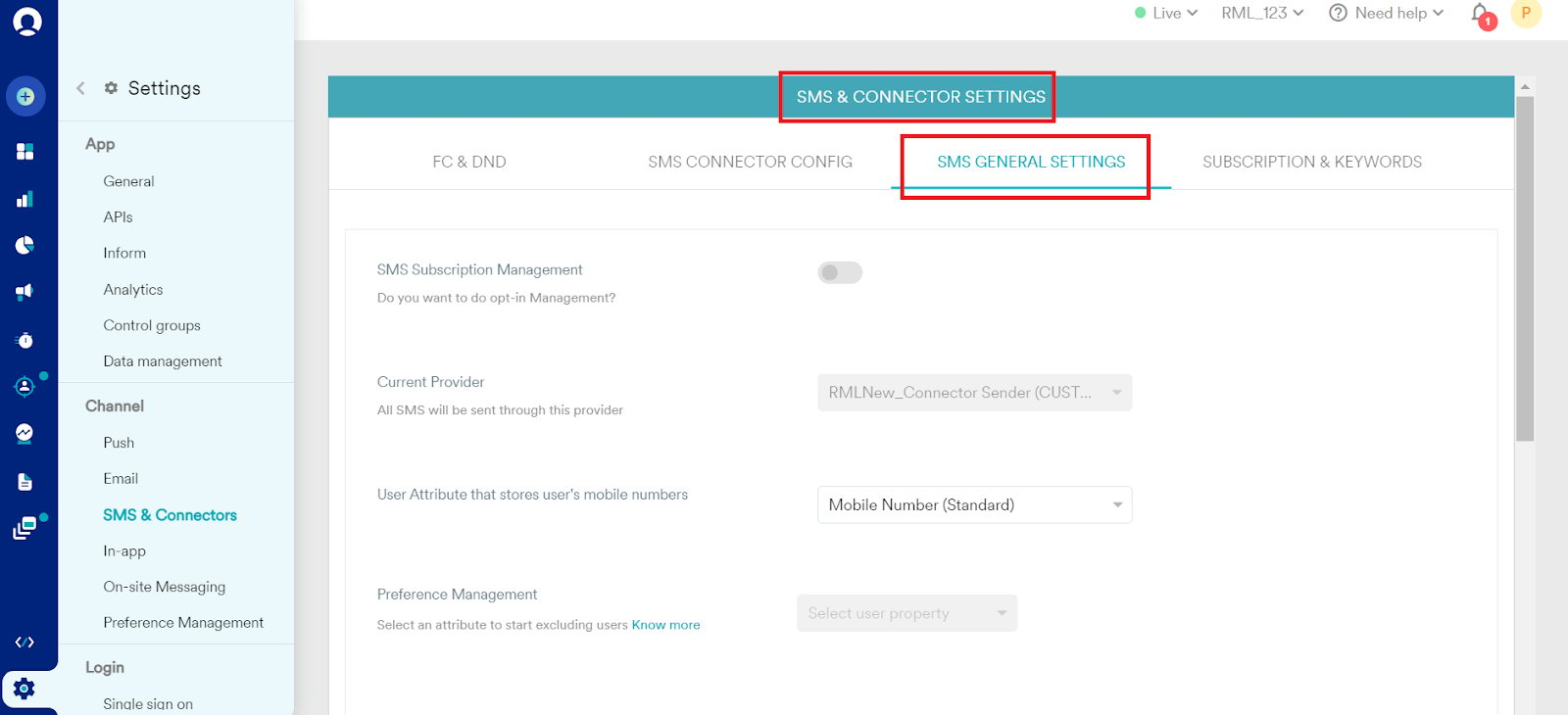
i. Sender Type Promotional: Choose the Sender Type as Promotional when you would be using the Sender for sending information about your brand, promoting deals, or engaging with users. Transactional: Choose the Sender Type as Transactional when you would be using the Sender for sending alerts about transactions, OTPs, security information, or any information that can be classified as transactional in nature. ii. Connector Name : This field identifies the Custom Connector you are configuring on the MoEngage Dashboard and has to be unique. Type the name of the connector here.Ex(RMLTransDomestic) iii. Sender Name : This field identifies the Sender or header. Type the name of the sender here. iv. Is Default Sender :(Select yes or No) v. API URL: This is the base URL of the SMS service provider along with all the query parameters which can be used to call API to send SMS. Dropdown Button : Select GET vi. URL Parameters: Key: Username: The username of the HTTP account Dlr: Indicates whether the client wants a delivery report for this message. The values for dlr include: 0: No delivery report required 1: Delivery report required Destination: Mobile number to which the message is to be sent Temp id: This data corresponds to the content Template ID received when template is registered on DLT platform Source: Sender ID Message: The message to be sent. Password: The password of the HTTP account. Type: The password of the HTTP account. Entityid: This will be a unique client identifier on DLT platform vii. Headers: Add the Request Headers to be passed to the API as Key-Value pairs using this option. You can get this information from the API Documentation of the Sender. For example, Authorization Headers and Content-Type Headers are added as KV pairs depending on the Sender’s API specifications. Key: Application/JSON Add the Request Headers to be passed to the API as Key-Value pairs using this option. You can get this information from the API Documentation of the Sender. For example, Authorization Headers and Content-Type Headers are added as KV pairs depending on the Sender’s API specifications. Value: Add the Request Headers to be passed to the API as Key-Value pairs using this option. You can get this information from the API Documentation of the Sender. For example, Authorization Headers and Content-Type Headers are added as KV pairs depending on the Sender’s API specifications. viii. Configure Delivery Tracking : Users must add the Delivery Tracking URL to the callback webhook settings of the custom connector’s dashboard. MoEngage generates a unique identifier called custom_connectorID under the SMS delivery tracking URL- Click on SMS General Settings under SMS & CONNECTOR SETTINGS
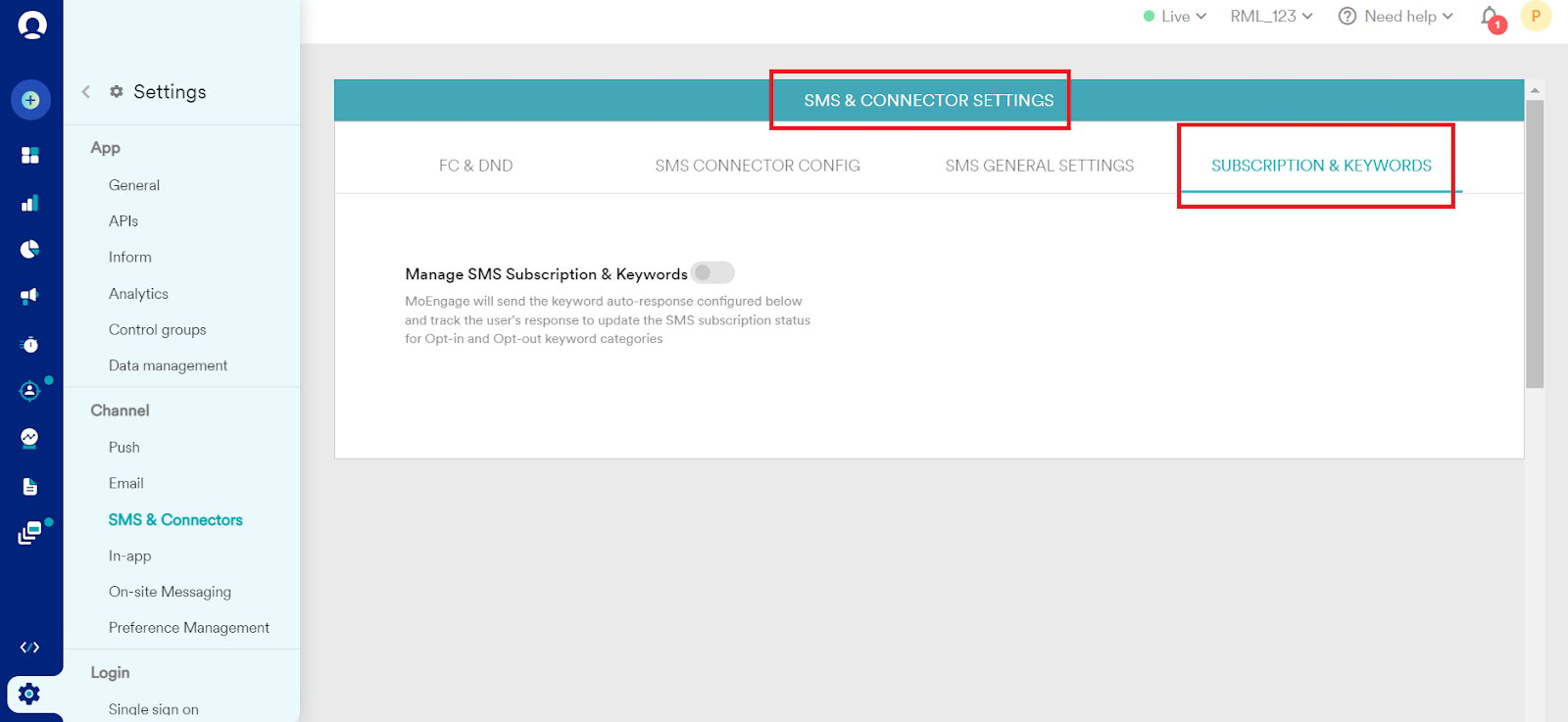
- Click on SUBSCRIPTION & KEYWORDS under SMS & CONNECTOR SETTINGS\